Skip to content
LogoTechnipages
LogoTechnipages
  • Topics
        • Android
        • Browsers
        • Gaming
        • Hardware
        • Internet
        • iPhone
        • Linux
        • macOS
        • Office
        • Reviews
        • Software
        • Windows
        • Definitions
        • All Recent Posts
  • Product Reviews
  • About

Google Photos: How to Download Multiple Images

Judy SanhzOctober 4, 2022 Comments (0)
delete-photos-from-phone-after-backup-to-google-photos

Thanks to Google Photos, you can keep all your great memories in one place. You can create and share auto-updating albums and even connect various videos to make one long one. If you have things set up a certain way, Google Photos even create slideshows of you and someone else. But, keep reading to see how you can download the pictures you want to download to your device.

Contents

  • 1 How to Download Images from Google Photos
    • 1.1 Android
    • 1.2 Conclusion

How to Download Images from Google Photos

When it comes to downloading images from Google Photos, you’ll see the process is quick and easy. You can download one picture at a time, or you can download multiple images. The process is as easy whether you’re using your computer or Android device. Let’s start with the steps you would need to follow if you were using your computer.

Once you have Google Photos open, make sure you’re on the Photos part (main page).
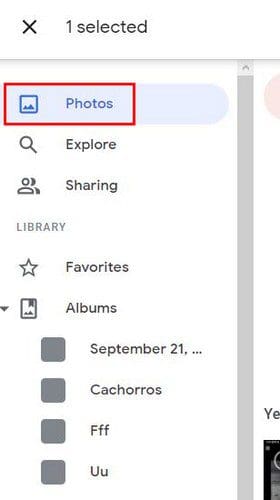
Google Photos Main Page

When you place the cursor over a picture, you’ll see a checkmark appear in the upper left-hand corner. Click on it, and it should turn blue. That means the image has been selected. You can do the same for other images you want to download. Once you’ve selected the images, click on the upper right-hand corner and choose the Download option.
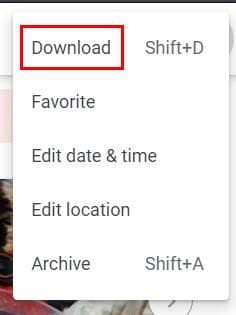
Google Photos Download

If you download various files, they will be downloaded as a ZIP file. You can also download an individual image by clicking to open it. Click on the dots at the top right and choose the download option.

Android

If you need to download an image from Google Photos to your Android device, open the image you want to download. Tap on the dots at the top right and tap on the Download button.
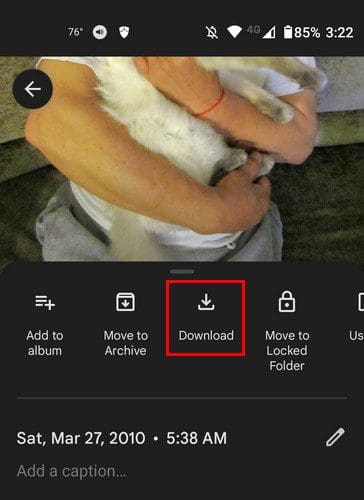
Google Photos Download

Conclusion

That’s all there is to it when you need to download your saved pictures from Google Photos. You can download them whether you’re using your computer or your Android device. You can download as many pictures as possible and even move them to a lock folder. How many pictures will you be downloading? Share your thoughts in the comments below, and don’t forget to share the article with others on social media.

Categories: Android

Author Judy Sanhz

I am a tech geek who loves technology. I have been writing about tech for over a decade, covering various devices and programs. I write about Android, Apple, and Windows devices and programs. I stay updated on the latest gadgets, upgrades, features, and news. I aim to make complicated tech information easy for everyone to read. I've been with TechniPages from the beginning to help others fix their tech issues with the easy-to-follow guides.

You Might Also Like

  • How to Recover Deleted WhatsApp Content

    Judy SanhzAndroid
  • What Can Android Can Do That An Ipad Can’t

    What Can Android Do that an iPad Can’t?

    MonaAndroid
  • Telegram

    How to Protect Your Privacy and Hide Your Telegram Profile Picture

    Judy SanhzAndroid
  • Android Logo Header

    How to Fix Adaptive Brightness Not Working on Android

    Judy SanhzAndroid

Leave a Reply

Your email address will not be published. Required fields are marked *

  • browser screen goes black

    Browser Screen Goes Black Intermittently 

  • computer heating up in hyper v

    Computer Heating Up When Using Hyper-V – How to Fix 

  • clipchamp unexpected application error

    Clipchamp Unexpected Application Error: Here’s the Solution 

  • winload.efi file missing error

    Winload.EFI File Missing Error on Boot – How to Fix

  • fix error 0x9cfc7550

    How to Fix Error 0x9cfc7550 (We Couldn’t Create a New Partition) in Windows 

profile pic

The Experts Behind Technipages

My name is Mitch Bartlett. I've been working in technology for over 20 years in a wide range of tech jobs from Tech Support to Software Testing. I started this site as a technical guide for myself and it has grown into what I hope is a useful reference for all.

Learn More

technipages logo white
linkedin icon

Technipages is part of Guiding Tech Media, a leading digital media publisher focused on helping people figure out technology. Learn more about our mission and team here.

© 2025 Guiding Tech Media All Rights Reserved

  • About Us
  • Contact
  • Terms of Use
  • Privacy Policy

© 2025 Guiding Tech Media All Rights Reserved

Information from your device can be used to personalize your ad experience.
Do not sell my personal information.

Last Updated on October 4, 2022 by Judy Sanhz