
Do you have that friend that you always share your pictures with? The friend who receives as many as 50 images from your recent trip? Instead of sharing those files like you normally would, why not share the Google Photos folder that has those pictures? That way, your friend has the option of only downloading the pictures he-she wants or even adding a few of their own.
Also, sharing your future pictures through the shared Google Photos folder will help prevent you from filling your friend’s device with pictures they might erase anyway. So let’s see how you can create that shared folder on Google Photos.
Contents
To create your album, make sure you are on the account that will have the album you want to share. After that, tap on the Sharing tab at the bottom. At the top, you’ll see two options, tap on the one that says Create shared album. Make sure to give your album a name, and then it’s time to choose who you want to share the album with.

Tap on the Select people and pets if you want to create an auto-updating album. If not, you can tap on the Select photos option and choose the videos or pictures you wish to include in the album. Even if you think you’ve missed some pictures, you can still add more since the Add Photos options will be visible at the top before you share.
Another way you can select your pictures or videos is by choosing them from the Photos tab. Once you’re done gathering, tap on the plus icon at the top, followed by the Shared Album option.
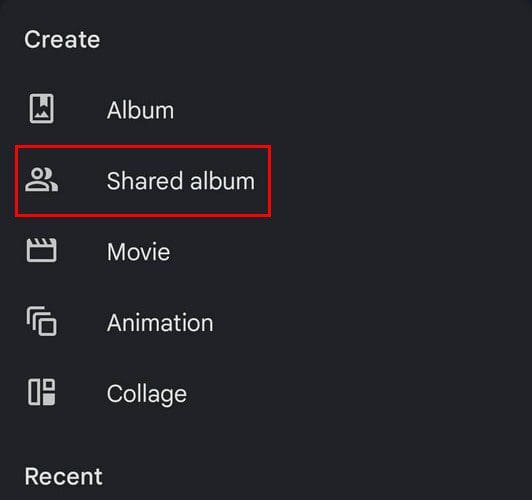
Once you’re done adding pictures or videos, tap on the Share option at the top right. Google Photos will show you some contacts as suggestions, but if you don’t see the one you want to share the album with, swipe left on the contacts and tap on the More option.

Whenever you want to access your shared album, simply open the app and tap on the Sharing tab at the bottom. You’ll see a list of all the albums you’re currently sharing.
What You Can Do with Your Albums
Once you’ve created your album, Google Photos lets you do all sorts of things with it. For example, when you access an album, you can do things such as add more pictures, like the album and comments as well. But, if you choose an image, you’ll see options to share, like, comment, mark as favorite, download (by tapping on the dots at the top), and you can even use Google Lens. Lens is beneficial if you want to identify something in the image. For example, something that you may be interested in buying.

If the time has come to erase an album, you can only do so if you’re the owner. If you’re not, the only thing you can do is leave the album. To check if you’re the owner or not, tap on the dots at the top right, and the Delete option will be the last one on the list. But, if what you want to do is remove someone from the album, tap on the dots and go to options. Swipe all the way down and tap the dots to the right of the person you want to remove. The only option there will be the Remove person option.
You’ll also see options. If you open this option, you can do things such as:
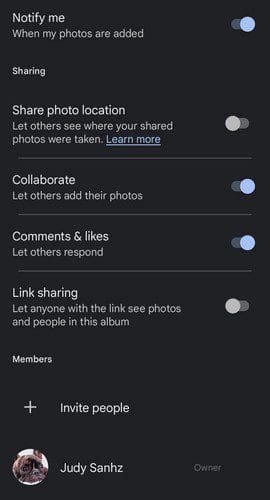
- Invite more people to the album
- Get notified when new pictures are added
- Share photo location or not
- Add collaborators
- Allow comments and likes
- Enable or not link sharing – You’ll only see the option to copy the link if you enable the option.
Conclusion
Sharing an album on Google Photos is a lot easier than sending them all at once through WhatsApp, for example. You can enable the option to allow the other person to add pictures and get a notification when they do. Will you be sharing the album with a lot of contacts? Let me know in the comments below, and don’t forget to share the article with others on social media.




This functionality does not work as advertised. Photos that have already been recognized as containing the people or pet selected are not all added to the album, only a small percentage are added when I create an album and select a list of people and pets.