Skip to content
LogoTechnipages
LogoTechnipages
  • Topics
        • Android
        • Browsers
        • Gaming
        • Hardware
        • Internet
        • iPhone
        • Linux
        • macOS
        • Office
        • Reviews
        • Software
        • Windows
        • Definitions
        • All Recent Posts
  • Product Reviews
  • About

Google Photos: How to Connect Various Videos

Judy SanhzDecember 28, 2021 Comments (0)
delete-photos-from-phone-after-backup-to-google-photos

Have you ever recorded multiple videos on the same event? Maybe you were at a concert and created various videos, but now you would like those videos to become one. The good news is that you can do that with Google Photos. So, if the last thing you want to do is install another app, you don’t have to.

Sure, you could use other video editors to try and get the job done. But why use them when an app you already have on your device can get the job done. Even if you’re in a hurry, you’ll be able to do this since it doesn’t take long to do. Let¡s see how it’s done.

How to Connect Different Videos on Google Photos

To turn various videos into one, open the Google Photos app and look for and select the videos you want to connect. Once selected, tap on the plus symbol at the top and choose the Movie option.
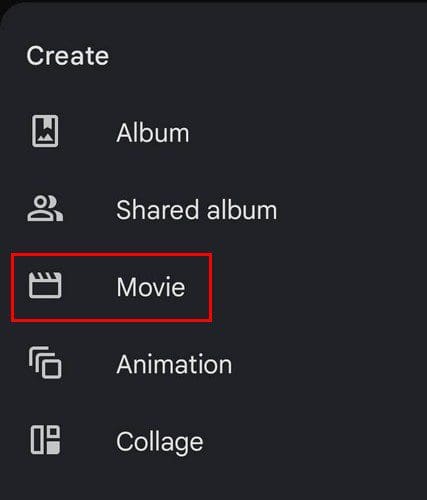
Create Movie Google Photos

You can also add a picture to the movie as well. It doesn’t just have to be videos or photos. You can mix things up. Also, Google will add music to your movie. If you don’t want that, tap on the music icon to the right and choose the No Music option.
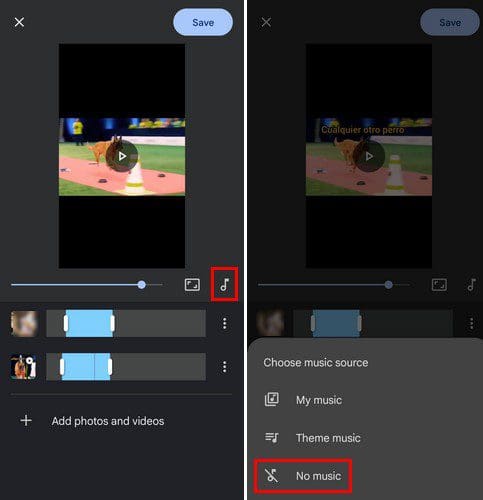
No sound Google Photos Movie

You can also change the aspect ratio and choose from portrait and landscape modes. You can adjust the settings in the next step, so you only include the video part you want in the movie. Move the sides so that only the part you want is in blue. That way, you can leave out anything that won’t contribute to your masterpiece. The part of the video that’s in blue is what will be included in the video.

If you’re not happy with the order of the movie, you can change it. Long-press on the video and move it up or down. The videos will appear in the order you place them from top to bottom. By tapping on the dots to the right of the video, you can access options such as:
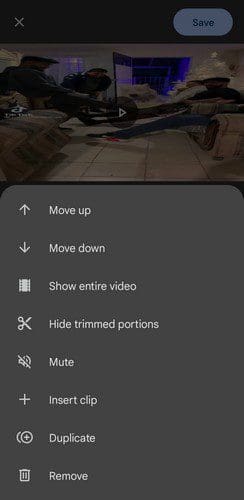
Google Photos editing options

  • Move up
  • Move down
  • Show entire video
  • Hide trimmed portions
  • Mute
  • Insert clip
  • Duplicate
  • Remove

Once you’re done creating your movie, you’re not going to find it on your device’s gallery. It’s going to be in Google Photos. To download it, you’ll need to tap on the video to open it and tap on the download option. Only after doing that will you find the video in your device’s gallery.

Conclusion

Sure, there are third-party apps you can use to unite your videos. Still, if you have Google Photos on your Android device, there’s no need to install anything else. The good news is that it’s also fast to do, so even if you forget to put a few videos together, you can do it in less than a minute. Remember that you can put together not only videos but pictures and videos. Do you think that the features need some improvement? Let me know what you think in the comments below, and don’t forget to share the article with others on social media.


Categories: Android

Author Judy Sanhz

I am a tech geek who loves technology. I have been writing about tech for over a decade, covering various devices and programs. I write about Android, Apple, and Windows devices and programs. I stay updated on the latest gadgets, upgrades, features, and news. I aim to make complicated tech information easy for everyone to read. I've been with TechniPages from the beginning to help others fix their tech issues with the easy-to-follow guides.

You Might Also Like

  • Android: Setup RoadRunner Email

    Mitch BartlettAndroid
  • How to Hide from Telegram Users

    Judy SanhzAndroid
  • listen to whatsapp voice messages without sender knowing

    Listen to WhatsApp Audio Without Sender Knowing

    Madalina DinitaAndroid
  • microsoft-teams-android-app-keeps-refreshing

    Fix: Microsoft Teams Android App Keeps Refreshing

    Madalina DinitaAndroid

Leave a Reply

Your email address will not be published. Required fields are marked *

  • fix error 0x9cfc7550

    How to Fix Error 0x9cfc7550 (We Couldn’t Create a New Partition) in Windows 

  • fix error code 0x3000008 1

    How to Fix Error Code 0x3000008 for Remote Desktop Connection

  • fix error code 0x80190001 1

    How to Quickly Fix Error 0x80190001 for Microsoft or Outlook Account Login 

  • fix filecoauth.exe application error

    Fix FileCoAuth.exe Application Error 

  • fix error code 0x80010002 in windows update

    How to Fix 0x80010002 Error in Windows Update 

profile pic

The Experts Behind Technipages

My name is Mitch Bartlett. I've been working in technology for over 20 years in a wide range of tech jobs from Tech Support to Software Testing. I started this site as a technical guide for myself and it has grown into what I hope is a useful reference for all.

Learn More

technipages logo white
linkedin icon

Technipages is part of Guiding Tech Media, a leading digital media publisher focused on helping people figure out technology. Learn more about our mission and team here.

© 2025 Guiding Tech Media All Rights Reserved

  • About Us
  • Contact
  • Terms of Use
  • Privacy Policy

© 2025 Guiding Tech Media All Rights Reserved

Information from your device can be used to personalize your ad experience.
Do not sell my personal information.

Last Updated on December 28, 2021 by Judy Sanhz