You might be done using your virtual machine, but sometimes the virtual machine doesn’t get the message. If you’re finding that VMware failed to power off virtual machine, then you’re probably looking for a quick way or two to fix things. This article is here to provide you with just that.
A Common Problem
A virtual machine that fails to shut down or becomes unresponsive is a more common issue than you might think, especially with VMware ESXi. This is primarily due to either the freezing of the process or damaged files (lock and suspended state files primarily) that make your computer behave as if things are still running.
Fixes to Try When VMware Failed to Power Off Virtual Machine
There are a few ways to get your virtual machine properly shut down, and we’ve listed them below:
Terminate via Task Manager
Much like any other frozen or buggy process, you can quickly and easily shut down VMware via Task Manager. This will shut down not just the virtual machine, but the app as well, and is a good choice when things are frozen. Here’s what to do:
Step 1. Hit (Ctrl + Shift + Esc) to open Task Manager.
Step 2. Navigate to “vmware-vmx.exe,” the process responsible for keeping things running, and right-click it.
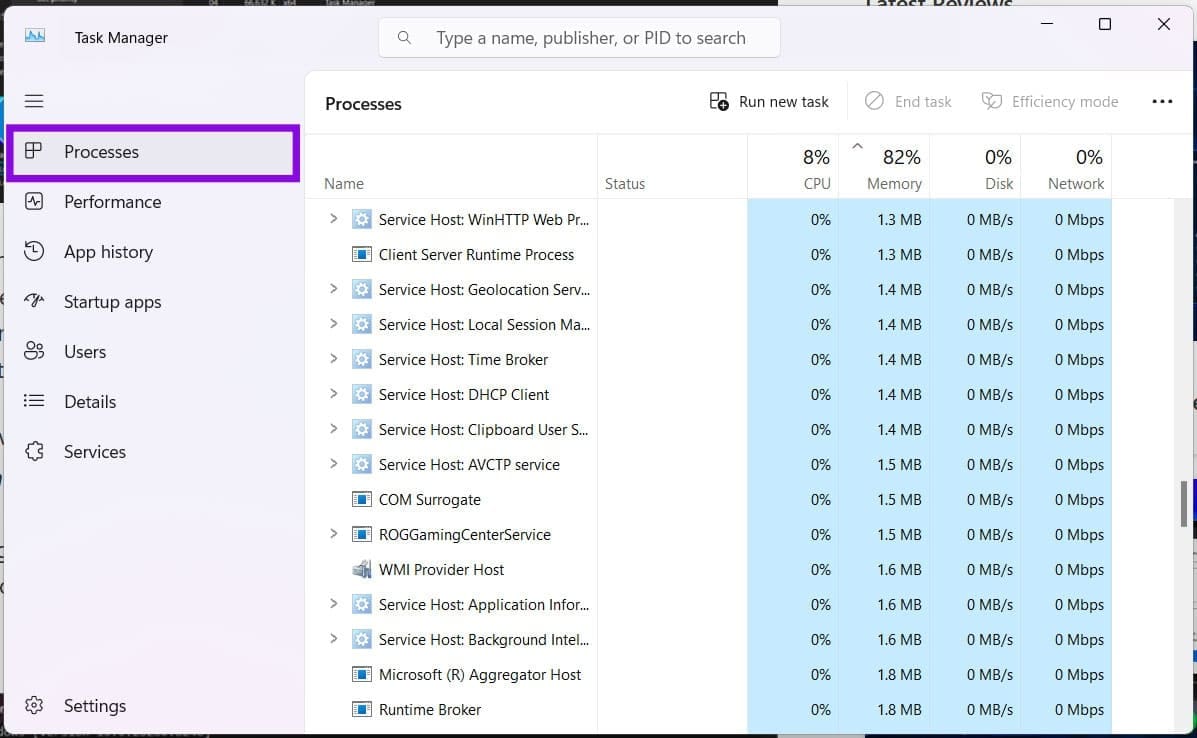
Step 3. Select “End Task” from the context menu. VMware should disappear from the list of processes.
End via Command Prompt
If Task Manager isn’t ending things, you can also use Command Prompt to force kill the process. Here’s what to do:
Step 1. Open the “Run” dialog (Win + R) and type “cmd” before hitting (Ctrl + Shift + Enter) to run as Admin.
Step 2. In Command Prompt, call up processes related to VMware by typing “tasklist /FI “IMAGENAME eq vm*” and hitting “Enter.”
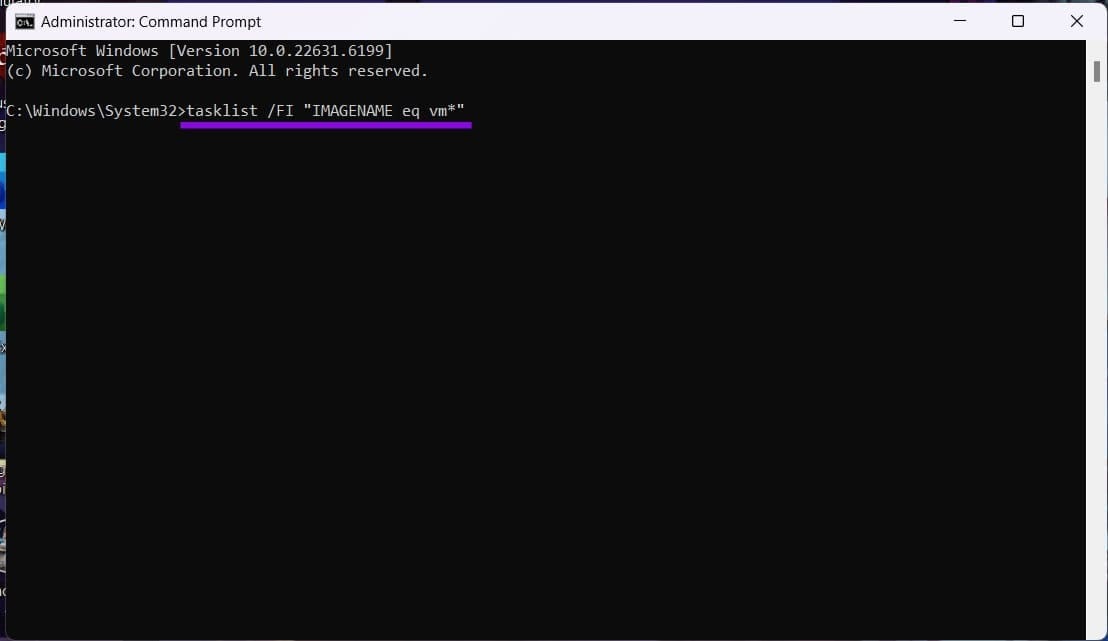
Step 3. You’ll see a list of processes appear. Kill “vmware-vmx.exe” by typing “taskkill /f /im vmware-vmx.exe” and hitting “Enter.” This should end things.
Using the vSphere Client
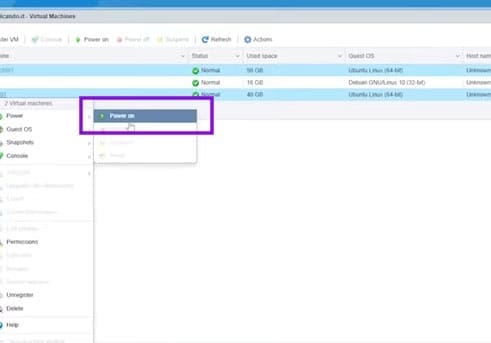
If using vCenter Server for ESXi hosts or the like, you can use your browser and vSphere Client to put a stop to things. Here’s how:
Step 1. Open your browser and navigate to your vSphere Client. Address and login details will vary.
Step 2. Right-click the virtual machine you want to shut down and choose “Power off” from the context menu.
Delete the Suspend and Lock Files
If you suspect that your files might have been corrupted along the way, then you can try deleting your lock (“.lck”) and suspended state files (“.vmss”), which can keep a virtual machine from truly shutting down, or at least telling your PC so. Here’s what to do:
Step 1. Ensure VMware is completely closed and open a new Explorer window (Win + E).
Step 2. Navigate to “Documents” and “Virtual Machines” inside that.
Step 3. Click on the OS folder of your problematic virtual machine.
Step 4. Look for any files or folders ending in “.vmss” or “.lck” and delete them.
Step 5. Once done, restart VMware and try the OS again.
Repair the App
If deleting the files doesn’t help, then you can try repairing the app in “Settings:”
Step 1. Open “Settings” (Win + I) and head to “Apps” in the sidebar.
Step 2. Click “Installed apps.”
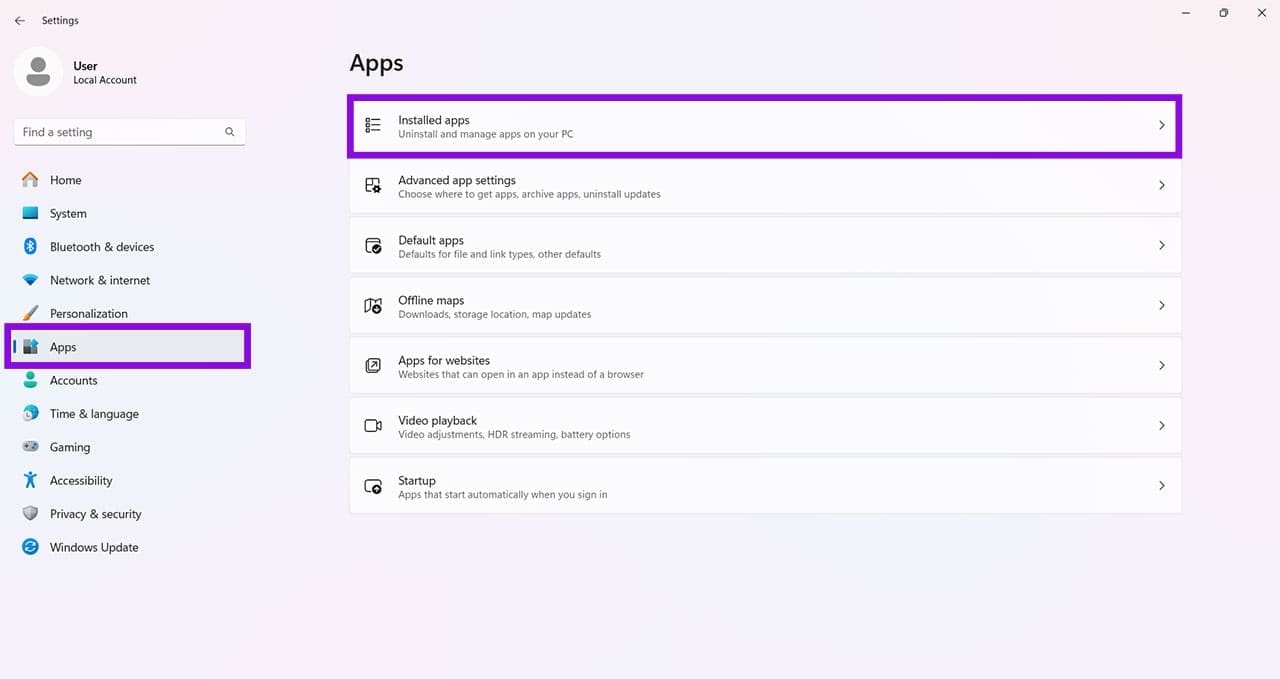
Step 3. Navigate all the way down to “VMware Workstation” and click the three dots next to the name.
Step 4. Click “Modify from the menu.

Step 5. Click “Repair” when the option shows up and follow the steps to complete the process.
Step 6. Once done, reopen the app and your virtual machine.