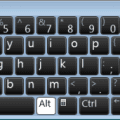
Windows has been eagerly integrating its AI – Copilot – into apps and systems, it seems. Manufacturers have also followed suit by changing the long-standing Menu Key (or right-click) to launch Copilot instead. If this isn’t to your liking, then don’t worry. In this article, we’ll be showing you exactly how to remap the Copilot key.
How to Reclaim the Menu Key (Right-Click) and Remap the Copilot Key
The Menu Key brings up the context menu in most apps and functions as a right-click from the mouse would. It’s definitely more long-standing and arguably more useful than the Copilot button that’s replaced it on some keyboards.
You might not be able to get rid of the Copilot logo on your key, but we can show you how to change what pressing it does:
Adjust via Settings
Windows Settings allows you to change what application pressing the Copilot key launches. Unfortunately, it cannot currently remap the key to function as the traditional Menu key. If you want to launch another app besides Copilot, you can use this method. Note that you’ll need a recent version of Windows 11 that includes Copilot key customization. Here’s what you need to do:
Step 1. Open “Settings” (Win + I) and select “Personalization” from the sidebar.
Step 2. Scroll down to “Text input” in the main window and click it.
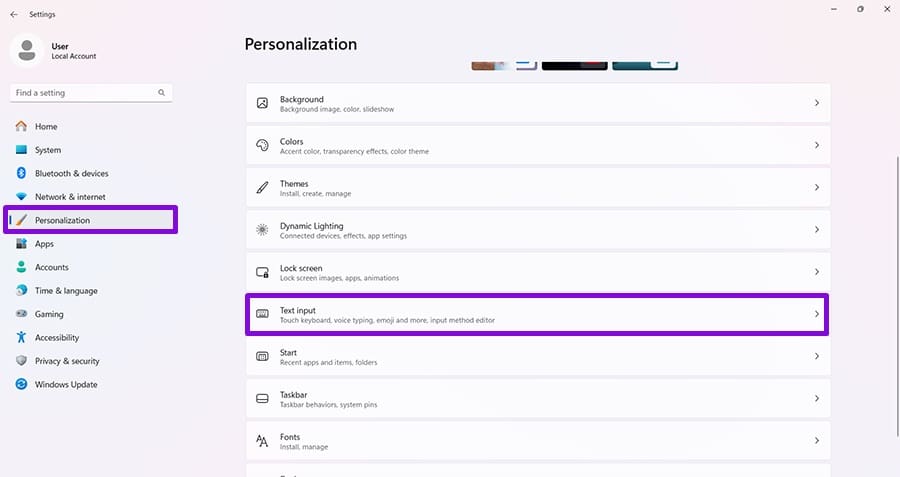
Step 3. In the next menu, navigate to “Customize Copilot on keyboard” and click the dropdown menu next to it.
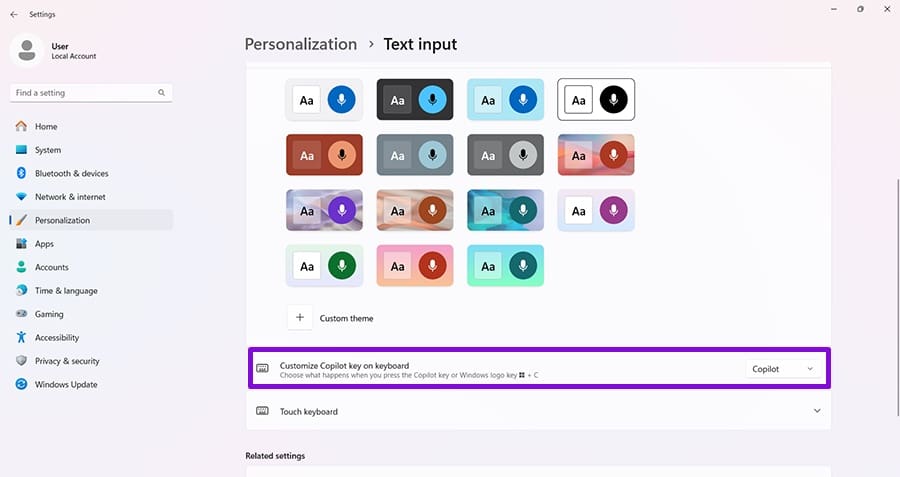
Step 4. Click “Custom.”
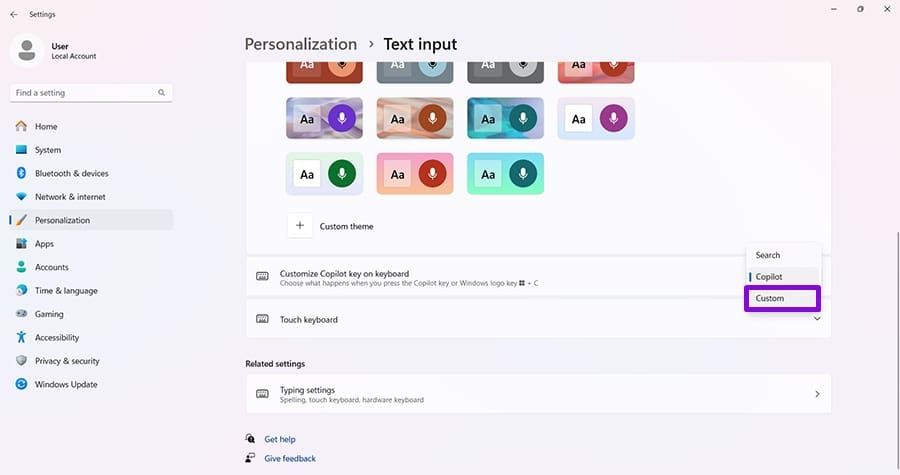
Step 5. Choose the app that you want to open when you click the Copilot button and click “Select.”
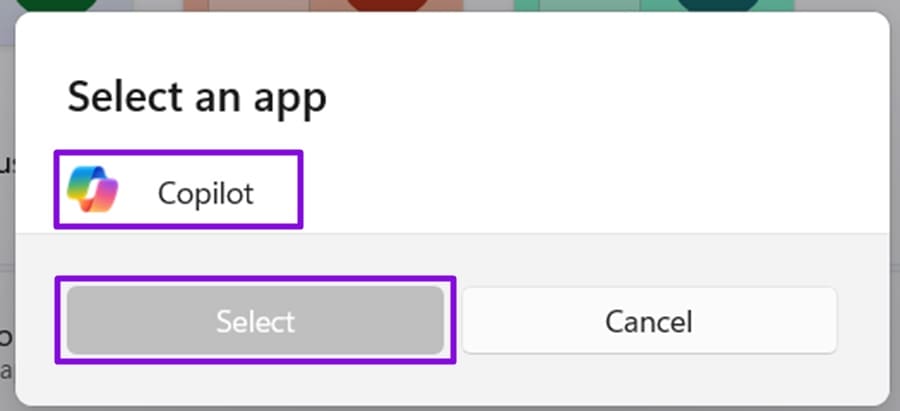
Using Power Toys
The best way currently to remap the Copilot key to right-click (or anything else) is to use PowerToys, a free set of utilities that you can download from the Microsoft Store. Here’s what to do:
Step 1. Open up PowerToys and click “Input & Output” in the side panel and then “Keyboard Manager” below inside it.
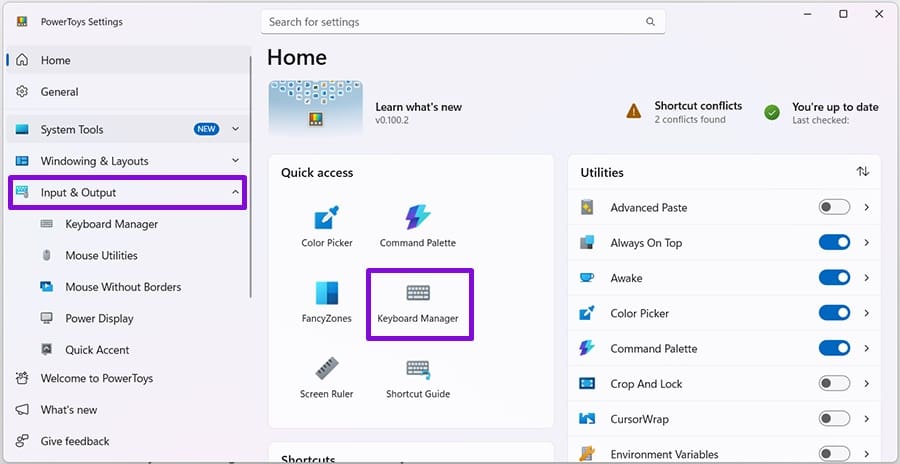
Step 2. Change back to the Classic Menu and select “Remap a key.”
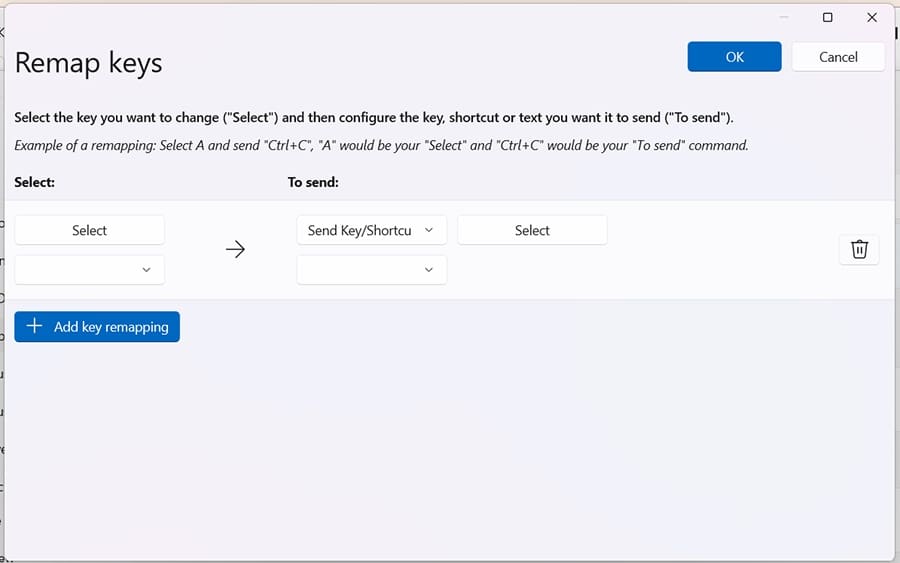
Step 3. Click “Add key remapping,” then the dropdown menu below “Select,” and choose “F23,” which is the Copilot button.
Step 4. Under the “To send” column, select “Shift” from the dropdown menu, and then “F10” from the second one that pops up next to it. This is the keyboard shortcut that also calls up the context menu.
Step 5. Click the “OK” button to set it.
Now, whenever Power Toys is running, your Copilot key will function just like the old Menu Key used to do.
Disabling the Key Completely
If you’re tired of Copilot popping up every time you make a typo, then you can also disable the Copilot Key via the Group Policy Editor. Here’s how:
Step 1. Open the Run Dialog (Win + R) and type “gpedit.msc” before hitting “Enter.”
Step 2. In the window that pops up, navigate to “User Configuration → Administrative Templates.”
Step 3. Click on “Windows Components” and double-click “Windows Copilot” in the main window.
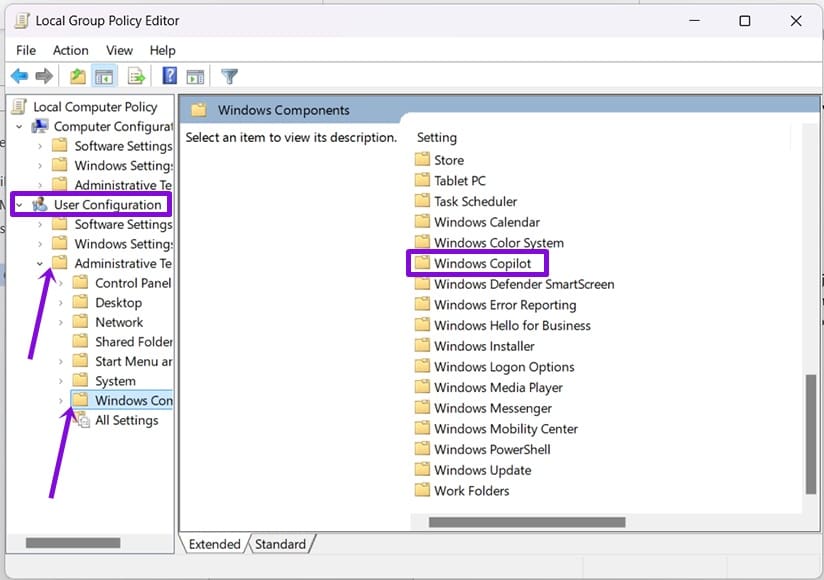
Step 4. Double-click “Set Copilot Hardware Key” and choose “Disabled.”
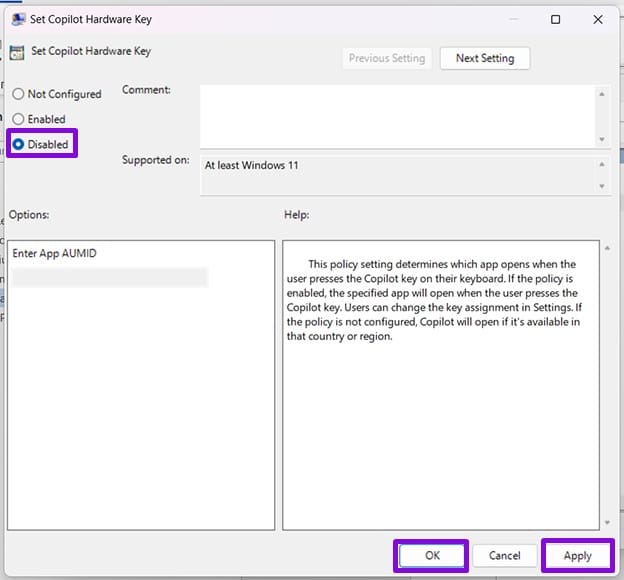
Step 5. Click “Apply” and “OK” to finalize.
Be Patient
If all these methods seem overwhelming, then just wait a bit. Microsoft has announced that the option to remap the button (not just to another app) will be included in an update coming later this year, as part of the company’s ongoing commitment to addressing consumer pain points (also called K2).