
One of the great benefits of Virtual Machines is the ability to build and test software in a contained environment. If that environment itself is running into problems, things get frustrating quickly. Take Microsoft’s IIS web server, which provides functionality without the need for a full Windows Server environment. If Visual Studio can’t connect to it, not much can happen.
In this article, we’ll be showing you what to do when Visual Studio can’t connect to IIS Express.
Fixes to Try When Visual Studio Can’t Connect to IIS Express
If the localhost is not connecting in Visual Studio and you’re getting an error message instead of a landing page, here are some fixes to try:
Restart Visual Studio
It might seem obvious, but restarting Visual Studio (and even your PC) can fix a lot of common problems and resolve issues faster than the longer troubleshooters on this list. It might seem like a pain, but it’ll save you time if it works.
Close and Reopen Your Port
If Visual Studio can’t connect, the problem might lie in the port being occupied already. In some cases, restarting Windows networking can help resolve port conflicts that prevent IIS Express from starting. Here’s what to do:
Step 1. Close Visual Studio and open the Run Dialog (Win + R) and type “cmd” before selecting (Ctrl + Shift + Enter) to run as Admin.
Step 2. In Command Prompt, type “net stop winnat” and click “Enter.”
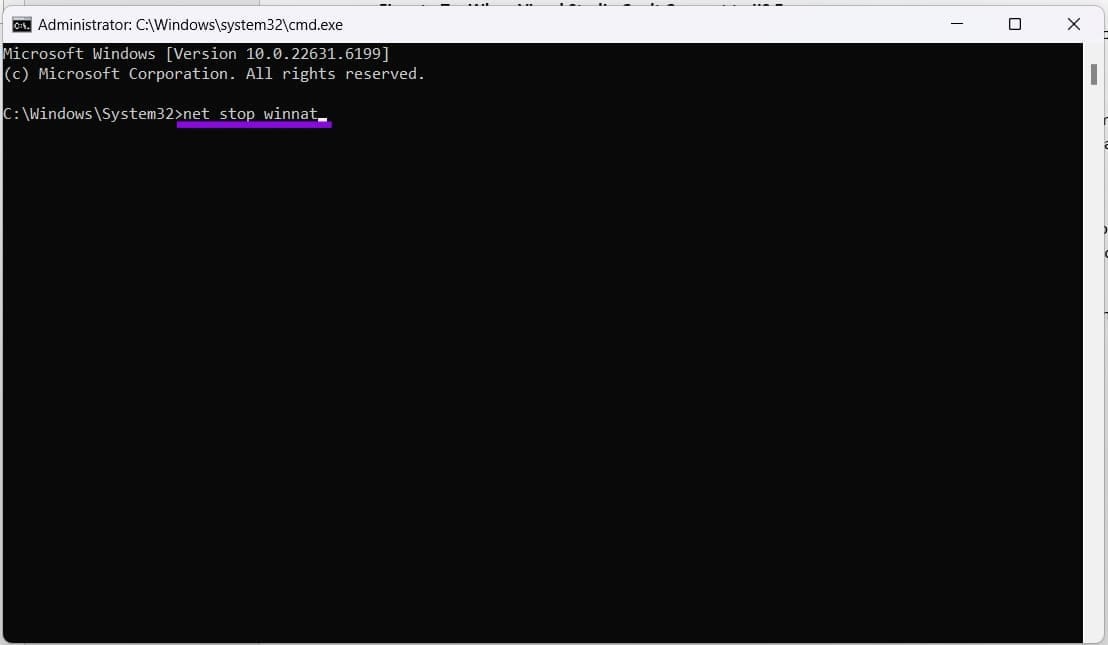
Step 3. Restart the driver by typing “net start winnat” and pressing “Enter.”
Step 4. Try connecting to IIS Express again.
If this doesn’t work, you can also try resetting the Localhost port reservation by typing in the following command: “netsh http delete urlacl url=http://localhost:[PORT]/” replacing “PORT” with your port number. If successful, a message will appear below. You can restart Visual Studio and try reconnecting.
Delete IIS Configuration
The failure to connect can also point to an issue with the IIS Express configuration folder. Deleting it will reset things, and Explorer will create a new config folder automatically. Here’s what to do:
Step 1. Close Visual Studio and open the Run Dialog (Win + R).
Step 2. Type “%userprofile%\Documents\IISExpress\” and click “OK.”
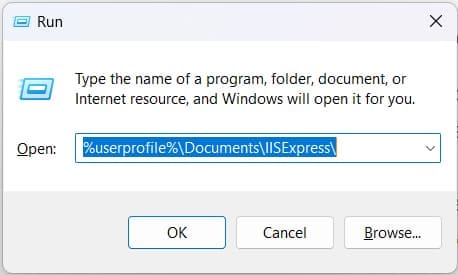
Step 3. Look for the “Config” when the Explorer window opens.
Step 4. Select (Shift + Del) to completely remove the folder without sending it to the Recycle Bin.
Step 5. Restart your machine, and the folder will be recreated. Try reconnecting again.
Clear the Cache
Flushing a cache is another effective way of dealing with corruption that occurs over time. For Visual Studio, there’s a specific cache for each project, which, if not functioning correctly, can keep you from accessing the port. Here’s how to clear it.
Step 1. Completely close Visual Studio.
Step 2. Head to the folder that contains your project and “.sln” file in File Explorer.
Step 3. Ensure that hidden items are viewable by clicking “View,” then selecting “Show” and “Hidden items.”
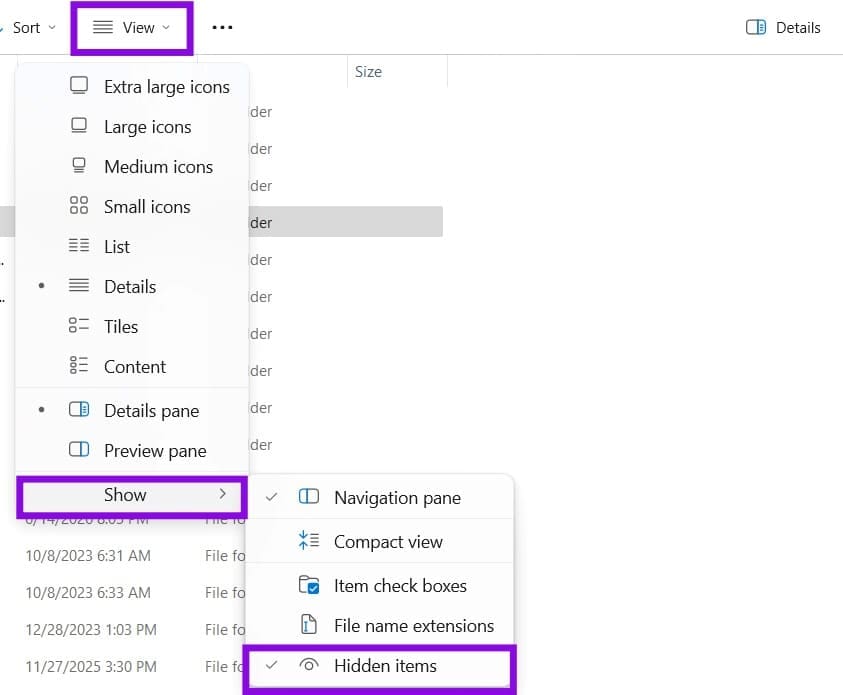
Step 4. Find the “.vs” folder that contains the cache and select it, pressing (Shift +Del) to remove it completely.
Step 5. On reopening, Visual Studio will rebuild the cache of your project, which may take a while. Try connecting to IIS Express again.