

Microsoft released Windows 10 S targeting low-end personal computers, however, it is available for all computers if preferred. The purpose of Windows 10 S is for use on old school personal computers as it is the lighter version of the regular Microsoft operating system.
Many new companies launched their laptops with Windows 10 S since Microsoft stated that Windows 10 S is more reliable and powerful than the standard Windows program. In reality, the lite version of any software will not provide 100% of the features found in an original version.
In this lite version, Microsoft has compromised on some of the key features of the Windows operating system. But here’s the good news. You can upgrade your Windows S 10 to standard Windows. Windows 10 Pro upgrade is available for free on some Windows 10 S computers, others may have to pay a nominal amount to buy it.
Contents
Why Windows 10 S is Problematic?
Here’s why you may not like the Windows 10 S:
- Windows 10 cannot use apps other than ones from the Windows store. This means you cannot use apps such as Google Chrome and Mozilla Firefox.
- Windows 10 S does not allow users to use the Command–line interface so it will not handle programming tasks. Command prompt and system bus for Linux is unavailable for Windows 10 S users as well.
Windows 10 S Upgrade Tutorial
If you want to enjoy the benefits of a full standard operating system, Windows 10 S will not work for you. But you can follow these steps to upgrade to Windows 10 Pro:
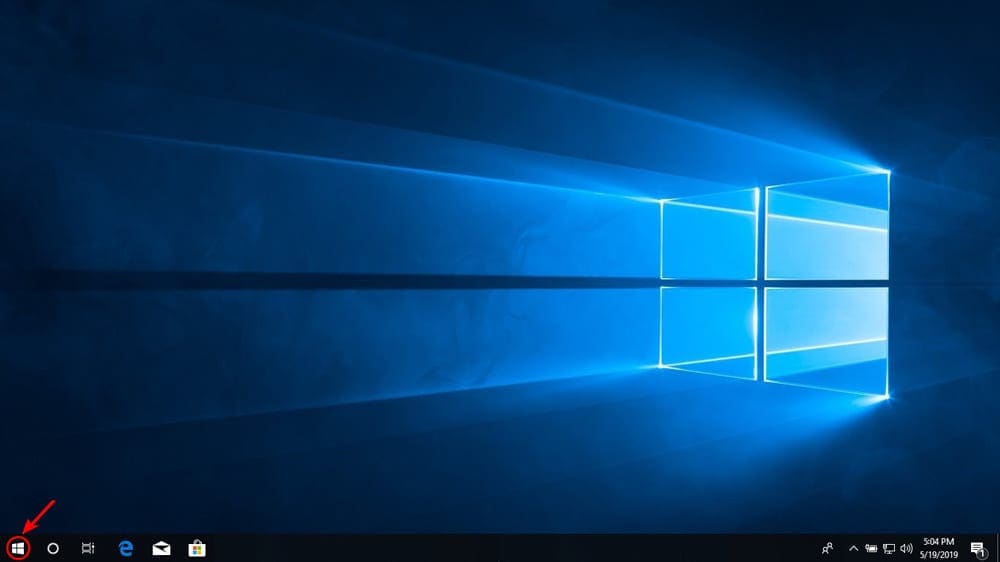
1. Tap on the Start Button or use Windows key + H command to open the menu. You can also go from the menu list by clicking on the fifth option
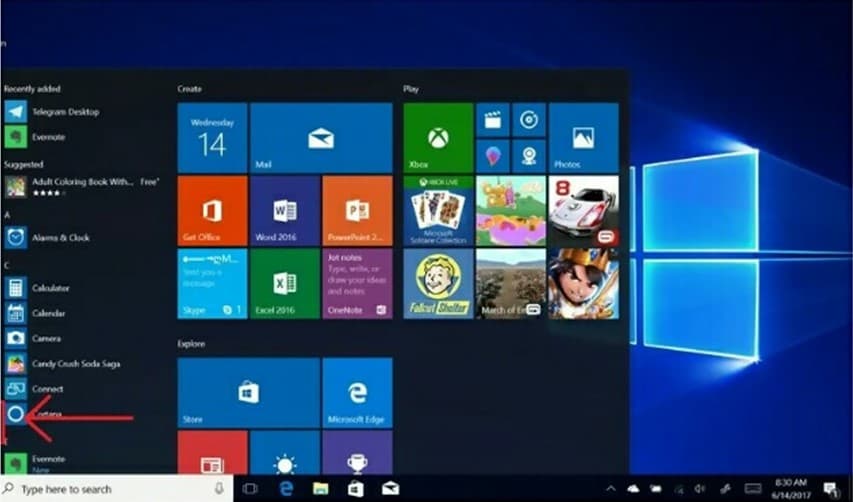
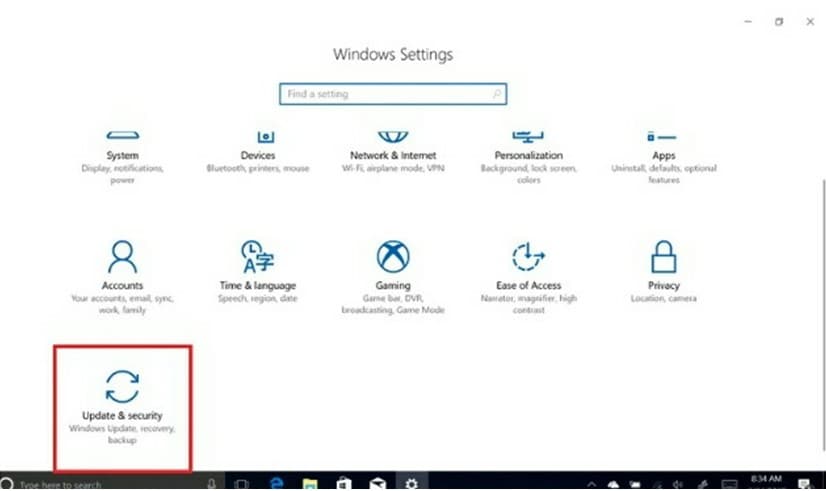
2. By clicking on the system, a dialogue box will appear on the screen. In the dialogue box, tap on the option Change Product key or Switch to Windows 10 Pro.
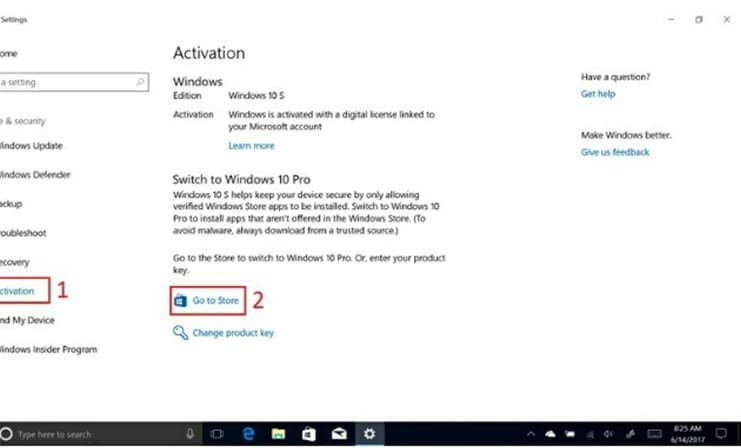
3. Now click on Go to the Store to go to the Windows store.
4. Windows 10 Pro is available free of cost for new laptops and computers. Tap on the Free button to initiate the installation process.
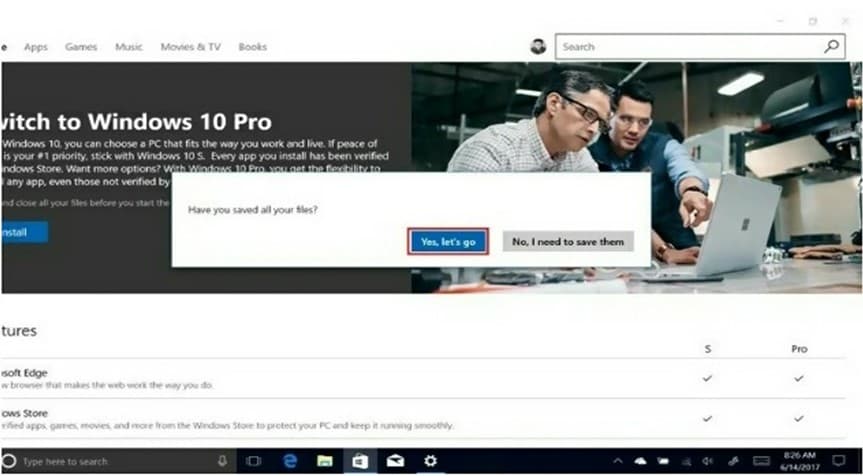
5. Next, choose the Install Windows 10 Pro will use automatic installation.

The installation of Windows 10 Pro will not restart certain devices as it thinks it is pre-installed on the upgraded system and that you have just switched to a pre-existing operating system. However, this is not the case on all devices.
Some older devices will need to have the upgrade package downloaded. This means you may need pay to get Windows 10 Pro. You may have to check the system settings and confirm the Windows 10 Pro installation from the product key.
It should be noted, that once you have installed Windows 10 Pro, you cannot go back to Windows 10 S.
Pros & Cons of Upgrading to Windows 10 Professional
While Windows 10 S is not a good solution for most users, some might prefer the streamline capabilities of the system for their needs.
Because all third-party apps are disabled, Windows 10 S makes for better work computers without the need to block apps afterward.
– Faster
– More Stable
– Third-Party Apps
– Accessible Command Line
– Third-Party Apps
– Default Administrator Control
– More Hardware Demands
If you don’t want to go through the online channels, you can purchase a bootable USB flash drive with Windows 10 Pro directly from Amazon and install it that way.



Thanks, I follow the steps, but i do not buy the windows 10 pro from Microsoft store , it is too expensive, instead I bought the windows 10 pro from the Microsoft partner keyingo, the I select “I have a windows 10 Product key” at the Microsoft store , and i successfully upgrade win 10 home to Pro
Ok, it’s good to know that I cannot use apps like Chrome or Firefox and I’m able to use only windows store apps, but… It’s somehow strange to write that 3rd party apps are cons and pros at the same time…