Skip to content
LogoTechnipages
LogoTechnipages
  • Topics
        • Android
        • Browsers
        • Gaming
        • Hardware
        • Internet
        • iPhone
        • Linux
        • macOS
        • Office
        • Reviews
        • Software
        • Windows
        • Definitions
        • All Recent Posts
  • Product Reviews
  • About

Why Is My Printer Printing Only One Page and How Do I Fix It?

Evan MercerSeptember 30, 2026 Comments (0)
why is my printer only printing one page

Printers are, perhaps, one of the most temperamental pieces of office equipment, and they don’t become more reliable when you buy one for home use. Once you’ve learned how to deal with paper jams, ink subscriptions, and keeping the device clean, you may still come across issues with printing. A common question is, “Why is my printer only printing one page?”

There could be a number of reasons, from a job becoming stuck or a page-range setting being incorrect to connection, driver, or printer problems. Follow these troubleshooting tips to make sure you’re printing the whole document every time.

Contents

  • 1. Why Is My Printer Only Printing One Page: Possible Causes and Solutions
    • 1.1. Cause No. 1: A Stuck Job
    • 1.2. Cause No. 2: Incorrect Page Number Selection

Why Is My Printer Only Printing One Page: Possible Causes and Solutions

Cause No. 1: A Stuck Job

Sometimes a job will get stuck in the print queue. This may be because there were too many print tasks running at one time, or due to a slight interruption in the connection.

Solution: Find the print queue. On a Windows machine, this is found by going to Settings > Bluetooth & devices > Printers & scanners. Click on the printer you’re trying to use.
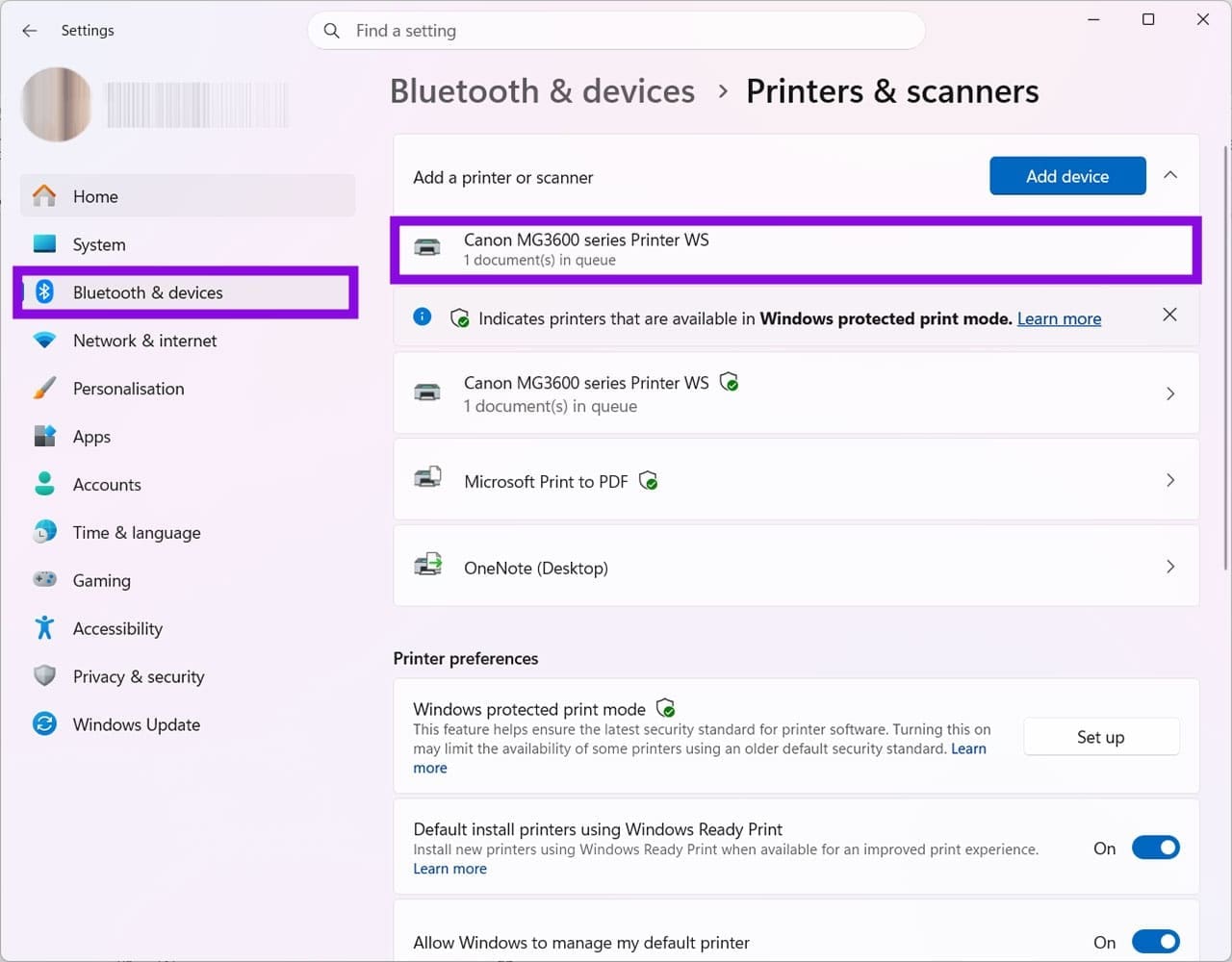
Why Is My Printer Printing Only One Page and How Do I Fix It 1

Select “Open print queue.” Click this.
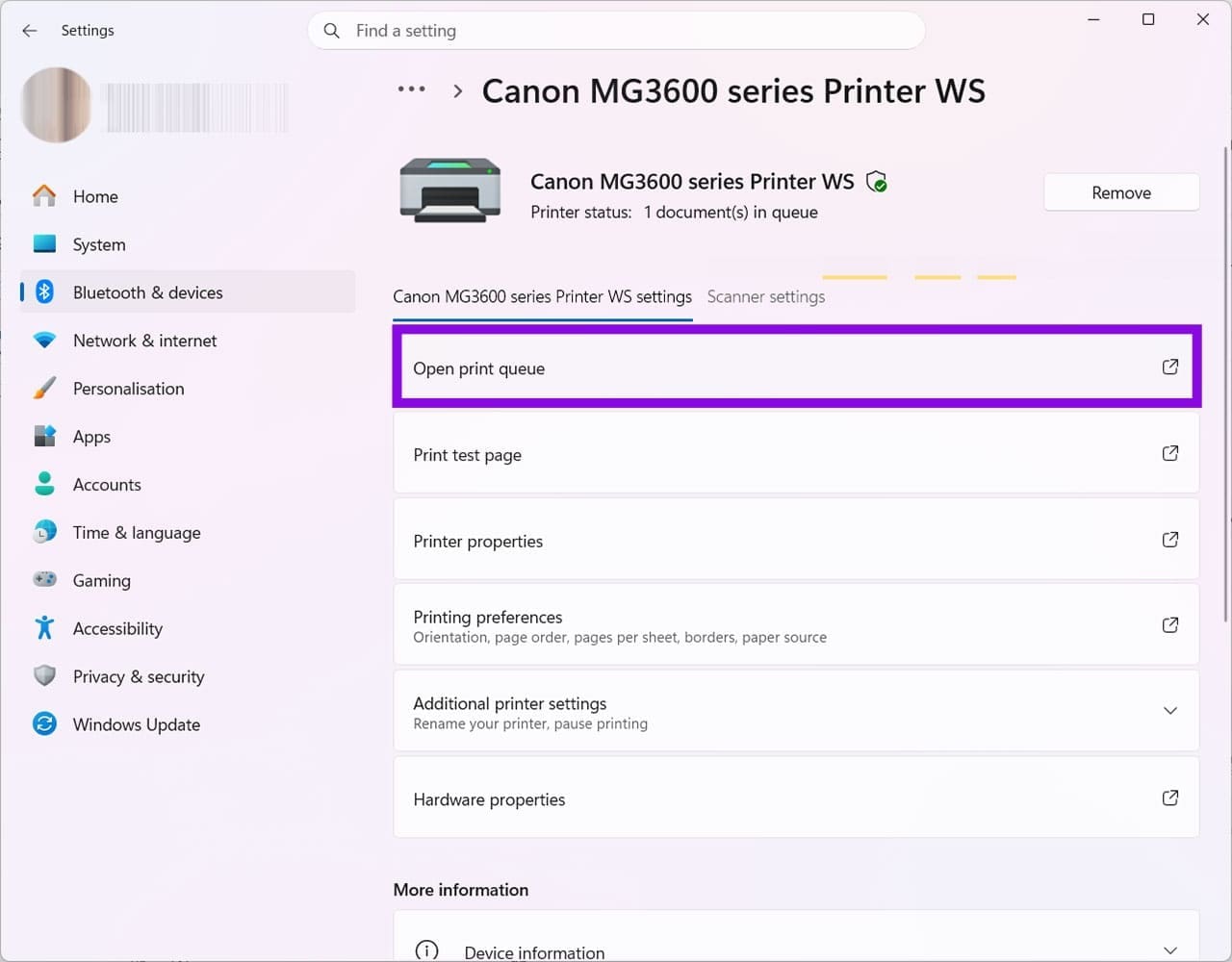
Why Is My Printer Printing Only One Page and How Do I Fix It 2

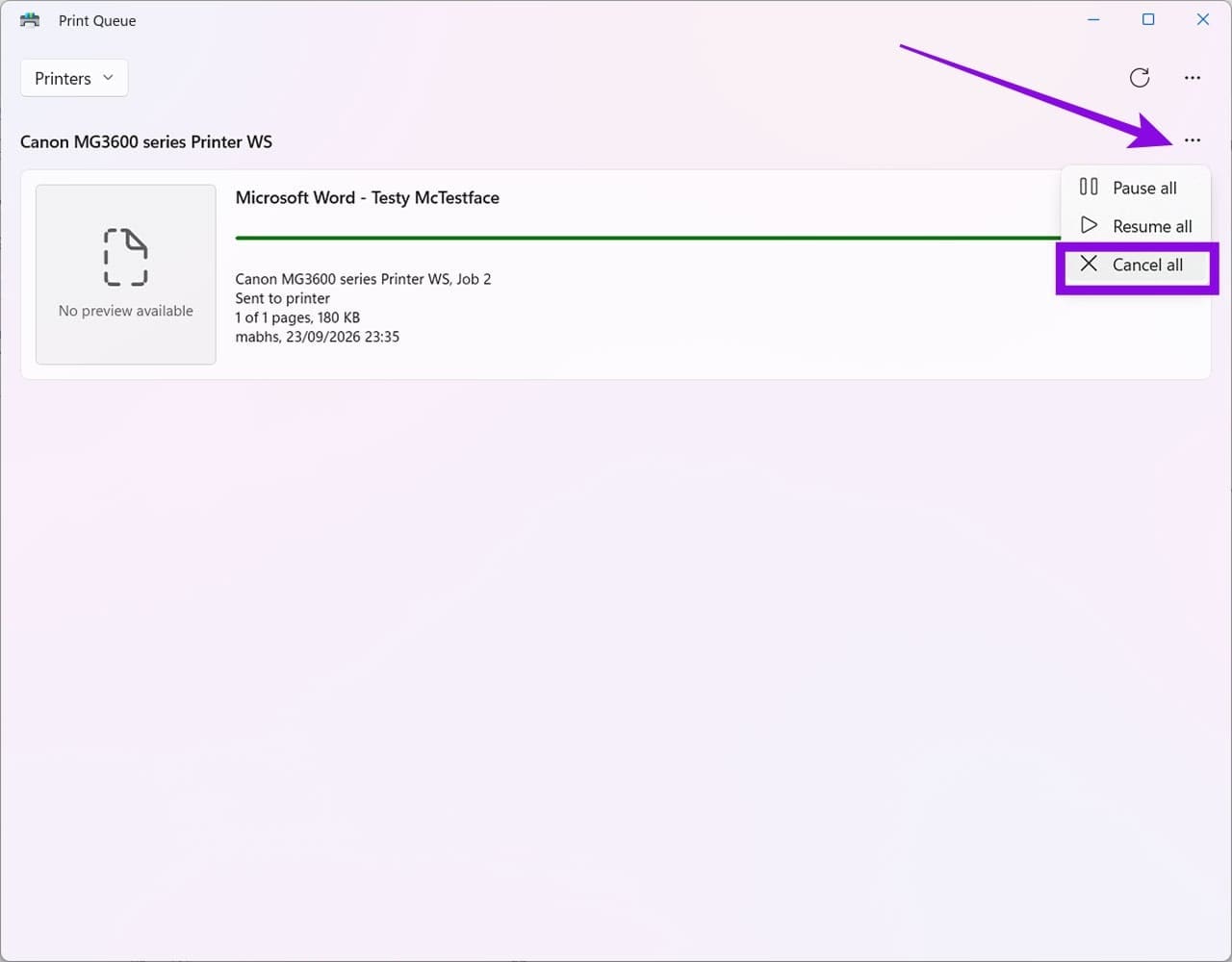
You can now see the job in progress. Even if the job appears to have a normal status but isn’t progressing, it may be stuck.

Why Is My Printer Printing Only One Page and How Do I Fix It 3

Click the three dots (…) and select “Cancel all.” This will clear the print queue, allowing you to restart your machines and try the print job again.
Why Is My Printer Printing Only One Page and How Do I Fix It 4

Cause No. 2: Incorrect Page Number Selection

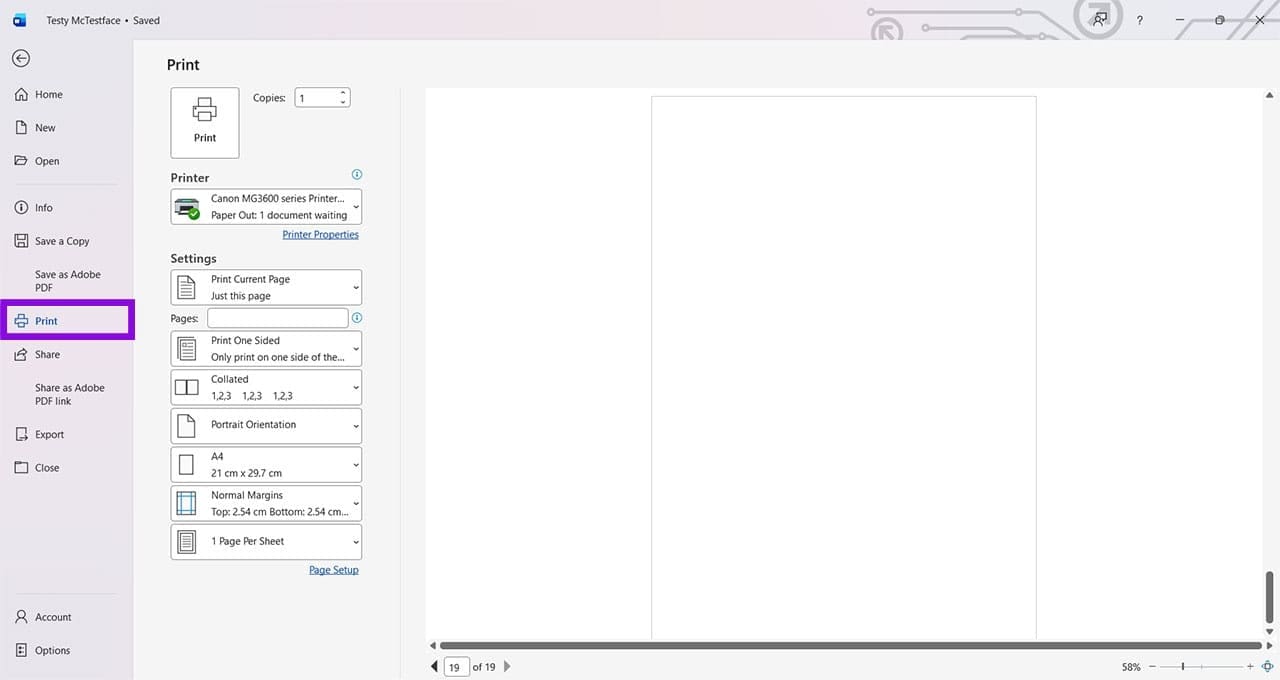
Sometimes, when you want to get your printer printing only one page, the application you’re printing from may retain or default to a page-range setting that selects only specific pages. To check this, open the document you’re trying to print and go to File > Print.
Why Is My Printer Printing Only One Page and How Do I Fix It 5

Look for the pages-to-print options, such as “Print All Pages,” “Print Current Page,” or a custom page range. If this is not set to “Print All Pages,” that’s why you’re only printing part of the document. Simply use the dropdown arrow to select “Print All Pages,” then press “Print” to continue.

Why Is My Printer Printing Only One Page and How Do I Fix It 6

Still having problems? Try these quick fixes:

  • Check the Wi-Fi settings on your printer. It must be connected to a strong signal on the same network as the device you’re printing from. If you can’t get a good connection, try moving the printer closer to the router.
  • Restart the Wi-Fi router. If the printer’s network connection seems unstable, restarting the router can sometimes restore connectivity. A restart can sometimes resolve temporary network or connectivity problems.
  • Restart both the device you’re printing from and your printer: In many cases, the adage of turning it off and on again really does work.
  • Check that the printer has plenty of paper and toner/ink: Sometimes a printer will fail to print rather than alerting you that it is short of supplies.

Finally, you can check if the problem is with the printer or the computer/smart device by trying to print the same document from another device. If the problem persists, it’s likely to be an issue with the printer, and you should consult the manual or contact the manufacturer.

Categories: Hardware

Author Evan Mercer

I’m a computer science grad who loves to tinker with smartphones and tablets in my spare time. When I’m not writing about how to fix techy problems, I like hanging out with my dogs and sipping nice wine after a tough day.

You Might Also Like

  • Old TV

    How to Connect Apple TV to an Old Analog TV

    Mitch BartlettHardware
  • Google Play header

    How to Redeem a Google Play Gift card

    Judy SanhzAndroid
  • 3D printing header

    3D Printing: Fix Fine Details Missing from Prints

    Mel HawthorneHardware

Leave a Reply

Your email address will not be published. Required fields are marked *

  • microsoft outlook reactions not working

    Outlook Emojis and Reactions Not Working? Here’s What to Do

  • energy efficient ethernet setting windows 11

    How to Make Ethernet More Energy Efficient in Windows

  • taskbar gone after login

    Taskbar Gone After Login? Try These Quick Fixes to Get It Back

  • task manager shows wrong uptime

    What to Do When Task Manager Shows the Wrong Uptime

  • latency spikes when gaming

    How to Fix Wi-Fi Latency Spikes When Gaming 

profile pic

The Experts Behind Technipages

My name is Mitch Bartlett. I've been working in technology for over 20 years in a wide range of tech jobs from Tech Support to Software Testing. I started this site as a technical guide for myself and it has grown into what I hope is a useful reference for all.

Learn More

technipages logo white
linkedin icon

Technipages is part of Guiding Tech Media, a leading digital media publisher focused on helping people figure out technology. Learn more about our mission and team here.

© 2026 Guiding Tech Media All Rights Reserved

  • About Us
  • Contact
  • Terms of Use
  • Privacy Policy

© 2026 Guiding Tech Media All Rights Reserved

Information from your device can be used to personalize your ad experience.
Do not sell my personal information.

Last Updated on September 30, 2026 by Evan Mercer