In most cases, seeing a Windows Update grey screen error can be related to a display driver problem or an issue with the Windows interface. It can also be caused by an external device or display connection not switching to the correct monitor. Here’s how to correct the Windows 11 Update grey screen issue if it happens to you.
Fix 1 – Restart the Graphics Driver via Shortcuts to Fix the Windows Update Grey Screen
This is the quickest fix, and it doesn’t close your apps.
Step 1. Press “Windows + Ctrl + Shift + B” on your keyboard.
Step 2. Wait a few seconds. You should hear a short beep, and the screen will flicker or go black for a moment as Windows resets the driver.
If the desktop comes back, you’re done. If not, move on to the next fix.
Fix 2 – Restart Windows Explorer
If the screen is grey but your PC still responds to the keyboard, Windows Explorer might have crashed, but the interface can still be accessed.
Step 1. Press “Ctrl + Shift + Esc” to open Task Manager.
Step 2. In the “Processes” tab, find and right-click on “Windows Explorer,” then select “Start” or “Restart,” whichever is available.
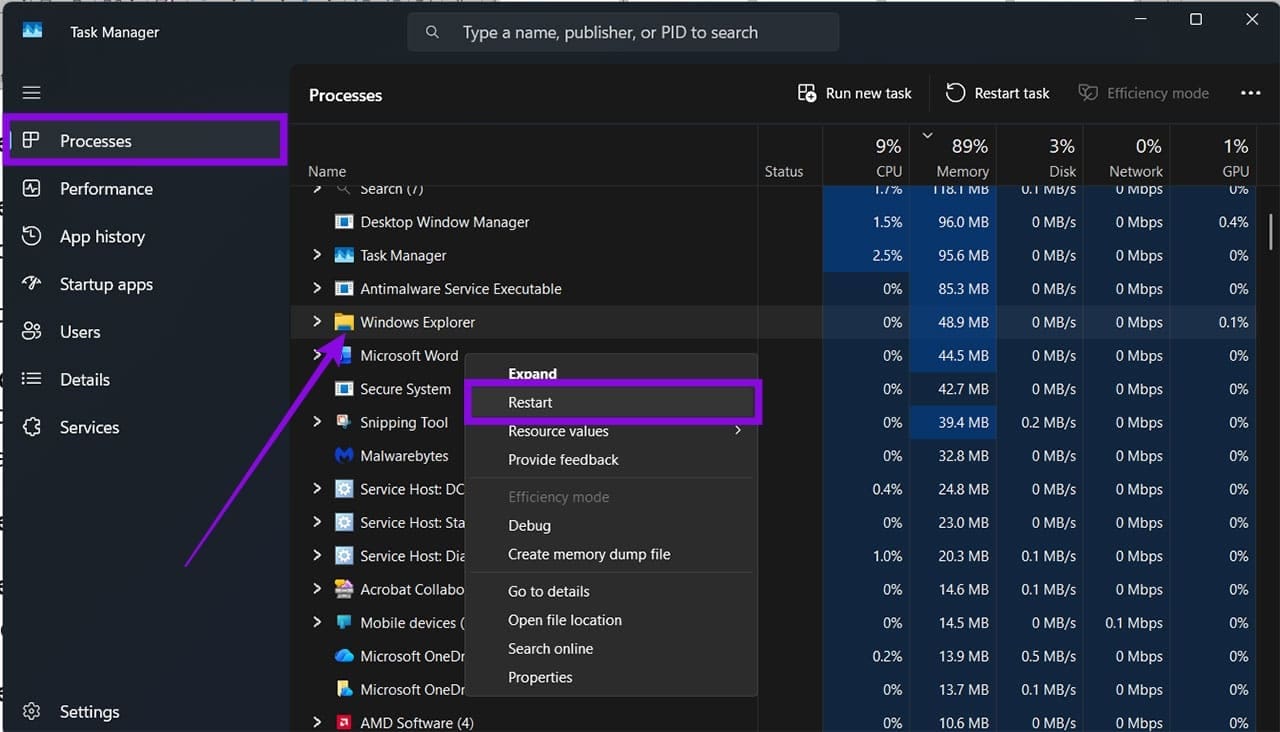
Step 3. If Windows Explorer isn’t on the list, click “Run new task,” type “explorer.exe,” and click “OK.”
Fix 3 – Unplug External Devices and Check Your Display Settings
Accessories and display settings might stop working after a Windows update, so you may need to double-check them all.
Step 1. Unplug USB drives, external hard drives, and any other accessories you don’t need.
Step 2. Reconnect your HDMI or DisplayPort cable. If you have a spare cable or monitor, try that too.
Step 3. Restart your PC.
Step 4. If you’re using multiple displays, press Windows + P and try PC screen only or Duplicate to see whether the display returns.
Fix 4 – Uninstall the Recent Windows Update
If nothing above works, remove the update that caused the problem. Since you can’t reach the desktop, you’ll need the Windows Recovery Environment.
Step 1. If Windows doesn’t enter recovery automatically, hold the power button to force a shutdown and repeat the process two or three times until Windows enters the Recovery Environment.
Step 2. Go to “Troubleshoot,” then to “Advanced options,” and select “Uninstall Updates.”
Step 3. Choose “Uninstall latest quality update” and follow the on-screen instructions.
Step 4. Restart your PC.
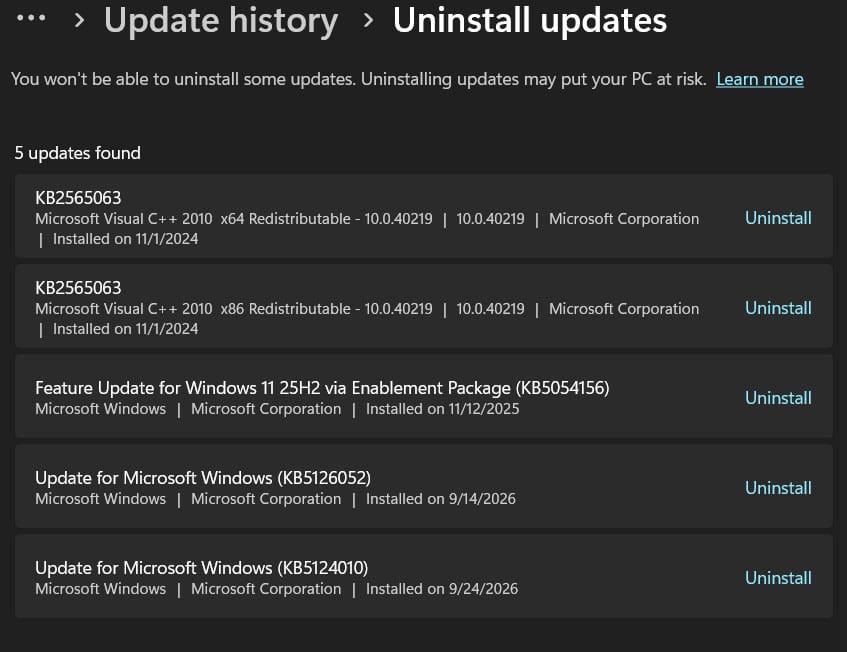
If you can access Windows normally, you can also go to Settings > Windows Update > Update history > Uninstall updates and remove a recent update from there. After that, you should be able to use Windows Update normally and pick your updates from there. If the problem began immediately after a particular update, uninstalling the latest update may help determine whether Windows 11 update grey screen issue has been fixed.
Once you’re back on the desktop, open Device Manager, expand “Display adapters”, right-click your graphics adapter, and select “Properties.” If the grey screen began after a recent Windows Update or driver update, select the “Driver” tab and choose “Roll Back Driver,” if the option is available. Otherwise, try updating the driver.