Skip to content
LogoTechnipages
LogoTechnipages
  • Topics
        • Android
        • Browsers
        • Gaming
        • Hardware
        • Internet
        • iPhone
        • Linux
        • macOS
        • Office
        • Reviews
        • Software
        • Windows
        • Definitions
        • All Recent Posts
  • Product Reviews
  • About

Outlook Emojis and Reactions Not Working? Here’s What to Do

Evan MercerSeptember 29, 2026 Comments (0)
microsoft outlook reactions not working

Emojis and reactions are a useful shorthand, and also a great way to reply without sending an entire email of a word or two. Microsoft Outlook is one such app that allows for this. If, however, you’ve suddenly found that these features aren’t working as they should, then you’re no doubt looking for answers.

In this article, we’ll be offering fixes for Microsoft Outlook reactions not working.

Contents

  • 1. What You Need for Outlook Reactions
  • 2. Microsoft Outlook Reactions Not Working – Fixes to Try
    • 2.1. Check Your Account Type
    • 2.2. Check Exchange Online and BCC
    • 2.3. Check Whether Reactions Are Disallowed
    • 2.4. Disconnect Your OneDrive
    • 2.5. Update Office

What You Need for Outlook Reactions

Before we look at the fixes, it’s important to know what you need to enjoy Outlook reactions:

  • Either a work or school account with an attached 365 subscription in Outlook
  • Both you and the sender of the email have Exchange Online mailboxes. If the sender isn’t using Exchange Online, your reaction is sent as a fallback email instead.
  • An Outlook platform updated as of 2023, or version 2308

In addition, if included in the BCC, any reaction you send will only be seen by you and the recipient, not anyone else.

Microsoft Outlook Reactions Not Working – Fixes to Try

If you have a problem with Microsoft Outlook reactions not showing, we’ve got some fixes below to try:

Check Your Account Type

If you’ve just learned about the reaction feature and wonder why it’s not on your Outlook, start by checking what account you have. Reactions aren’t available for Personal accounts, but only for work or school, as mentioned above. Both the desktop app and online version of Outlook should be able to support this.

Check Exchange Online and BCC

Another two requirements we mentioned earlier. Ensure that the relevant mailboxes use Exchange Online. If you’re in the Bcc field, you can still react, but your reaction will only be visible to you and the sender. The former will affect your ability to react, and the latter will affect others being able to see your reaction, besides the sender.

Check Whether Reactions Are Disallowed

Here’s another quick fix that might help. In Outlook, you have the ability to disallow reactions. This option might be enabled by mistake or by default. Reactions being greyed out is an indicator. Here’s how to change it:

Step 1. In the Home tab of your app or browser window, click “New.”

Step 2. With the new email open, switch to the “Options” tab.

Outlook Emojis and Reactions Not Working Heres What to Do 1

Step 3. In the “Tracking” subsection, ensure that “Disallow reactions” is unchecked.

Step 4. Restart Outlook and see if you can now react.

Disconnect Your OneDrive

If you’re using your computer with multiple accounts, you may have your personal OneDrive connected to Outlook in addition to your work or school one. This can cause problems, since personal accounts can’t react. Here’s how to disconnect it in Outlook:

Step 1. Open any Office app on your Desktop.

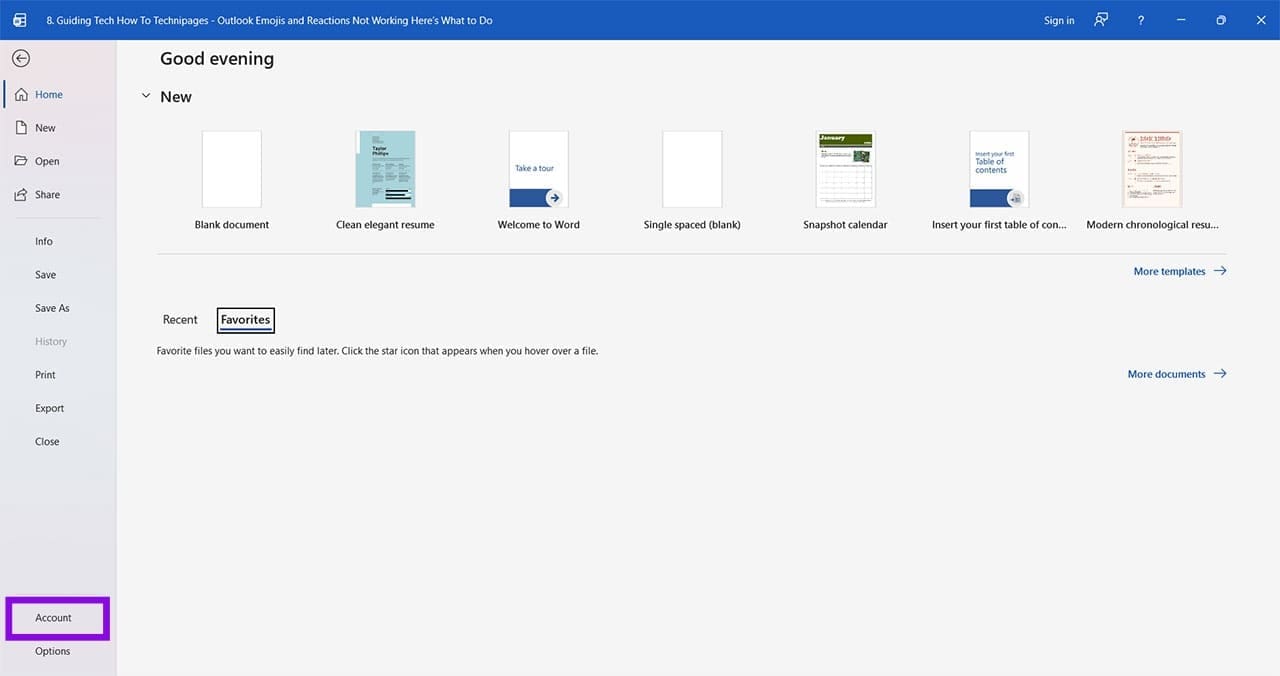
Step 2. Head to the “File” tab and click “Account” in the sidebar
Outlook Emojis and Reactions Not Working Heres What to Do 2

Step 3. Under “Connected Services,” see which OneDrive accounts are listed. If you see your Personal drive, click “Remove” next to it to disconnect the service.

Step 4. Try using the Reaction function in Outlook to see if it works now.

Update Office

It might be that your version of Outlook and Office is out of date and needs an update to run properly. Here’s what to do:

Step 1. Click the “File” tab in any Office app.

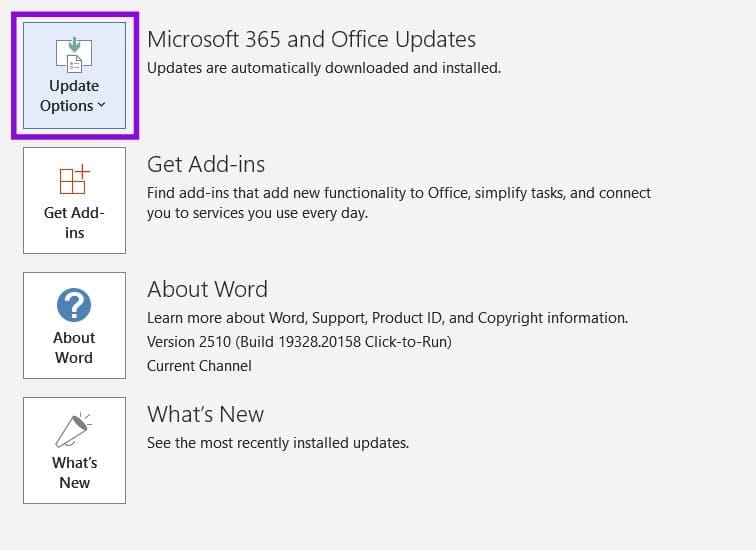
Step 2. Click “Account” in the sidebar.
Outlook Emojis and Reactions Not Working Heres What to Do 3

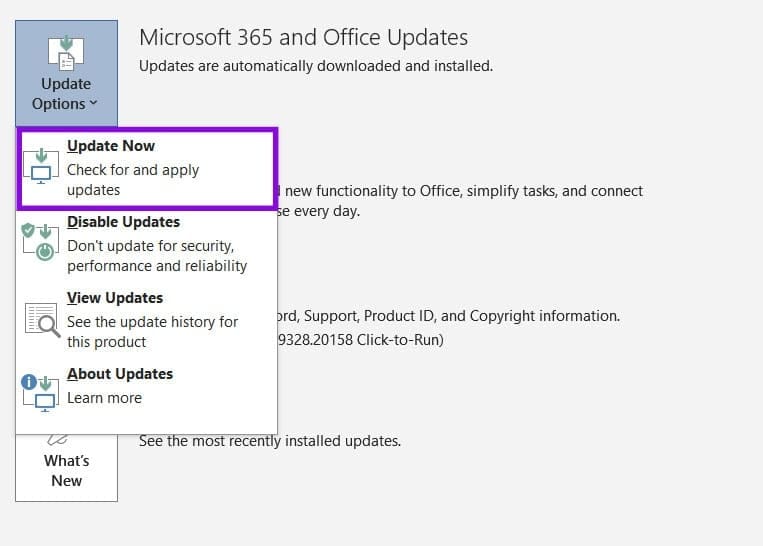
Step 3. Click the “Update Options” button, then “Update Now.”
Outlook Emojis and Reactions Not Working Heres What to Do 4

Step 4. Office will install any pending updates.

Categories: Windows

Author Evan Mercer

I’m a computer science grad who loves to tinker with smartphones and tablets in my spare time. When I’m not writing about how to fix techy problems, I like hanging out with my dogs and sipping nice wine after a tough day.

You Might Also Like

  • Win7 User Account Control settings

    Enable or Disable User Account Control (UAC) in Windows

    Mitch BartlettWindows
  • Windows 11 Disable Are you sure you want to move this file to the Recycle Bin Dialog

    Windows 11: Disable “Are you sure you want to move this file to the Recycle Bin?” Dialog

    Mitch BartlettWindows
  • bluetooth-toggle-missing-windows-10

    Fix Bluetooth Toggle Missing on Windows 10 or 11

    Madalina DinitaWindows
  • surface-pen-not-working-after-update

    Fix Surface Pen Not Working After Update

    Madalina DinitaWindows

Leave a Reply

Your email address will not be published. Required fields are marked *

  • energy efficient ethernet setting windows 11

    How to Make Ethernet More Energy Efficient in Windows

  • taskbar gone after login

    Taskbar Gone After Login? Try These Quick Fixes to Get It Back

  • task manager shows wrong uptime

    What to Do When Task Manager Shows the Wrong Uptime

  • latency spikes when gaming

    How to Fix Wi-Fi Latency Spikes When Gaming 

  • windows photo app error 2147219196

    How to Fix Windows Photos App Error -2147219196

profile pic

The Experts Behind Technipages

My name is Mitch Bartlett. I've been working in technology for over 20 years in a wide range of tech jobs from Tech Support to Software Testing. I started this site as a technical guide for myself and it has grown into what I hope is a useful reference for all.

Learn More

technipages logo white
linkedin icon

Technipages is part of Guiding Tech Media, a leading digital media publisher focused on helping people figure out technology. Learn more about our mission and team here.

© 2026 Guiding Tech Media All Rights Reserved

  • About Us
  • Contact
  • Terms of Use
  • Privacy Policy

© 2026 Guiding Tech Media All Rights Reserved

Information from your device can be used to personalize your ad experience.
Do not sell my personal information.

Last Updated on September 29, 2026 by Evan Mercer