

Guest access is an essential Teams feature, allowing you to collaborate with people outside your organization. You can use it to give external individual users permission to access teams, documents shared on channels, and other data.
Collaborating with people who don’t have a work or school account with your organization is crucial in today’s remote-work and remote-learning dominated world.
Microsoft Enabled Guest Access by Default
Up until February 2021, guest access was turned off by default. Admins and team owners had to manually enable this option and wait a few hours for the changes to take full effect.
After February 2021, guest access is enabled by default for both new and existing customers if the latter hasn’t configured the setting otherwise.
How to Block Guest Access in Teams
- Go to the Microsoft Teams admin center.
- Navigate to Org-wide settings and select Guest access.
- Set Allow guest access in Microsoft Teams to Off.
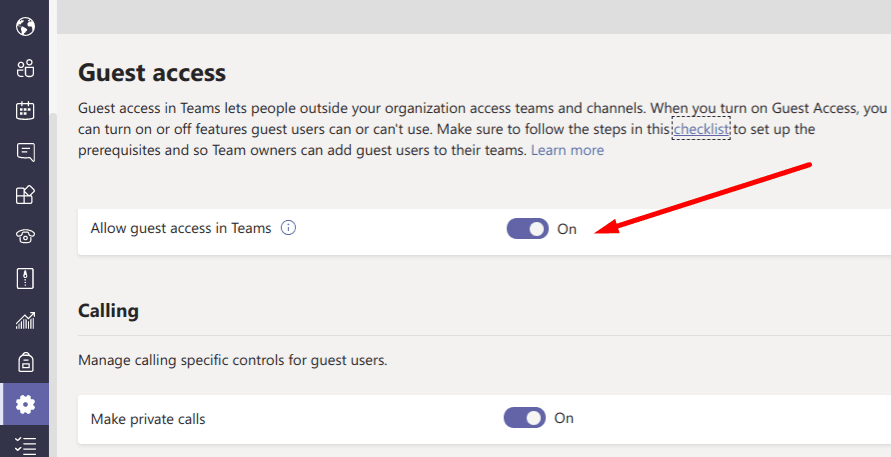
How to Manage Guest Access in Teams
If you decide to enable guest access, you can further filter people’s permissions outside your organization. The Calling, Meeting, and Messaging features are some of the most important settings you need to pay attention to.
Calling and Meeting Settings for Guest Users
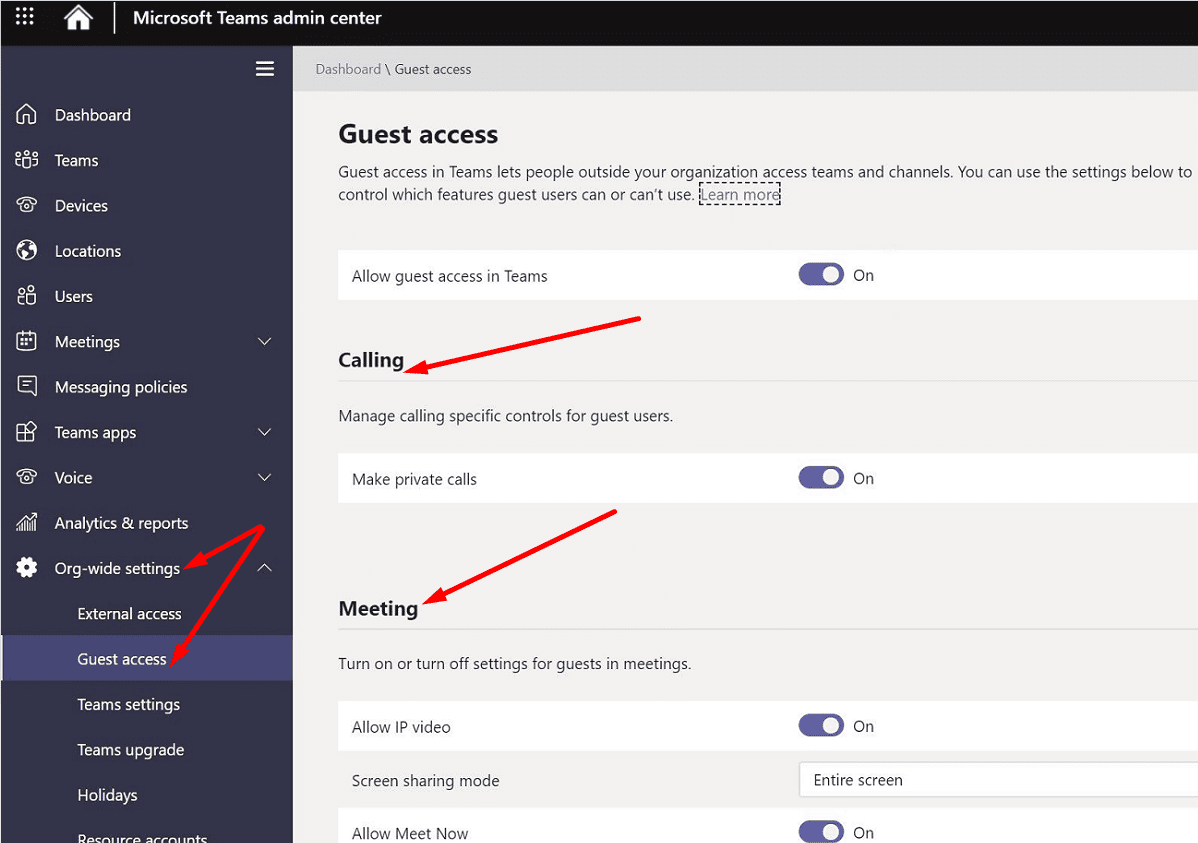
- Make private calls: If you enable this option, guests can make peer-to-peer calls.
- Allow IP video: External users can use video in their calls and meetings.
- Screen sharing mode: Guest users can share their screen with the other meeting attendees. You can limit screen sharing to individual apps or allow guest users to share their entire screen.
- Allow Meet Now: Decide whether guest users can use Meet Now or not.
Messaging Settings for Guest Users
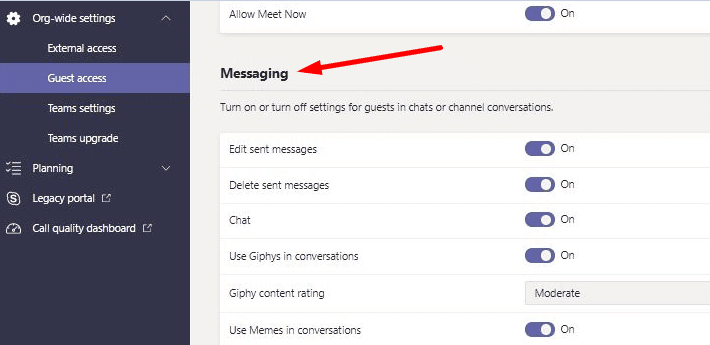
- Edit sent messages: Guest users can edit the messages they sent.
- Guests can delete sent messages: Disable this option if you don’t want guest users to delete their sent messages.
- Chat: Enable this option to allow guests to use the chat in Teams.
- Use Giphys, memes, or stickers in conversations: You can allow or prevent users from using GIFs, memes, or stickers in the chat. If you want users to enjoy a friendly and laid-back chat experience, please enable these options.
Can Guests Access Files in Microsoft Teams?
Guest users can access the files shared within the team chats and channels they’ve been invited to. All the files that you share in a channel get stored on your team’s SharePoint folder. To make sure guest users can access these files, go to Sharepoint Settings and navigate to Sharing outside your organization. Select the sharing option that best suits your needs.

If the option that says “Don’t allow sharing outside your organization” is enabled, guest users won’t access the files shared within Teams channels.
Check out the guides below to learn more about sharing and storing files in Teams:
Can a Guest Start a Teams Meeting?
Guest users can start a Teams meeting using the Meet Now option. To grant them permission to use this feature, go to the Teams Admin Center, select Org-wide settings, and go to Guest access. Then go to Meeting settings and switch Meet Now to on.
Why Am I Showing as a Guest on Microsoft Teams?
If you appear as a guest user on Teams, this may indicate someone previously added you as a guest in the Microsoft 365 Tenant. To join the meeting as a regular user, launch a new browser tab in Private Mode. Check if you still appear as a guest.
Why Can’t I Add Guests to Microsoft Teams?
If you can’t add guest users to Teams, most likely, this is because the Guest access feature has been disabled. Open the Teams Admin Center, go to Org-wide settings, and ensure Guest access is on. Additionally, ensure your AzureAD and Office 365 group settings allow guest access.
Conclusion
Microsoft enabled guest access in Teams by default. This makes it easier for teams to collaborate with external users. However, take the time to go through the guest access settings in Teams and customize them according to your organization’s needs. You don’t want guest users to accidentally access files they should not have had access to in the first place.
How has your Teams guest access experience been so far? Is there anything you’d like to change about it? Let us know in the comments below.




no. it never answered my question