Skip to content
LogoTechnipages
LogoTechnipages
  • Topics
        • Android
        • Browsers
        • Gaming
        • Hardware
        • Internet
        • iPhone
        • Linux
        • macOS
        • Office
        • Reviews
        • Software
        • Windows
        • Definitions
        • All Recent Posts
  • Product Reviews
  • About

3 Cool Command Prompt Hacks to Customize Your Windows Desktop UI

Evan MercerOctober 30, 2026 Comments (0)
cool command prompts

Have you ever used the Command Prompt app? It opens a window that allows you to enter strings of code called commands that make changes to your Windows PC.

You might think that you need to be a coding expert to get the most out of Command Prompt, but there are some cool command prompts that allow you to make quick changes without a degree in programming. If you’ve been looking for a command prompt for Windows desktop personalization, look no further. This guide shows you ways to change your desktop plus tips for customizing the Command Prompt window itself.

Contents

  • 1. Cool Command Prompts for Windows Desktop No. 1: Change Wallpaper
  • 2. No. 2: Change Any Display Settings
  • 3. No. 3: Create an Aquarium
  • 4. Additional Tip: Customize Your Command Prompt Window

Cool Command Prompts for Windows Desktop No. 1: Change Wallpaper

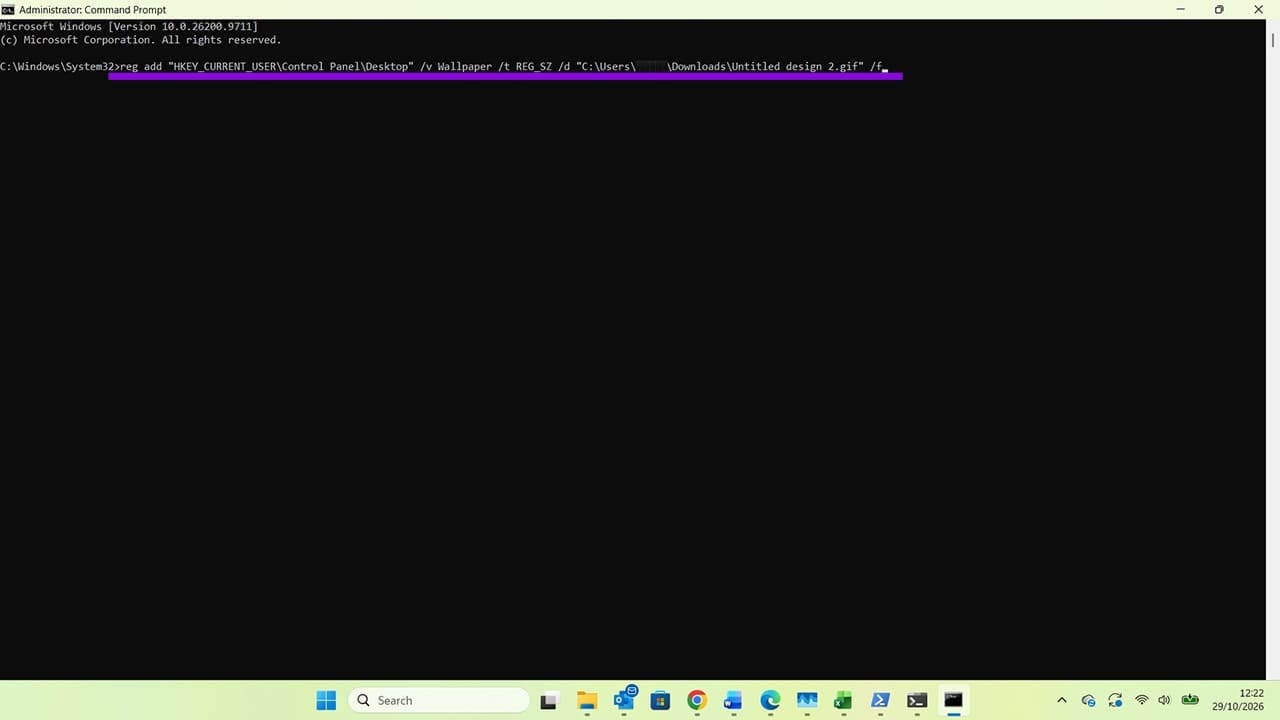
You can change your Windows desktop wallpaper with a simple command prompt. Make sure you open “Command Prompt” with the “Run as administrator” option.

Step 1. Type in:

reg add “HKCU\Control Panel\Desktop” /v Wallpaper /t REG_SZ /d “C:\Path\To\Your\Image.jpg” /f

Step 2. Make sure you change “wallpaper_directory” to the actual file path of the image you want to use as a wallpaper. Tip: You can right-click on any image and click “Copy as path” to copy the correct file path to the clipboard.
Cool Command Prompt Hacks to Customize Your Windows Desktop UI 2

Step 3. Press “Enter,” then enter the following command:

RUNDLL32.EXE user32.dll,UpdatePerUserSystemParameters

And press “Enter.”
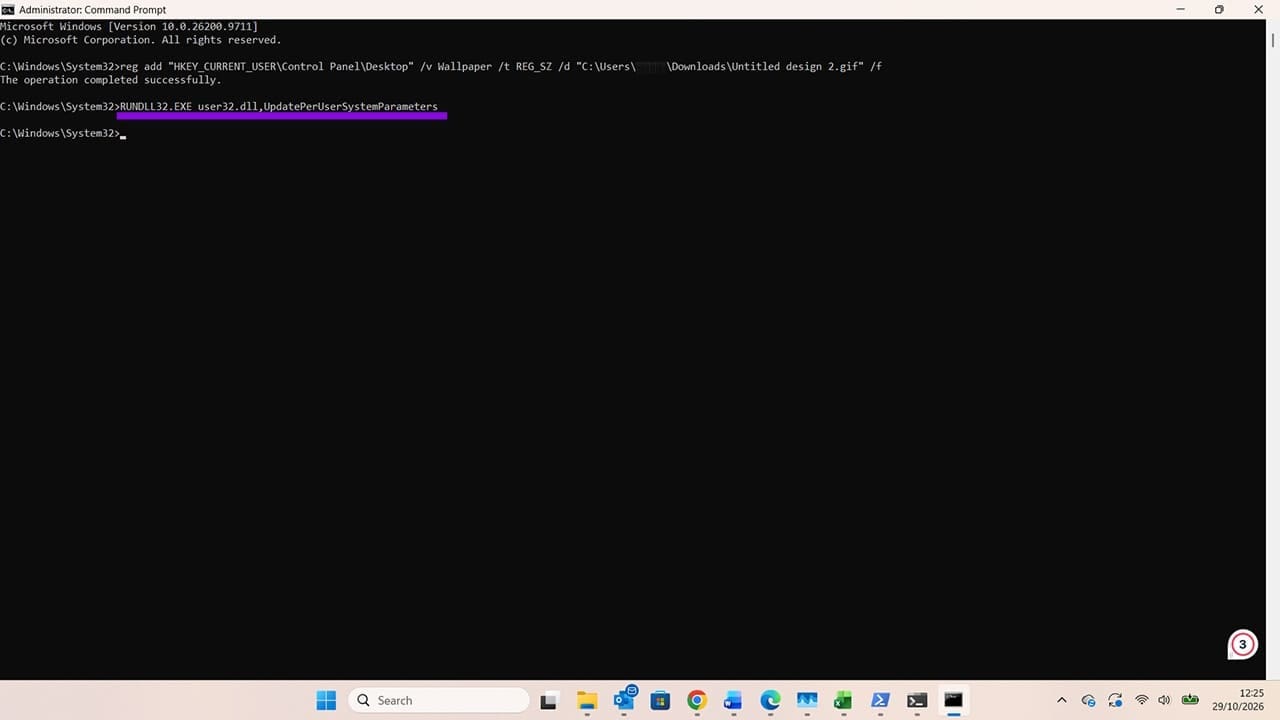
Cool Command Prompt Hacks to Customize Your Windows Desktop UI 3

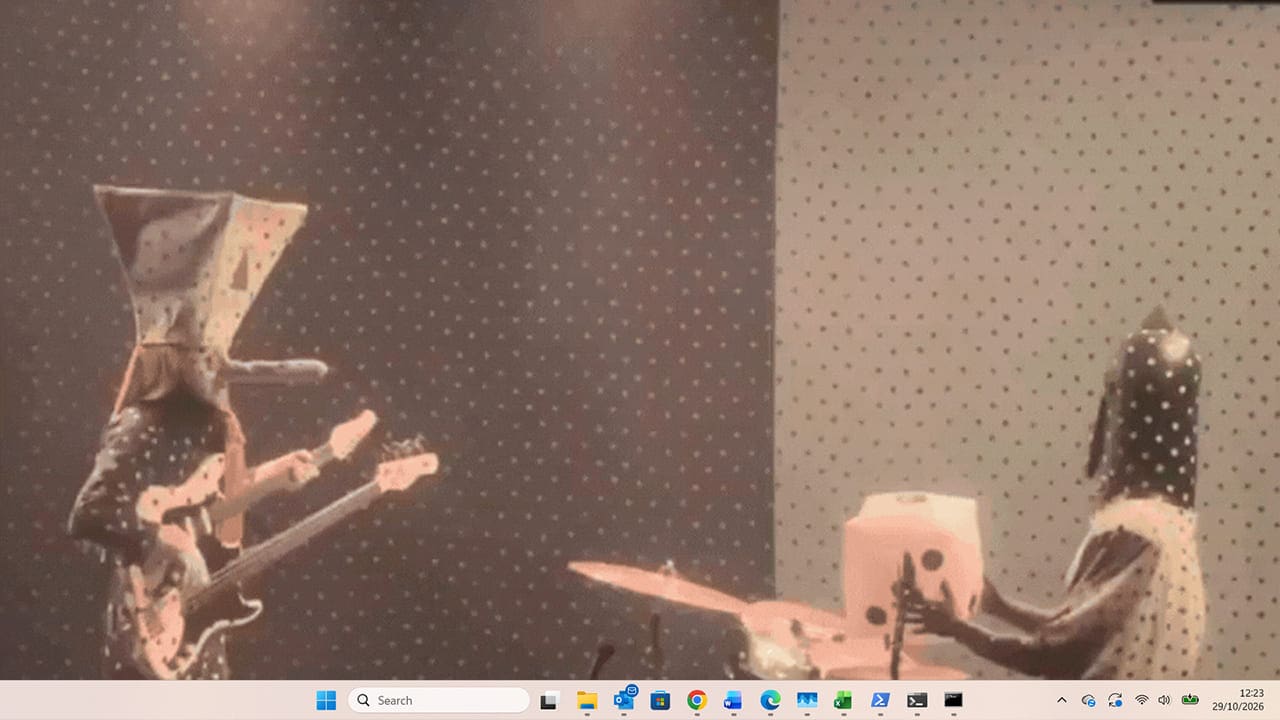
If the command works, your desktop wallpaper should change from the original image:
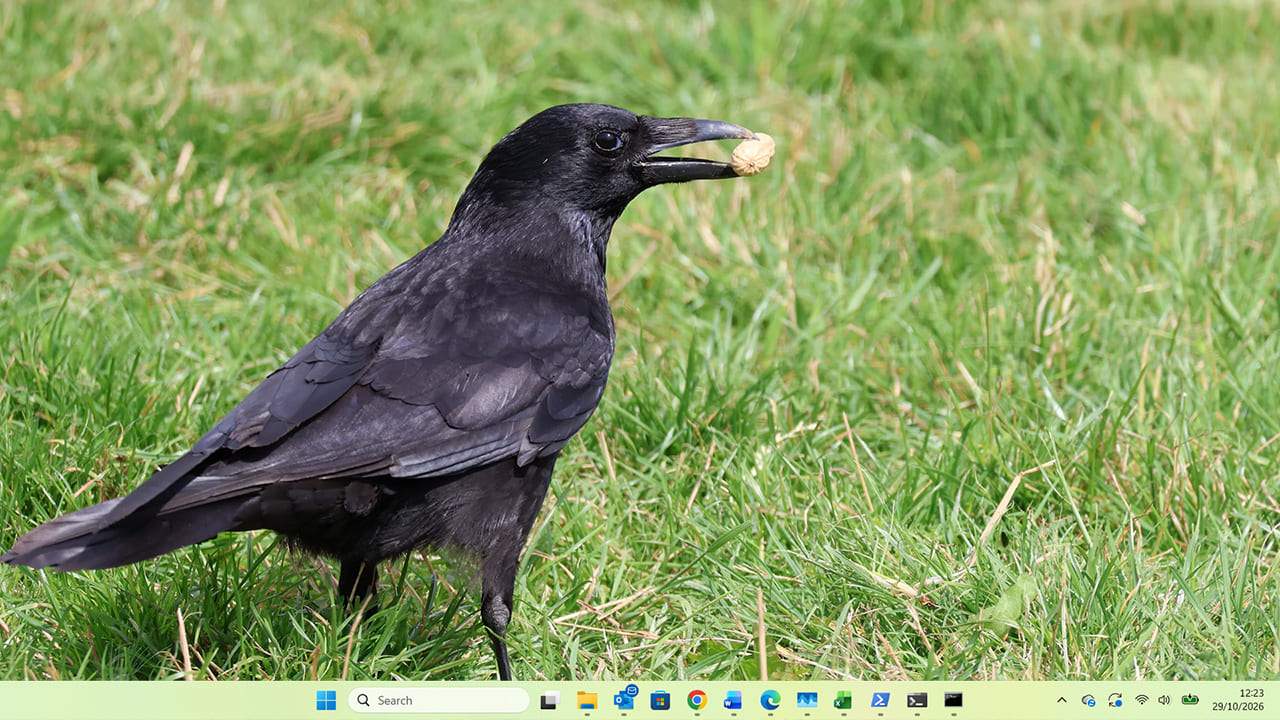
Cool Command Prompt Hacks to Customize Your Windows Desktop UI 4

To your new choice.

Cool Command Prompt Hacks to Customize Your Windows Desktop UI 5

No. 2: Change Any Display Settings

You can download some additional software, such as the QRes utility, to force Command Prompt to adjust settings such as your screen resolution. However, a quicker way to customize your Windows desktop is to use Command Prompt to open up your computer’s display settings.

Step 1. Start by opening “Command Prompt.” Type in:

start ms-settings:display

Cool Command Prompt Hacks to Customize Your Windows Desktop UI 6

Step 2. Press “Enter,” and your computer will immediately take you to the Settings > System > Display window. Here you can adjust scale, resolution, and many more settings to personalize your Windows UI.

No. 3: Create an Aquarium

The Telnet Client feature lets you connect to remote text-based services from Command Prompt.

Step 1. To use it, search for “Turn Windows features on or off” in Windows Search and open the corresponding Control Panel result.

Cool Command Prompt Hacks to Customize Your Windows Desktop UI 7

Step 2. Select the checkbox next to Telnet Client, then click “OK” and wait for Windows to install the feature.
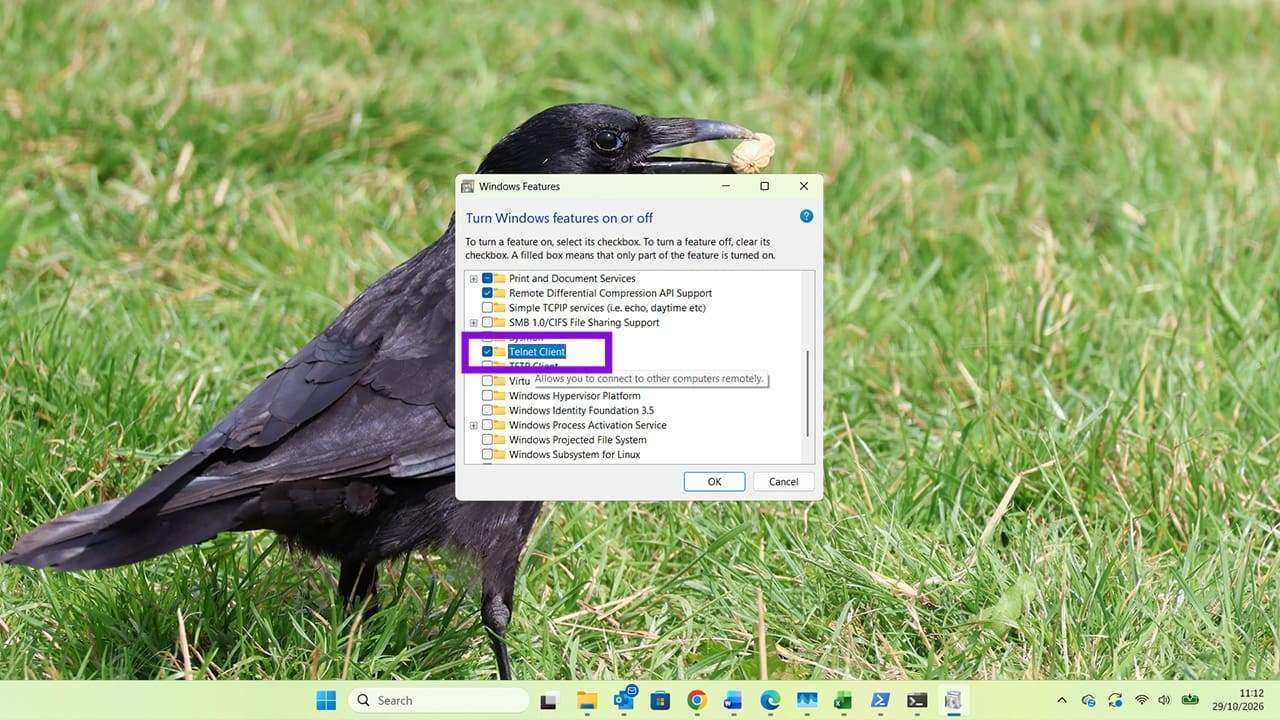
Cool Command Prompt Hacks to Customize Your Windows Desktop UI 8

Step 3. Once you’ve done this, open Command Prompt and enter:

telnet telehack.com

This connects to Telehack, an external service that provides a simulated retro internet environment. Telnet connections are unencrypted, so don’t enter passwords or other sensitive information into the session.

Cool Command Prompt Hacks to Customize Your Windows Desktop UI 9

Step 4. Press “Enter.”

You will almost immediately see a page giving you details about the server you’re now connected to and possible commands.
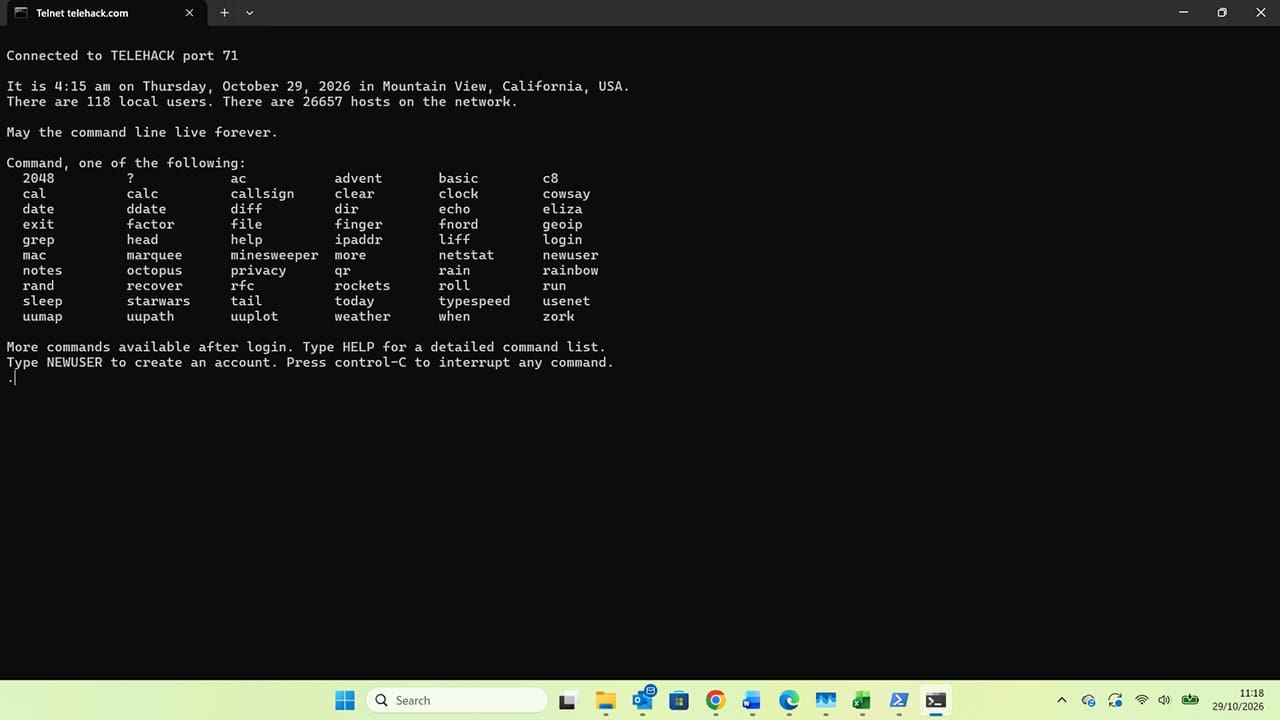
Cool Command Prompt Hacks to Customize Your Windows Desktop UI 10

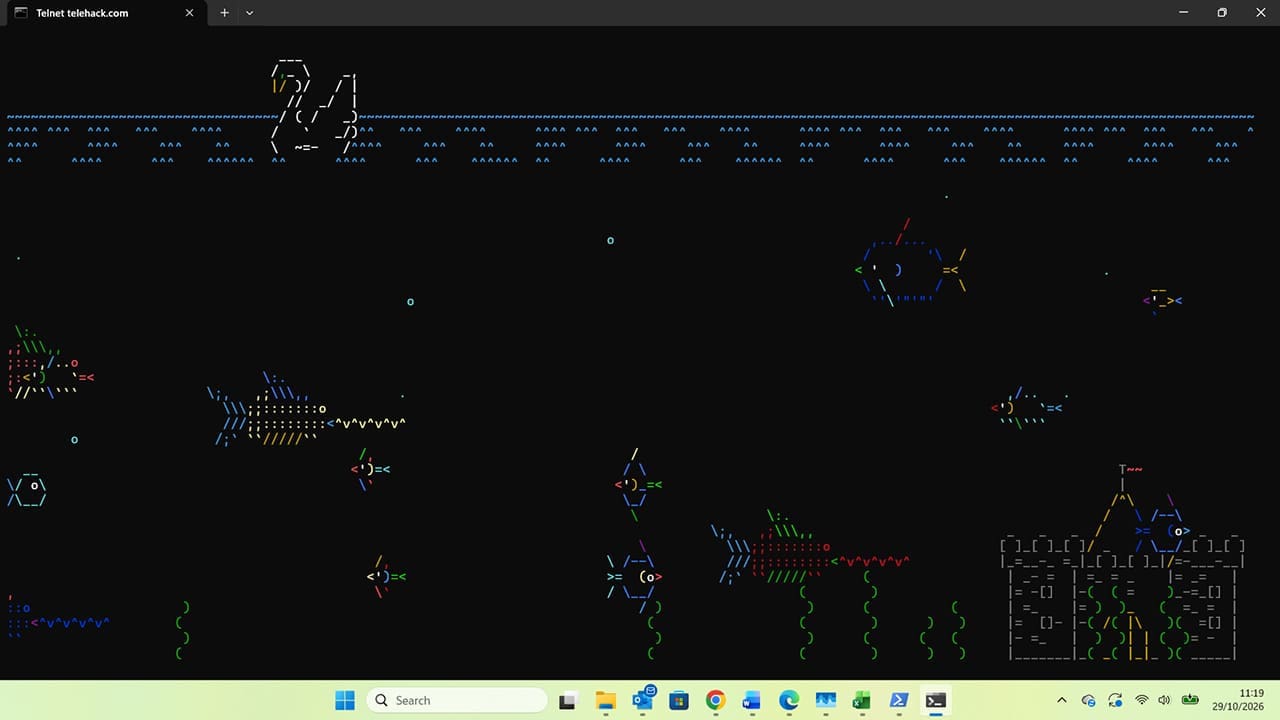
Even if you don’t see the option in the command list, you can type aquarium, press “Enter,” and you will see a beautiful, animated waterscape that you can leave on your desktop as a decorative element.
Cool Command Prompt Hacks to Customize Your Windows Desktop UI 11

Additional Tip: Customize Your Command Prompt Window

You can also customize the Command Prompt app itself:

  • Use the minimize/maximize button to shrink or grow the window, or hover over any edge to access resizing arrows.
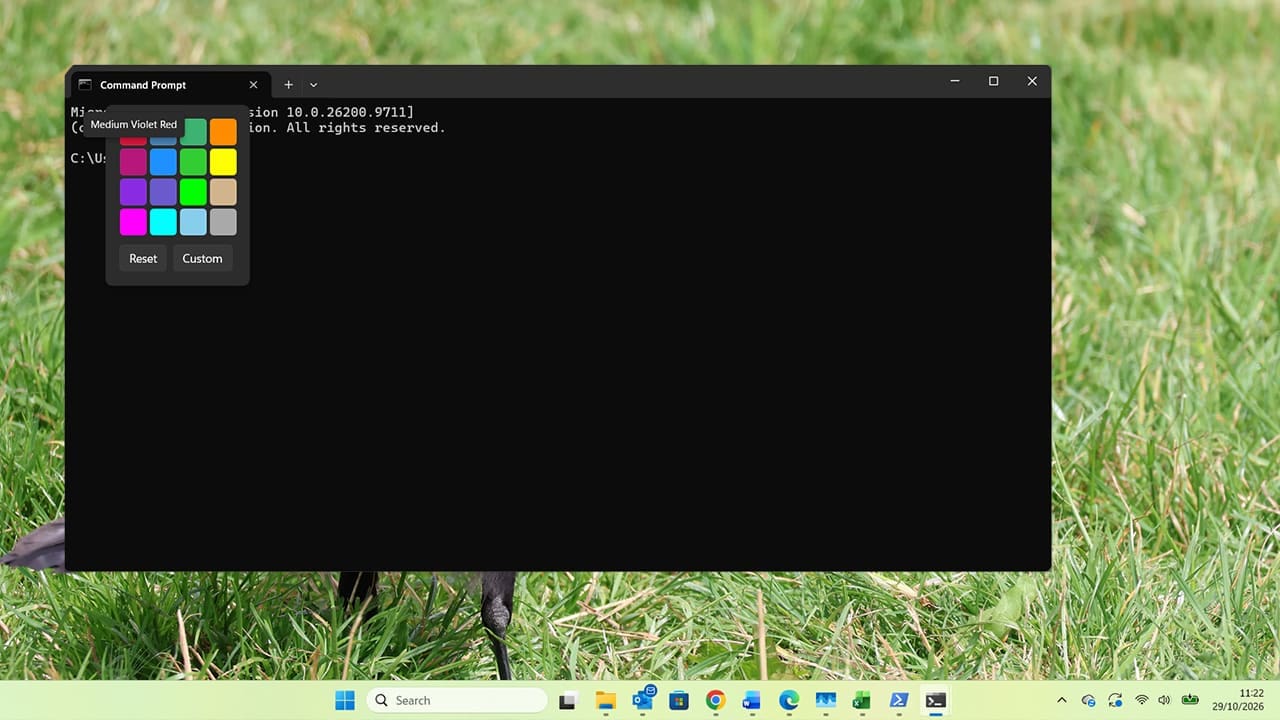
  • Right-click on the title bar to access the option to change the color of the tab:
Cool Command Prompt Hacks to Customize Your Windows Desktop UI 12
Cool Command Prompt Hacks to Customize Your Windows Desktop UI 13
Cool Command Prompt Hacks to Customize Your Windows Desktop UI 14
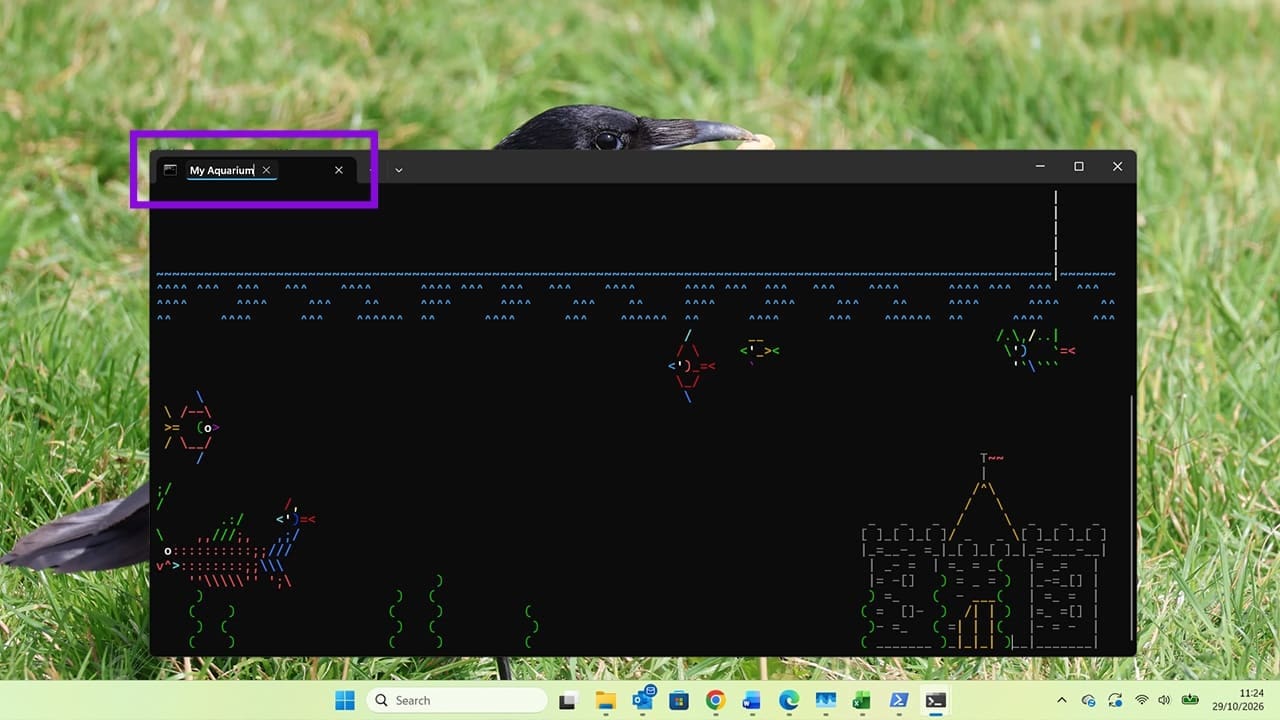
  • You can also use the same menu to rename the Command Prompt tab, which is useful if you have multiple Command Prompt windows open.
Cool Command Prompt Hacks to Customize Your Windows Desktop UI 15
Categories: Windows

Author Evan Mercer

I’m a computer science grad who loves to tinker with smartphones and tablets in my spare time. When I’m not writing about how to fix techy problems, I like hanging out with my dogs and sipping nice wine after a tough day.

You Might Also Like

  • Fix The Disk Is Write Protected Error on Removable Disk in Windows 11

    Fix “The Disk Is Write Protected” Error on Removable Disk in Windows 11

    Mitch BartlettWindows
  • Can’t Delete Folder “You have been denied permission” Fix for Windows

    Mitch BartlettWindows
  • Fix NordPass Login Errors

    Troubleshooting NordPass Login Errors

    Madalina DinitaWindows
  • Fix-Error-0x80070490-We-Couldnt-Find-Your-Settings

    Fix Error 0x80070490: We Couldn’t Find Your Settings

    Madalina DinitaWindows

Leave a Reply

Your email address will not be published. Required fields are marked *

  • stop windows 11 auto update

    How to Stop Windows 11 From Auto-Updating and Restarting While Working

  • outlook removed attachments from reply

    Why Does Outlook Remove Attachments From Replies? 

  • volume size error when formatting usb

    How to Troubleshoot the Volume Size Error When Formatting Your USB

  • system taking so much disk space

    Why Is System Taking So Much Disk Space and How Do I Fix It?

  • creating rules in outlook

    Your Guide to Creating Rules in Outlook

profile pic

The Experts Behind Technipages

My name is Mitch Bartlett. I've been working in technology for over 20 years in a wide range of tech jobs from Tech Support to Software Testing. I started this site as a technical guide for myself and it has grown into what I hope is a useful reference for all.

Learn More

technipages logo white
linkedin icon

Technipages is part of Guiding Tech Media, a leading digital media publisher focused on helping people figure out technology. Learn more about our mission and team here.

© 2026 Guiding Tech Media All Rights Reserved

  • About Us
  • Contact
  • Terms of Use
  • Privacy Policy

© 2026 Guiding Tech Media All Rights Reserved

Information from your device can be used to personalize your ad experience.
Do not sell my personal information.

Last Updated on October 30, 2026 by Evan Mercer