If you’ve ever needed to cross-reference a file across different versions sent to you through Outlook, you may have noticed that the attachment is missing when you reply to the sender. This is usually normal Outlook behavior rather than an issue with your settings. Here’s what to do if Outlook removed attachments from reply messages.
Why Does Outlook Reply Remove Attachments?
When you reply to a message in Outlook, the original attachments aren’t included in the reply. This is intentional: Outlook assumes that the original sender and you already have a file, so it ignores anything that was already a part of the message chain that isn’t newly added to the message.
Separately, Outlook blocks certain potentially unsafe file types, such as executable files. Depending on the file and the version of Outlook, it may prevent it from being opened or restrict access to a blocked attachment. This doesn’t necessarily mean the attachment has been removed from your inbox, though. Microsoft Support – <a href=”https://support.microsoft.com/en-us/outlook/blocked-attachments-in-outlook”> – explains why.
However, if you do need to get the attachment, there are a few ways to bypass this.
Fix 1 – Use “Forward” Instead of “Reply” if Outlook Removes the Attachment From Reply
While not common, you can forward a message back to the sender. This will open the email editor while preserving all of the attachments that came along with the original message.
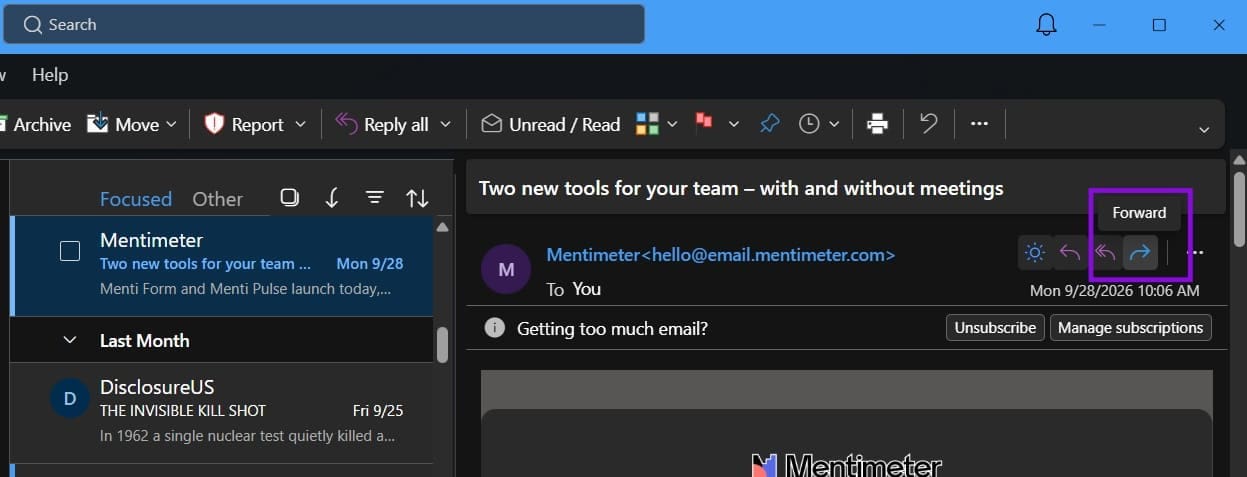
You can then add any additional details and a response to the email if necessary. Note that since this is technically a new message chain, if you have the “Conversation” view on, the forwarded message won’t appear in the same chain as the original.
Fix 2 – Remove “Conversation View” to See the Attachment
If an attachment seems to have disappeared from an email thread, the original message containing it may be among the replies. Conversation View groups related messages together, which can make it harder to locate the original message that included the attachment.
This can be particularly noticeable if you’ve made several back-and-forth emails without referencing or adding any files to them. At that point, it can be trickier to find the exact email that contained the attachment.
To solve this, you can turn off conversation grouping. In new Outlook, go to Settings > Mail > Reading Pane and select “Do not group messages under Message organization”. In classic Outlook, open the View tab and turn off “Show as Conversations.” You can then locate the original message and its attachment in the message list.
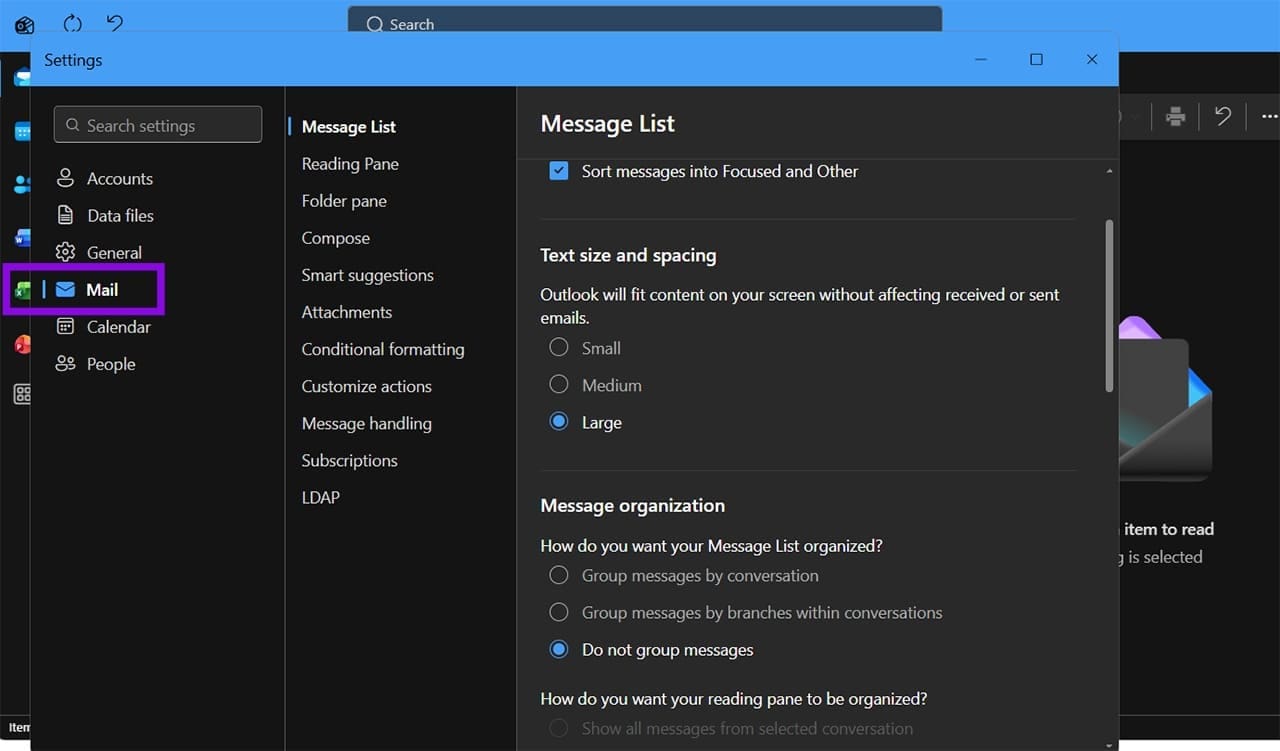
Fix 3 – Change Outlook Settings to Prevent Outlook Reply Removes Attachments Issue
If you want to force Outlook to resend attachments from the original mail, you’ll need to change some settings. This is easier to do in the old Outlook app, but the new one should have similar options.
Step 1. Go to “File” and then to “Options.”
Step 2. Go to the “Mail” tab in the sidebar.
Step 3. Scroll down to the “Replies and forwards” section. In there, re-check any options that allow you to preserve attachments between replies.
These settings may change over time with different versions of Outlook. If you’ve only recently started getting the issue, you may need to change the settings again.
Fix 4 – Manually Attach the File
If you want to ensure that you and the recipient are working with the same file version, you should manually attach the file to a reply you’re making. This ensures that the file gets sent regardless of Outlook’s reply policies.
If Outlook detects two identical files this way, it will ignore one when sending the actual message or display a warning.
Other Fixes
If none of these fixes work, you can try the following:
- Making a fresh Outlook account
- Repairing Office through “Settings” (using the “Installed apps” menu)
- Temporarily disable antivirus and Windows Defender (not recommended for unknown files)
- Run the SCANPST.exe Repair tool (in the folder C:\Program Files\Microsoft Office\root\Office16 by default)
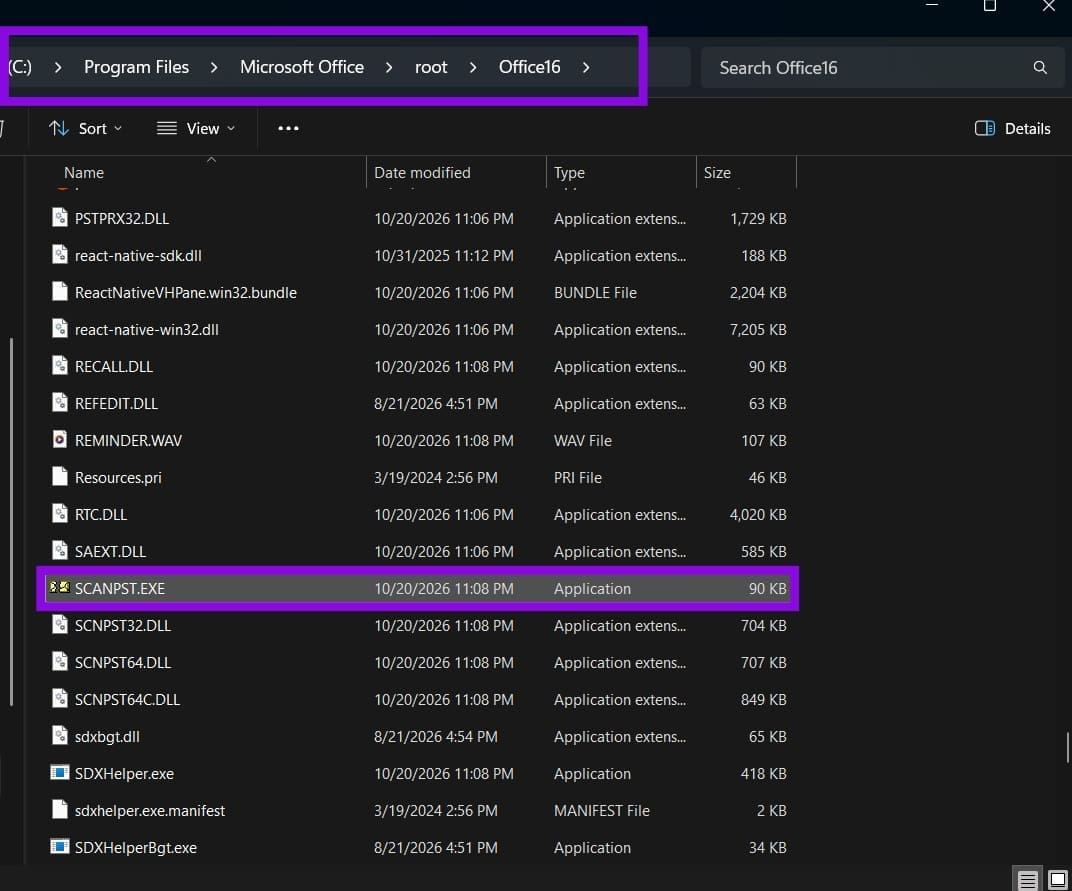
The last one can solve some data file corruption that might be affecting your Outlook’s local storage.