Windows 11 updates are perhaps among the most annoying parts of trying to work in the off hours. Without any way to cancel updates anymore (you can only delay them, and even that doesn’t always work), some updates will get applied, and Windows will notify you that it will restart the PC as soon as you stop working. Here’s how to stop Windows 11 auto-update restarts for as long as possible.
Note that these fixes likely won’t last forever, as Windows 11 will eventually push vital updates onto a device and force you to restart to apply them after enough time has passed.
Fix 1 – Stop Windows 11 Auto Update Restarts via Registry Editor or Group Policy
There are two ways to change Windows Update restart settings for the whole PC. Registry Editor lets you modify system-wide settings, while Group Policy provides a way to configure them on supported Windows editions and can also be used to manage remote PCs. The Local Group Policy Editor isn’t included with Windows 11 Home.
Step 1. Search for and open “Registry Editor” or run regedit. If prompted by User Account Control, select “Yes” to allow it to make changes.
Step 2. Drag over the address bar at the top and replace it with the following:
HKEY_LOCAL_MACHINE\SOFTWARE\Policies\Microsoft\Windows\WindowsUpdate\AU
Step 2b. If you’re getting an error or nothing shows up, navigate to just
HKEY_LOCAL_MACHINE\SOFTWARE\Policies\Microsoft\Windows
Then, in the sidebar on the left, create a new “Key” with the value “WindowsUpdate.” Inside it, make an “AU” key in the same way.
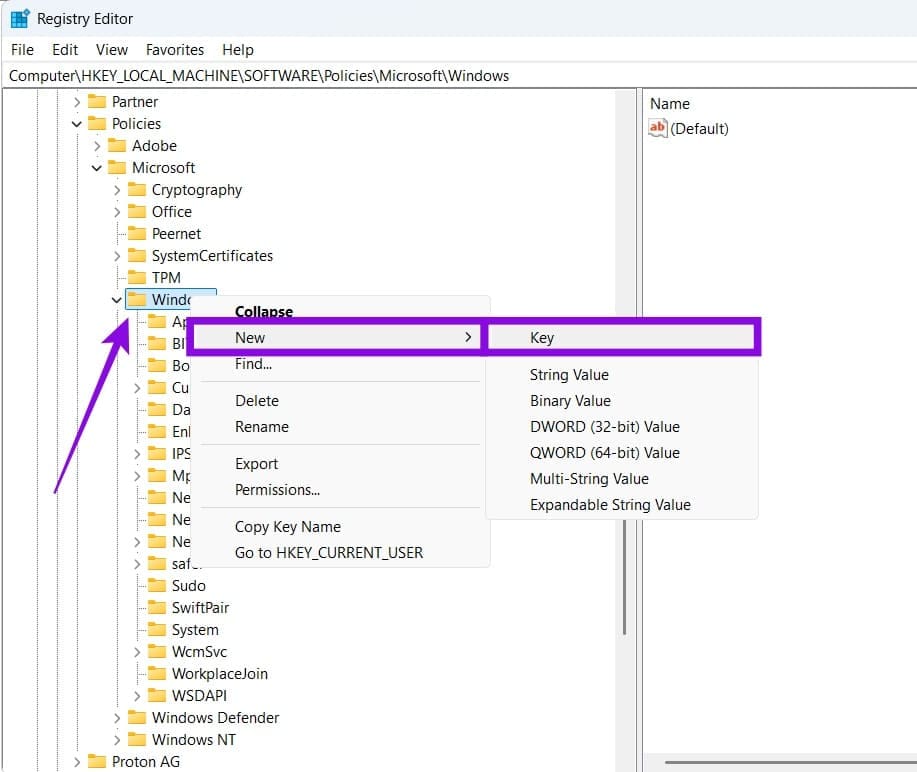
Step 3. Open the new “AU” key and, in the section on the right, right-click and choose to create a new “DWORD (32-bit).” Name it “NoAutoRebootWithLoggedOnUsers.”
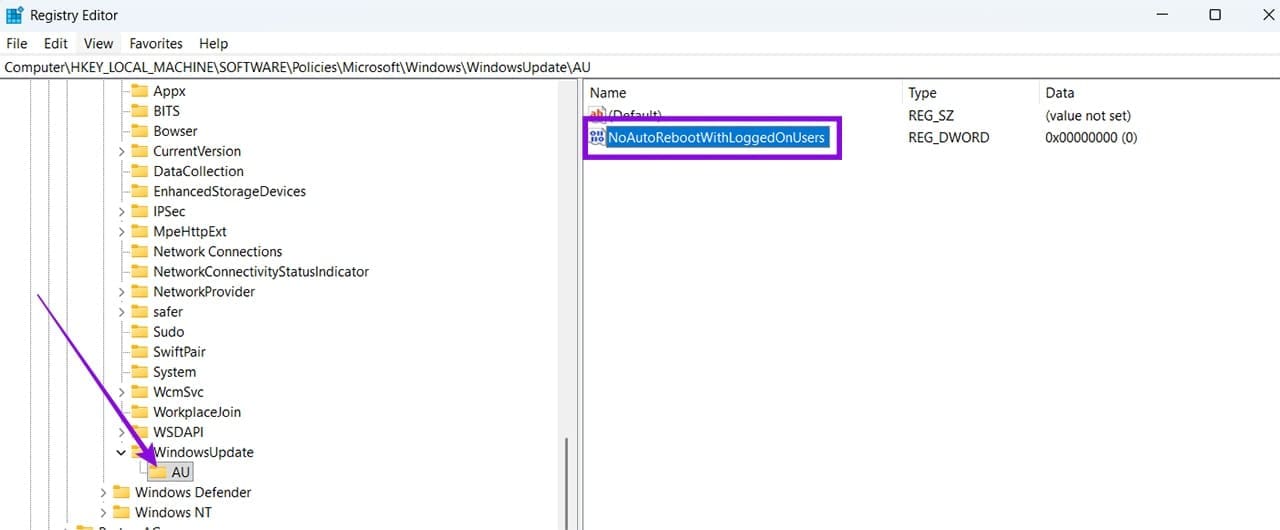
Step 4. Search for and open “Registry Editor” or run regedit. If prompted by User Account Control, select “Yes” to allow it to make changes.
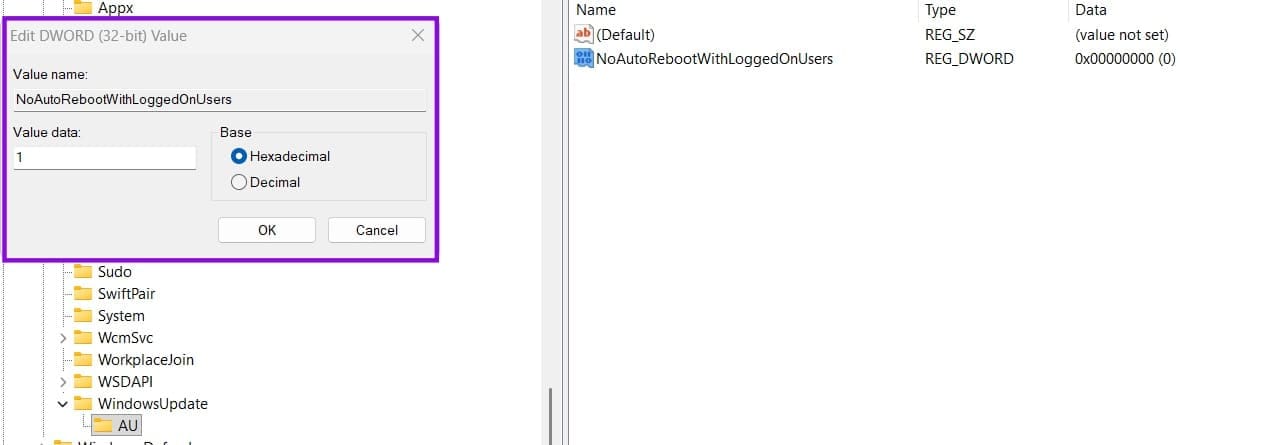
Step 5. Close Registry Editor. The value is saved automatically, but the setting may not take effect in every configuration, and a restart may be needed.
If you want to use Group Policy, you can find the appropriate setting at Computer Configuration > Administrative Templates > Windows Components> Windows Update.
In there, enable the option “No auto-restart with logged on users for scheduled automatic updates installations” by right-clicking on it and selecting the “Enable” option in the top-left. You need to manually use “Apply” for these changes.
Fix 2 – Disable Automatic Restarts Windows 11 Has By Changing Active Hours
By default, Windows won’t schedule automatic restarts within your working hours, and the hours themselves can be flexible. In theory, you can change your working hours as soon as you get a notification about an update, which delays the restart.
However, to stop Windows 11 auto update restarts altogether, you can run a script that periodically changes working hours so they’re essentially always active.
Step 1. Open Notepad and paste the following commands inside:
for /f %%i in (‘powershell “((get-date).Hour+18) %% 24”’) do set startHour=%%i
for /f %%i in (‘powershell “((get-date).Hour+12) %% 24”’) do set endHour=%%i
reg add HKLM\SOFTWARE\Microsoft\WindowsUpdate\UX\Settings /v ActiveHoursStart /t REG_DWORD /d %startHour% /f
reg add HKLM\SOFTWARE\Microsoft\WindowsUpdate\UX\Settings /v ActiveHoursEnd /t REG_DWORD /d %endHour% /f
Step 2. When saving the file, after entering a name, add the BAT extension manually.
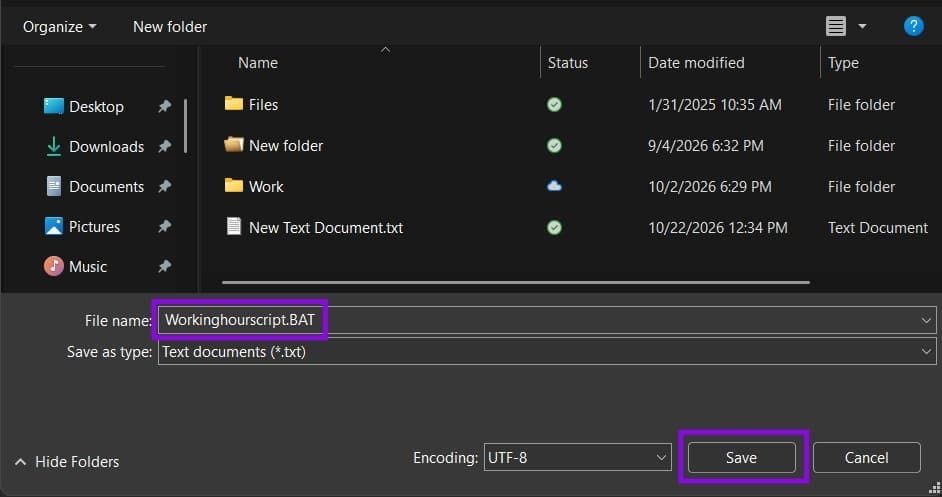
Step 3. Save the file in a permanent location on the same drive as Windows and remember where it is.
Step 4. Open the Command Prompt as an administrator.
Step 5. Run the following command:
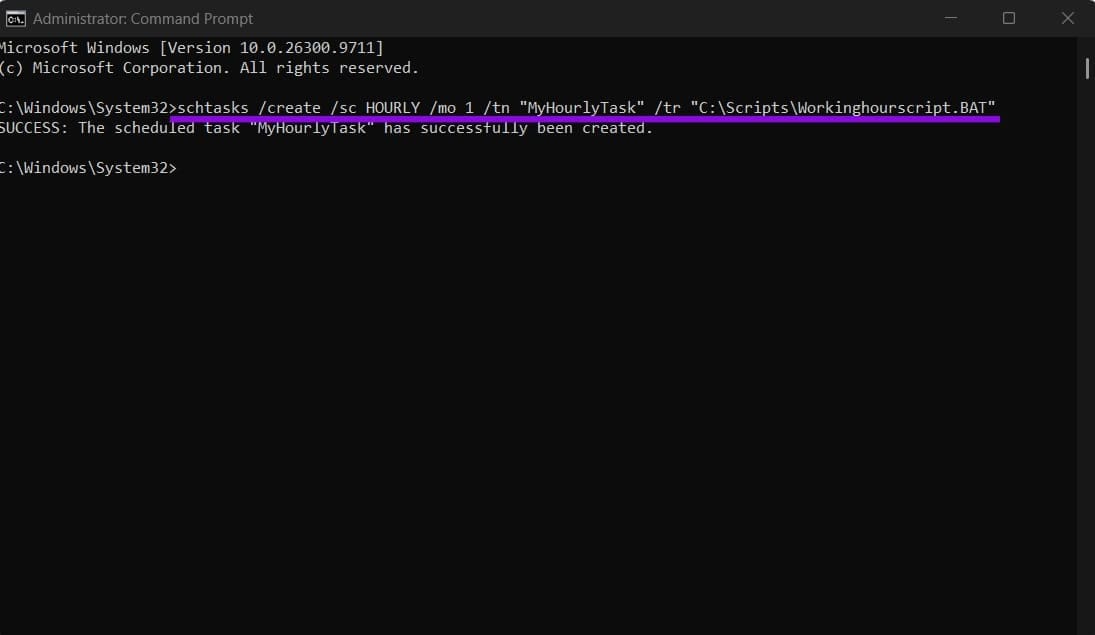
schtasks /create /sc HOURLY /mo 1 /tn “MyHourlyTask” /tr “C:\Path-to-script.bat”
Here, “MyHourlyTask” is a name (you can customize it), while the last part is the path to the script file (copy it from File Explorer).
Note that you should customize the prompt before copying it into Command Prompt, as hitting “Ctrl + V” immediately runs it. You can use Notepad to make the changes.
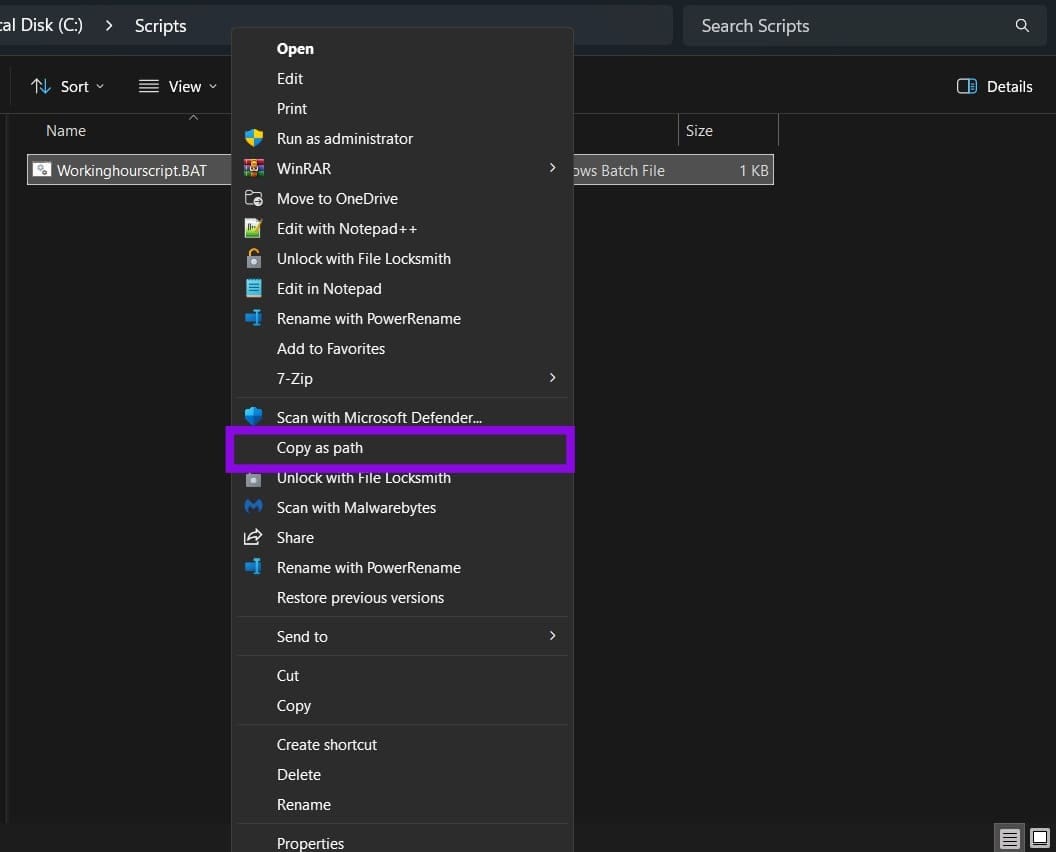
You can use the “Copy as path” option on the file if you want to apply its address only.
Here’s how a command might look in Command Prompt:
Step 6. To confirm the task has been created, you can open Task Scheduler and check for it in the Task Scheduler Library.
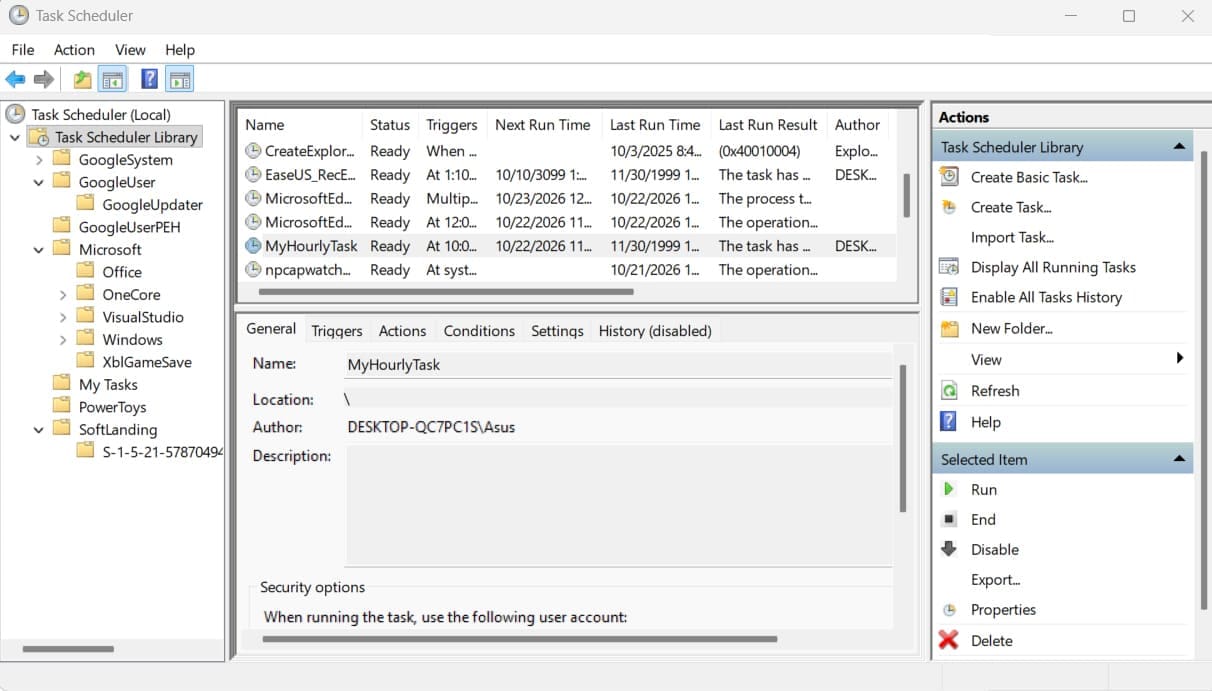
You can also delete it from here if you ever want to undo the change, then manually change working hours back to normal.