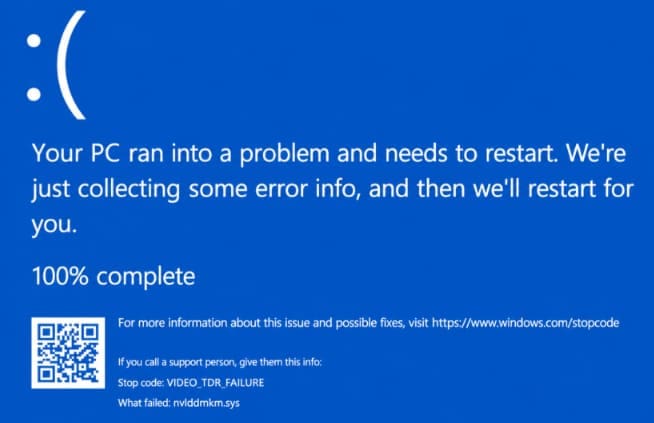
Windows is well known for its “blue screens of death” (BSOD) that can cause a PC or laptop to shut down or restart. While instances of BSOD are rarer in Windows 11, some users have experienced an issue known as a VIDEO_TDR_FAILURE blue screen, sometimes caused by the graphics card drivers such as nvlddmkm.sys or atikmpag.sys.
Although the BSOD is alarming, there are several things you can try to prevent it from happening or fix the underlying problem. Read on to learn what causes the VIDEO_TDR_FAILURE error and how to fix it.
What Causes a VIDEO_TDR_FAILURE Error?
TDR stands for Timeout Detection and Recovery, a Windows mechanism that detects when the graphics processing unit (GPU) stops responding and attempts to reset the graphics driver and recover. If recovery fails, Windows may display a VIDEO_TDR_FAILURE blue screen. A VIDEO_TDR_FAILURE error is specifically related to graphics processing, which handles everything from displaying the Windows desktop to rendering high-end 3D games.
In most cases of the error, the drivers that control your graphics cards have glitched or stopped responding. Windows tries to restart these drivers to fix the problem, and if this fails, you see the VIDEO_TDR_FAILURE blue screen.
There are several possible causes:
- An overheating machine: Heat can cause graphics cards to physically disconnect from a computer’s motherboard. Check that no vents are blocked on your computer and that the room temperature is optimal. Don’t position your laptop directly next to a heat source.
- High resource usage: An unresponsive app or an excessive workload may contribute to system instability. Open Task Manager by pressing Ctrl + Shift + Esc and check whether any applications are consuming unusually high amounts of CPU, memory, or GPU resources.
- Windows needs updating: Go to Settings > Windows Update and select “Check for updates.” Install any available updates and restart your computer if prompted.
- Out-of-date or corrupt graphics drivers: If your graphics card drivers have become corrupted or are out of date, they may need reinstalling.
The next section takes you through how to perform an update of your graphics card drivers.
Fix VIDEO_TDR_FAILURE Error: Update Graphics Card Drivers
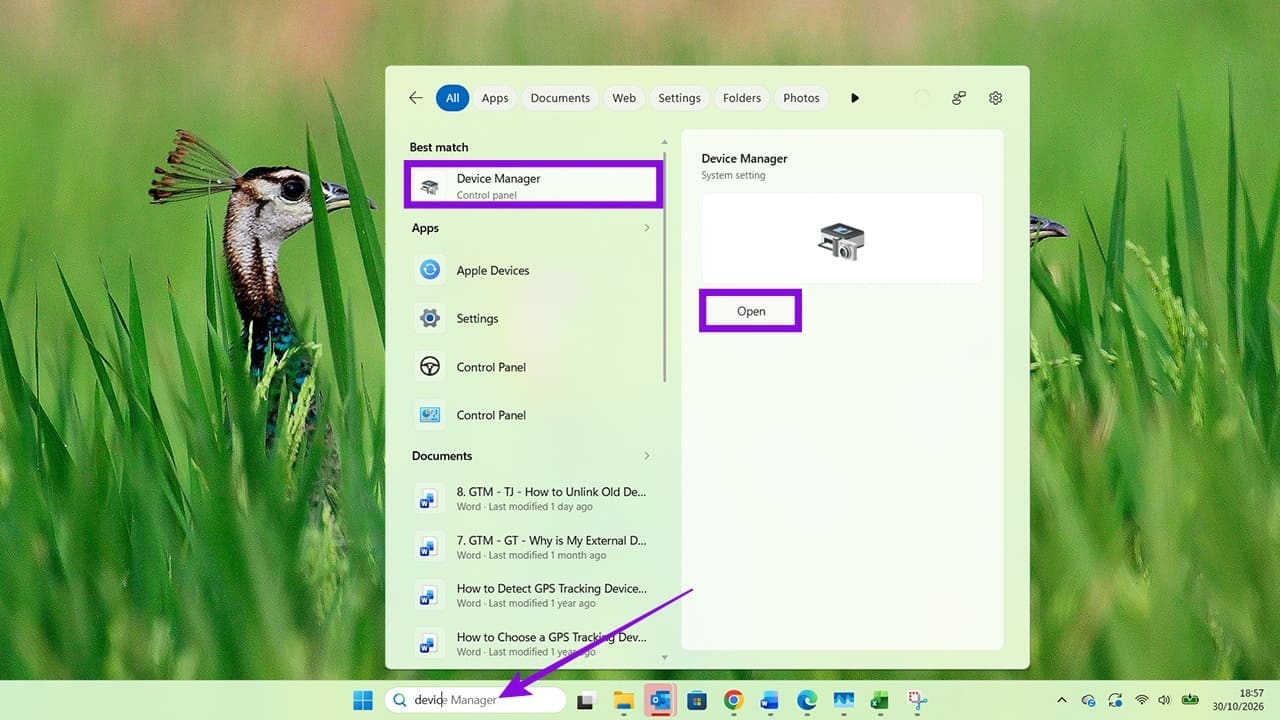
Step 1. Using the search bar next to your Start menu, search for “Device Manager.”
Step 2. Open “Device Manager.”
Step 3. Find “Display adapters” (or simply “Adapters”) and click the arrow next to it to expand the menu.
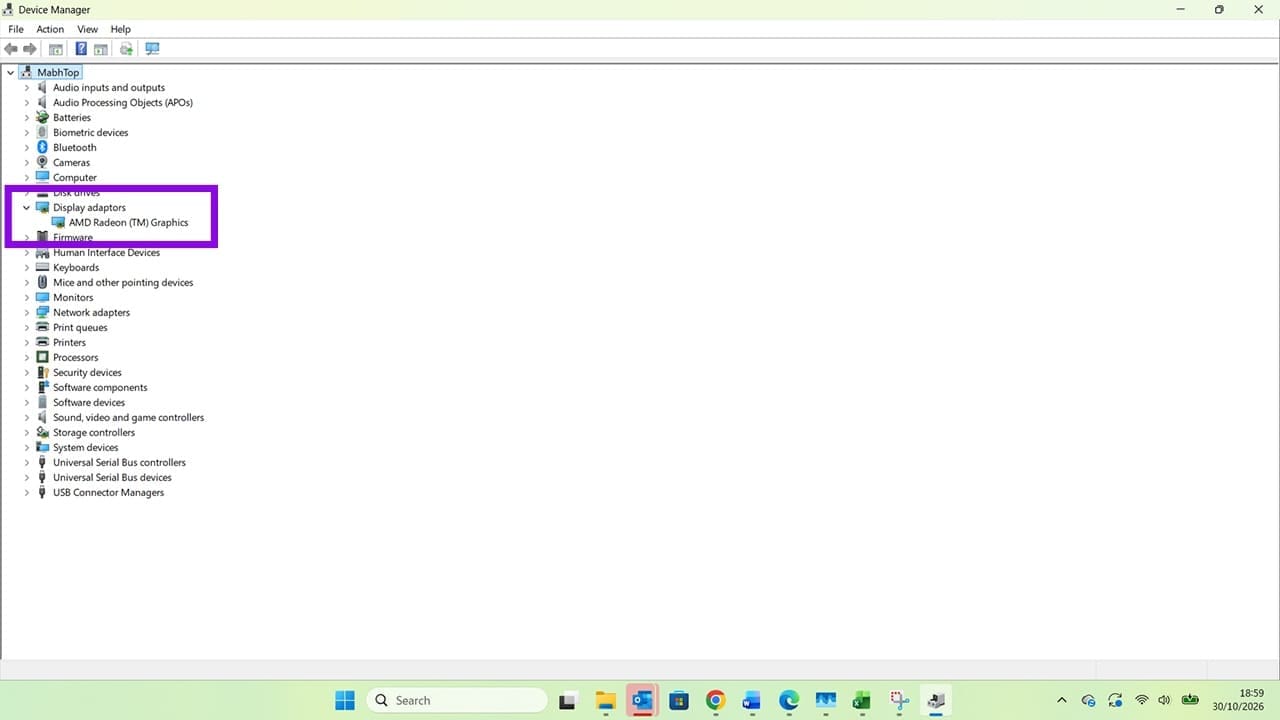
Step 4. Right-click on the name of the display adapter (another name for your graphics card) and choose the option to update the driver.
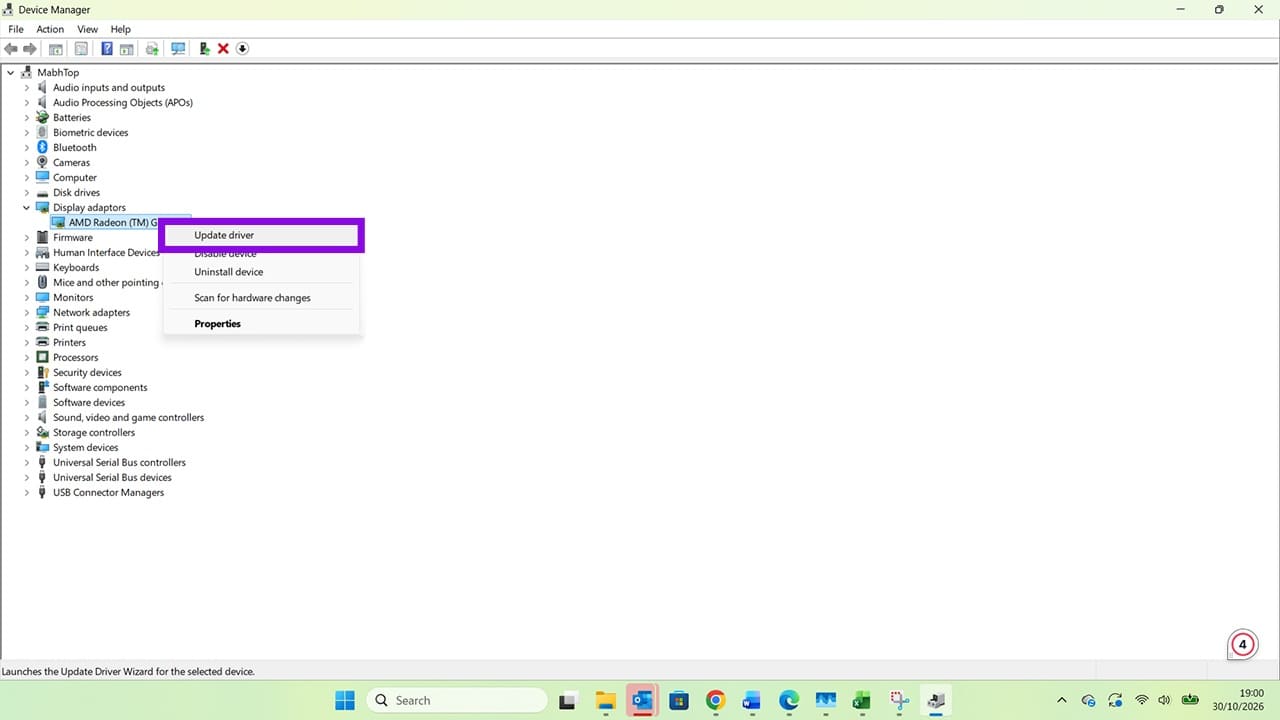
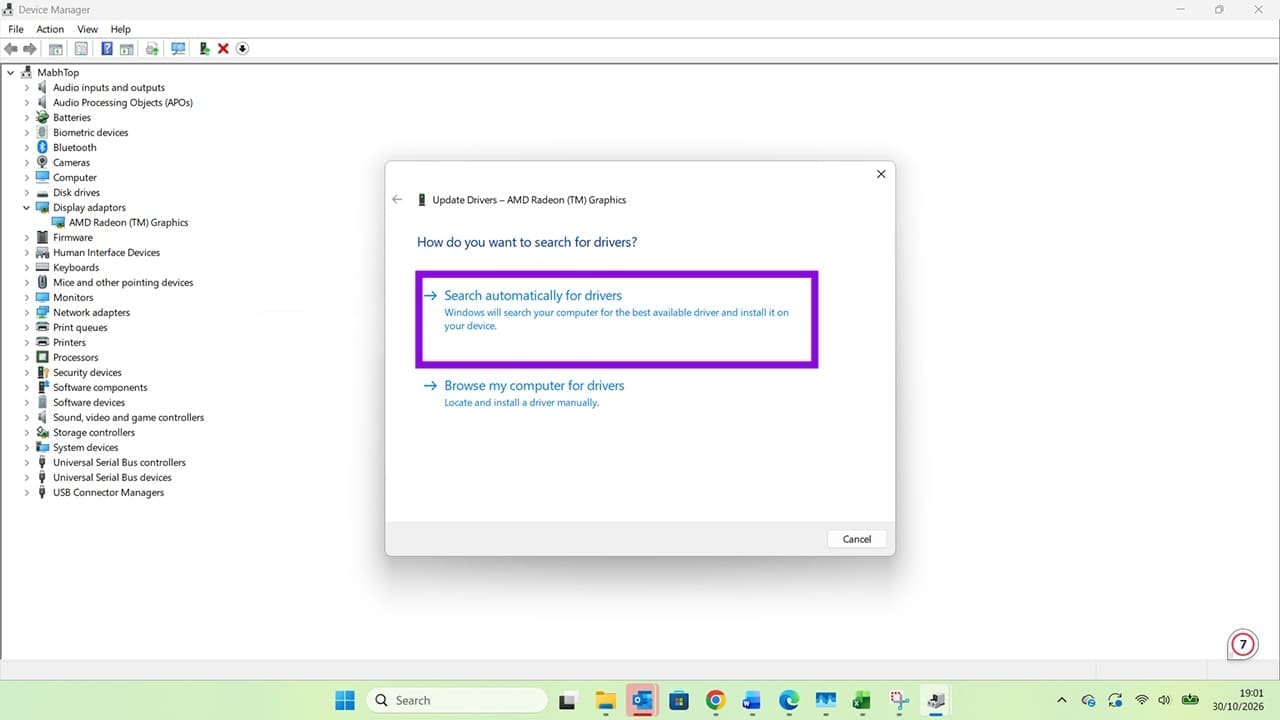
Step 5. Windows will ask you how you want to update the driver. Select the option for searching automatically unless you previously downloaded specific drivers you wish to install. Follow any additional on-screen prompts.
Once you’ve updated your graphics drivers, restart your computer and check whether Windows works as expected. If the VIDEO_TDR_FAILURE error no longer occurs, the driver update may have resolved the problem. If it’s still there, check for other possible causes, including overheating, insufficient power, overclocking, or faulty hardware.