Most USB drives come pre-formatted to a specific standard or are not formatted at all. This means you may have to switch to a different formatting system if you intend to use it for various devices or operating systems. If you experience the volume size error when formatting USB drives, it’s usually from trying to move it to a FAT32 system for cross-platform compatibility.
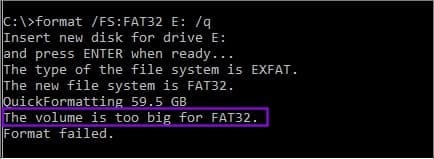
Here are some options to try to overcome this issue.
Option 1 – Use the Built-In DiskPart Utility to Avoid Volume Size Error When Formatting USB
The main cause of the volume size error when formatting USB drives comes from the graphical “Disk Management” utility that is most commonly used to format or access new drives. Windows’ built-in formatting tools generally restrict FAT32 formatting to partitions of 32GB or less, even though FAT32 volumes can be larger. Updating Windows does not generally remove this restriction.
However, Windows can still “see” and operate with USBs that are formatted in FAT32 and have a size of up to 2TB. To do this, you’ll need a command-line utility called DiskPart.
Step 1. Insert the USB drive.
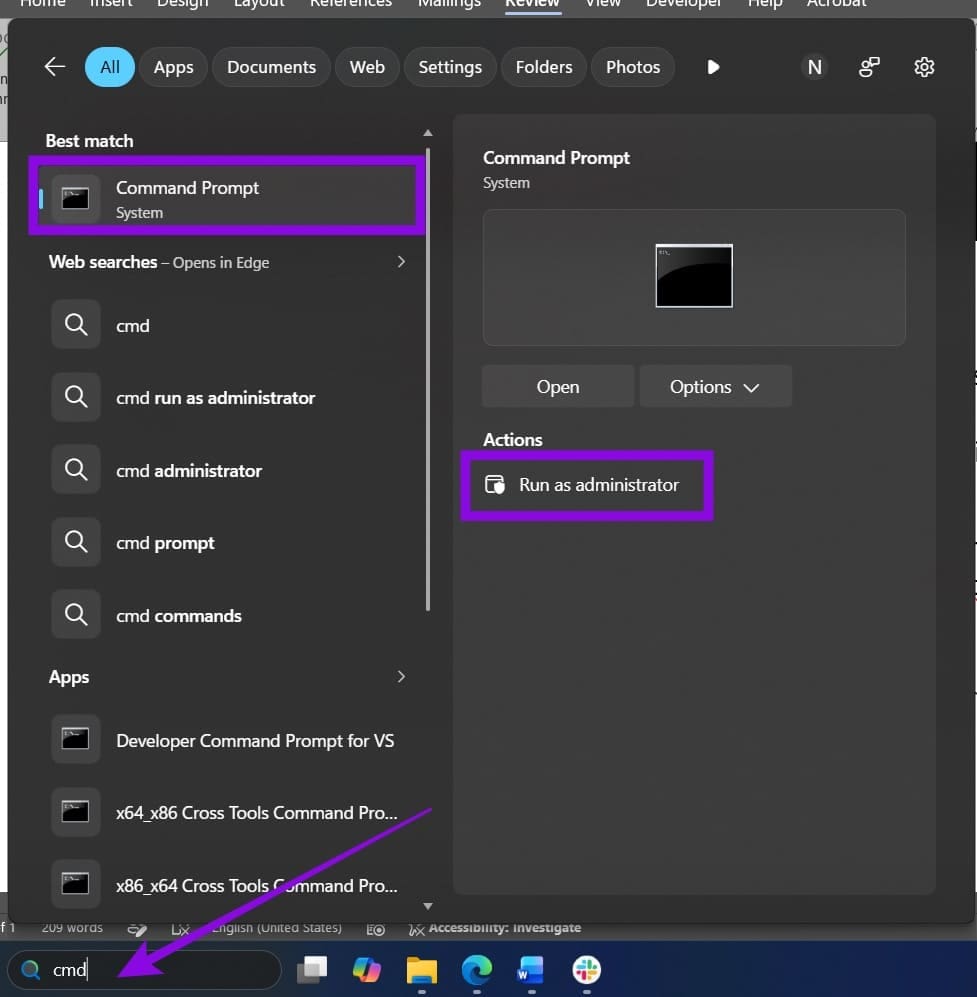
Step 2. Search for Command Prompt or “cmd” and use the “Run as administrator” option.
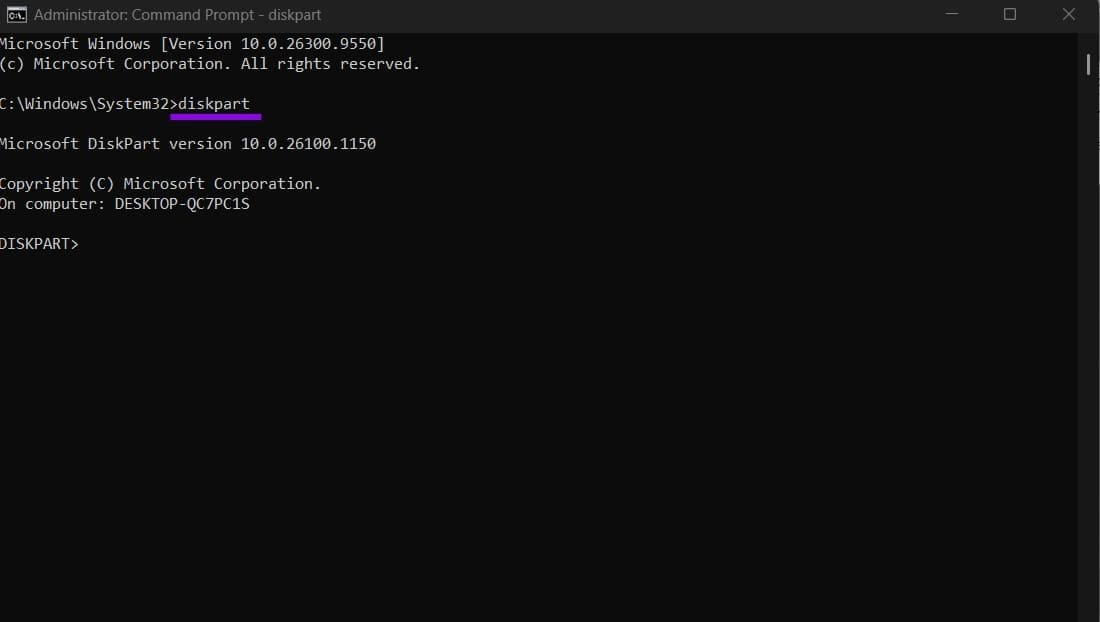
Step 3. Type in “diskpart” and hit “Enter.” You’ll get a separate utility inside the Command Prompt with an intro message.
Step 4. Type in “list disk” and hit “Enter.”
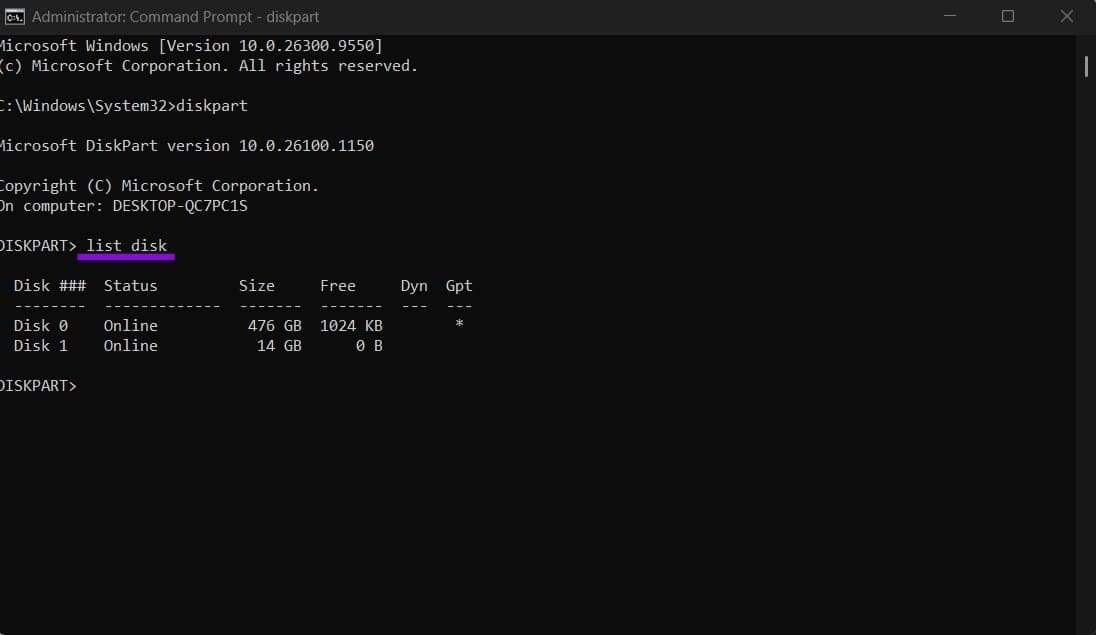
Step 5. Identify your USB drive by its capacity and other identifying details. Run “select disk X,” replacing X with the correct disk number. Double-check your selection before proceeding.
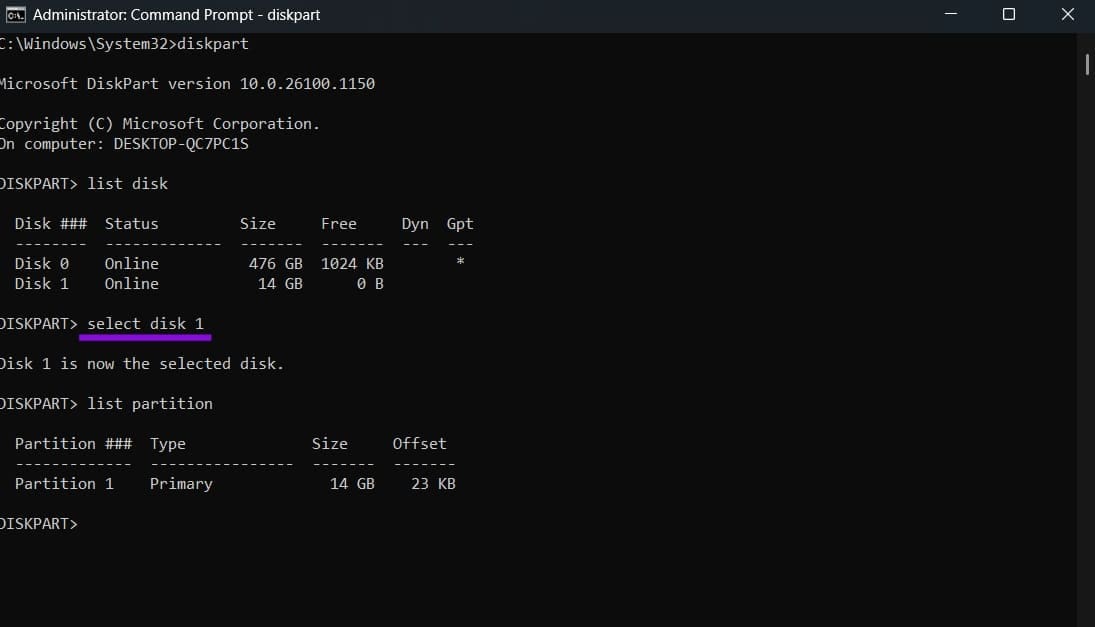
Step 6. Run “list partition” to check whether the USB drive already has a usable partition. If you need to create a new partition, back up any files you want to keep first, then use DiskPart’s partition-management commands to create a primary partition.
Step 7. Select the appropriate partition with “select partition X,” replacing X with the correct partition number.
Step 8. If the disk is marked read-only, check it with attributes disk. If appropriate, run attributes disk clear read-only to clear the software read-only attribute.
Step 9. Run format fs=fat32 quick to format the selected partition. Formatting will destroy existing file-system data on that partition. This command may still fail if Windows’ formatting implementation rejects the partition size.
Step 10. Type “exit” to close DiskPart when you’re finished.
Option 2 – Create a Smaller FAT32 Partition on the USB
If you don’t want to wipe the entire USB to reformat it but still need a bit of space in FAT32 for specific files, you can reserve a block of space for it with a separate partition. This can be done in Disk Management.
Step 1. Right-click on the Windows or “Start” icon and select “Disk Management.”
Step 2. Right-click on the USB drive and select “Shrink volume.” This option might not even be available if the USB is too small in the first place.
Step 3. Enter the new volume size for the new partition. For FAT32, use 32GB or less.
Step 4. You’ll be prompted to select the file format. Choose FAT32.
Step 5. Allocate the remaining space as exFAT or NTFS.
Option 3 – Use a Dedicated Third-Party Partition Manager
If your Windows isn’t updated to use the expanded FAT32 size constraints or your USB is exceedingly large, it might fail to create a partition anyway. In this case, you can use a third-party disk management tool.
Options include AOMEI, Paragon, or EaseUS Partition Master, which all have various added features beyond simple reformatting.
Option 4 – Use Another Format
If you don’t really need compatibility with extremely old operating systems, the best way to avoid the volume size error when formatting USB drives is to use the newer standard. Both exFAT and NTFS have expanded memory limits, and exFAT in particular also works with Apple devices, so you can use it with a Mac. Even Linux and some consoles can use exFAT as well.
Furthermore, both options should be available in Disk Management from the get-go in Windows 11.