
If your main messaging app is WhatsApp, then there’s a good chance that you get a lot of pictures and videos. You could try manually downloading the files, so you only download the ones you want, but usually, the files you do need take up too much space on your Android device. You could manually upload your videos and pictures. Still, you run the risk of not having enough time to back them up, and then you erase them accidentally.
By having your WhatsApp files upload to Google Photos automatically, you can relax and know that if you were to factory reset your device for some reason, your videos and pictures are safe. The process is easy to do and doesn’t take long at all. It’s also a good idea to save as many files as possible to Google Photos before June comes around when the cloud storage service won’t be completely free. After that, you might consider exporting your Google Photos elsewhere.
Save All WhatsApp Video and Picture to Google Photos Automatically
To backup your WhatsApp pictures and videos to Google Photos, you’ll need to sign in to Google Photos with the Google account you consider your primary account. Once you’re in, tap on your profile picture and go to Photo Settings, followed by Backup and sync.

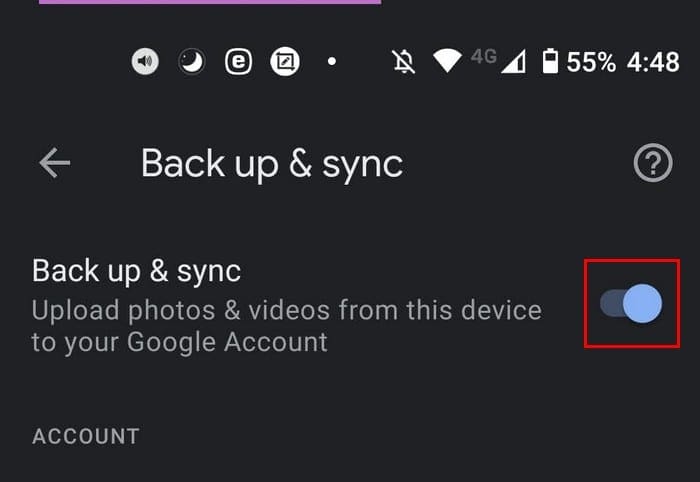
Once you’re in Backup and sync, make sure to toggle on the option with that name. Since you download your WhatsApp media to your phone, you can save them to Google Photos by enabling this option.
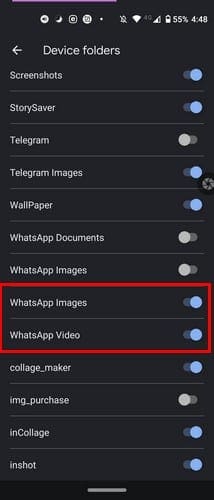
You can also swipe all the way down and tap on the Backup device folders option. Here you’ll see a long list of options you can backup, including WhatsApp. Look for the options that allow you to save WhatsApp images and videos and toggle them on. The WhatsApp option should be all the way at the bottom.
The Google Photos Library Backup Option
Another way you can back up your WhatsApp media is through Google Photos’ Library tab. Once you’ve opened the Google Photo’s app, you’ll see three tabs at the bottom. The one to the far right will be the Library option.
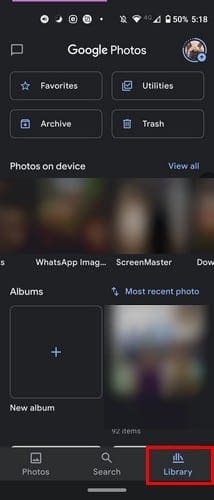
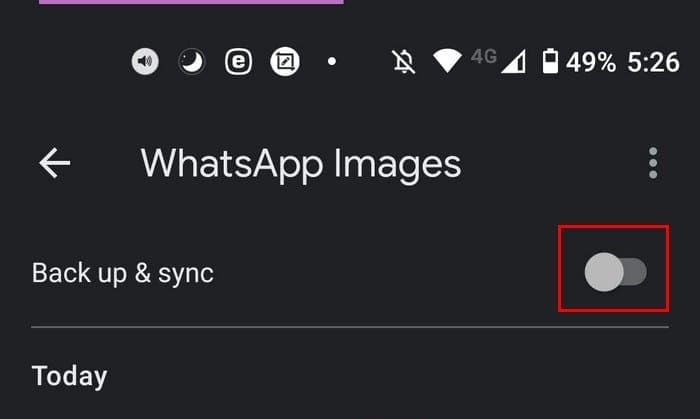
At the top, you’ll see all the folders that are being backed up to your Google Photos account. If you see a folder with a crossed-out cloud, that specific folder is not backed up.

You can fix that by tapping on that folder at the top, toggle on the Backup and sync option. Once you enable it, you’ll notice that the crossed-out cloud will be gone. That means that the folder is now being backed up to Google Photos.
Conclusion
It’s important to backup your videos and pictures from WhatsApp to Google Photos because you assure yourself that family pictures that you don’t want to lose are safe. By enabling the auto-backup feature, you can enjoy your pictures without having to worry if you backed them up or not. If you ever erase them from your device, you know you can count on another copy on Google Photos on purpose or not. Do you usually get a lot of media on WhatsApp? Share your thought in the comments below.

My WhatsApp images aren’t stored in Google photos anymore. The folder only contains received WhatsApp images, not sent ones. But another app in my phone is able to find the sent WhatsApp images. I would like to know how to gain access again
I have followed the steps exactly as described. Toggled on the switches as mentioned, actually those were already on. Still the WhatsApp photos and videos are not getting automatically uploaded to my Google Photos account as it was doing previously. This happened after 24 Apps were updated including Google App two days ago. I am using Samsung Galaxy M21 with 6GB RAM, 128 GB internal storage and 128 GB Micro SD card. From the very beginning my WhatsApp media were being saved on Micro SD card by default.
Hi
In my google photos, under device folder- whats app option doesnot show. All I can se see telegram, gallery, picture and images. Please advice. Thanks
I did all of the above, but still syncing doesn’t happen.
Furthermore, my Whatsapp folder contains photos up until mid-February, the newer ones are not there.
And in my Camera folder there are no pictures at all, although all pictures are still appearing when opening Google Photos – except the Whatsapp pictures since mid-February.
What can I do?