Skip to content
LogoTechnipages
LogoTechnipages
  • Topics
        • Android
        • Browsers
        • Gaming
        • Hardware
        • Internet
        • iPhone
        • Linux
        • macOS
        • Office
        • Reviews
        • Software
        • Windows
        • Definitions
        • All Recent Posts
  • Product Reviews
  • About

How to Fix Microphone Not Working in Microsoft Edge

Evan MercerJuly 16, 2026 Comments (0)
microphone not working in microsoft edge

A microphone not working is never a good thing, but what if the problem is limited to one app? If that’s you and the app is Microsoft Edge, then not to worry. This article will provide several troubleshooters to help you get your voice back and fix a microphone not working in Microsoft Edge.

Contents

  • 1 Microphone Not Working in Microsoft Edge – Fixes to Try
    • 1.1 Double Check Your Microphone
    • 1.2 Ensure App Permissions
    • 1.3 Check Mic Settings in Edge
    • 1.4 Disable Third-Party Extensions
    • 1.5 Update Edge
    • 1.6 Clear the Cache

Microphone Not Working in Microsoft Edge – Fixes to Try

In Edge, microphone not working is usually a sign of software trouble on the app’s side (permissions, software versions, cache, etc.), especially if you’re able to use it elsewhere. We’ve got some fixes below to help you sort things out:

Double Check Your Microphone

It might seem obvious, but to potentially save yourself a lot of stress down the line, first double-check that your microphone is on. In addition, check the USB cable and connection. Try another port if possible to see if the issue is resolved.

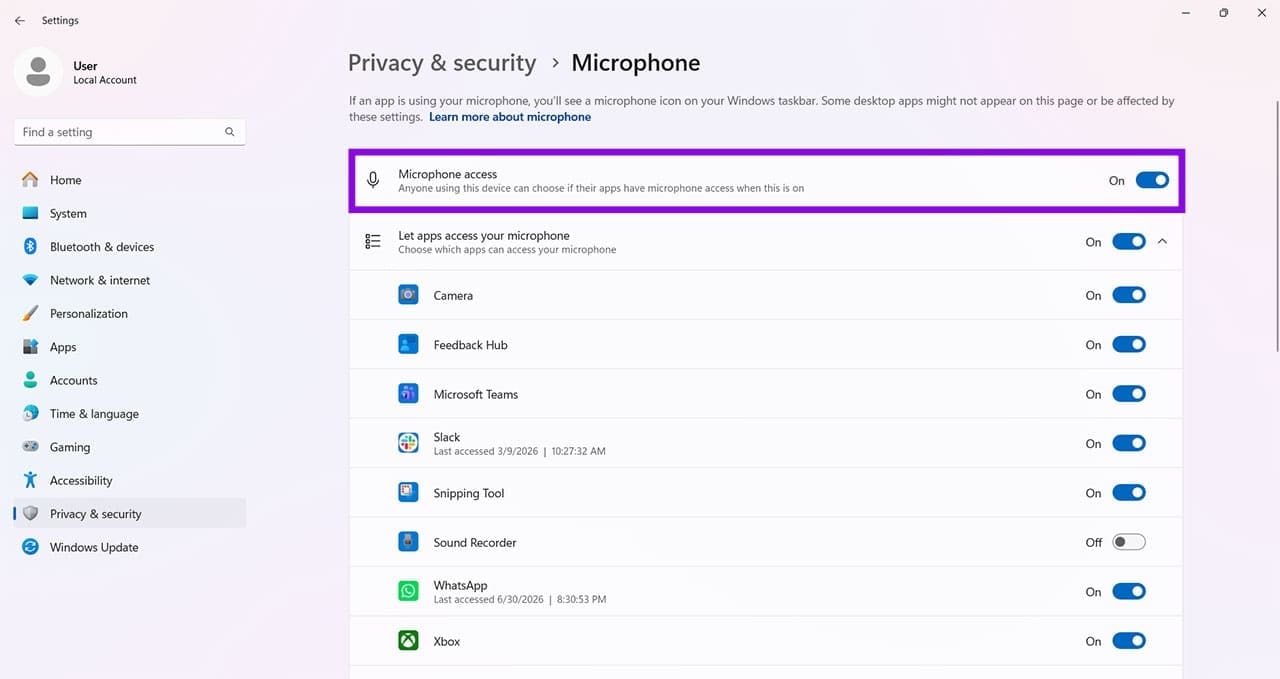
You can also check that microphone permissions are enabled in Settings, under “Privacy & security.” Ensure that the “Microphone access” toggle is set to “On.”
How to Fix Microphone Not Working in Microsoft Edge 1

Ensure App Permissions

While we’re on the topic of permissions, it’s important to check that Edge is allowed access to your microphone in the first place. You can also check this in “Settings:”

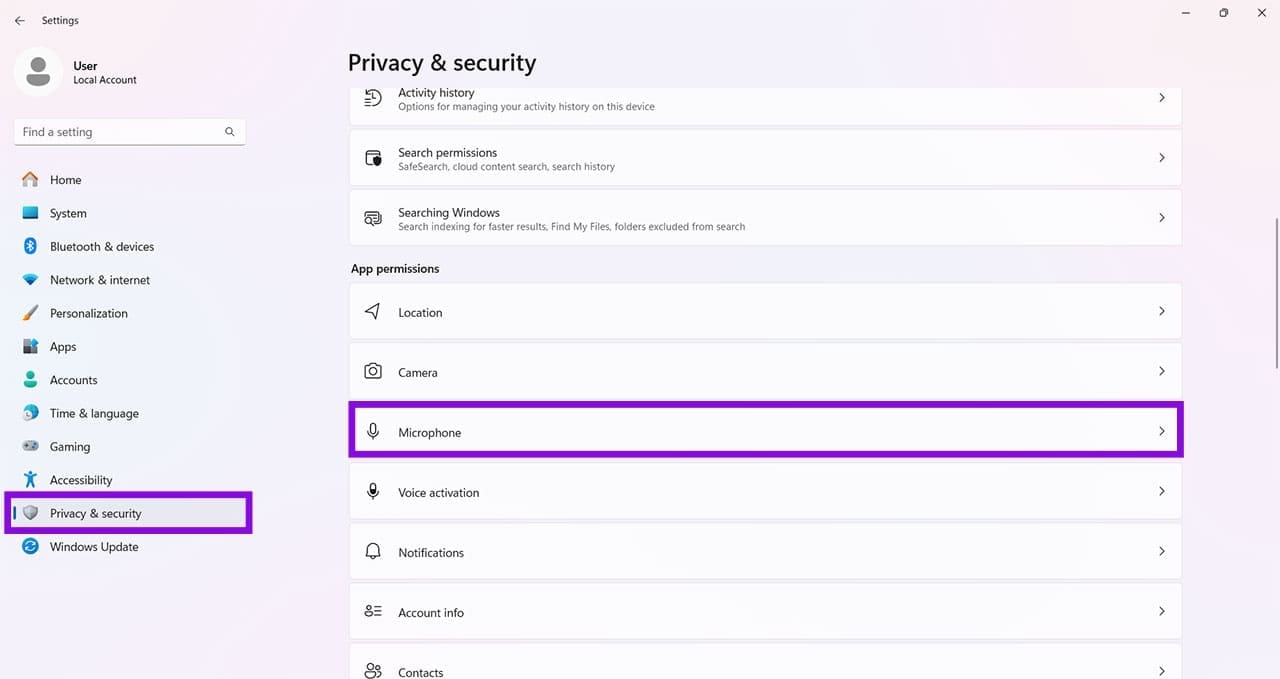
Step 1. Open “Settings” (Win + I) and select “Privacy & security” from the sidebar.

Step 2. Click on “Microphone” in the “App permissions” subsection.
How to Fix Microphone Not Working in Microsoft Edge 2

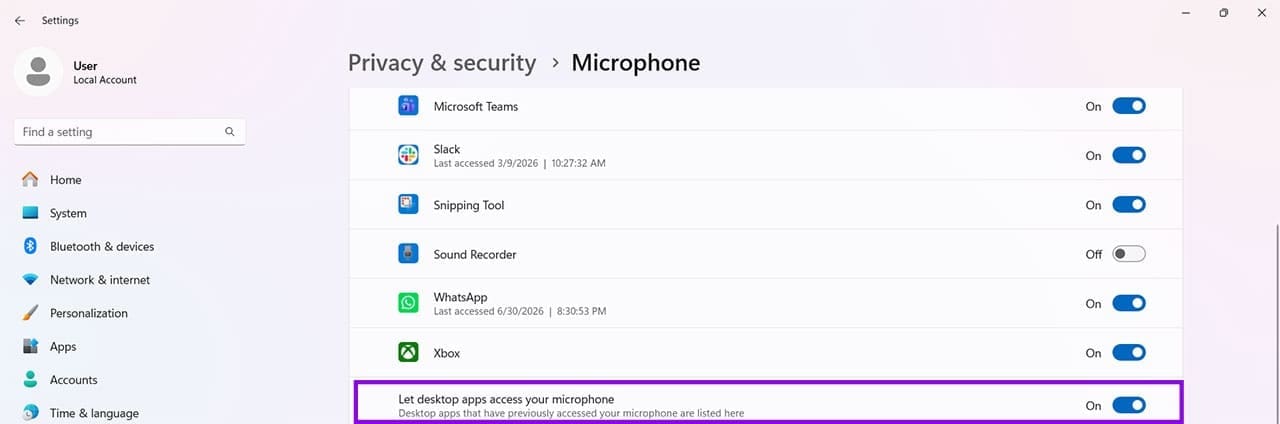
Step 3. Ensure “Let Desktop apps access your microphone” is toggled to “On.”
How to Fix Microphone Not Working in Microsoft Edge 3

Check Mic Settings in Edge

If you can’t find Edge in your microphone permissions in “Settings,” you can confirm via the app itself. Here’s how to set your microphone in Edge:

Step 1. Open the ellipses menu (three dots) and select “Settings” from the dropdown menu.

Step 2. In “Settings,” click “Privary, search, and services” then go to “Site permissions>All permissions” and click “Microphone.”
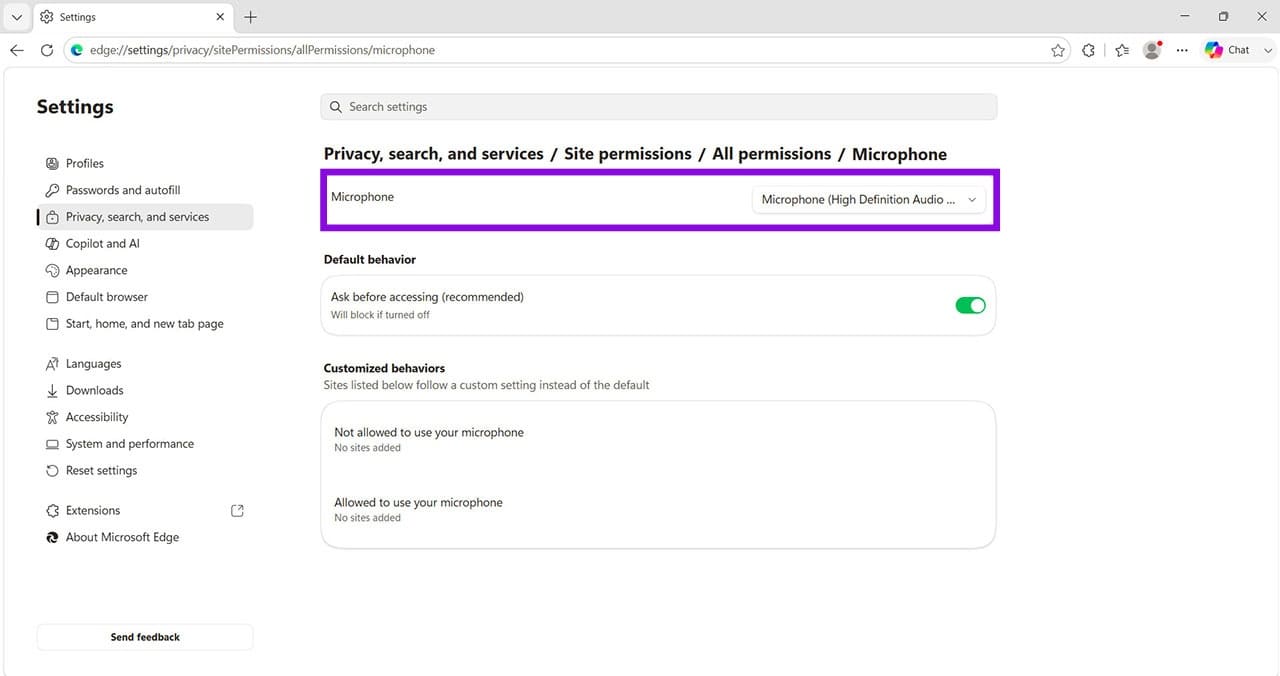
How to Fix Microphone Not Working in Microsoft Edge 4

Step 3. Check that your microphone is the one you’re currently using.

Step 4. Ensure that “Ask before accessing” is toggled to “On.”

Disable Third-Party Extensions

Often, it’s the extensions we install on Edge that end up blocking certain features of the browser, even microphones. This is especially true of privacy and browser security extensions. It’s worth disabling your extensions to see if they are the cause:

Step 1. Click the ellipses menu in Edge and hover over “Extensions” in the dropdown menu. Select “Manage extensions.”

Step 2. Disable all extensions by toggling them to “Off.”
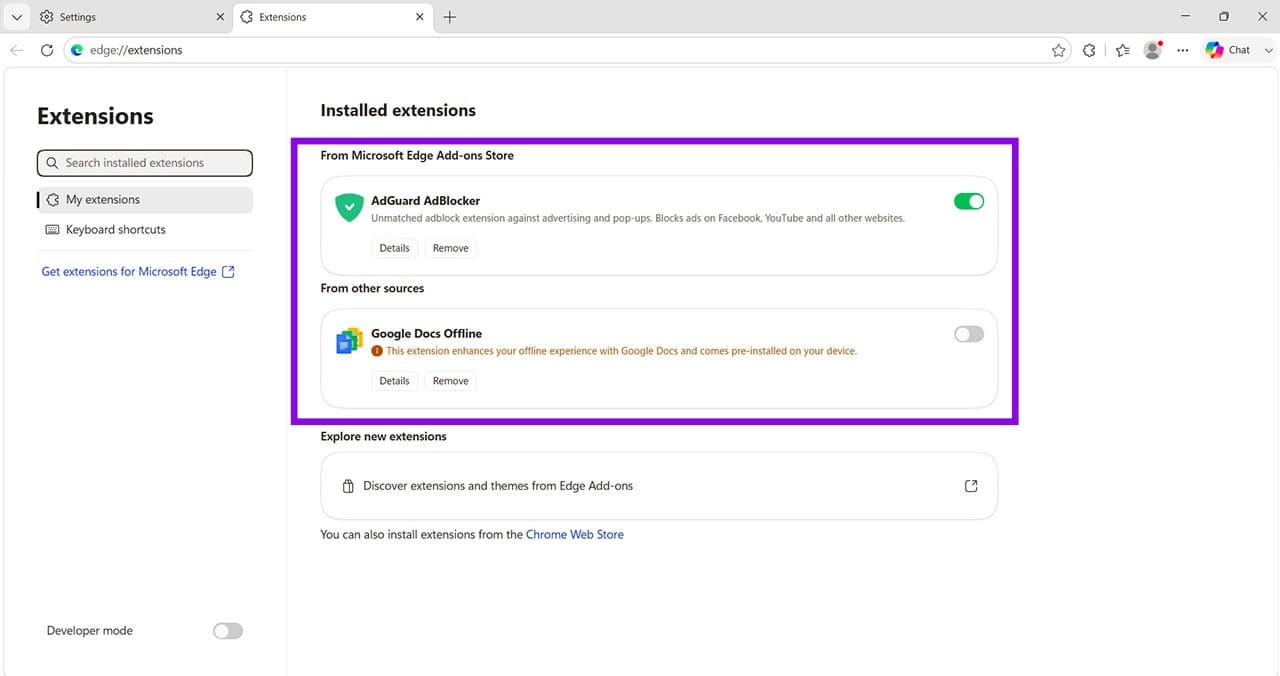
How to Fix Microphone Not Working in Microsoft Edge 5

Step 3. Test your microphone again. If it works, then re-enable the extensions one by one until the microphone stops working again. This will show you the offender.

Update Edge

Keeping the browser up to date is also a good way to ensure everything is functioning at its best. To update Edge, you can check its latest version like so:

Step 1. Click the ellipses menu and hover over “Help and feedback,” then select “About Microsoft Edge.”
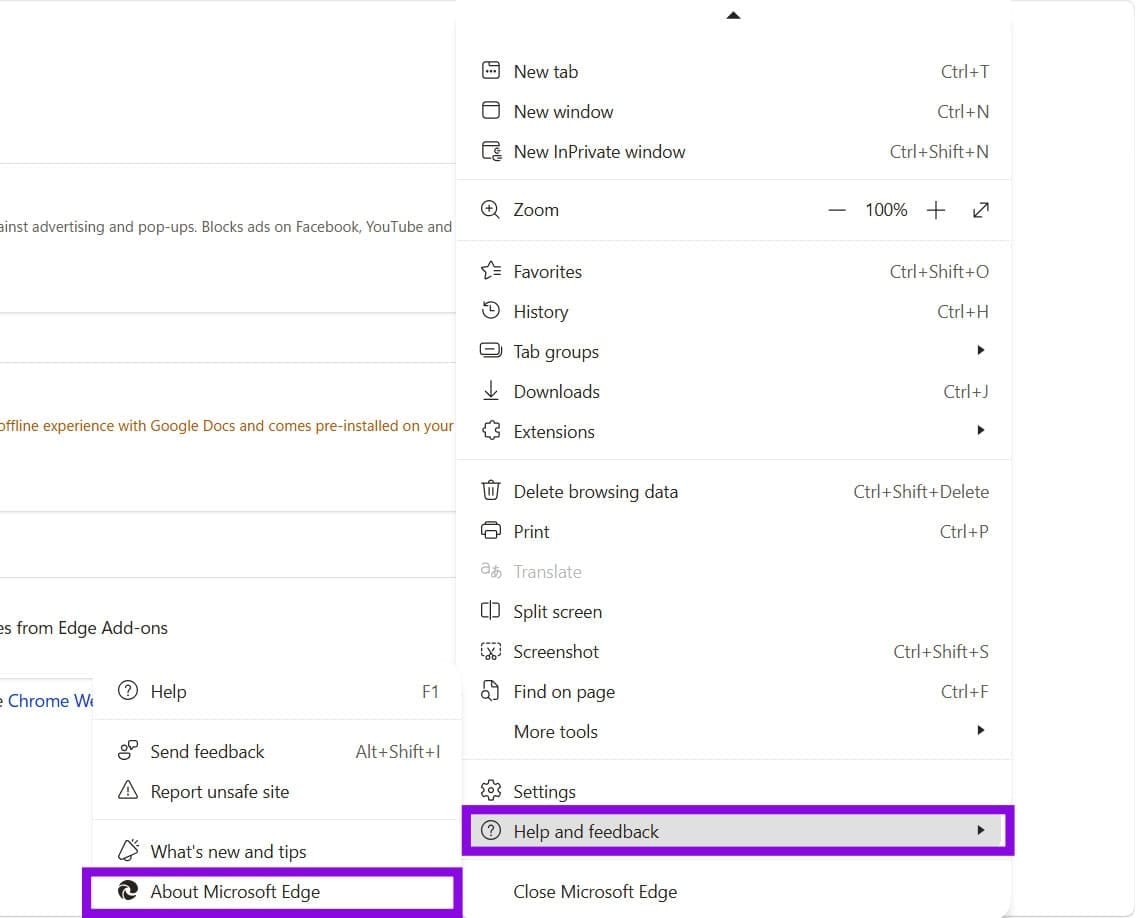
How to Fix Microphone Not Working in Microsoft Edge 6

Step 2. Check that the version of Microsoft Edge is the latest. If not, update it.
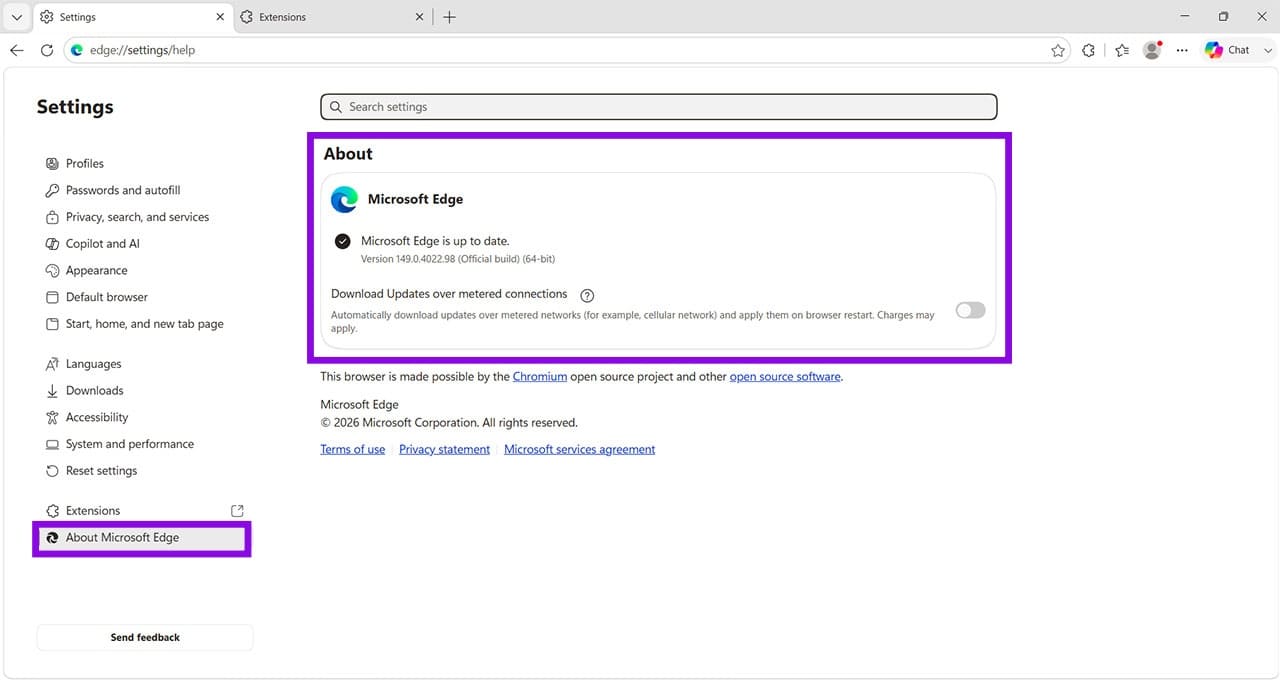
How to Fix Microphone Not Working in Microsoft Edge 7

Clear the Cache

A cache that isn’t regularly cleared can also cause issues for an app. Clearing the Edge cache is easy to do:

Step 1. Press (Ctrl + Shift + Del) to see the “Delete browsing data” window.
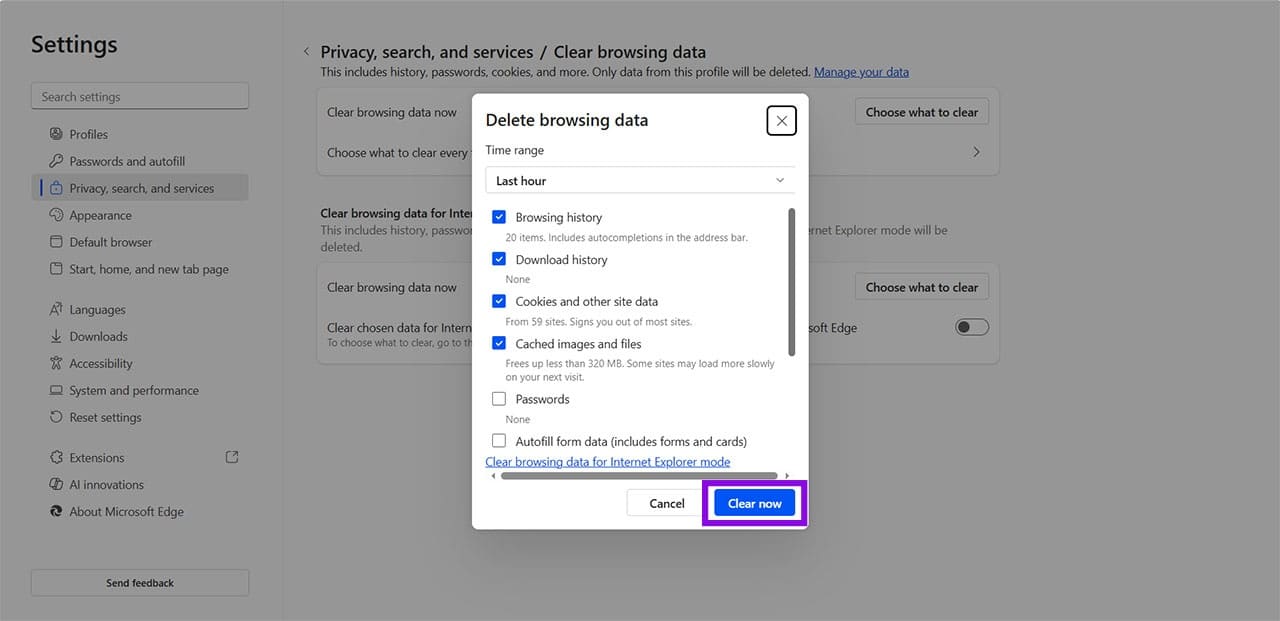
How to Fix Microphone Not Working in Microsoft Edge 8

Step 2. Select what’s to be deleted and click “Clear now” to finalize. Start with the cache, and delete cookies into the bargain if it isn’t working.

Categories: Browsers

Author Evan Mercer

I’m a computer science grad who loves to tinker with smartphones and tablets in my spare time. When I’m not writing about how to fix techy problems, I like hanging out with my dogs and sipping nice wine after a tough day.

You Might Also Like

  • How to Turn Spell Check On or Off in Firefox

    Mitch BartlettBrowsers
  • google-drive-download-not-working-in-microsoft-edge

    Microsoft Edge: How to Turn On/off Visual Search

    Judy SanhzBrowsers
  • vs code unable to launch browser

    VS Code Unable to Launch Browser – How to Fix

    Evan MercerBrowsers
  • browser keeps opening hp support

    Browser Keeps Opening HP Support Assistant Tabs 

    Evan MercerBrowsers

Leave a Reply

Your email address will not be published. Required fields are marked *

  • windows processor scheduling

    How to Boost Your PC’s Performance With Windows Processor Scheduling

  • night light not working in windows 11

    How to Fix Night Light Not Working in Windows 11

  • exfat drive not showing up on windows 11

    Why Is exFAT Drive Not Showing Up on Windows 11?

  • teams noise suppression

    Having Trouble With Teams Noise Suppression? Here’s What to Do

  • hyperlink wont open in pdf

    Fixing Hyperlinks That Won’t Work in Your PDF 

profile pic

The Experts Behind Technipages

My name is Mitch Bartlett. I've been working in technology for over 20 years in a wide range of tech jobs from Tech Support to Software Testing. I started this site as a technical guide for myself and it has grown into what I hope is a useful reference for all.

Learn More

technipages logo white
linkedin icon

Technipages is part of Guiding Tech Media, a leading digital media publisher focused on helping people figure out technology. Learn more about our mission and team here.

© 2026 Guiding Tech Media All Rights Reserved

  • About Us
  • Contact
  • Terms of Use
  • Privacy Policy

© 2026 Guiding Tech Media All Rights Reserved

Information from your device can be used to personalize your ad experience.
Do not sell my personal information.

Last Updated on July 16, 2026 by Evan Mercer