Skip to content
LogoTechnipages
LogoTechnipages
  • Topics
        • Android
        • Browsers
        • Gaming
        • Hardware
        • Internet
        • iPhone
        • Linux
        • macOS
        • Office
        • Reviews
        • Software
        • Windows
        • Definitions
        • All Recent Posts
  • Product Reviews
  • About

How to Effectively Capture a Picture from a Video – Android

Judy SanhzSeptember 24, 2021 Comments (0)
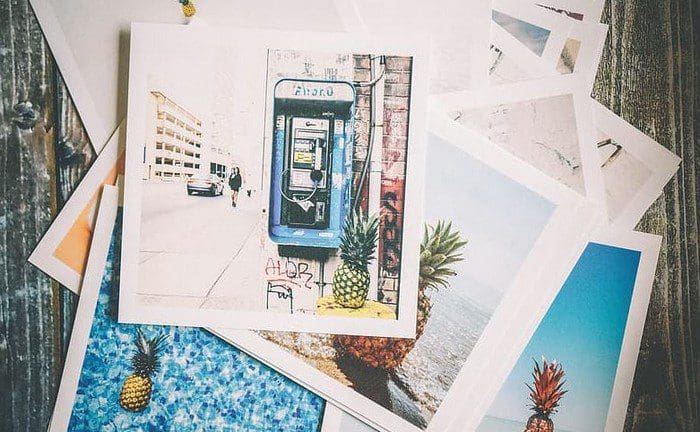
Printed pics

Have you ever tried to get your dog to stay still to get the perfect picture? You take many pictures to see if one of them got him/her in the ideal position. When you check your pics, none of them got the perfect shot.

There’s something better than filling your devices gallery app with pictures you’re going to have to erase anyway. You can record a video, and when your dog, for a split second, looks right at the camera, you can get that perfect angle.

How to Extract Frames from a Video on Android

Have you ever taken a picture and thought to yourself, ¨If only  I had taken the picture a second before.¨ Thanks to an app called Video to Photo, you can get that perfect picture by taking a still from a video at the right moment.
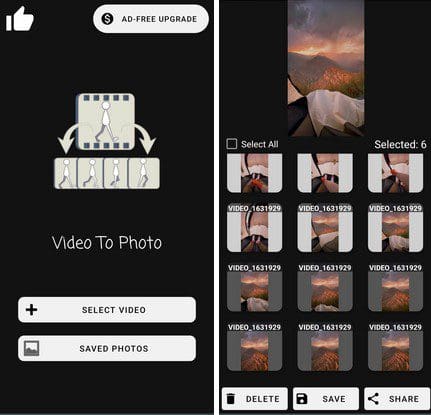
Video to Picture Android App

When you first launch the app, you’ll need to upload the video with the frame you want to extract. The app will automatically divide the video into all the available frames, but only if you choose the Time Interval Option after uploading your video. Don’t forget to select the format you want to save the frame in.

You’ll also trim your video and decide the exact time a frame is captured with this option. For example, if you want the app to show you a picture taken from the video every 4.6 seconds, simply use the slider to set it to that time. Don’t forget to tap on the Start button at the bottom.

By choosing the Manual Capture, you’ll have access to every single frame of the video. You’ll only need to swipe left, and at the bottom, you’ll see every available frame. When you see the frame, you want to save

When you’re done using the app, it’ll save all the pictures you saved. You can view this picture the next time you use the app by tapping on the Saved Picture option on the app’s main page.

Conclusion

Thanks to this app, you don’t have to fill your device’s gallery with pictures you’re not going to use. All you need to do is record a video and then find the right frame. The free version will have some ads to deal with, but you can always buy the app if you want to make them disappear. Do you have a hard time finding the perfect angle? Share your thoughts in the comments below, and don’t forget to share the article with others on social media.

Categories: Android

Author Judy Sanhz

I am a tech geek who loves technology. I have been writing about tech for over a decade, covering various devices and programs. I write about Android, Apple, and Windows devices and programs. I stay updated on the latest gadgets, upgrades, features, and news. I aim to make complicated tech information easy for everyone to read. I've been with TechniPages from the beginning to help others fix their tech issues with the easy-to-follow guides.

You Might Also Like

  • How to Use Zedge to Set Ringtones and Notification Sounds on Android

    Kat ArmstrongAndroid
  • How to Set Text Notification Sounds on Samsung Galaxy S10

    Kat ArmstrongAndroid
  • Fix-Outlook-Failed-to-Connect-You-to-Shared-Calendar

    Microsoft Outlook: How to Create and Erase a Folder

    Judy SanhzAndroid
  • How To Send Texts From Galaxy Tab S8

    Andrew MyrickAndroid

Leave a Reply

Your email address will not be published. Required fields are marked *

  • browser keeps opening hp support

    Browser Keeps Opening HP Support Assistant Tabs 

  • camera not working in vmware

    Camera Not Working in VMware – How to Fix

  • browser screen goes black

    Browser Screen Goes Black Intermittently 

  • computer heating up in hyper v

    Computer Heating Up When Using Hyper-V – How to Fix 

  • clipchamp unexpected application error

    Clipchamp Unexpected Application Error: Here’s the Solution 

profile pic

The Experts Behind Technipages

My name is Mitch Bartlett. I've been working in technology for over 20 years in a wide range of tech jobs from Tech Support to Software Testing. I started this site as a technical guide for myself and it has grown into what I hope is a useful reference for all.

Learn More

technipages logo white
linkedin icon

Technipages is part of Guiding Tech Media, a leading digital media publisher focused on helping people figure out technology. Learn more about our mission and team here.

© 2025 Guiding Tech Media All Rights Reserved

  • About Us
  • Contact
  • Terms of Use
  • Privacy Policy

© 2025 Guiding Tech Media All Rights Reserved

Information from your device can be used to personalize your ad experience.
Do not sell my personal information.

Last Updated on September 24, 2021 by Judy Sanhz