Skip to content
LogoTechnipages
LogoTechnipages
  • Topics
        • Android
        • Browsers
        • Gaming
        • Hardware
        • Internet
        • iPhone
        • Linux
        • macOS
        • Office
        • Reviews
        • Software
        • Windows
        • Definitions
        • All Recent Posts
  • Product Reviews
  • About

How to Fit More Bookmarks On the Google Chrome Bookmark Bar

Mitch BartlettApril 9, 2019 Comments (13)

Google Chrome allows quick access to bookmarks on the bookmark bar. Only so many will fit on the bar though before you have to click the “more” arrow to access additional bookmarks. If you don’t like having to click that arrow every time to see all of your bookmarks, you can fit more on the bar by simply removing the name of the site from the bookmark. Just use these steps.

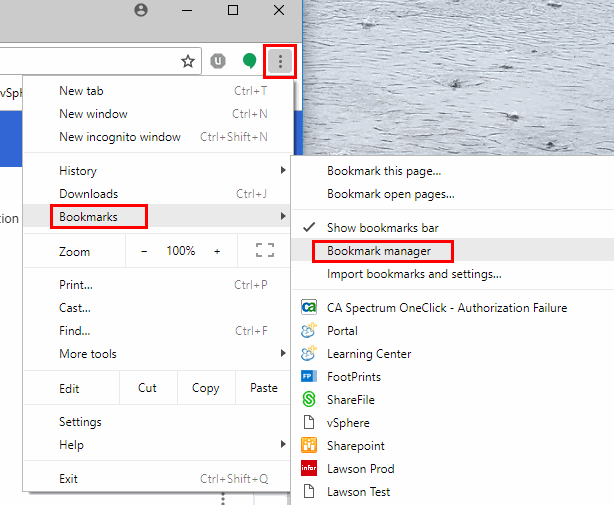
  1. Open Chrome, then select the  icon located at the upper-right corner of the window.
  2. Select “Bookmarks” > “Bookmark manager“.
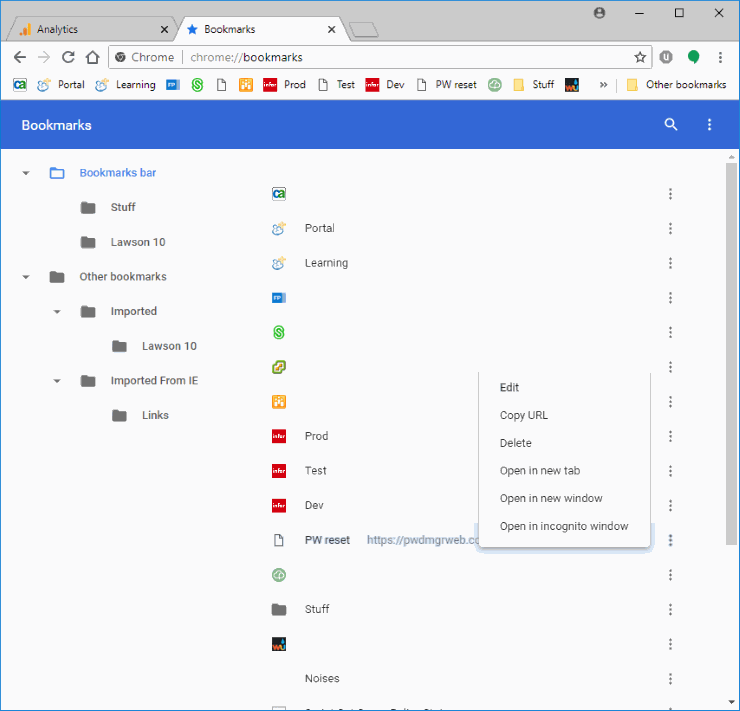
  3. Select “Bookmarks bar” on the left side.
  4. Right-click each individual bookmark, select “Edit“, then remove the name of the website. Alternately, you can choose to simply shorten the name of the bookmark.

Now you have more room on the bookmark bar for other sites. Each bookmark is easily identified by the favicon. No need for names.
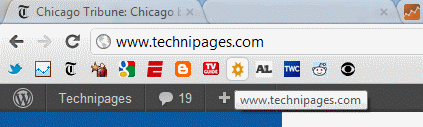
Bookmark Bar icons


This post applies to Google Chrome for Windows, Linux, Mac OSX, and Chrome OS.

Categories: Software

Author Mitch Bartlett

Through my career that spans over 20 years I have become an expert in Microsoft Systems Administration, Android, and macOS. I started this site as a technical guide for myself and it has grown into what I hope is a useful knowledgebase for everyone.

You Might Also Like

  • MS Teams Header

    Microsoft Teams: How to Disable Animations

    Madalina DinitaSoftware
  • microsoft teams Enable Logging For Meeting Diagnostics

    Teams: Enable Logging for Meeting Diagnostics

    Madalina DinitaSoftware
  • stream microsoft teams to facebook live

    How to Stream Microsoft Teams to Facebook Live

    Madalina DinitaSoftware
  • Dropbox: How To Transfer a Large File To Friends

    Mel HawthorneInternet

Comments

  1. LoopyLou says:
    May 21, 2021 at 8:18 am

    This is the best tip I’ve read in years. Thank you!

  2. Julia Hillier says:
    March 25, 2021 at 5:42 pm

    The font is so large on Chrome that it fits fewer bookmarks than the Edge bookmark bar.

  3. Ali* says:
    February 18, 2021 at 6:39 am

    As Johnny said above, where is the option to drop the title and see it when hovering over it? Surely Chrome should be as smart as Edge. I have numerous links that have the same ICON but with different URL’s, so need to be able to differentiate. Edge is easy, Chrome is …???

  4. Mircea M says:
    January 29, 2021 at 2:20 am

    Shortly: right click on the bookmark and Edit > write a short name for it :) Escuse me for my english :)

  5. Vanessa says:
    December 16, 2020 at 5:59 pm

    Thanks for this tutorial! It worked perfect.

  6. Fell says:
    August 18, 2020 at 7:22 am

    I wanted to know how to create more bookmarks for the quick select menu of Google Chrome. The one that pops up when you click the star to favorite a page.

    Right now 8 at max show up.

  7. Eric says:
    November 10, 2019 at 6:05 pm

    To say what was said before: IE has a function to shorten the title: Customize title widths-> Short titles.
    Much easier and better.

  8. Chabada says:
    October 30, 2019 at 2:11 pm

    There is too many space between each bookmarks. that’s why I use firefox but both of them sucks.

  9. Jesse Robbins says:
    October 20, 2019 at 2:56 pm

    Thank you for something so blatantly obvious. Why does this come up when I am trying to search how to make the bookmarks bar bigger?

  10. rodney welsh says:
    July 20, 2019 at 2:48 am

    how about being able to create more than one bar?

  11. john martin says:
    January 27, 2019 at 11:39 am

    yes a bit long winded but it worked IE has a shorter way.

  12. Kathy Hewitt says:
    January 9, 2019 at 5:45 am

    Some websites have a favicon (i.e. G for google) others do not. Ones that do not you can use an emoji instead (I use a lightning bolt for my electric company). but when I do this there is a folder icon that shows up next to the emoji. (wasted space) Is there a way to get rid of the folder icon (get more space) thank you

  13. Johnny says:
    January 4, 2019 at 7:56 am

    IE has a function to shorten the title: Customize title widths-> Short titles.
    Much easier and better.

Leave a Reply

Your email address will not be published. Required fields are marked *

  • browser screen goes black

    Browser Screen Goes Black Intermittently 

  • computer heating up in hyper v

    Computer Heating Up When Using Hyper-V – How to Fix 

  • clipchamp unexpected application error

    Clipchamp Unexpected Application Error: Here’s the Solution 

  • winload.efi file missing error

    Winload.EFI File Missing Error on Boot – How to Fix

  • fix error 0x9cfc7550

    How to Fix Error 0x9cfc7550 (We Couldn’t Create a New Partition) in Windows 

profile pic

The Experts Behind Technipages

My name is Mitch Bartlett. I've been working in technology for over 20 years in a wide range of tech jobs from Tech Support to Software Testing. I started this site as a technical guide for myself and it has grown into what I hope is a useful reference for all.

Learn More

technipages logo white
linkedin icon

Technipages is part of Guiding Tech Media, a leading digital media publisher focused on helping people figure out technology. Learn more about our mission and team here.

© 2025 Guiding Tech Media All Rights Reserved

  • About Us
  • Contact
  • Terms of Use
  • Privacy Policy

© 2025 Guiding Tech Media All Rights Reserved

Information from your device can be used to personalize your ad experience.
Do not sell my personal information.

Last Updated on April 9, 2019 by Mitch Bartlett