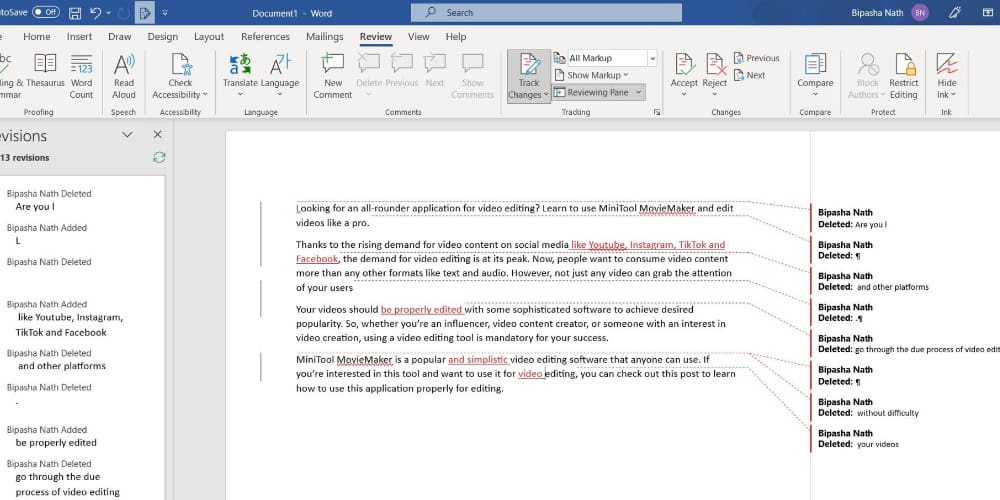
There’s more than one way to look at things, and the same is true of Microsoft Word. There’s Web Layout, Print Layout (the most familiar one), and Read Mode. You can access these and other document views from the View tab. There are times, however, that Read Mode is greyed out and unavailable. If this has happened to you, we’ve got some fixes to help. In this article, we’ll be looking at fixing a Read Mode greyed out.
What Causes This Issue?
If you can’t access Read Mode in a document or Word as a whole, it could be due to a few causes. The major ones include:
- Restrictions on the document that limit the available commands or views
- A document in Protected View or another restricted state
- Issues with your Microsoft Office license or activation
- Word running in Safe Mode
Read Mode Greyed Out – Fixes to Try
Let’s get down to the troubleshooting. If your document or app isn’t playing ball, here are some fixes to get Read Mode back on track:
Enable Editing
Perhaps the easiest fix (if it’s available) is to enable editing via the yellow Message Bar at the top of the screen when you open a document in Protected View. Simply click the “Enable Editing” button, and then check whether Read Mode becomes available.

Disable Protected View
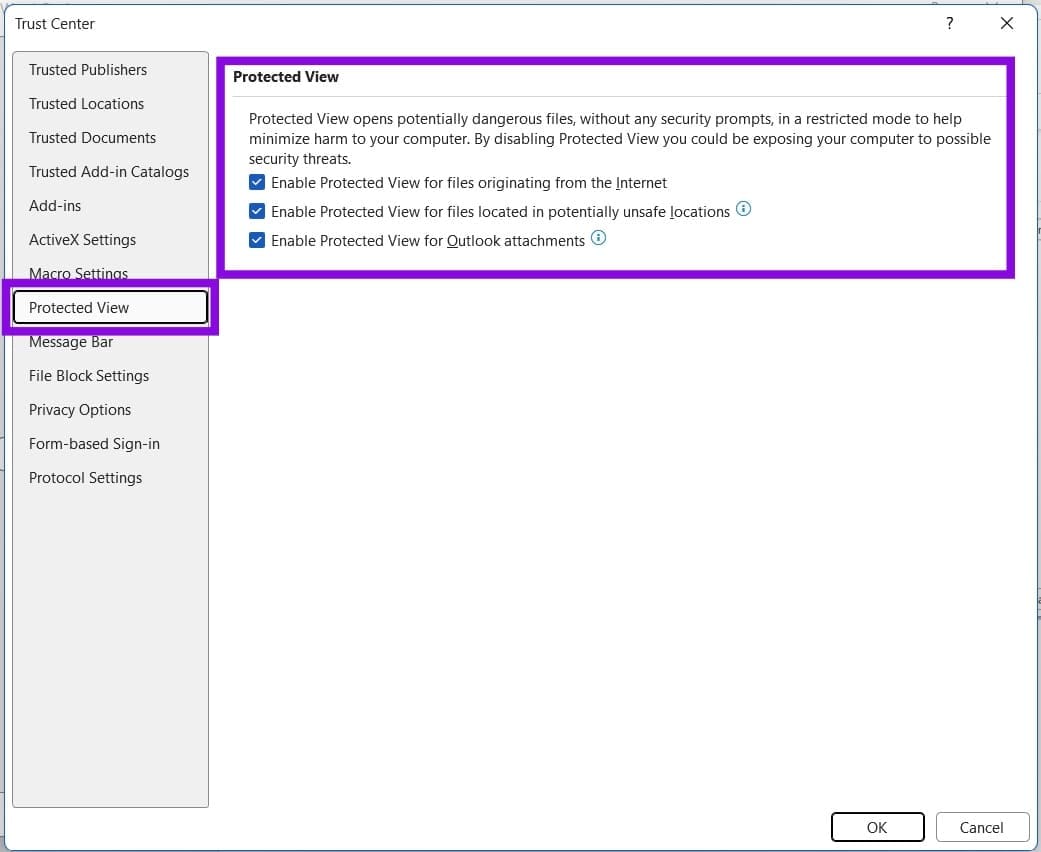
If you’re ever unsure of a file you’re opening from a source, Protected View is there to help you stay safe. It opens potentially unsafe files in a read-only state and disables most editing functions. If you trust the files you’re opening and need to change Protected View’s behavior, you can adjust its settings like so:
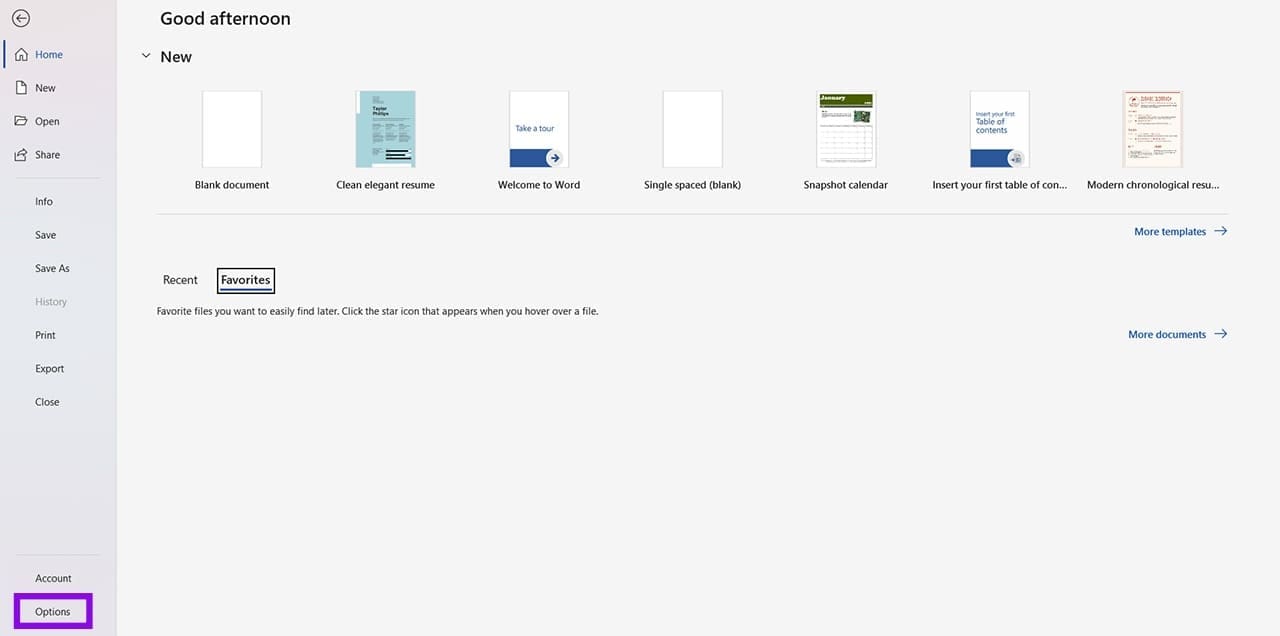
Step 1. Click the “File” tab and choose “Options” from the sidebar.
Step 2. In the Options window, click “Trust Center” in the sidebar.
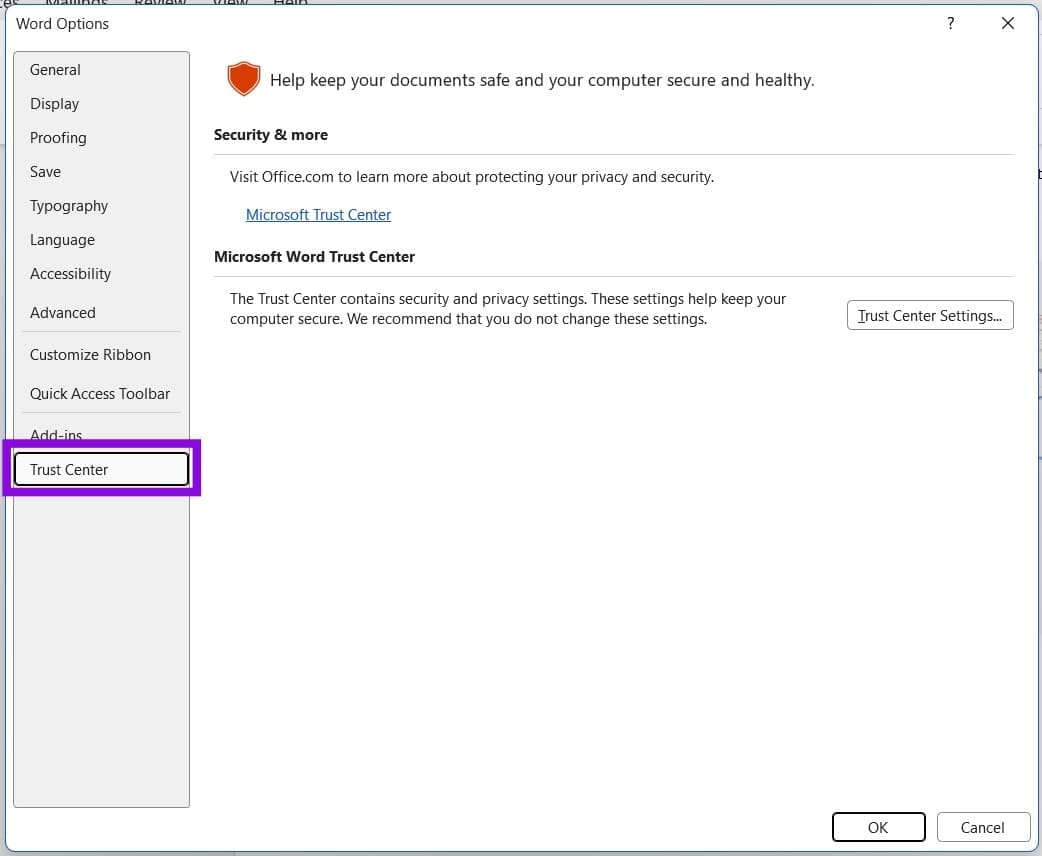
Step 3. Click “Trust Center Settings.”
Step 4. Click “Protected View” in the sidebar and uncheck only the options you’re comfortable disabling. Hit “OK” to finalize.
Unblock via Windows
Sometimes a file is deemed unsafe when downloading, and Word’s settings aren’t enough to override the protection in place. To do this, you have to rely on Windows:
Step 1. Open File Explorer and locate the problematic document.
Step 2. Right-click it and select “Properties” from the context menu.
Step 3. In the window that opens, you’ll see (under the “General” tab) a Security subsection. If it reports that the file might be blocked, check the “Unblock” box next to it.

Step 4. Click “Apply” and “OK” to finalize, and try opening the document again.
Exit Safe Mode
It’s not just Windows that can open in Safe Mode, but the Office apps too. If Word is in Safe Mode, some features and add-ins may be unavailable. If Word is running in Safe Mode, exit the app and restart it normally. This may fix the issue.
Check Your Word Activation
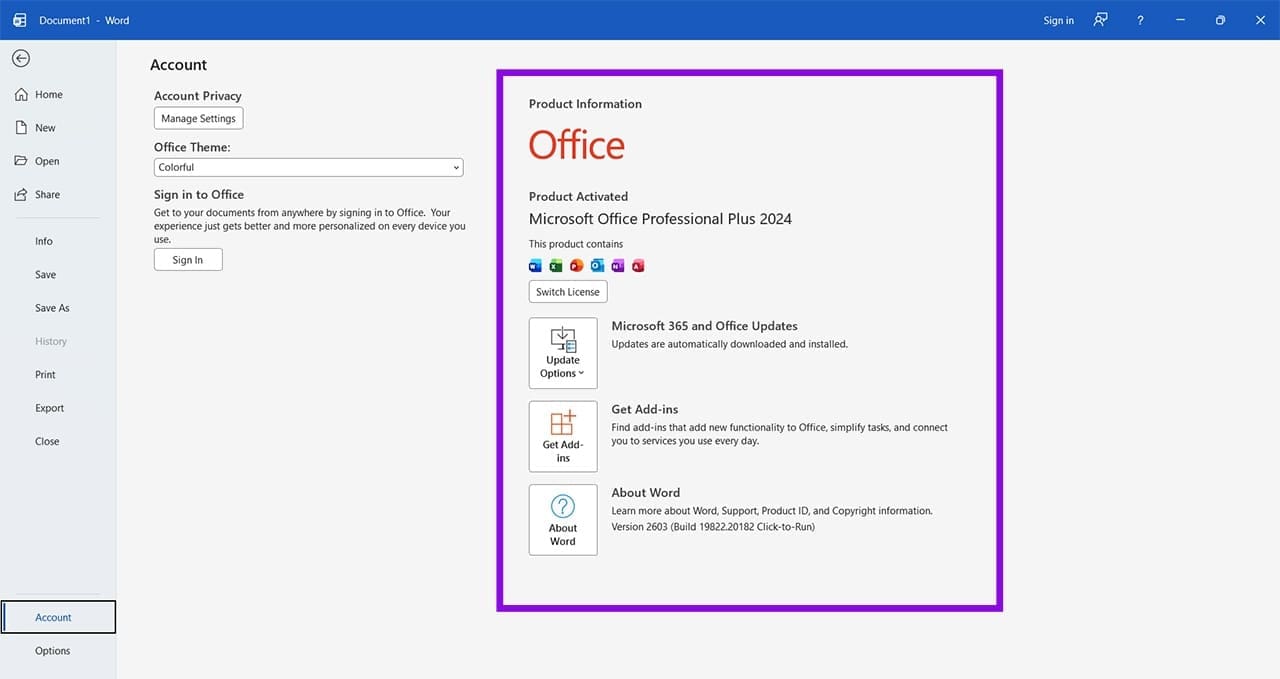
If your version of Office isn’t activated or your subscription is expired, then most of Word’s features outside the basics will be locked off to you, including Read Mode. If using the desktop version, check your license like this:
Step 1. Click “File” in the Menu Bar.

Step 2. Click the “Account” option in the sidebar.
Step 3. Check the status of Office under “Product Information” in the main window.
If using Microsoft 365, check that you’re signed in to your account and that your subscription is active:
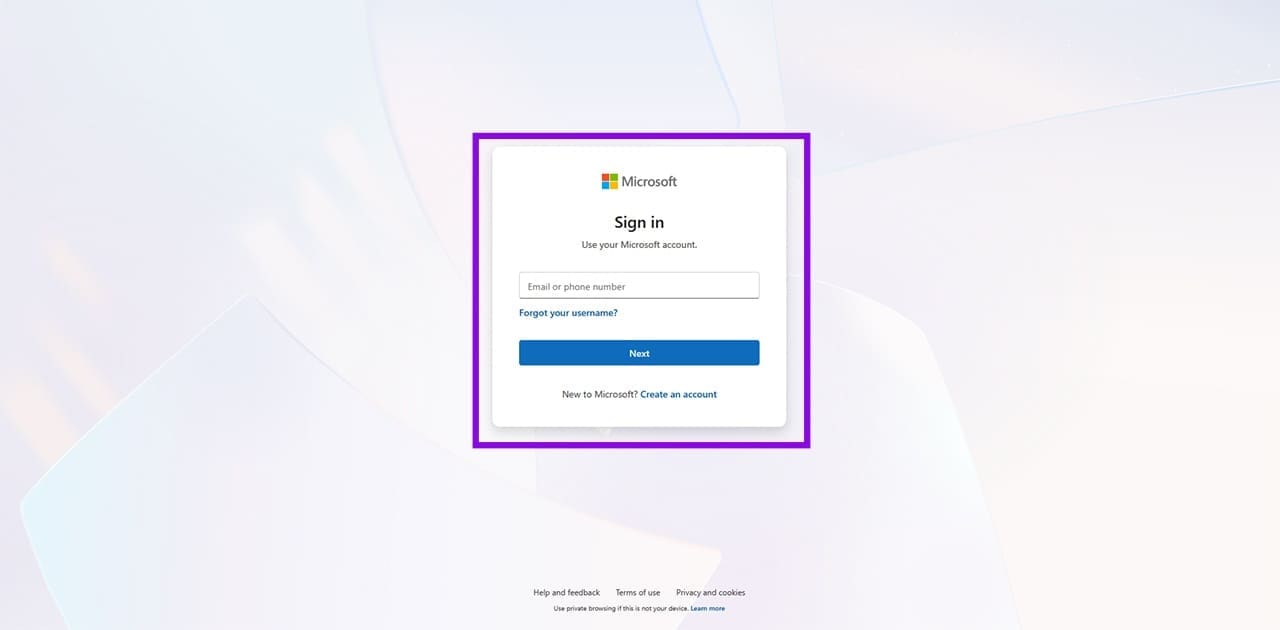
Step 1. Head to Microsoft in any browser and click the “Sign in” option in the top-right.
Step 2. Enter your login details. Perform any account verification required.
Step 3. Open your Microsoft account’s “Subscriptions” page.
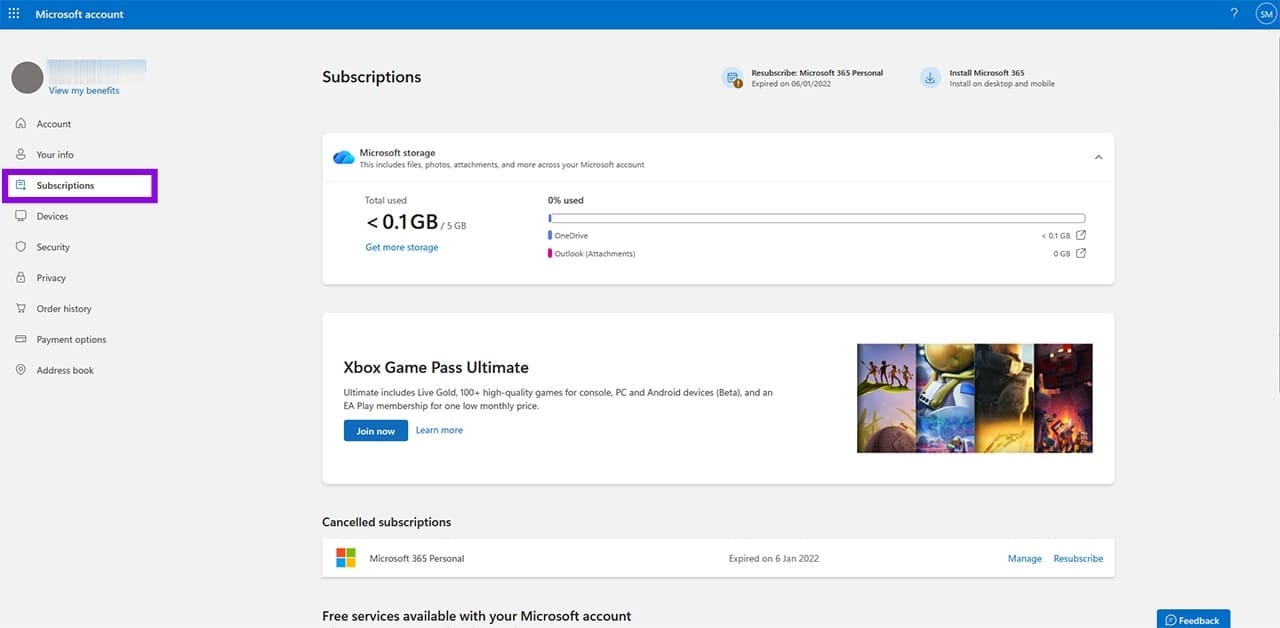
Step 4. Find your Microsoft 365 subscription and check its current status.