There are times when your PC encounters a certain file and isn’t sure what to use to open it. In these cases, you get to pick an app to use just once or permanently for that extension. If, however, the window to “pick an app” keeps popping up every time, you’ve got a problem. In this article, we’ll be looking at how to fix this issue.
Popping Up for Every File or Just Popping Up?
The “Select an app” screen usually pops up when there’s a question of which app to assign to a particular file extension. But this might happen even when an app has already been chosen, which can make it a problem. Other users also have the issue of the selection screen popping up at strange times, often randomly. This has to do with processes and hidden apps running in the background.
We’re going to look at fixes for both issues.
“Pick an App” Keeps Popping Up – Fixes to Try
Below we’ve got some troubleshooters to help with the random “Select an app” popups and regular file opening ones:
Check for Missing Associations
Sometimes the software associated with a file extension may have been uninstalled, corrupted, or moved. If a file path is listed with any association error, follow it in Windows Explorer to see if it is still valid or exists. If not, you may have to reassign the file extension.
Track the Process
If dealing with random popups, you can use Task Manager to find the triggering process. Here’s how:
Step 1. Open Task Manager (Ctrl + Shift + Esc) and choose the “Details” tab.
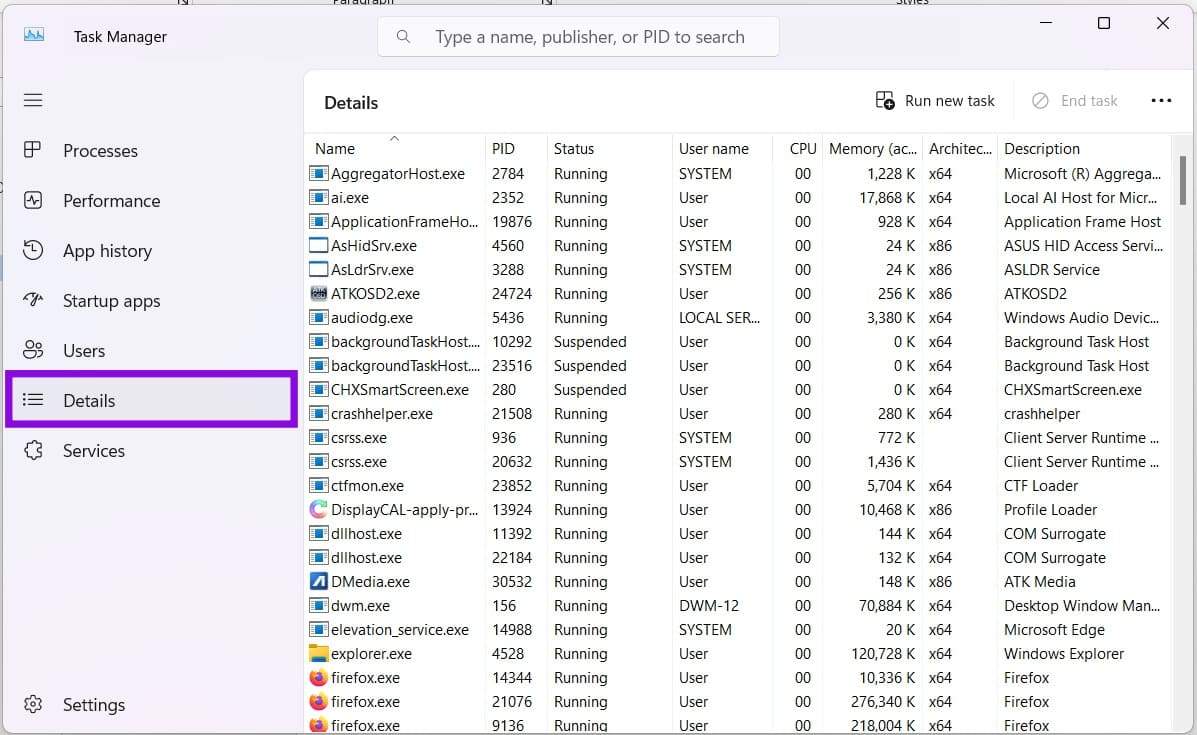
Step 2. Right-click any column and choose “Select columns” from the dropdown.
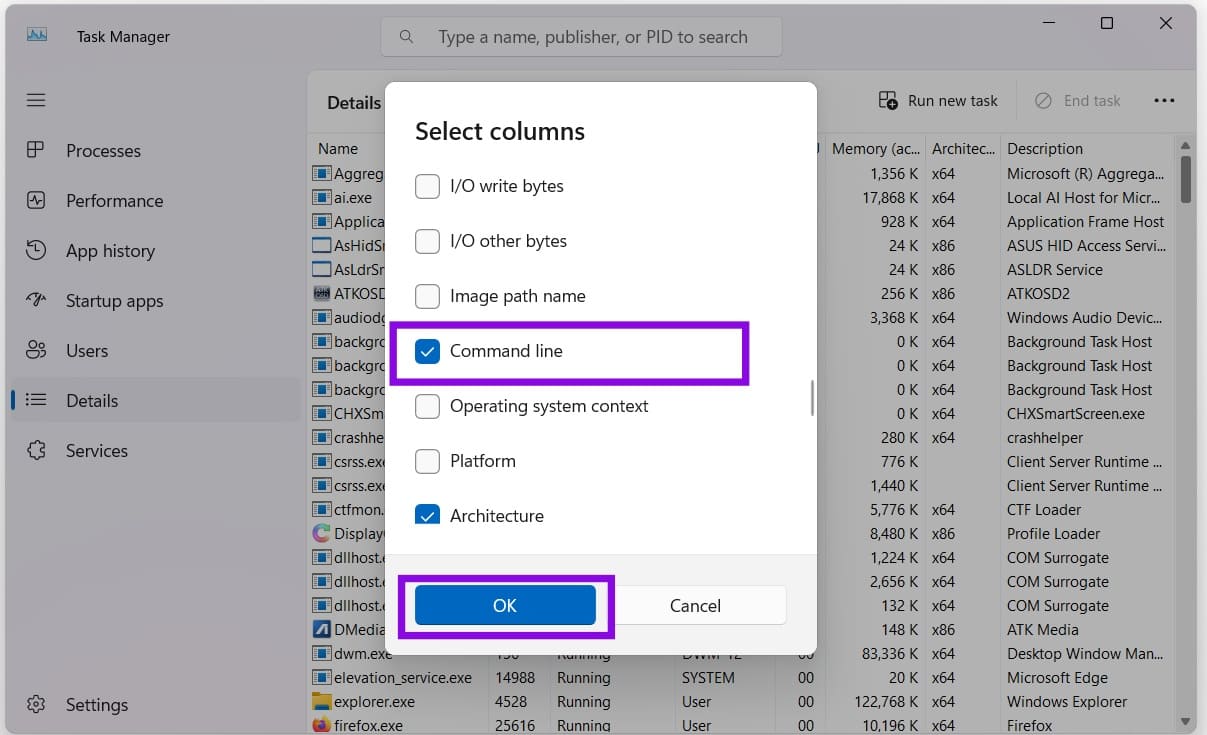
Step 3. In the new window, scroll down and enable “Command line” before clicking “OK.”
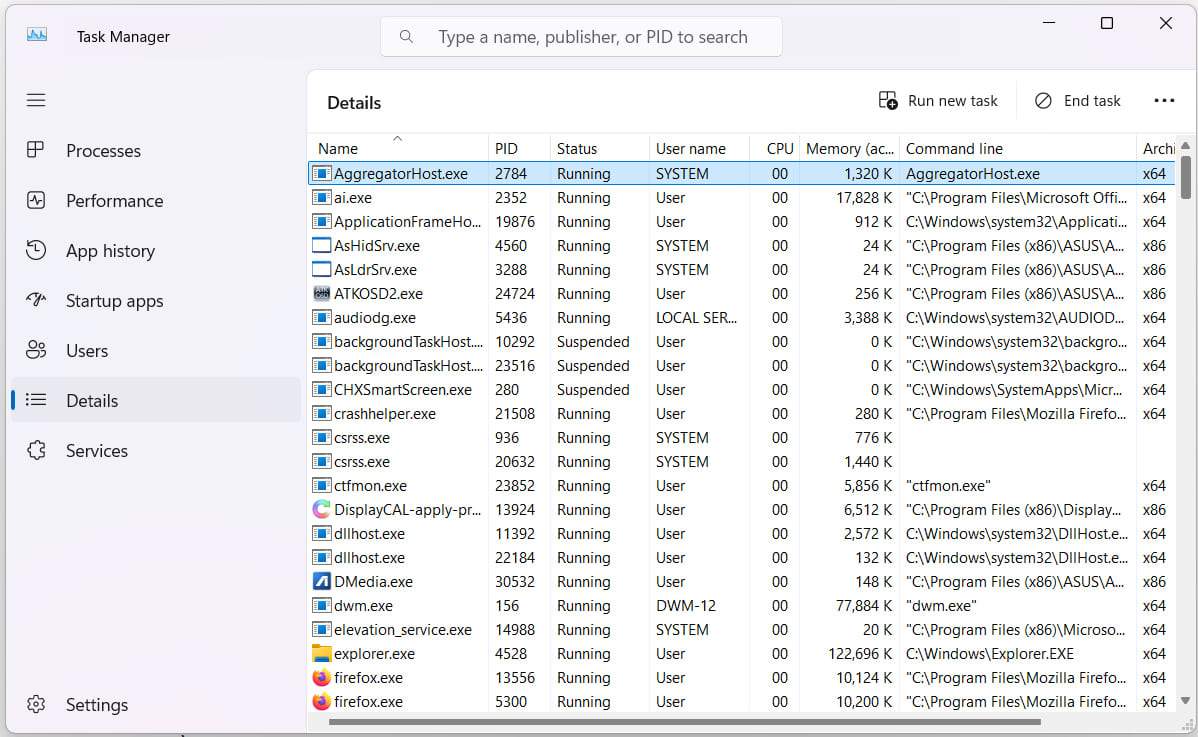
Step 4. Look for processes with command lines that reference the file, path, or application associated with the popup. You may need to monitor the processes as the popup tries to identify the culprit.
Reset the File Association
If a certain file keeps triggering the popup, no matter how many times you select it, you can reset that file association and start fresh. Here’s how:
Step 1. Open “Settings” (Win + I) and choose “Apps” from the sidebar.
Step 2. Select “Default apps.”
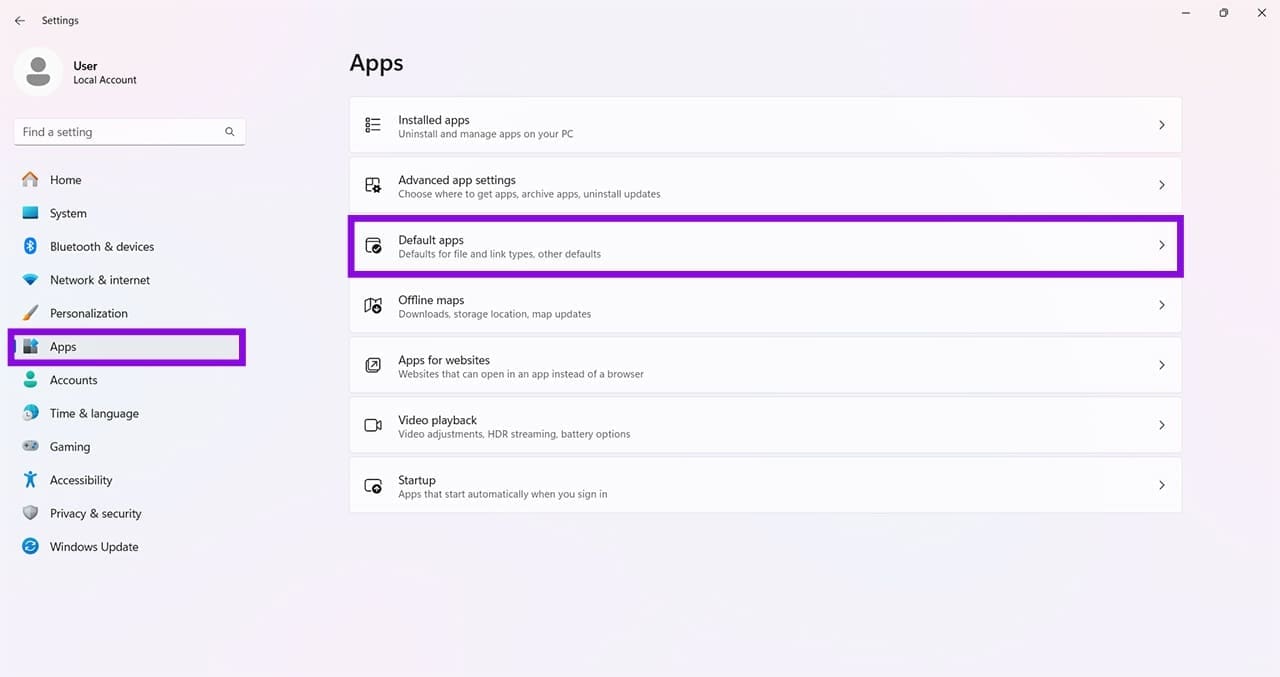
Step 3. Scroll all the way down to “Reset all default apps” and click the “Reset” button.
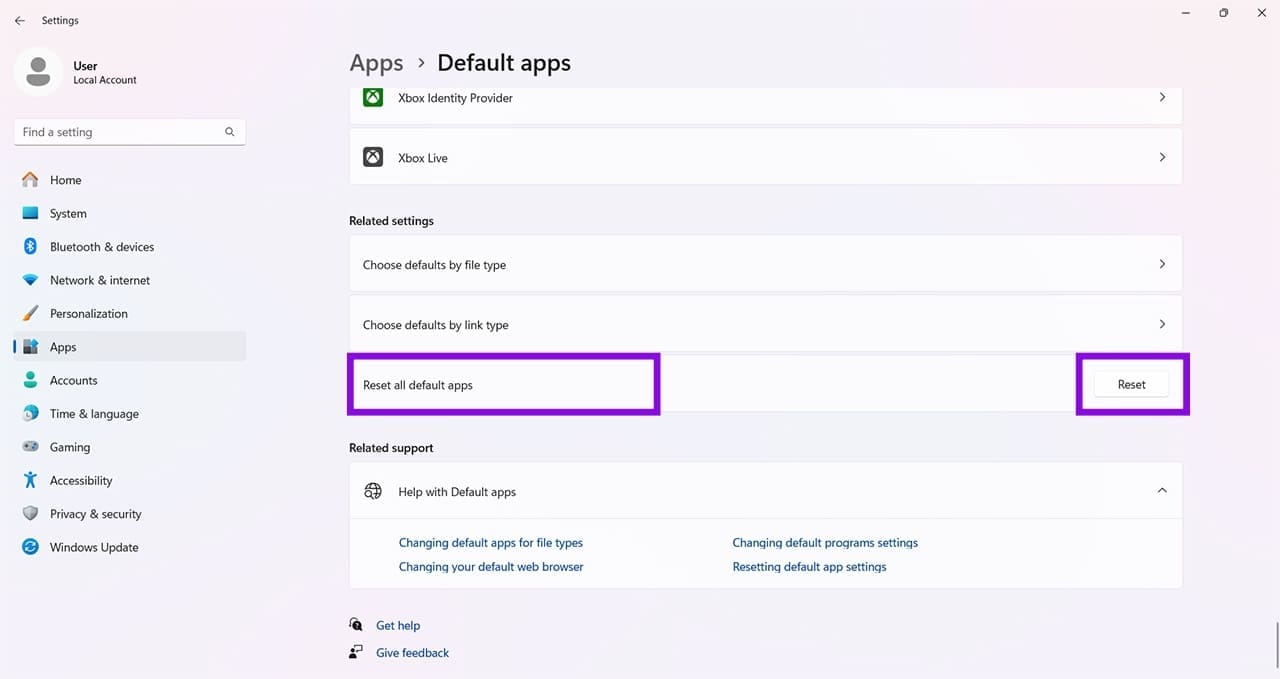
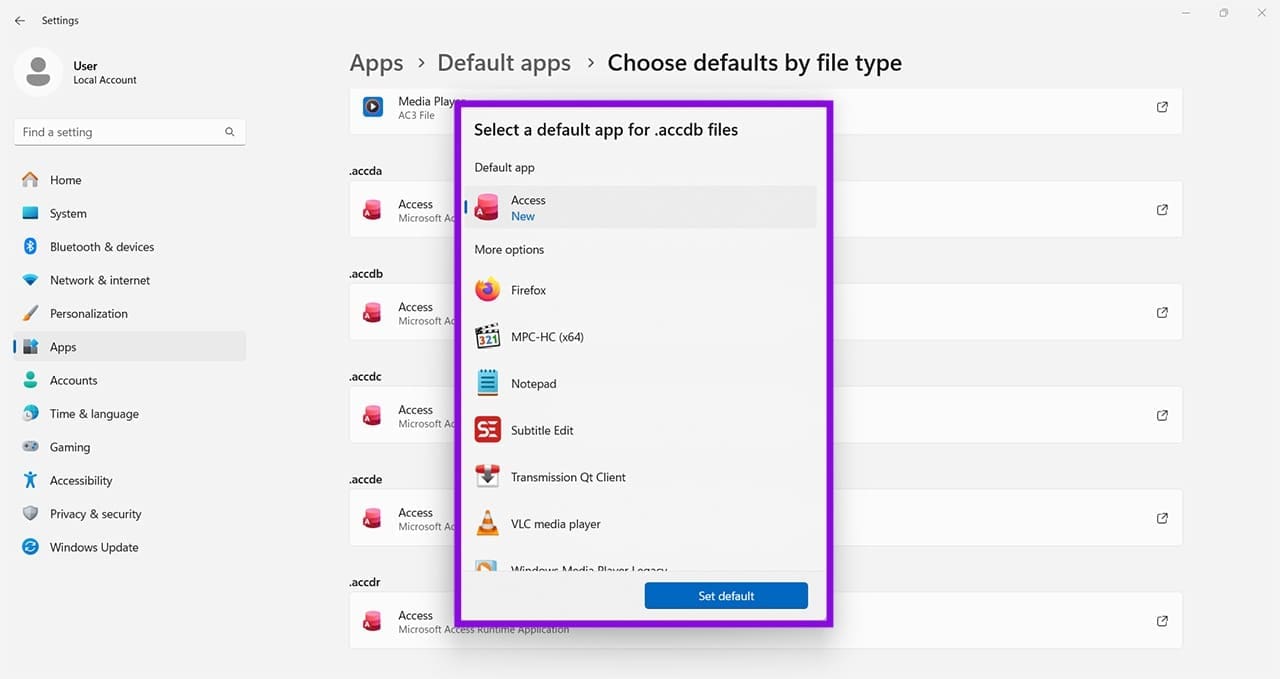
Step 4. If you don’t want to reset every file association, click “Choose defaults by file type.”
Step 5. Scroll to your file type and click the app linked with it. Choose another app from the list provided.
Edit via the Registry
A Registry policy called NoNewAppAlert can block Windows notifications about newly installed applications that require a special file type or protocol. However, it generally does not disable the “Pick an app” Windows pop-up caused by a missing or broken file association. Here’s what to do, but be careful not to edit anything else; otherwise, you may cause system instability:
Step 1. Open the Run dialog (Win + R) and type “regedit” before hitting (Ctrl + Shift + Enter) to run as Admin.
Step 2. In the Registry, navigate to “HKEY_LOCAL_MACHINE\SOFTWARE\Policies\Microsoft\Windows\Explorer” in the address bar. If this doesn’t exist, right-click the “Windows” folder and create a new key.
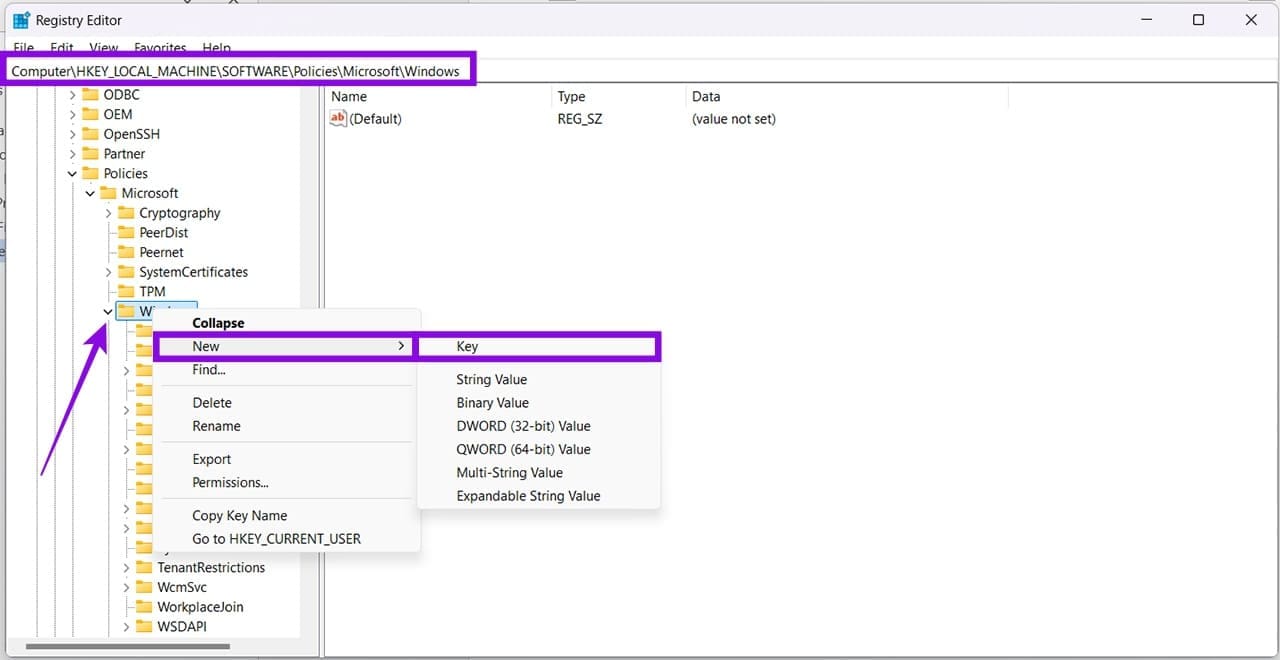
Step 3. In the main window, right-click and select “New” and “DWORD (32-bit) Value”
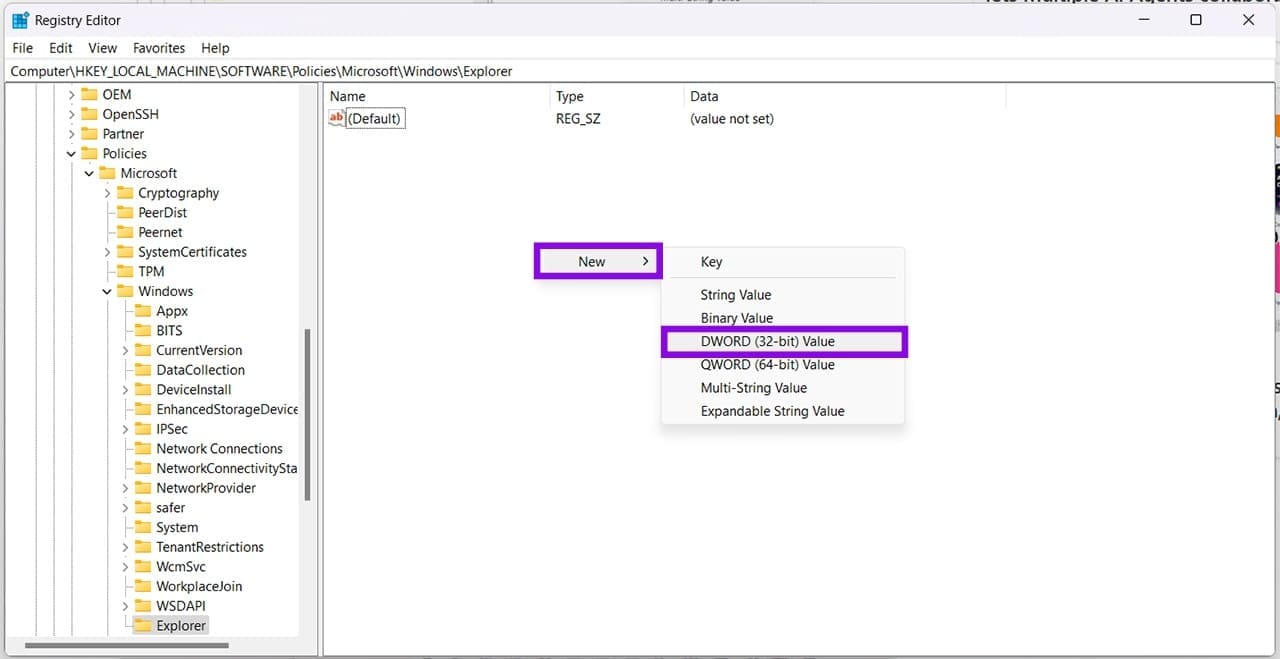
Step 4. Name the value “NoNewAppAlert” and double-click it.
Step 5. Set the value to “1” and click “OK.”
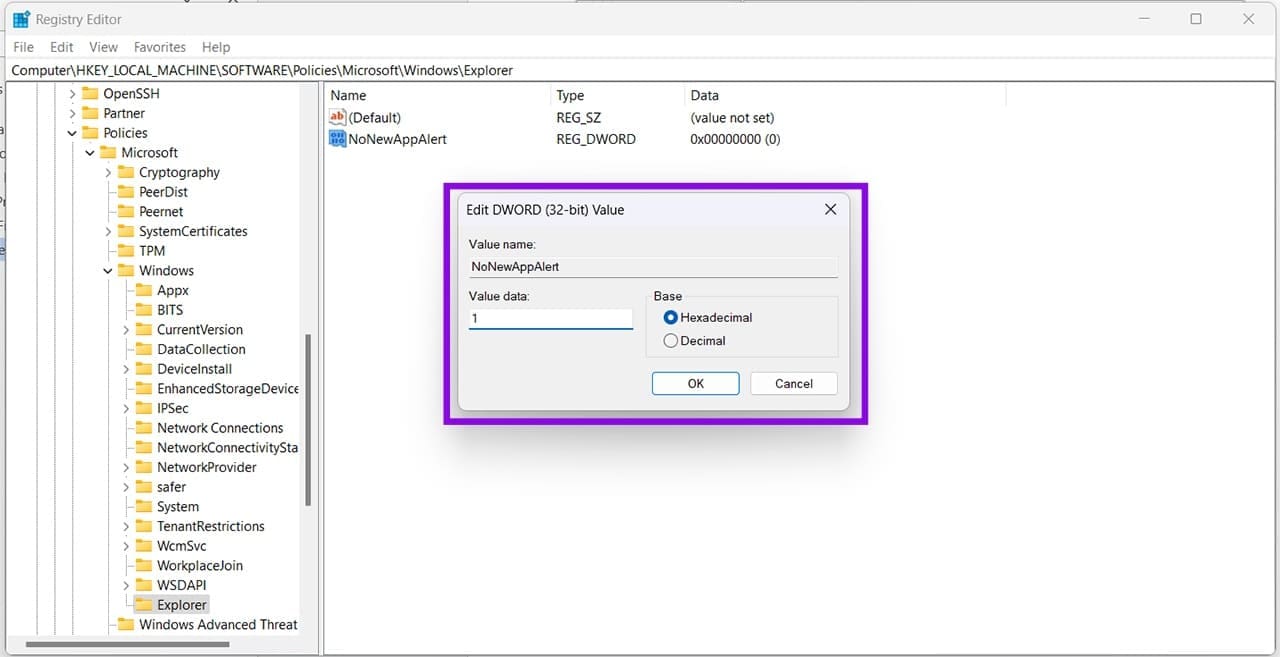
Step 6. The pop-up shouldn’t appear again.
Run SFC and DISM
System corruption might also mean your associations aren’t working correctly. You can scan your disk to identify and repair:
Step 1. Open the Run dialog (Win + R) and type “cmd” before hitting (Ctrl + Shift + Enter) to run as Admin.
Step 2. In Command Prompt, type “DISM.exe /Online /Cleanup-image /RestoreHealth” and press “Enter.” Let the process complete.
Step 3. Once DISM has finished, type “sfc /scannow” and press “Enter.”
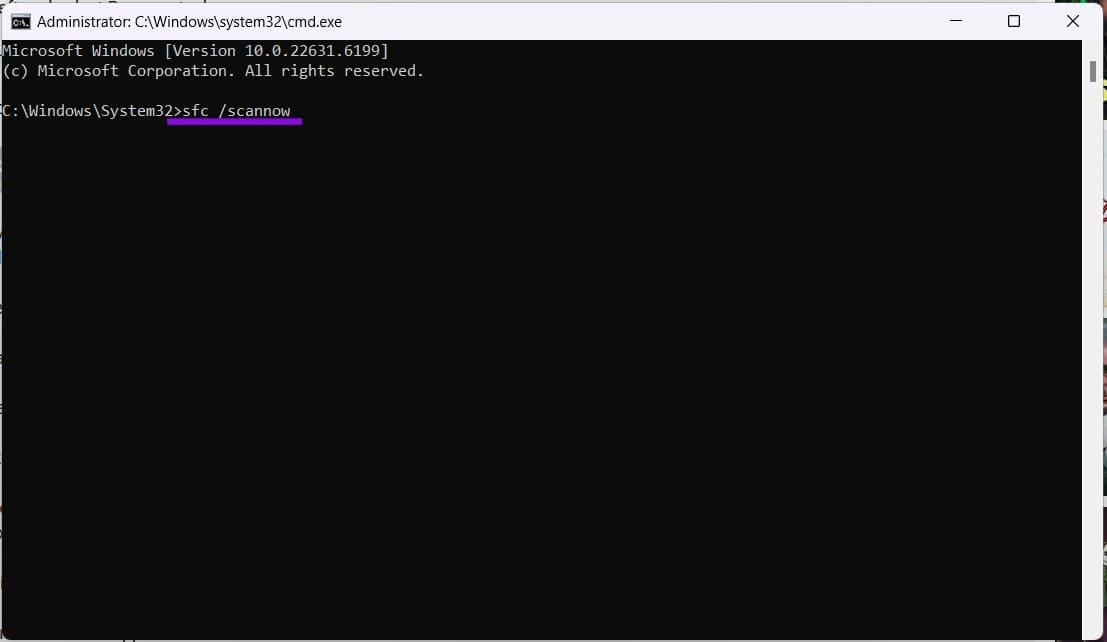
Step 4. Restart your PC once both scans are finished to see whether the problem continues.