Skip to content
LogoTechnipages
LogoTechnipages
  • Topics
        • Android
        • Browsers
        • Gaming
        • Hardware
        • Internet
        • iPhone
        • Linux
        • macOS
        • Office
        • Reviews
        • Software
        • Windows
        • Definitions
        • All Recent Posts
  • Product Reviews
  • About

5 Hidden Windows Clipboard Features You Should Be Using

Evan MercerSeptember 6, 2026 Comments (0)
hidden windows clipboard features

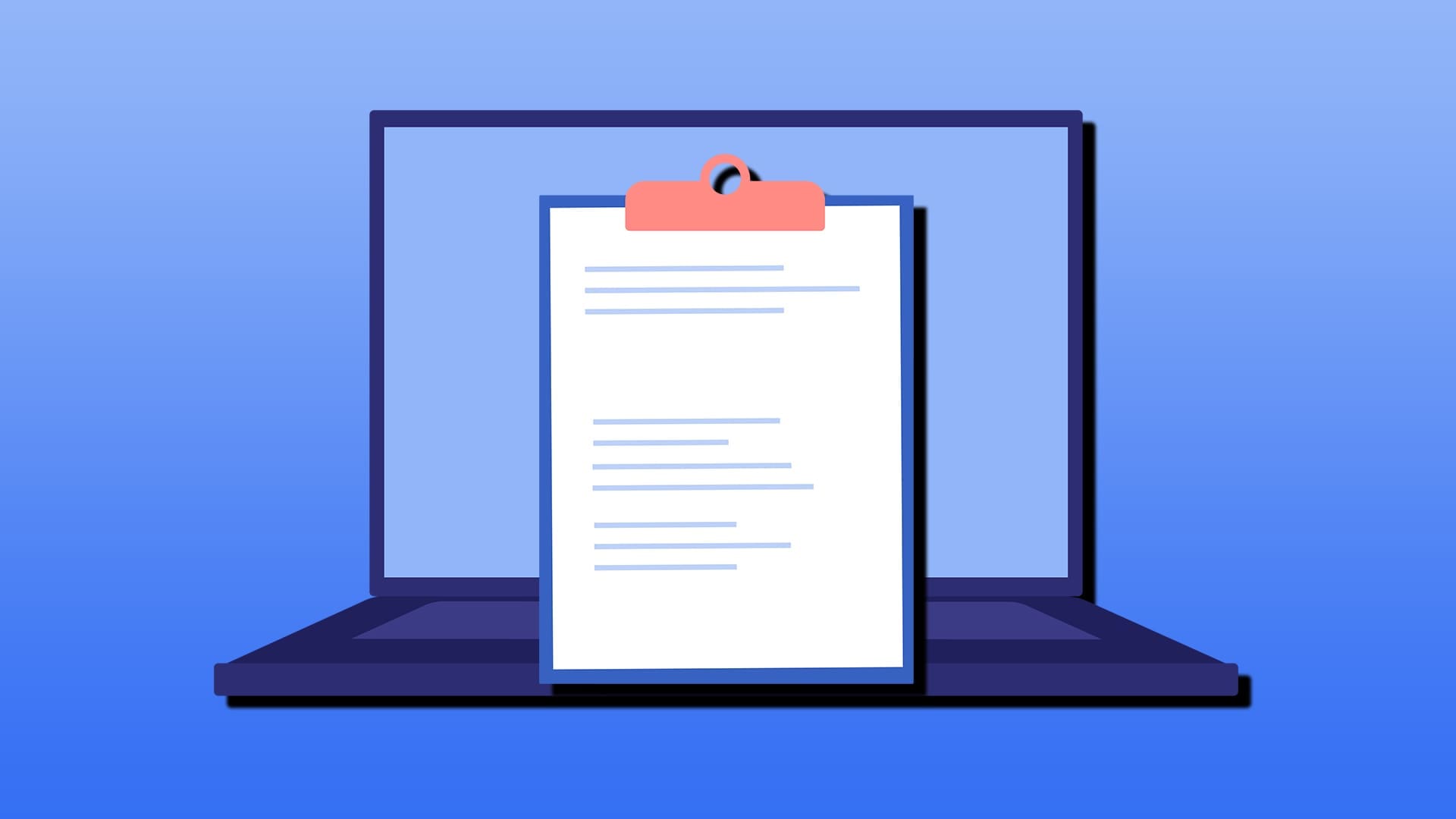
The clipboard is a handy tool and even handier than you may realize. Sure, using Ctrl + V for pasting is a staple, but you can get so much more out of this feature. In this article, we’re going to show you 5 hidden Windows clipboard features you might not know about, but really shouldn’t do without.

Contents

  • 1. Your Guide to Hidden Windows Clipboard Features
    • 1.1. Clipboard History
    • 1.2. Pin Your Favorite Copies
    • 1.3. Sync Clipboards Across Devices
    • 1.4. Clipboard History in Office
    • 1.5. PowerToys Enhancements

Your Guide to Hidden Windows Clipboard Features

Listed below, we’ve got 5 advanced Windows clipboard tricks for you to test out. Let’s get started:

Clipboard History

Let’s start in relatively familiar territory. By default, the Windows clipboard stores one copied item at a time, but Clipboard History can also keep a record of previously copied items. Here’s how to enable it:

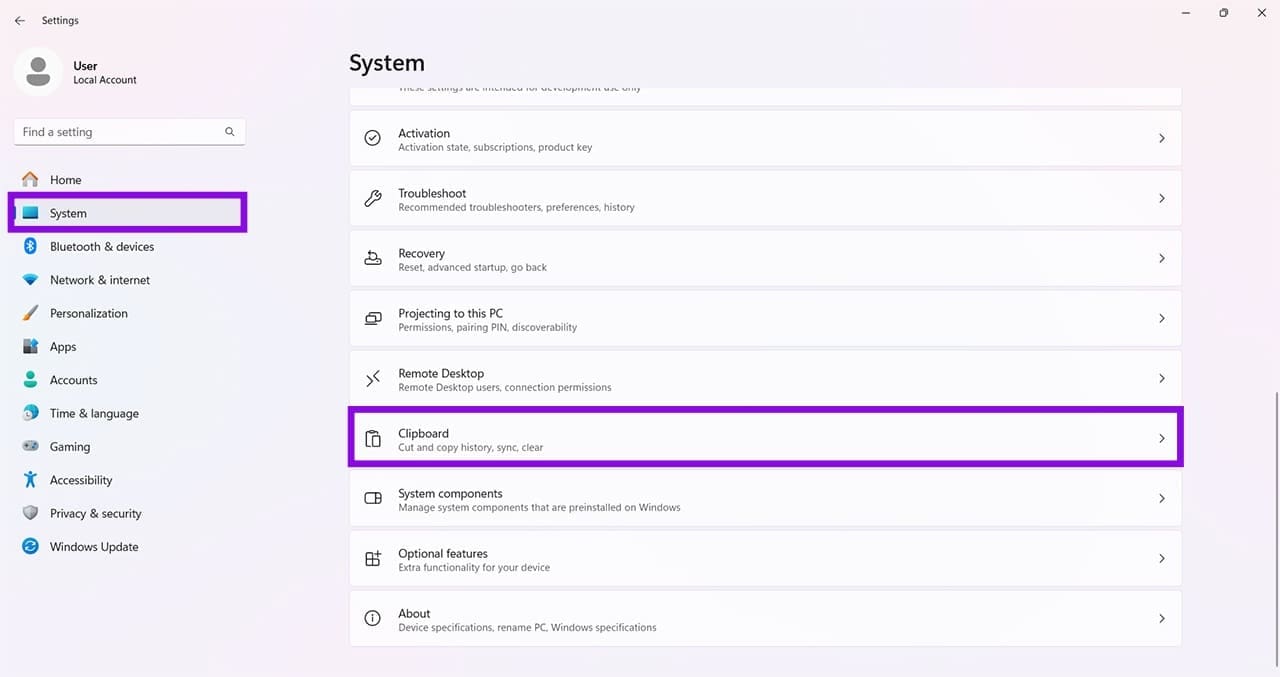
Step 1. Open “Settings” (Win + I) and select “System” in the sidebar.

Step 2. Select “Clipboard” and click it.
Hidden Windows Clipboard Features You Should Be Using 1

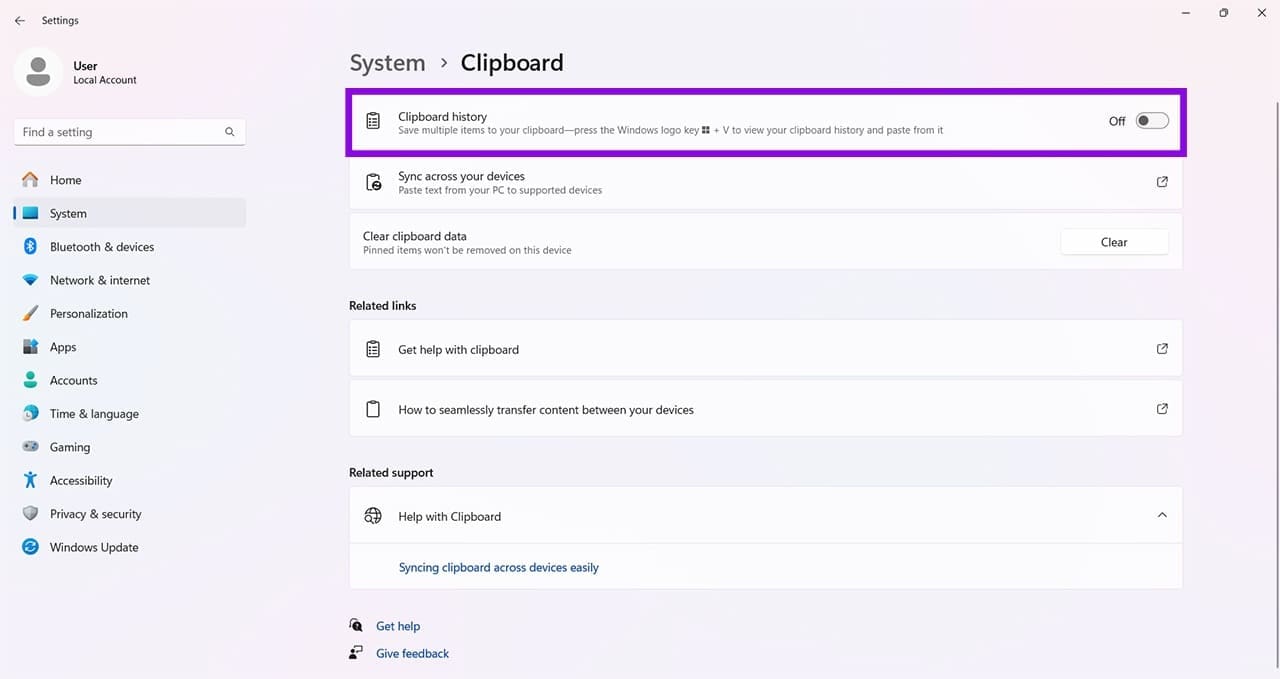
Step 3. Toggle “Clipboard History” to “On.”
Hidden Windows Clipboard Features You Should Be Using 2

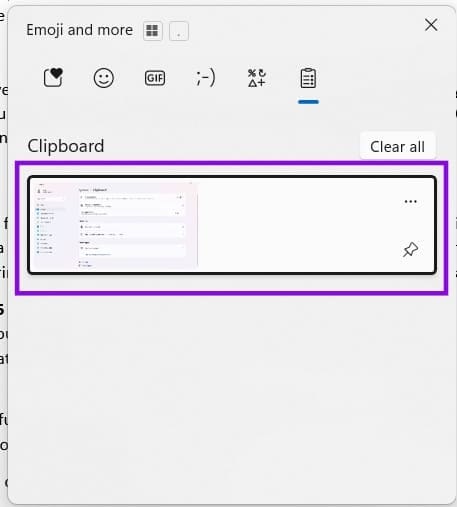
Step 4. Now, whenever you press Win + V, you’ll be presented with a list of copied items to choose from. Clipboard History can store up to 25 entries, with older unpinned items being removed to make room for new ones.
Hidden Windows Clipboard Features You Should Be Using 3

Pin Your Favorite Copies

Now that you have Clipboard History enabled, did you know that you can also pin your favorite copies for use whenever, ensuring they won’t get deleted or moved to the bottom of the list? All you have to do is open Clipboard History with Win + V and select the pin icon next to the copied item you want to keep.

Hidden Windows Clipboard Features You Should Be Using 4

Sync Clipboards Across Devices

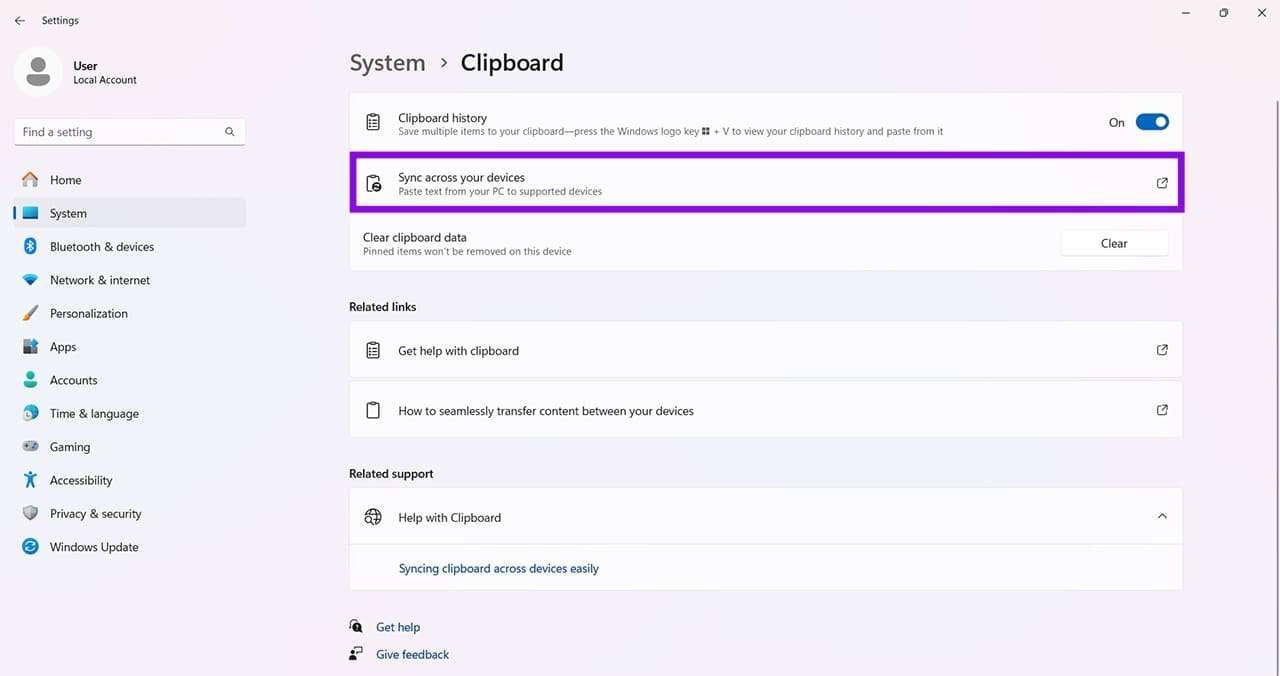
If you have multiple devices linked by the same Microsoft account, then you can also sync clipboard data across them, thanks to the Cloud (and a working internet connection, of course). All you have to do is ensure you’re signed in and enable “Sync across your devices” in the “Clipboard” section of settings where you enabled Clipboard History. You can select “Clear all” in Clipboard History to remove unpinned items and start fresh.
Hidden Windows Clipboard Features You Should Be Using 5

Clipboard History in Office

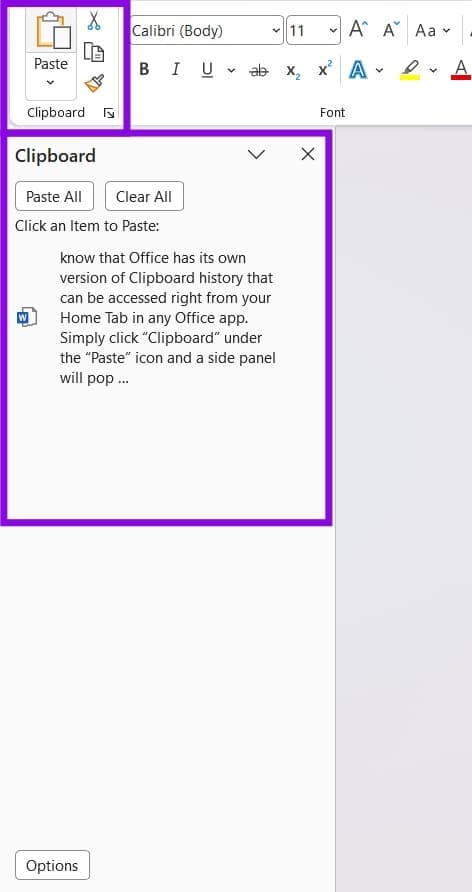
It’s useful to know that Office has its own version of Clipboard History that can be accessed right from your Home Tab in any Office app. On the Home tab, select the Clipboard dialog box launcher in the Clipboard group to open the Clipboard task pane. This is useful for working solely within Office.
Hidden Windows Clipboard Features You Should Be Using 6

PowerToys Enhancements

PowerToys is an optional Windows download to make everything that much better. Case in point, if you’ve ever had to copy data from one app to another, you know that formatting can be a nightmare. Just think about your last Word doc. Advanced Paste is a PowerToys tool that makes the clipboard even better. Here’s how to use it:

 Step 1. Open PowerToys (download it from the Microsoft Store if you haven’t already) in the System Tray.

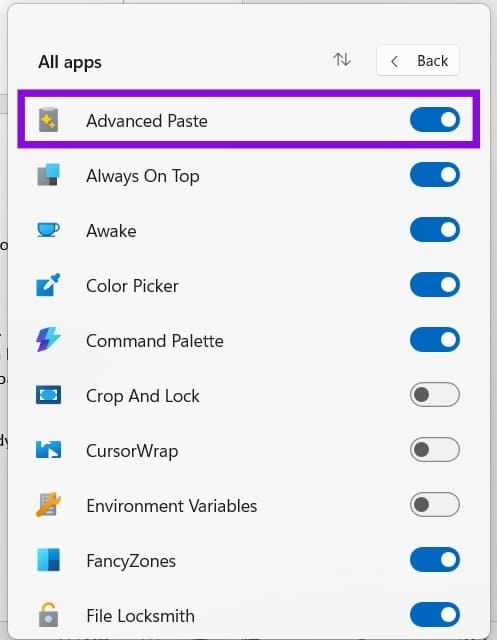
Step 2. Toggle “Advanced Paste” to “On.”
Hidden Windows Clipboard Features You Should Be Using 7

Step 3. Copy your data in the normal way (Ctrl + C) and open the location where you want to paste it.

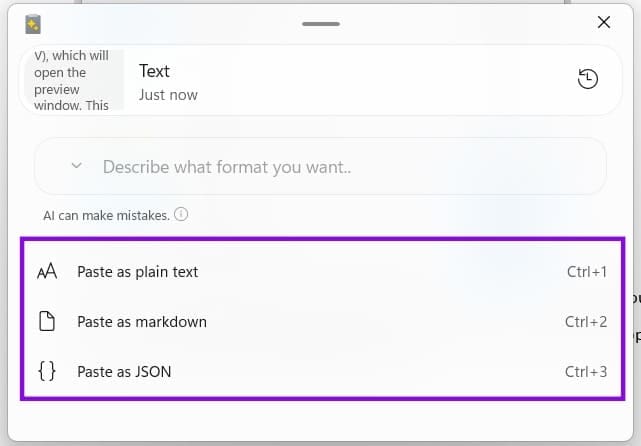
Step 4. To paste with Advanced Paste, press (Win + Shift + V), which will open the preview window. This shortcut can also be redefined if you want.

Step 5. Choose how you would like your content pasted. Depending on the content and your PowerToys settings, you can select options such as plain text, Markdown, or JSON.
Hidden Windows Clipboard Features You Should Be Using 8

Step 6. Your text will be pasted.

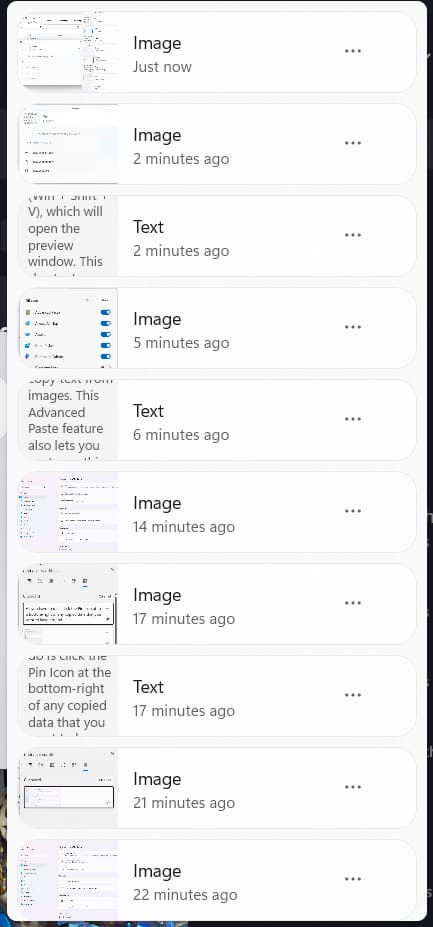
Step 7. If you want data from further back, simply click the History icon at the right of the box to see the list.
Hidden Windows Clipboard Features You Should Be Using 9
Categories: Windows

Author Evan Mercer

I’m a computer science grad who loves to tinker with smartphones and tablets in my spare time. When I’m not writing about how to fix techy problems, I like hanging out with my dogs and sipping nice wine after a tough day.

You Might Also Like

  • Win7 User Account Control settings

    Enable or Disable User Account Control (UAC) in Windows

    Mitch BartlettWindows
  • Windows 11 Disable Are you sure you want to move this file to the Recycle Bin Dialog

    Windows 11: Disable “Are you sure you want to move this file to the Recycle Bin?” Dialog

    Mitch BartlettWindows
  • bluetooth-toggle-missing-windows-10

    Fix Bluetooth Toggle Missing on Windows 10 or 11

    Madalina DinitaWindows
  • surface-pen-not-working-after-update

    Fix Surface Pen Not Working After Update

    Madalina DinitaWindows

Leave a Reply

Your email address will not be published. Required fields are marked *

  • printer error 0x800706b5

    How to Fix Printer Error 0x800706b5 on Windows 11

  • read mode greyed out in word

    Why Is Read Mode Greyed Out in Word?

  • pick an app keeps popping up

    How to Fix Pick an App Screen Popping Up When Opening a Certain File

  • file explorer freezes when mounting iso

    Why Does File Explorer Freeze When Mounting an ISO?

  • why is my excel toolbar greyed out

    Why Is My Excel Toolbar Greyed Out?

profile pic

The Experts Behind Technipages

My name is Mitch Bartlett. I've been working in technology for over 20 years in a wide range of tech jobs from Tech Support to Software Testing. I started this site as a technical guide for myself and it has grown into what I hope is a useful reference for all.

Learn More

technipages logo white
linkedin icon

Technipages is part of Guiding Tech Media, a leading digital media publisher focused on helping people figure out technology. Learn more about our mission and team here.

© 2026 Guiding Tech Media All Rights Reserved

  • About Us
  • Contact
  • Terms of Use
  • Privacy Policy

© 2026 Guiding Tech Media All Rights Reserved

Information from your device can be used to personalize your ad experience.
Do not sell my personal information.

Last Updated on September 6, 2026 by Evan Mercer