If you’ve opened the Storage settings and wondered, “Why is System taking so much disk space?” the answer is that the “System & reserved” category has much more than just Windows files. It also includes the page file, the hibernation file, System Restore points, and the storage Windows keeps aside for updates. In most builds, it should take only about 20 to 40GB to start with, but if you see the folder’s size get closer to 100GB or more, you might need to use one of the following fixes to get some space back.
Fix 1 – Run Disk Cleanup to Remove Old System Files
Leftover update files and previous Windows installations can take up tens of gigabytes, and Disk Cleanup can safely remove them.
Step 1. Open Windows Search, type in “cleanup,” and open “Disk Cleanup.”
Step 2. Select the C: drive and click “OK.”
Step 3. Click on “Clean up system files” and select the C: drive again.
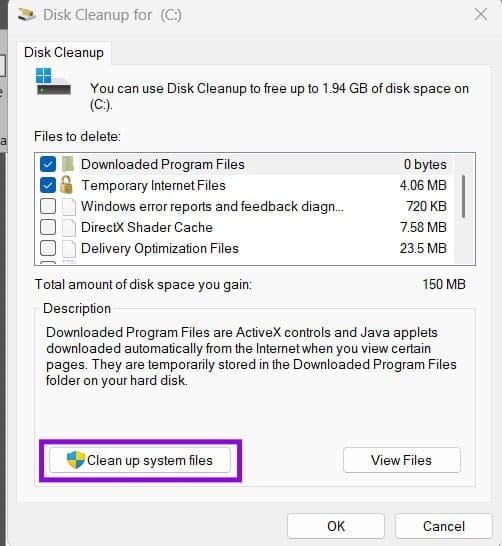
Step 4. Check the large entries, such as “Windows Update Cleanup” and “Previous Windows installation(s),” then click “OK” and “Delete Files.”
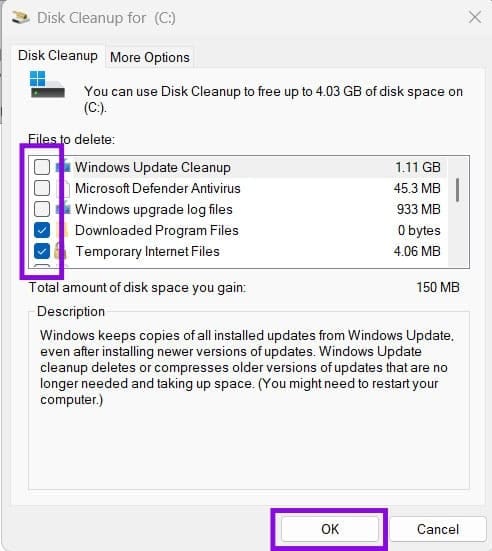
Note that removing the previous Windows installation means you can’t roll back to the older version.
Fix 2 – Reduce the Space Used by System Restore
Restore points pile up over time. If you have a system taking up a lot of disk space, they’re among the most likely culprits.
Step 1. Press “Win + R,” type in “sysdm.cpl,” and hit “Enter.”
Step 2. Go to the “System Protection” tab, select the C: drive, and click “Configure.”
Step 3. Drag the “Max Usage” slider to a lower percentage.
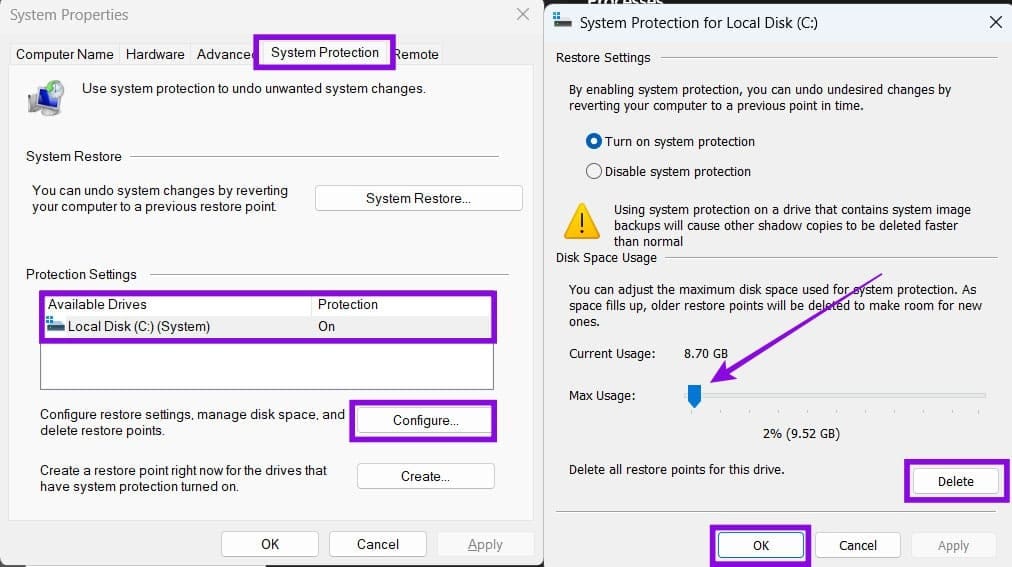
Step 4. Click “Delete” if you want to remove all existing restore points, then click “OK.”
If you delete all your restore points, consider creating a new one afterward so you still have a recent restore point available if you need to undo a future system change.
Fix 3 – Shrink or Disable the Hibernation File
Windows stores hibernation data in a hidden file called “hiberfil.sys.” Its size depends in part on the amount of RAM installed and the type of hibernation file Windows is using.
Step 1. Press the Windows key, type in “cmd,” then select “Run as administrator.”
Step 2. If you don’t need full hibernation but want to keep Fast Startup, you can switch to a reduced hibernation file by running:
powercfg /h /size 0
powercfg /h /type reduced
This creates a smaller hibernation file that supports Fast Startup but not full hibernation.
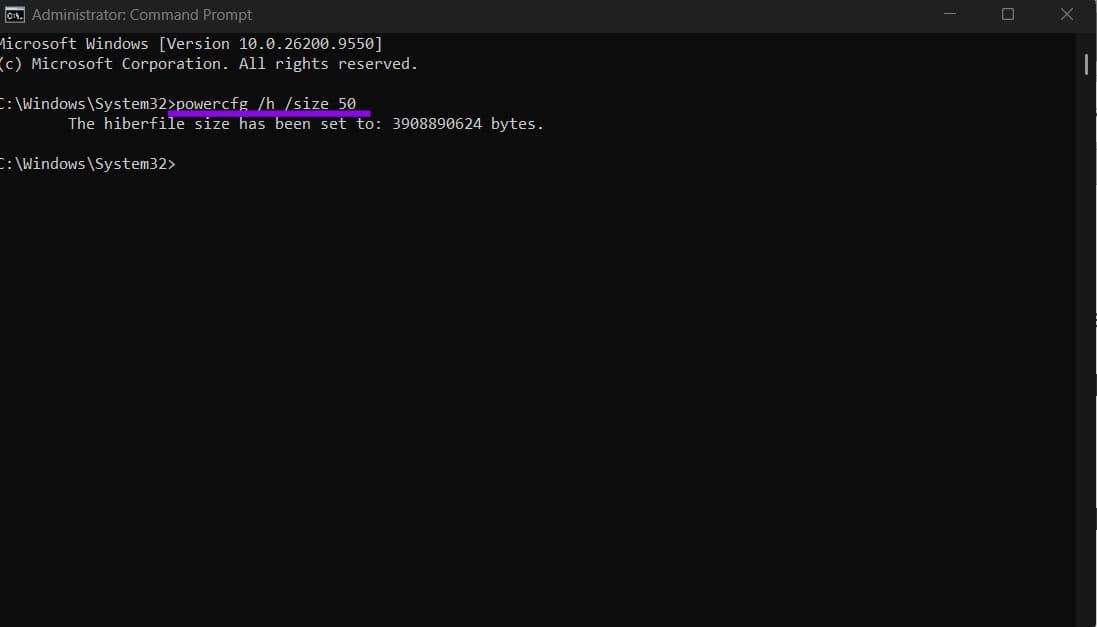
Step 3. If you never use hibernation, you can remove the file entirely with this command:
powercfg /hibernate off
Step 4. Restart your PC.
Keep in mind that turning hibernation off also disables Fast Startup, so your PC might take a bit longer to boot.
Fix 4 – Lower the Page File Size
The page file is disk space that Windows uses as part of its virtual-memory system. When the page file is system-managed, Windows can increase or decrease its size based on factors such as physical memory, memory usage, and crash-dump requirements.
Step 1. Open “sysdm.cpl” as in Fix 2 and go to the “Advanced” tab.
Step 2. Click “Settings” under “Performance,” then open the “Advanced” tab and click “Change.”
Step 3. Uncheck “Automatically manage paging file size for all drives.”
Step 4. Select the C: drive, choose “Custom size,” and enter lower values for “Initial size” and “Maximum size.”
Step 5. Click “Set,” then “OK,” and restart your PC.
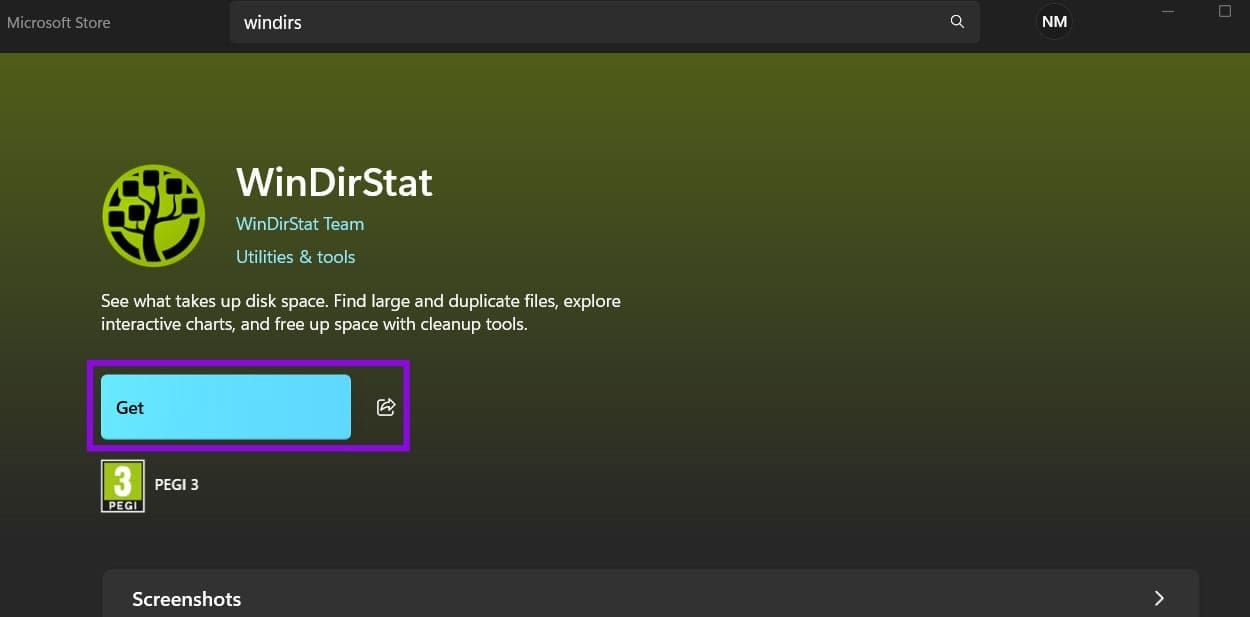
If the category is still too large after all this, you can use a free disk analyzer, like TreeSize or WinDirStat from the Microsoft Store, to see exactly which files take up the space. Just make sure to run it as an administrator so it can read the system folders.