You never realize how important the Taskbar is to the Windows experience until it’s gone. This valuable part of Windows provides access to apps, the Start menu, notifications, search, and other system features, and it can disappear for several reasons. If you find your Taskbar gone after login, then this is the article for you. We’re going to be sharing some fixes to help.
Taskbar Gone After Login – Fixes to Try
Let’s get straight into it. If a fresh login has your Taskbar missing, or the Taskbar disappeared after update, Windows 11 has a few ways to fix the issue, depending on what caused it.
Restart Your PC
The easiest and first fix you should try is restarting your PC. This can resolve temporary glitches, and if the Taskbar is still missing afterward, you can move on to other troubleshooting steps.
Restart Explorer
The Taskbar is part of the Windows shell experience, and restarting the Windows Explorer process can sometimes resolve Taskbar problems:
Step 1. Open Task Manager (Ctrl + Shift + Esc).
Step 2. In the “Processes” tab, look for “Windows Explorer” and click it.
Step 3. Right-click “Windows Explorer” and select “Restart.”

Step 4. Explorer will restart. Check to see if your Taskbar appears.
Try the Win Key
Another quick test is to hit the Win key, as this automatically opens the Start menu. If the Start menu appears, it can help determine whether the Windows shell is responding even though the Taskbar isn’t visible.
Check for Auto-Hide
Your Taskbar may also have been hidden by settings changing during an update or by mistake. You can check like this:
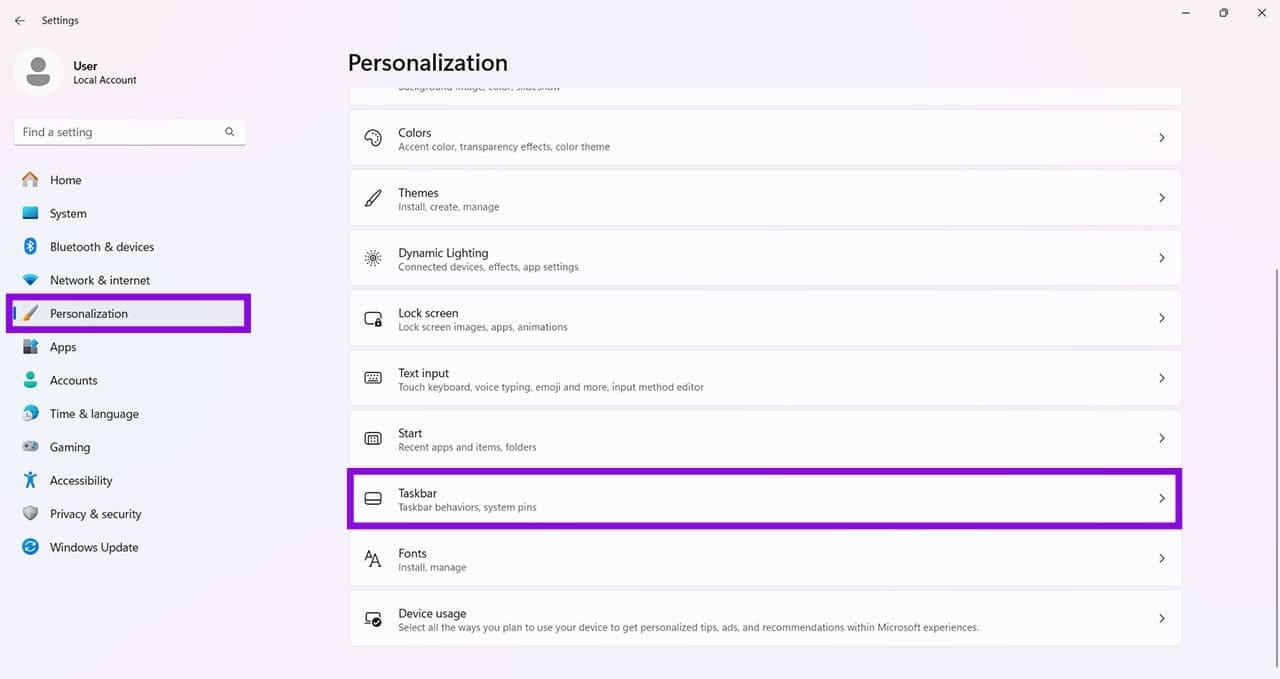
Step 1. Open “Settings” (Win + I) and click “Personalization” in the sidebar.
Step 2. Scroll down to “Taskbar” and click it.
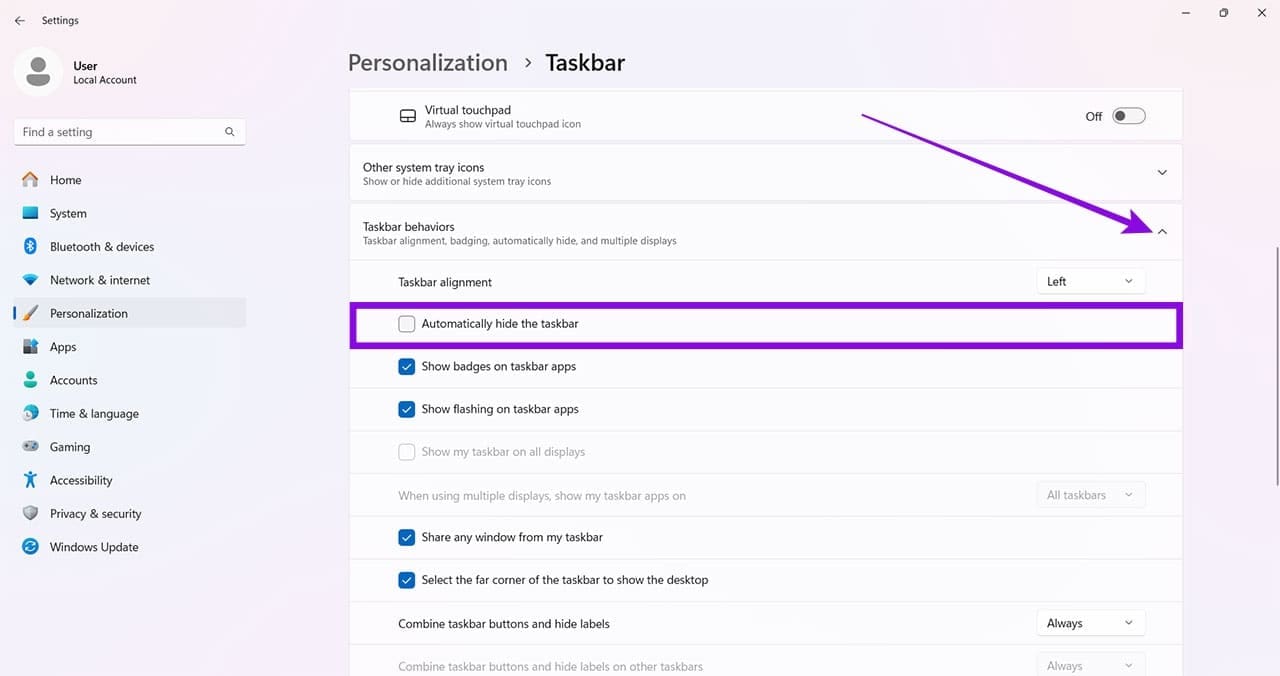
Step 3. Click “Taskbar behaviors” to expand it and ensure that “Automatically hide the taskbar” is not selected. Even if it isn’t, check it and uncheck it to see if the Taskbar reappears.
Check Your Projection Settings
In the case of multiple displays, your Taskbar might have shifted to another screen, even one that isn’t currently on. Here’s how to check and fix it:
Step 1. Hit (Win + P) to open the “Projection” menu.
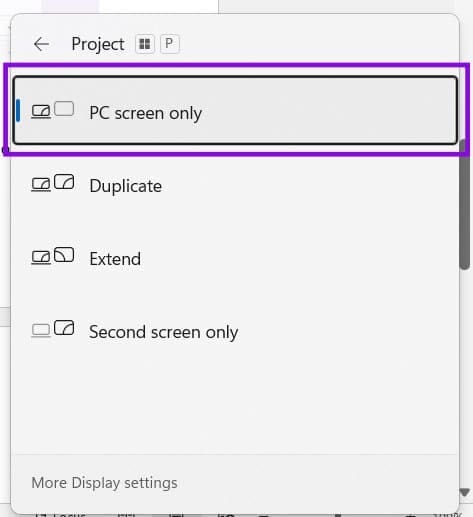
Step 2. Click “PC screen only” to see if this causes the Taskbar to reappear.
Run SFC and DISM
If these fixes aren’t working, your files may have been corrupted by the latest update and need to be scanned for errors and repaired. Running SFC and DISM can help:
Step 1. Open the Run Dialog (Win + R) and type “cmd” before hitting (Ctrl + Shift + Enter) to run as Admin.
Step 2. In Command Prompt, type DISM.exe /Online /Cleanup-image /Restorehealth and press “Enter.” Let the process complete.
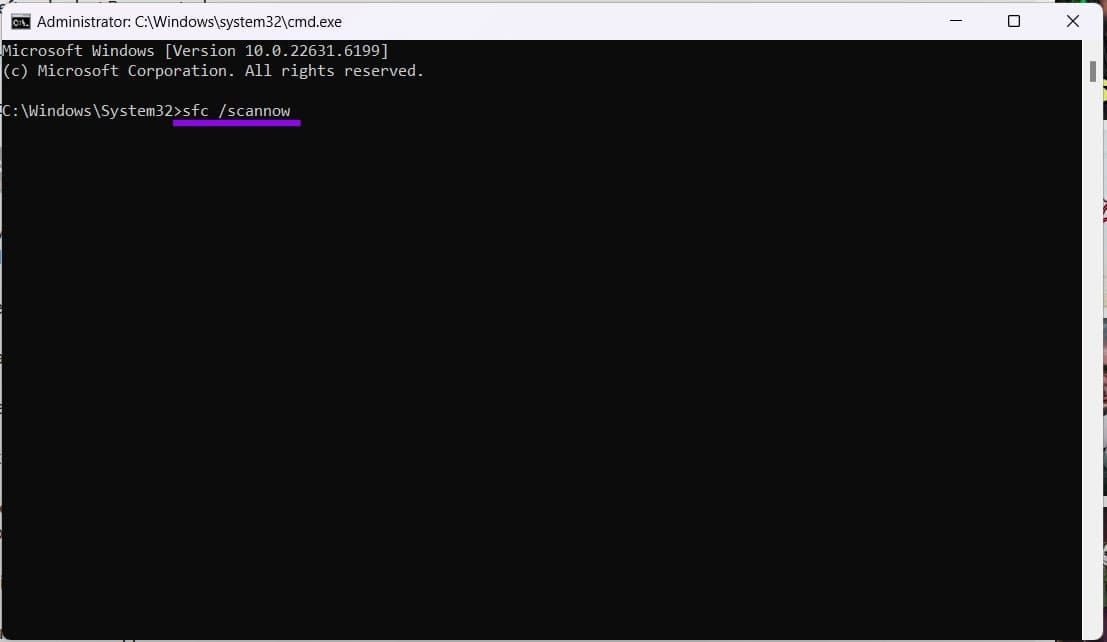
Step 3. Once DISM is complete, type “sfc /scannow” and press “Enter. “Wait for the verification to reach 100%.
Step 4. Restart your PC once both scans and checks are done.
Roll Back Updates
If this problem has surfaced after an update, then waiting for a hotfix (normally a few hours or days) is advisable. If you can’t, however, then you can try rolling back to a previous version of Windows for the time being:
Step 1. Open “Settings” (Win + I) and choose “System” in the sidebar.
Step 2. Navigate down to “Recovery” and click it.
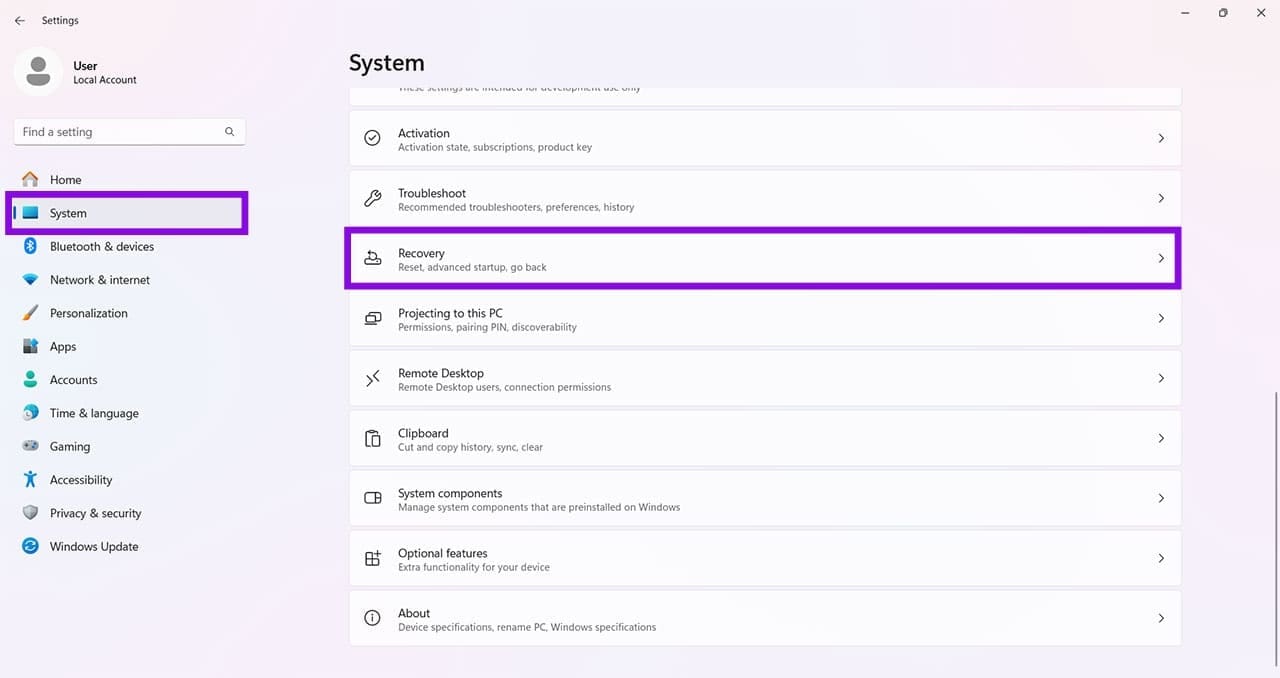
Step 3. If you can roll back the update, a “Previous version of Windows” option will be visible. Click the “Go back” button next to it to start the process.