Menus are the lifeblood of any Excel spreadsheet, so if you can’t access them, you can’t do your work properly. There are a few different reasons that your Excel menus might be greyed out, and, in this article, we’ll be investigating not only these but also providing some potential fixes to help.
If you’re asking, “Why is my Excel toolbar greyed out?” this article is for you
Why Is My Excel Toolbar Greyed Out?
Why is my toolbar greyed out in Excel? Let’s start with the major causes that can result in a menu that won’t respond. They include:
- Working or editing a cell in your spreadsheet (easily the most common reason)
- Spreadsheet itself is protected
- Worksheets in your workbook are grouped
- Problems with your Office license
- Menus are locked via Options
- A file is open in Protected View or with restricted permissions
- Admin has disabled certain commands
Solving Greyed Out Taskbars in Excel
Now that you know the causes, it’s time to look at some fixes to solve things.
Press Enter
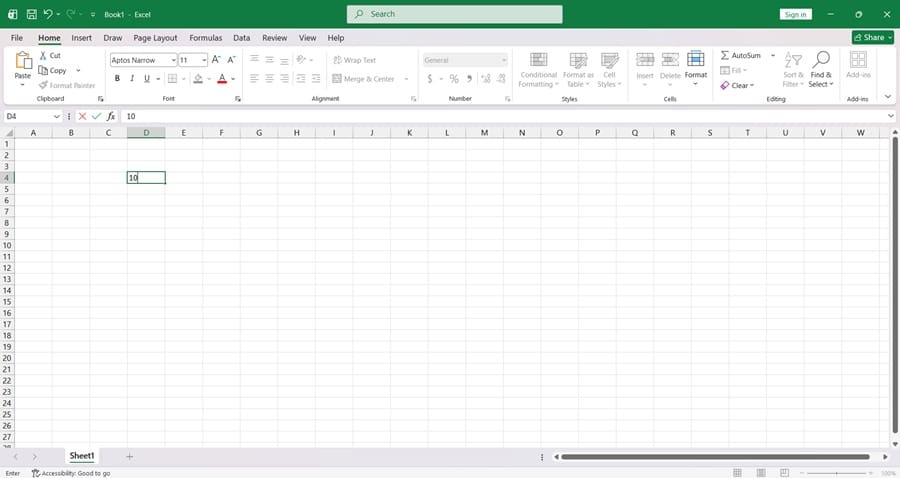
As mentioned above, the biggest cause of a greyed-out taskbar is the fact that you’re currently editing a cell. You’d be surprised how much this happens. As a first and easy fix, simply hit “Enter” to exit the editing mode and see if the taskbar becomes available again.
Unprotect Worksheet
If you’re editing an Excel worksheet, especially one from another individual or organization, it might be password-protected and thus deny you the full list of features in the taskbar. How many features are disabled is determined by the person protecting it. To fix this, here’s what to do:
Step 1. Click the “Review” tab.
Step 2. If the “Protect” subsection has “Unprotect sheet,” you’ll know that this is an issue. Click the button.

Step 3. Enter the password to unlock the features of the worksheet. Unfortunately, you can’t skip this step and need to know the password to proceed.
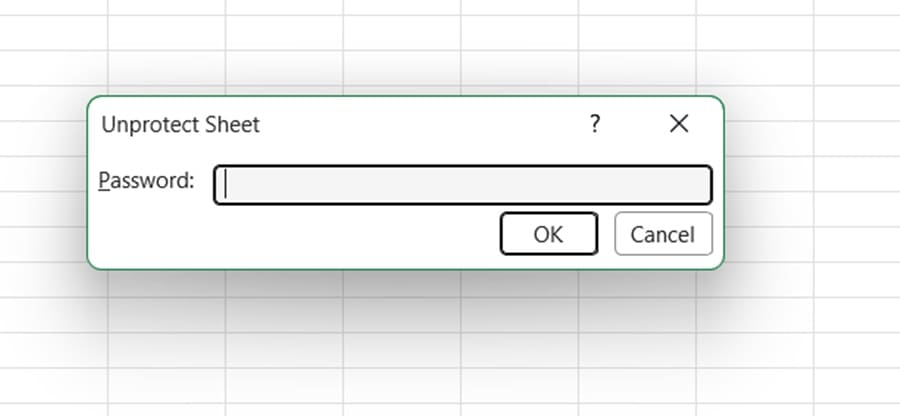
Step 4. Hit “OK” and the taskbar features should be unlocked.
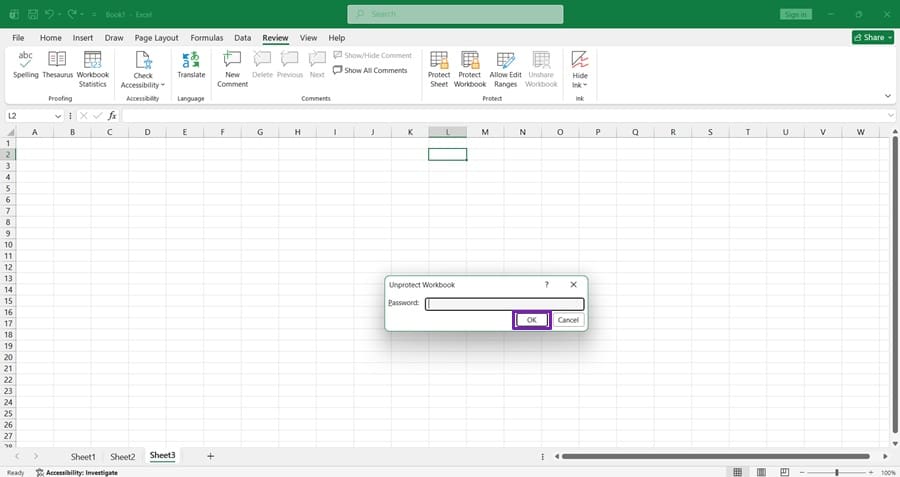
Another cause of a greyed-out taskbar is that the workbook itself (and by extension, all sheets inside it) is protected. To fix this, follow the same steps, but click the “Protect Workbook” option and enter the password.
Ungroup Worksheets
Grouped worksheets in a workbook often carry the settings and preferences of the others, which can lead to greyed-out features in the taskbar. Here’s what you need to do to fix that:
Step 1. Right-click your active sheet and select “Ungroup sheets” from the context menu.
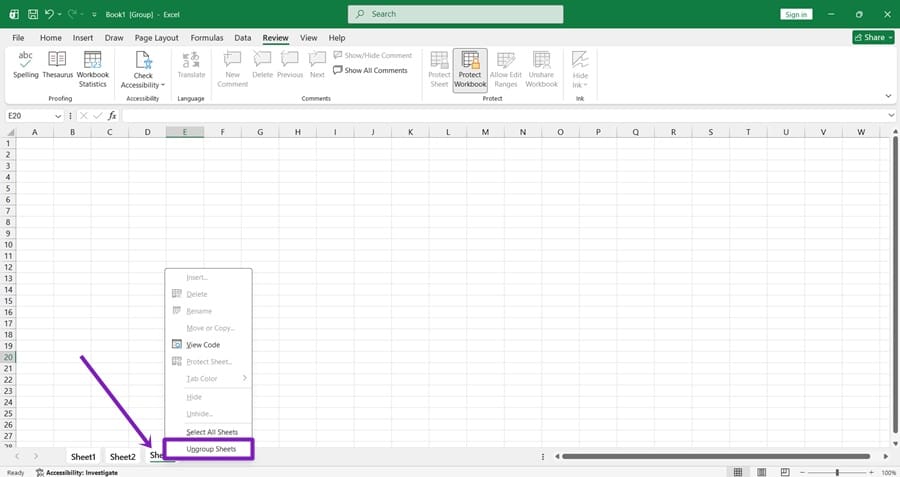
Step 2. If you don’t see “Ungroup Sheets,” click a worksheet tab that isn’t part of the group. If all worksheets are grouped, right-click a selected worksheet tab and select “Ungroup Sheets.”
Check the Option Display Setting
If buttons, pictures, shapes or other objects in your worksheet aren’t appearing, you can check Excel’s object-display setting:
Step 1. Click the “File” tab and click “Options” from the sidebar.
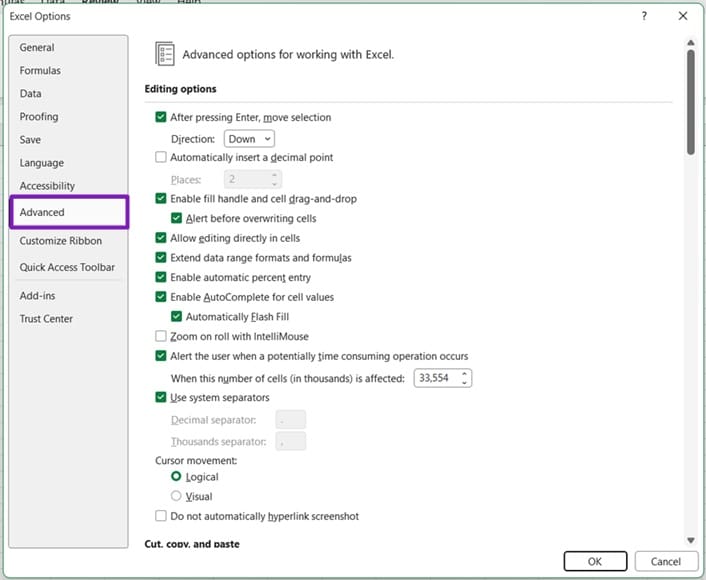
Step 2. In the Options menu that pops up, click “Advanced” in the sidebar.
Step 3. Scroll all the way down to the “Display options for this workbook” subsection and ensure “All” is selected under “For objects show.”
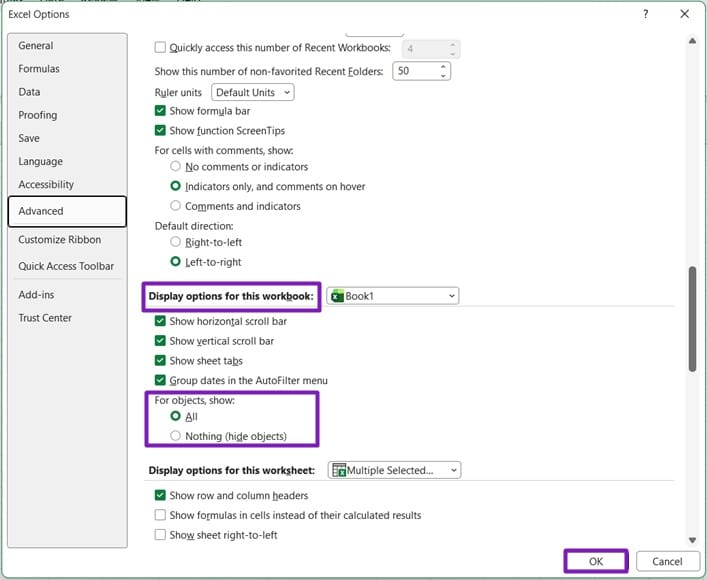
Step 4. Press “OK” and see if this resolves things.
Check Your License
If not only your Excel taskbar, but other Office apps are greyed out, then you may be dealing with licensing issues. Check that your 365 subscription is active or that you are properly signed in to Microsoft Office to enjoy the full range of features.