Print to PDF not working? You’re not alone. The Windows feature that allows you to convert most content into a handy PDF can sometimes be temperamental. Thankfully, there are some fairly quick fixes you can try. Read on to learn more.
What Is Microsoft Print to PDF?
Print to PDF is a Microsoft Windows feature available in both Windows 10 and 11. When you have a web page or some other content you want to save, you could use “select all” and copy and paste it into a blank document. However, this usually disrupts the formatting and makes it hard to read or share.
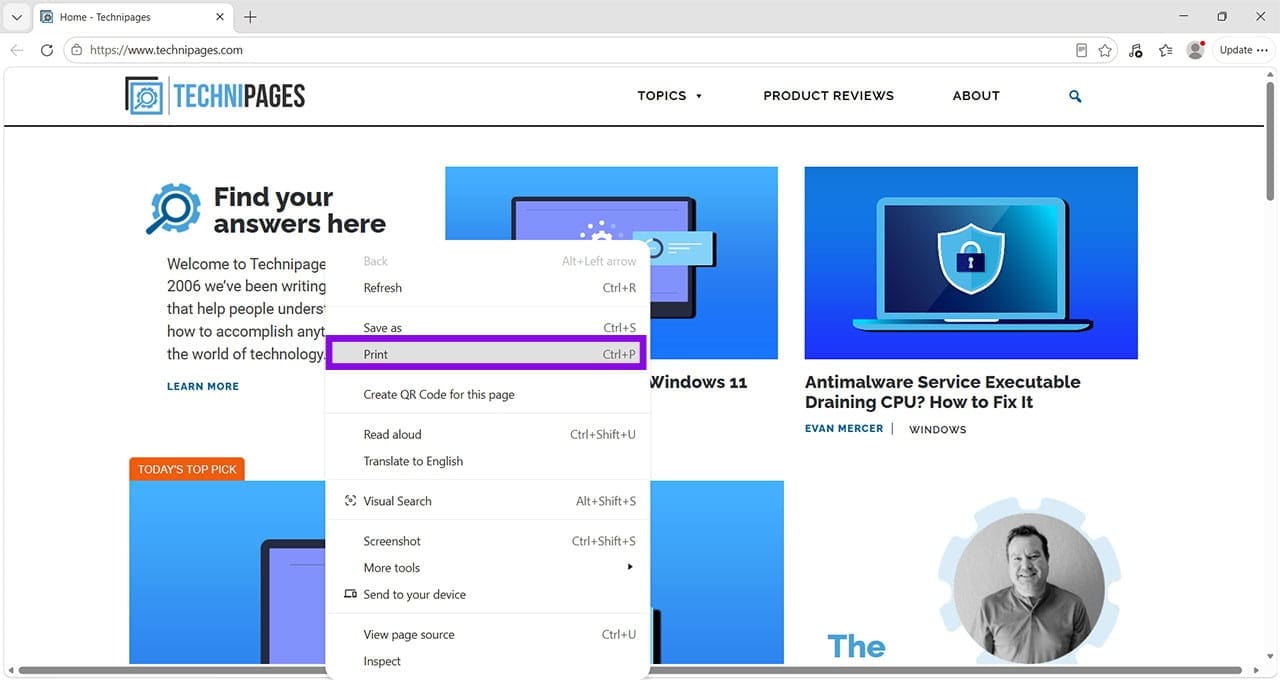
As an alternative, you can right-click on your content, choose “Print,” and then “Print to PDF” under the Printer selection drop-down menu.
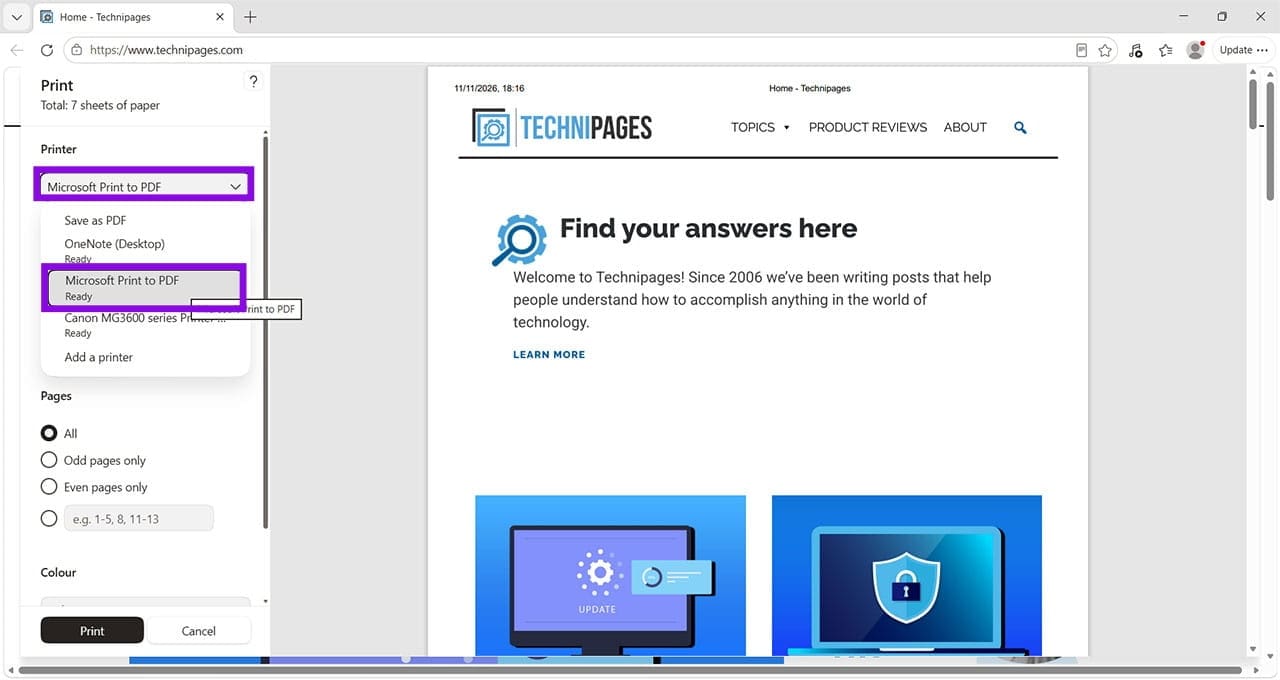
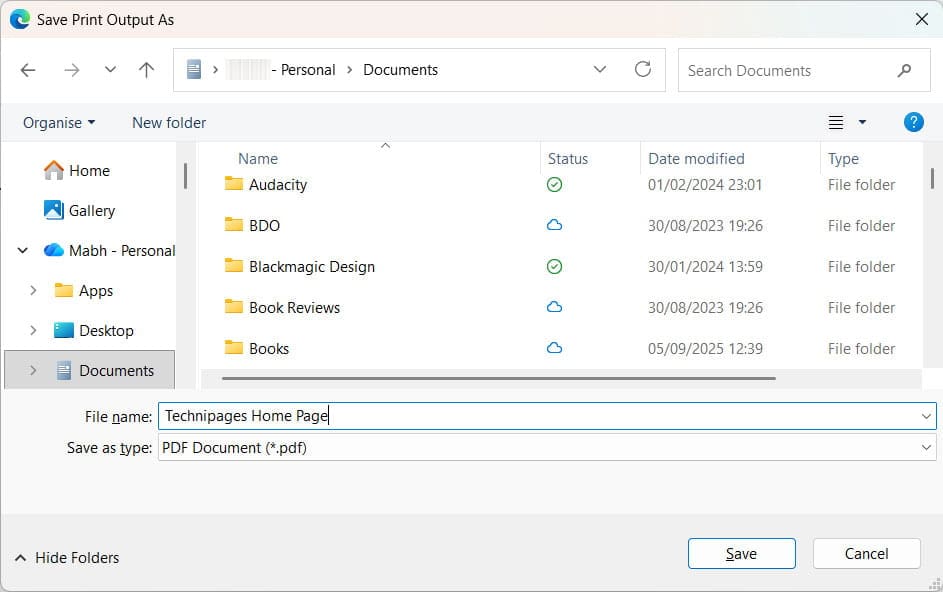
This transforms the content into a PDF that you can save in a location of your choice.
If this isn’t working, it’s time to try one of the fixes below.
Fix Print to PDF Windows 11: Fix 1 – Make Print to PDF the Default Printer
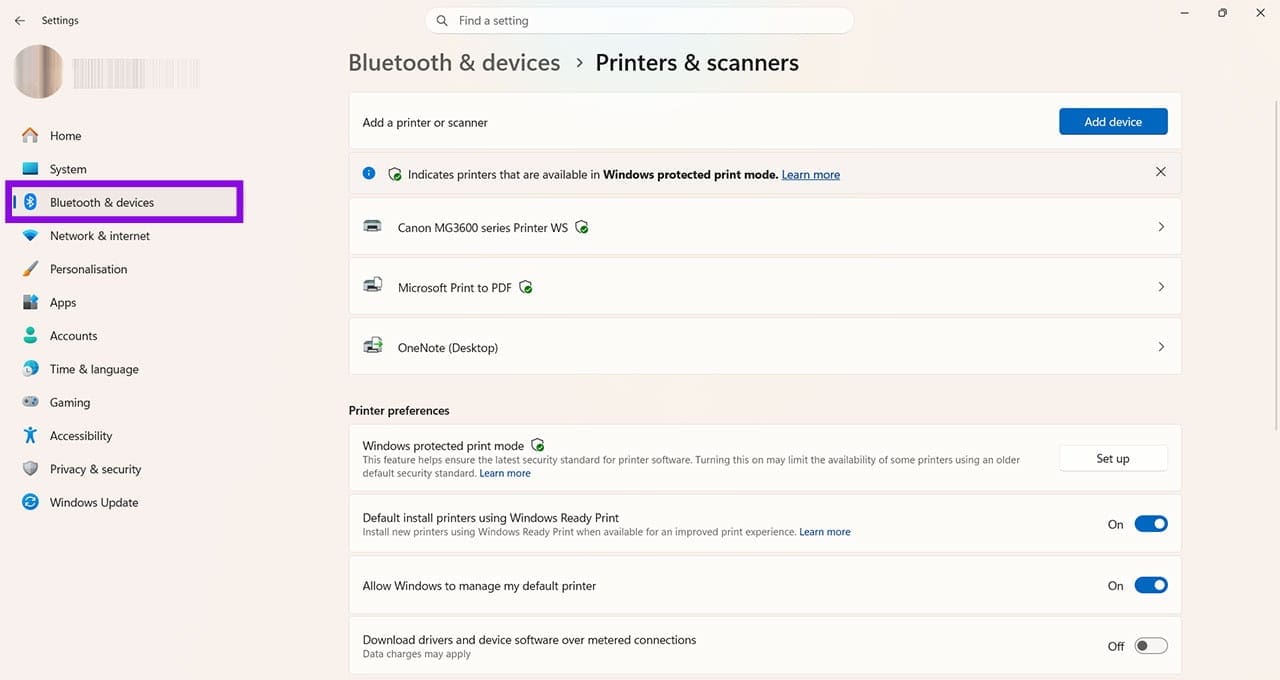
Step 1. If another printer is set as the default, it can sometimes override the instruction to Print to PDF. Change the default printer by going to Settings > Bluetooth & devices > Printers & scanners.
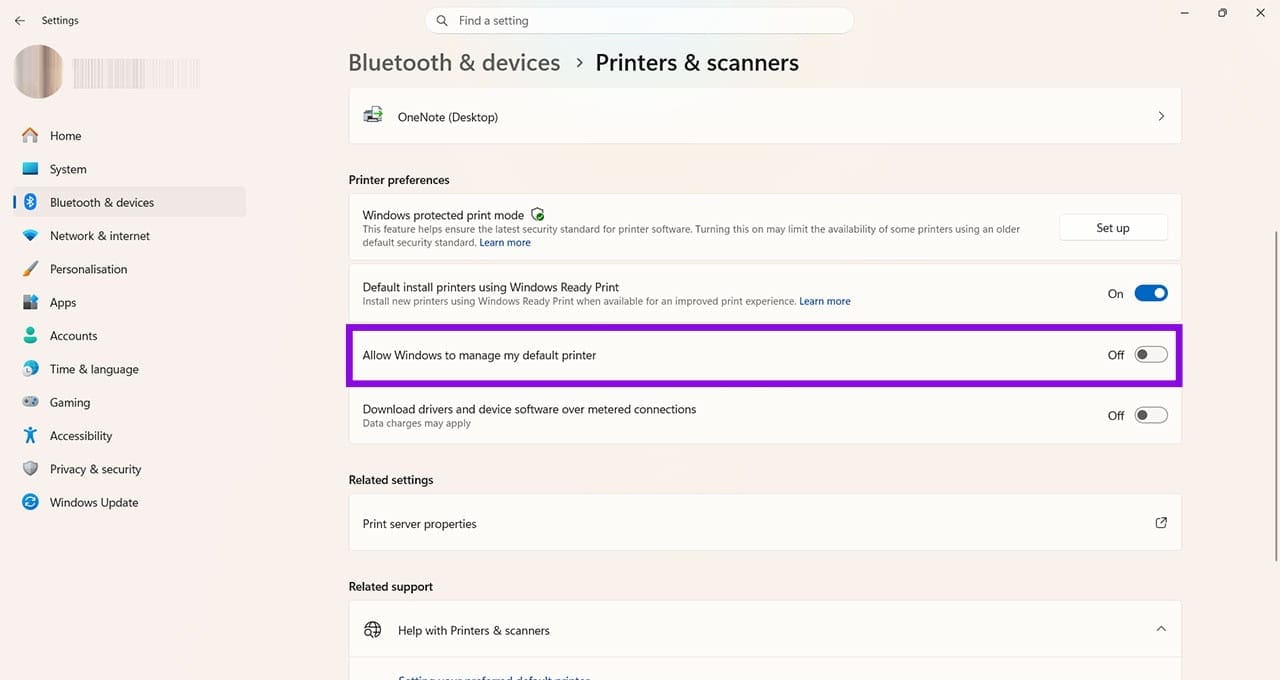
Step 2. Make sure the option to “Allow Windows to manage my default printer” is switched off.
Step 3. Click on “Microsoft Print to PDF” and then click the “Set as default” button.

You should find that you always have the option to Print to PDF, and Windows won’t default to a previously used printer.
Fix Print to PDF Windows 11: Fix 2 – Check the Print Queue
Step 1. Even though Print to PDF doesn’t use an actual printer, it still won’t work if there are jobs stuck in the print queue. To check the queue, go to Settings > Bluetooth & devices > Printers & scanners > Microsoft Print to PDF, and click on “Open print queue,” which is usually near the top of the page. You can also check the print queues for any other printers.

Step 2. If you find a job in a queue that you didn’t expect, right-click on it and select “Cancel.”

This should clear the print queue so you can try the “Print to PDF” option again.
Fix Print to PDF Windows 11: Fix 3 – Check Windows Is Up to Date
Step 1. The primary cause of Print to PDF not working is a Windows 11 glitch that was fixed in a recent update. To check that you’re running the most recent version of Windows, go to Settings > Windows Update and either click “Check for updates” or follow any prompts to restart your device.
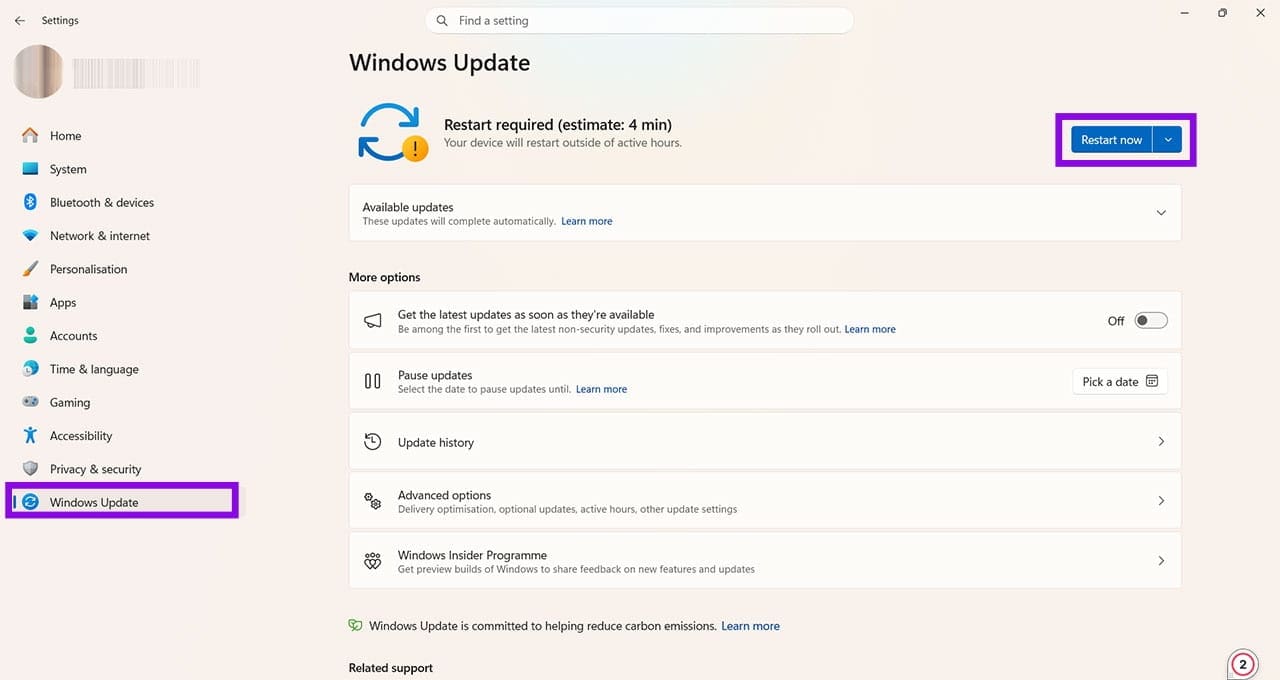
Step 2. Wait for any updates to finish installing and restart your computer if prompted. Then try using “Microsoft Print to PDF” again.