When your system is acting up and you’re trying to diagnose the cause, if Task Manager shows wrong uptime, it can be misleading and complicate the identification and resolution of the issue.
The most common reason why Task Manager shows incorrect uptime is Fast Startup. This feature hibernates the kernel instead of performing a full shutdown. It improves boot-up speed, but it also means the uptime counter may not reset when you shut down and boot up again.
Fortunately, a bit of basic troubleshooting should set the uptime correctly. Try these steps in the order listed.
Disable Fast Startup
Disabling Fast Startup usually resolves the issue promptly.
Step 1. Open the Control Panel.
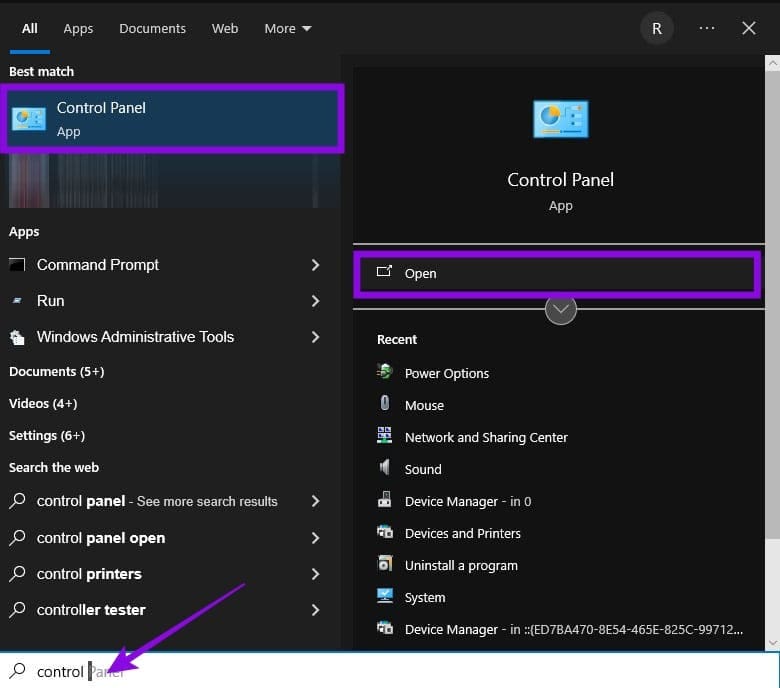
Step 2. Select (or search for) “Power Options.”
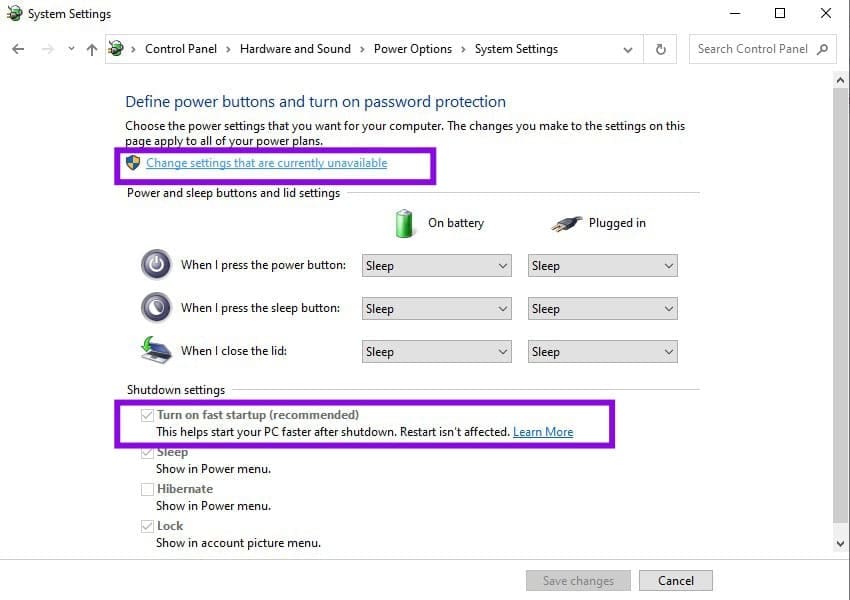
Step 3. In Power Options, select “Choose what the power buttons do.”
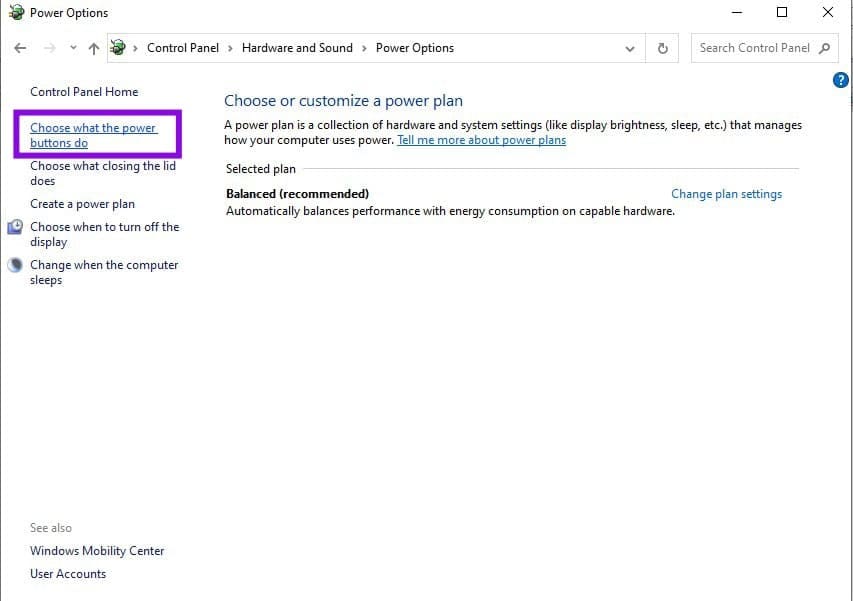
Step 4. Click on “Change settings that are currently unavailable” and uncheck “Turn on fast startup.”
Restart Instead of Shutting Down
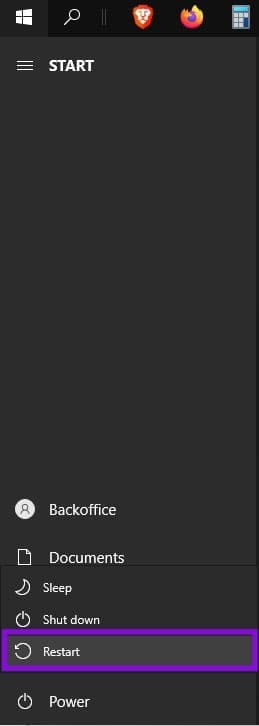
When you restart the PC, don’t choose the “Shut down” option. Rather, choose “Restart.” Restarting performs a full boot cycle, which resets the uptime counter.
You’ll find the “Restart” option under the “Power” settings at the bottom of the “Start” menu.
Restart the WMI Service
If the uptime still appears incorrect after a full restart, you can try restarting the Windows Management Instrumentation (WMI) service as a general troubleshooting step, although this is not a specific fix for Fast Startup-related uptime behavior.
You’ll find the services in services.msc:
Step 1. Search for “services,” select the Services app, and then “Run as administrator.”

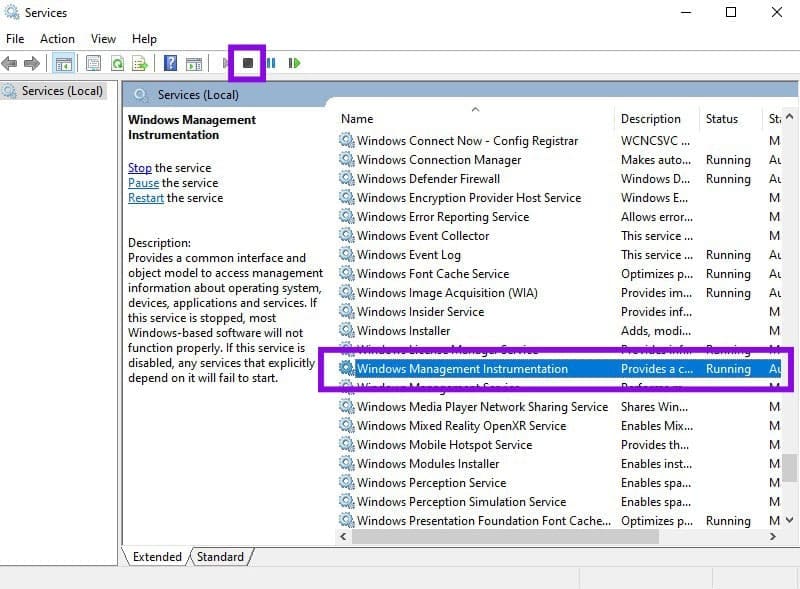
Step 2. Scroll down the list of services, select “Windows Management Instrumentation,” and click “Stop.”
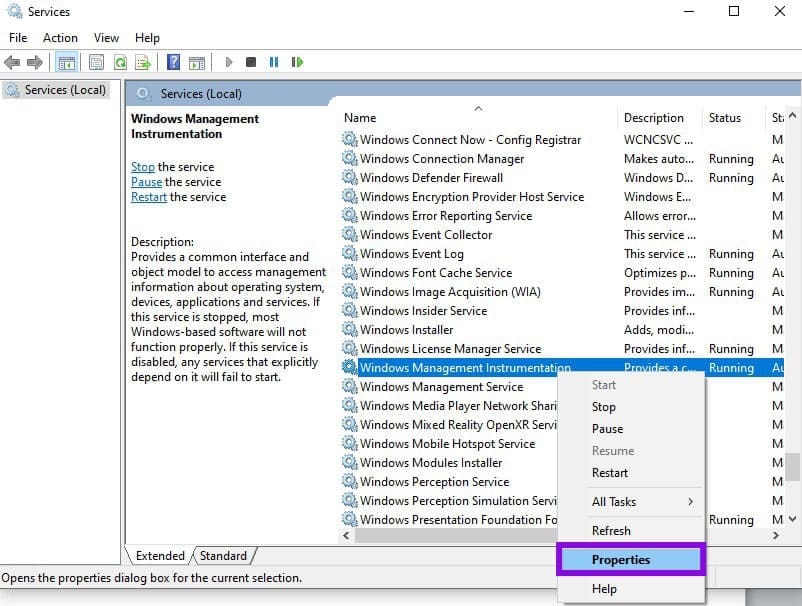
Step 3. Right-click on “Windows Management Instrumentation” and select “Properties.”
Step 4. Under “Startup type,” select “Automatic,” and click “OK.”
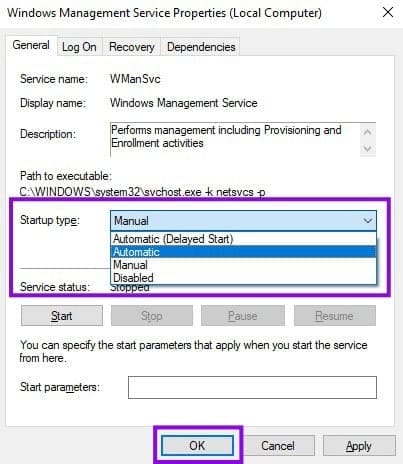
Step 5. Back in the Services app, right-click “Windows Management Instrumentation” and select “Start.”

Repair System Files
If the issue persists after a full restart, you can check for corrupted system files as a general troubleshooting step:
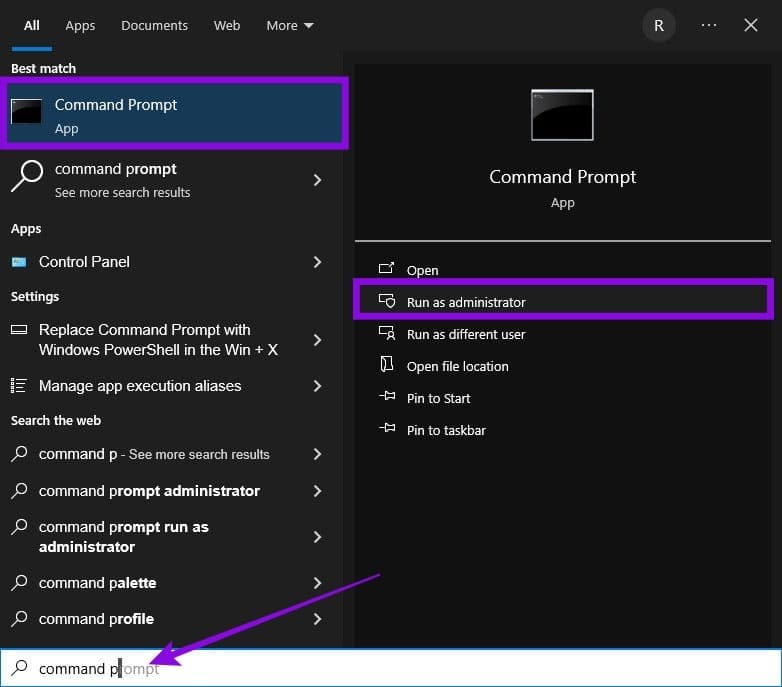
Step 1. Open Command Prompt as an administrator.
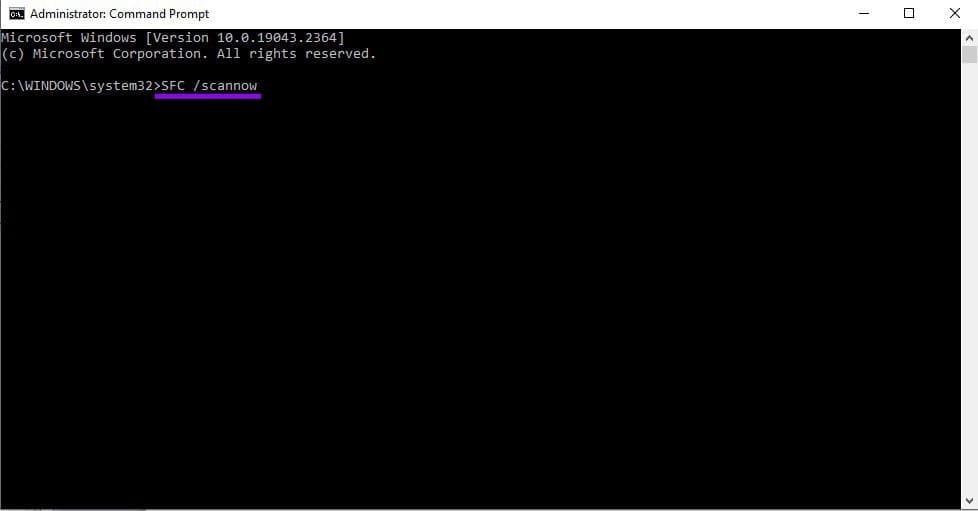
Step 2. In the Command Prompt window, type “sfc /scannow” and press “Enter.”
Step 3. If SFC reports problems it cannot repair, run “DISM /Online /Cleanup-Image /RestoreHealth” and press “Enter.”
Check BIOS and Drivers
If the uptime still appears incorrect after restarting Windows and checking the system files, check whether the system date and time are set correctly.
To address this issue, you’ll have to exit Windows and enter BIOS (the method varies depending on your machine). In BIOS, check the date/time and update the chipset and/or motherboard drivers if needed.