
Skip to content
LogoTechnipages
LogoTechnipages
  • Topics
        • Android
        • Browsers
        • Gaming
        • Hardware
        • Internet
        • iPhone
        • Linux
        • macOS
        • Office
        • Reviews
        • Software
        • Windows
        • Definitions
        • All Recent Posts
  • Product Reviews
  • About

VR Oculus Quest 2: How to Configure the Color of Your Guardian Boundary

Mel HawthorneFebruary 20, 2021 Comments (0)
Oculus

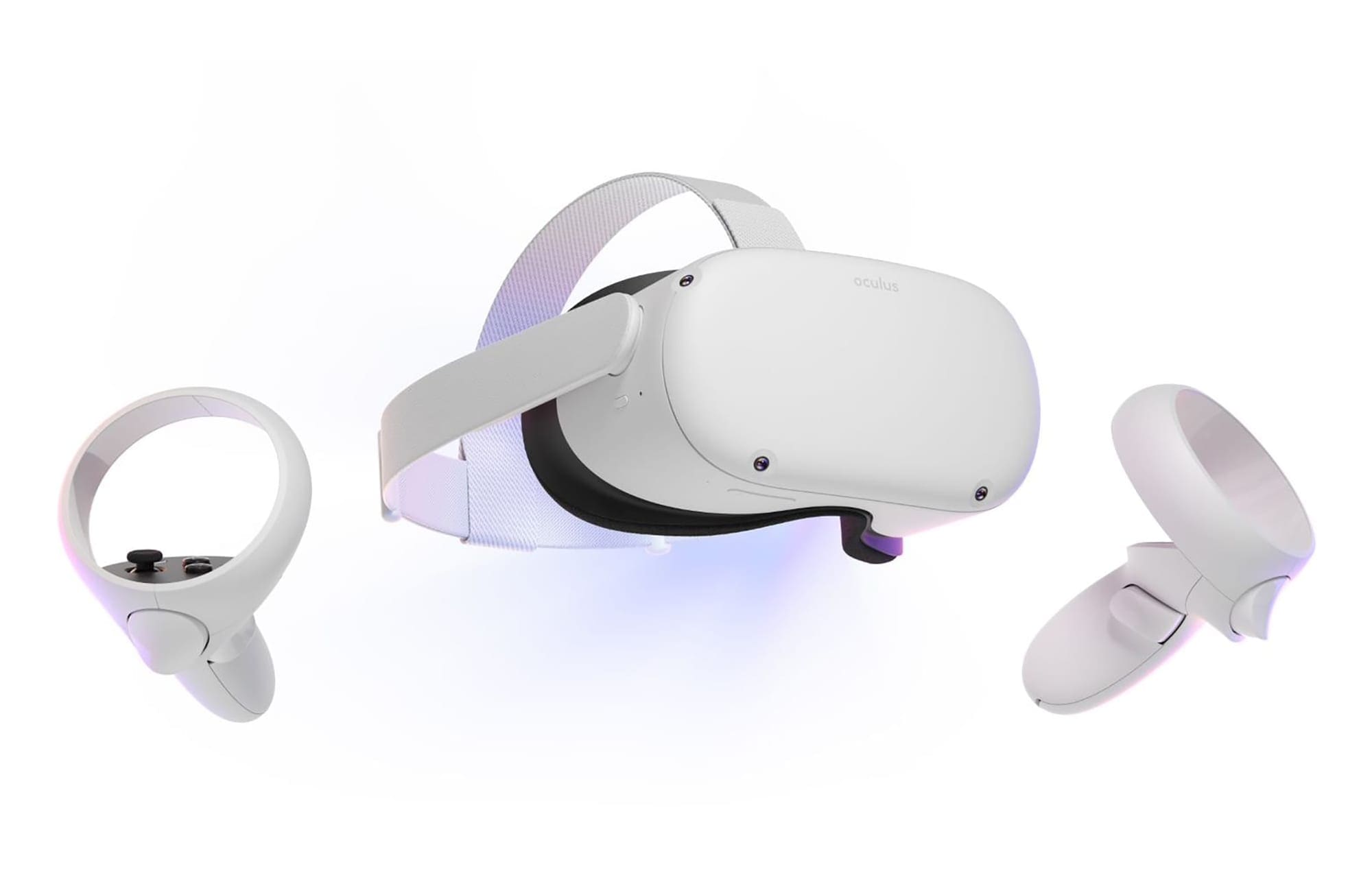
The Quest 2’s Guardian Boundary feature is one of its best safety features – it makes sure that you know where you can and can’t go, and when set up correctly, it will actively prevent you from banging into things.

If you have a small play space or get a bit overexcited when moving around, you might end up seeing your barrier fairly often. Between that and the different games you can play, you may find yourself wanting to change the Guardian Boundary – or, more specifically, its color.

While it will always go red as you get close to breaching it (or when you actively do), its default color can be changed. Normally it’s blue – but you can also change it to yellow or purple. Why?
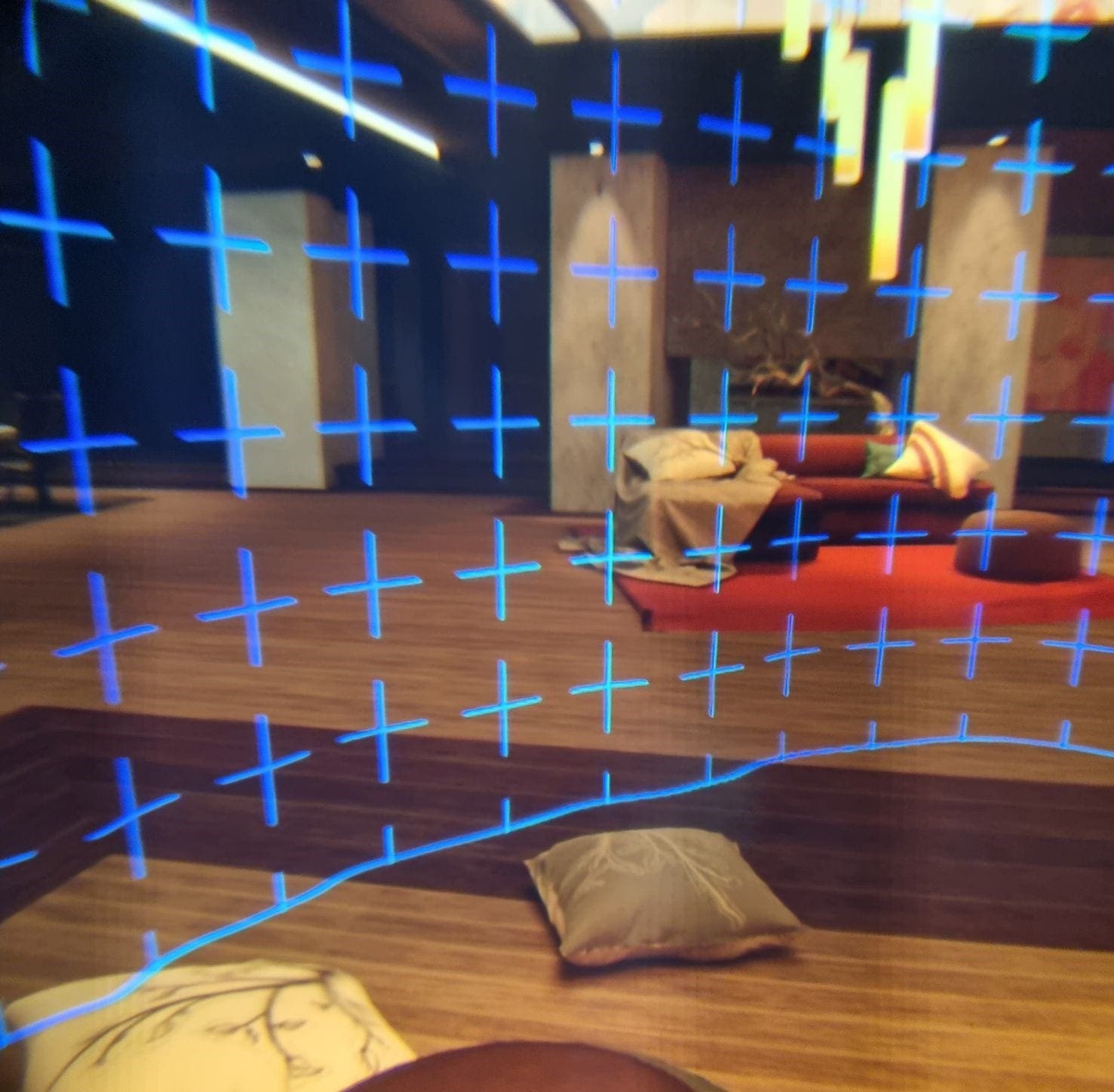
A blue Guardian Boundary

One of the primary reasons is to make sure it’s visually distinct from the game you’re playing. If you play something set in the desert, you may struggle to see a yellow border or a blue one in a water- or snow environment. You can change the color any time, even mid-game, so don’t hesitate to switch to something you can easily see!

Changing Your Color

To change your Boundary color, press the Oculus button on your right controller. The menu will pop up. Click on the cogwheel on the far-right to get to your Settings. There, on the left-hand side, you can find a section labeled Guardian.
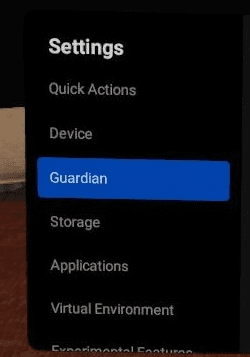
The Guardian menu option

Here, scroll a little until you see the option labeled Boundary Color. It’s a drop-down menu where you can pick from three options. Blue, yellow and purple. Adjust this whenever you feel your boundary color doesn’t suit what you’re playing!
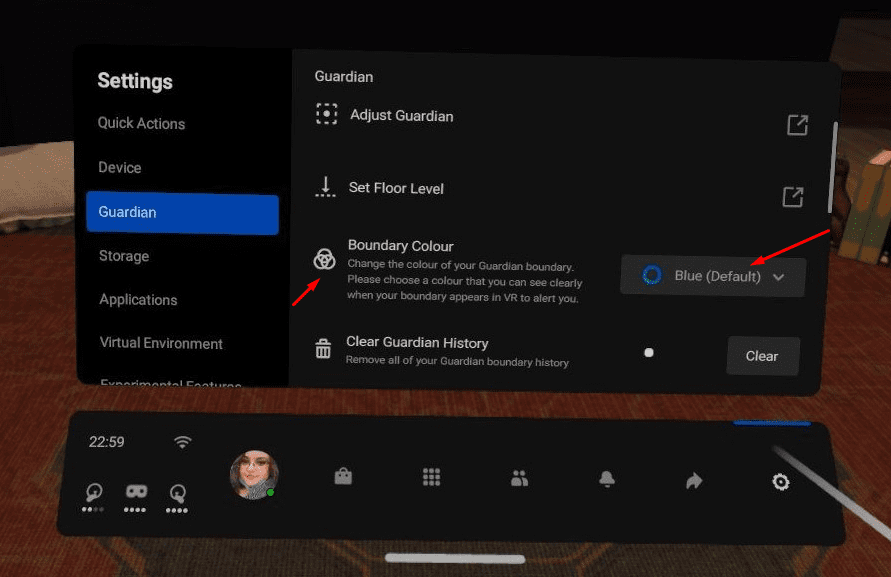
The color options

Tip: In this section of the menu, you can also find some other options for adjusting the Guardian – such as sensitivity, how soon it becomes visible, and more. It’s also where you can draw a new Guardian Boundary if you need to!

We usually use yellow or purple. What’s your favorite Boundary color? Share your thoughts in the comments below.

Categories: Gaming | Hardware

Author Mel Hawthorne

You Might Also Like

  • Oculus

    VR Oculus Quest 2: How To Check Battery Levels of Controllers and Headset

    Mel HawthorneGaming
  • Oculus

    VR Oculus Quest 2: How to Set up Oculus Link

    Mel HawthorneGaming
  • Oculus

    VR Oculus Quest 2: How to Play Steam Games

    Mel HawthorneGaming
  • Features to look for in headphones

    The 8 Best Wireless Headphones For You

    Aaron KimGaming

Leave a Reply

Your email address will not be published. Required fields are marked *

  • sound in xbox party chat on pc

    How to Change Sound Input and Output Devices in Xbox Party Chat on PC

  • bluetooth toggle missing windows 11

    What to Do When Your Bluetooth Toggle Is Missing (Windows 11)

  • microsoft paint features

    Unleash Your Inner Artist – Advanced Microsoft Paint Features You Might Not Know About

  • how to make chromebook run faster

    8 Ways to Make Your Chromebook Run Faster

  • error code 0xC0000428

    What Is Error Code 0xC0000428 and How to Fix It

profile pic

The Experts Behind Technipages

My name is Mitch Bartlett. I've been working in technology for over 20 years in a wide range of tech jobs from Tech Support to Software Testing. I started this site as a technical guide for myself and it has grown into what I hope is a useful reference for all.

Learn More

technipages logo white
linkedin icon

Technipages is part of Guiding Tech Media, a leading digital media publisher focused on helping people figure out technology. Learn more about our mission and team here.

© 2026 Guiding Tech Media All Rights Reserved

  • About Us
  • Contact
  • Terms of Use
  • Privacy Policy

© 2026 Guiding Tech Media All Rights Reserved

Information from your device can be used to personalize your ad experience.
Do not sell my personal information.

Last Updated on February 20, 2021 by Judy Sanhz