Skip to content
LogoTechnipages
LogoTechnipages
  • Topics
        • Android
        • Browsers
        • Gaming
        • Hardware
        • Internet
        • iPhone
        • Linux
        • macOS
        • Office
        • Reviews
        • Software
        • Windows
        • Definitions
        • All Recent Posts
  • Product Reviews
  • About

Troubleshooting OneNote Sync Error 0xE40200B4

Madalina DinitaDecember 15, 2020 Comments (0)
fix onenote sync error 0xe40200b4

Syncing OneNote is not always an easy task. What should be a quick process can sometimes turn into a time-consuming quest for the right troubleshooting solution.

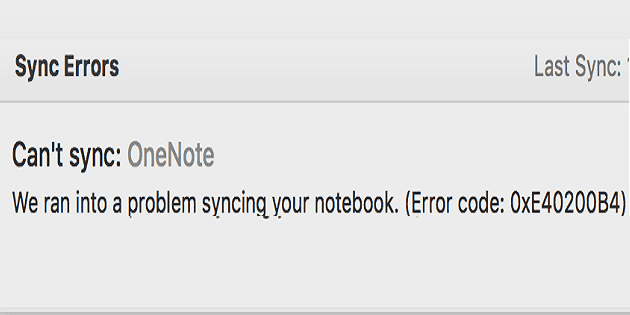
If OneNote fails to sync with error code 0xe40200b4, follow the troubleshooting steps listed in this guide.

Contents

  • 1 How to Fix OneNote Error Code 0xE40200B4
    • 1.1 Try Again Later
    • 1.2 Use OneNote for the Web
    • 1.3 Restart Your Computer and Modem
    • 1.4 Close Background Programs
    • 1.5 Open Another Notebook
    • 1.6 Repair Office

How to Fix OneNote Error Code 0xE40200B4

Note: Visit the Office 365 service health page. Check if there is any news about any service issues that could be triggering this error.

Try Again Later

Microsoft explains that error 0xe40200b4 may occur when OneNote’s servers receive an unexpectedly high number of requests. Wait for ten minutes and try again. The idea is to wait until the servers are no longer under such a huge load.

It is worth mentioning that your notes will remain safe at all times. Even if you get this error, OneNote will continue to reach out to the server until it responds.

Use OneNote for the Web

If you’re getting error 0xe40200b4 when using the stand-alone app, check if you can use the web version. Some users have been able to use this workaround to access OneNote.

If you’re lucky, you’ll be able to sync your notes using OneNote’s web version.

Restart Your Computer and Modem

Speaking of connecting to OneNote’s servers, unplugging your computer and modem may help. In this manner, you’ll flush all the temporary files that may be preventing your device from successfully connecting to OneNote’s servers.

Don’t forget to keep your devices unplugged for two minutes before powering them up again.

Close Background Programs

Other programs running in the background might be interfering with OneNote. Maybe some of these programs are causing sync conflicts.

If this is the root cause of error 0xe40200b4, disabling background programs should fix it.

If you’re on Windows 10, launch the Task Manager, and click on the Processes tab. Then right-click on the programs running on your computer and select End task.
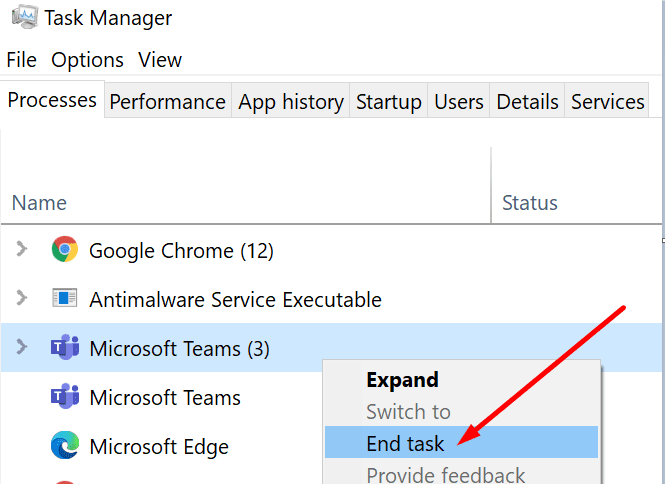
microsoft teams end task

Temporarily disabling your antivirus may help as well.

Open Another Notebook

Some users were able to solve the problem by opening a different notebook. Try adding an additional section and page to your current notebook. This should refresh the connection.

Hit the Page Sync button and check if this quick workaround solved the problem.
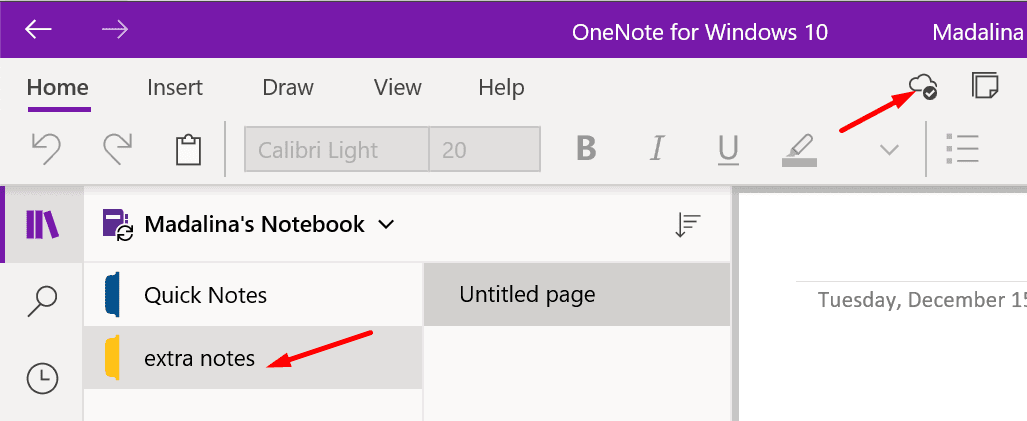
onenote sync status button

Repair Office

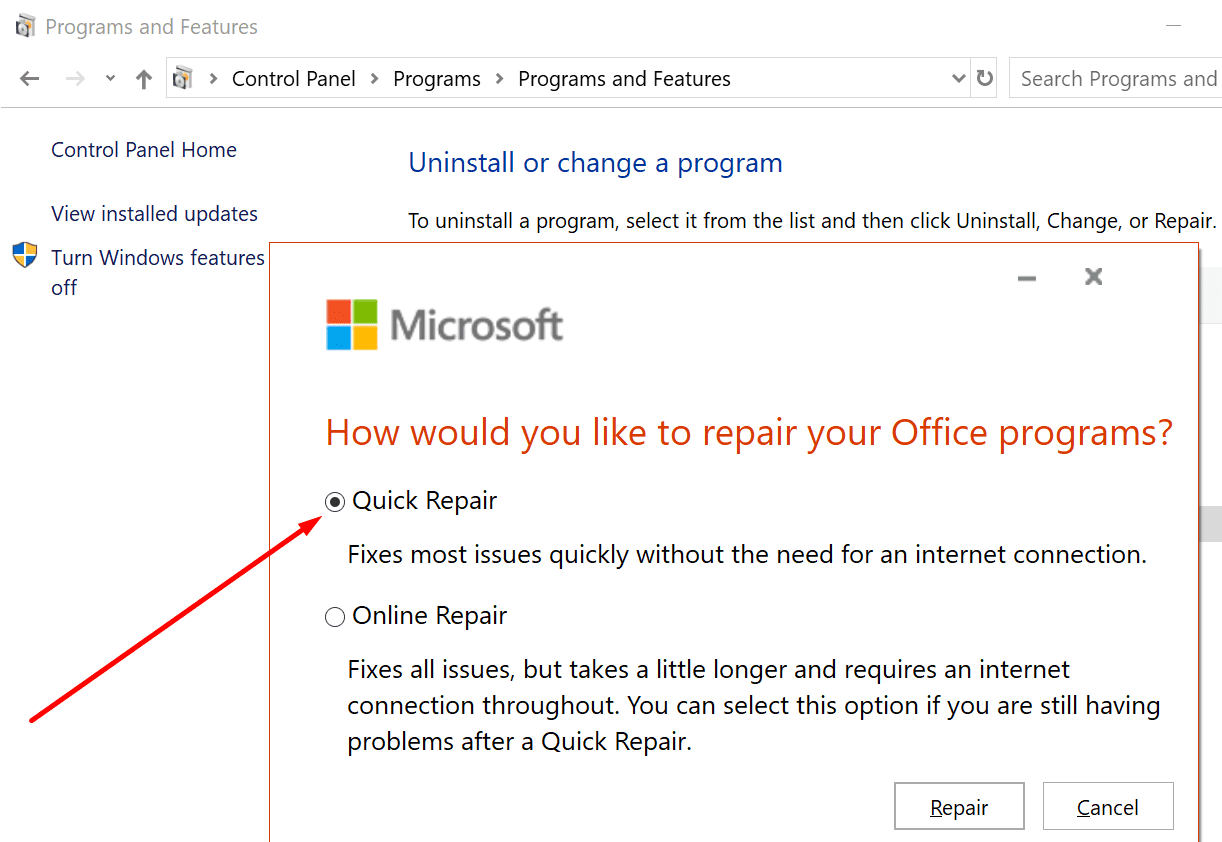
Repairing Office is another potential solution for error 0xe40200b4.

  1. Launch the Control Panel app.
  2. Then go to Programs and Features.
  3. Click on Office 365/ Microsoft 365.
  4. Click on the Change button.
  5. Select Online Repair.quick repair office windows 10

Restart your computer after the repair process is over.

Categories: Software

Author Madalina Dinita

Madalina has been a Windows fan ever since she got her hands on her first Windows XP computer. She is interested in all things technology, especially emerging technologies -- AI and DNA computing in particular.

You Might Also Like

  • Discord: How to Configure Streamer Mode

    Mel HawthorneSoftware
  • Linux Mint: How to Disable Minor Animations for Improved Performance

    Mel HawthorneSoftware
  • stop-facebook-from-accessing-contacts

    How to Stop Facebook From Accessing Your Contacts

    Madalina DinitaSoftware
  • MS Teams Header

    Microsoft Teams: How Can I See Myself During Calls?

    Madalina DinitaSoftware

Leave a Reply

Your email address will not be published. Required fields are marked *

  • top vpns

    Top 5 VPNs to Keep Your Information Private in 2026

  • npu power management bug

    What Is the NPU Power Management Bug and How Do You Fix It?

  • pc can't enroll for windows 10 extended security updates

    PC Can’t Enroll for Windows 10 Extended Security Updates – How to Fix

  • hdd better than an ssd

    When Is an HDD Better Than an SSD?

  • top graphics cards for 2026

    Top 5 Graphics Cards for 2026

profile pic

The Experts Behind Technipages

My name is Mitch Bartlett. I've been working in technology for over 20 years in a wide range of tech jobs from Tech Support to Software Testing. I started this site as a technical guide for myself and it has grown into what I hope is a useful reference for all.

Learn More

technipages logo white
linkedin icon

Technipages is part of Guiding Tech Media, a leading digital media publisher focused on helping people figure out technology. Learn more about our mission and team here.

© 2026 Guiding Tech Media All Rights Reserved

  • About Us
  • Contact
  • Terms of Use
  • Privacy Policy

© 2026 Guiding Tech Media All Rights Reserved

Information from your device can be used to personalize your ad experience.
Do not sell my personal information.

Last Updated on December 15, 2020 by Mitch Bartlett