
There is no shortages of error codes for Windows 11, and as annoying as they are, each code gives the user a clear way to identify problems and look for solutions. Today’s error code, 0x803f7001 indicates a problem with your Windows licensing. Not to worry, in this article we’ll be showing you how to fix error code 0x803f7001.
What Causes This Error?
You’ll usually encounter error code 0x803f7001 when trying to activate your copy of Windows. The code indicates licensing trouble and can be caused by a number of things, including:
- The lack of a genuine product key
- Any hardware changes to your machine
- The wrong edition of Windows for the license key provided
- A license not linked to a valid Microsoft Account
- An unstable internet connection that doesn’t allow the key to register
How to Fix Error Code 0x803f7001
Below, we have five different troubleshooters for you to try to fix this error code:
Run the Activation Troubleshooter
Let’s start simple, but hopefully effective. The various Windows troubleshooters are a great way to address specific issues, including the Activation Troubleshooter. Here’s how to run it:
Step 1. Open Settings (Win + I) and then “System” on the sidebar.
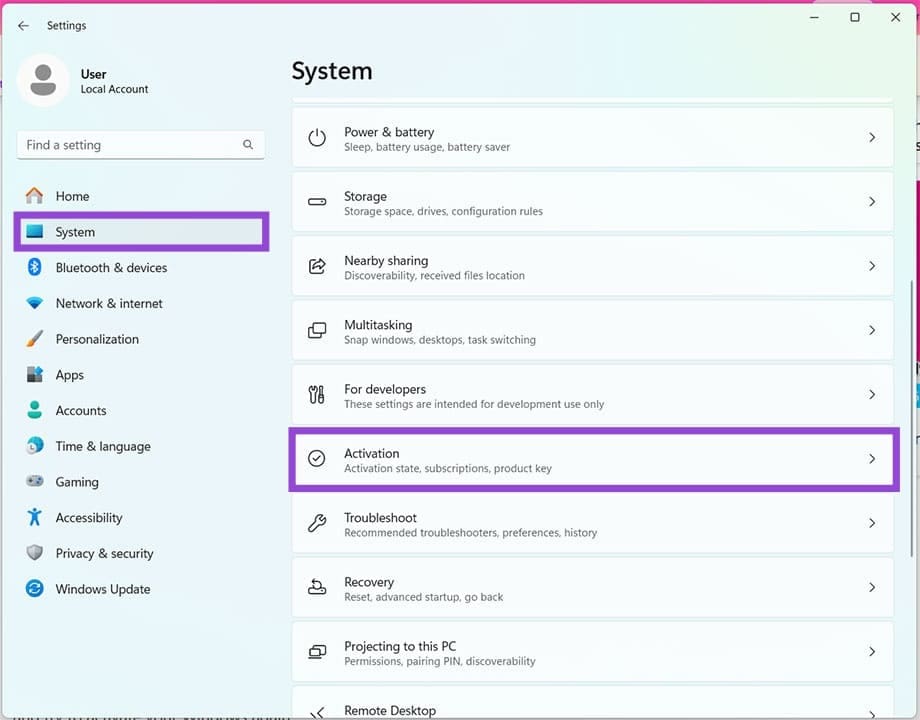
Step 2. Navigate down to “Activation” and click it.
Step 3. Next to your “Activation state,” click the “Troubleshoot” button.
Step 4. Click on “Apply this fix” and the repair process will run. If it doesn’t work the first time, repeat a few more times to be sure.
Enter or Re-enter the Product Key
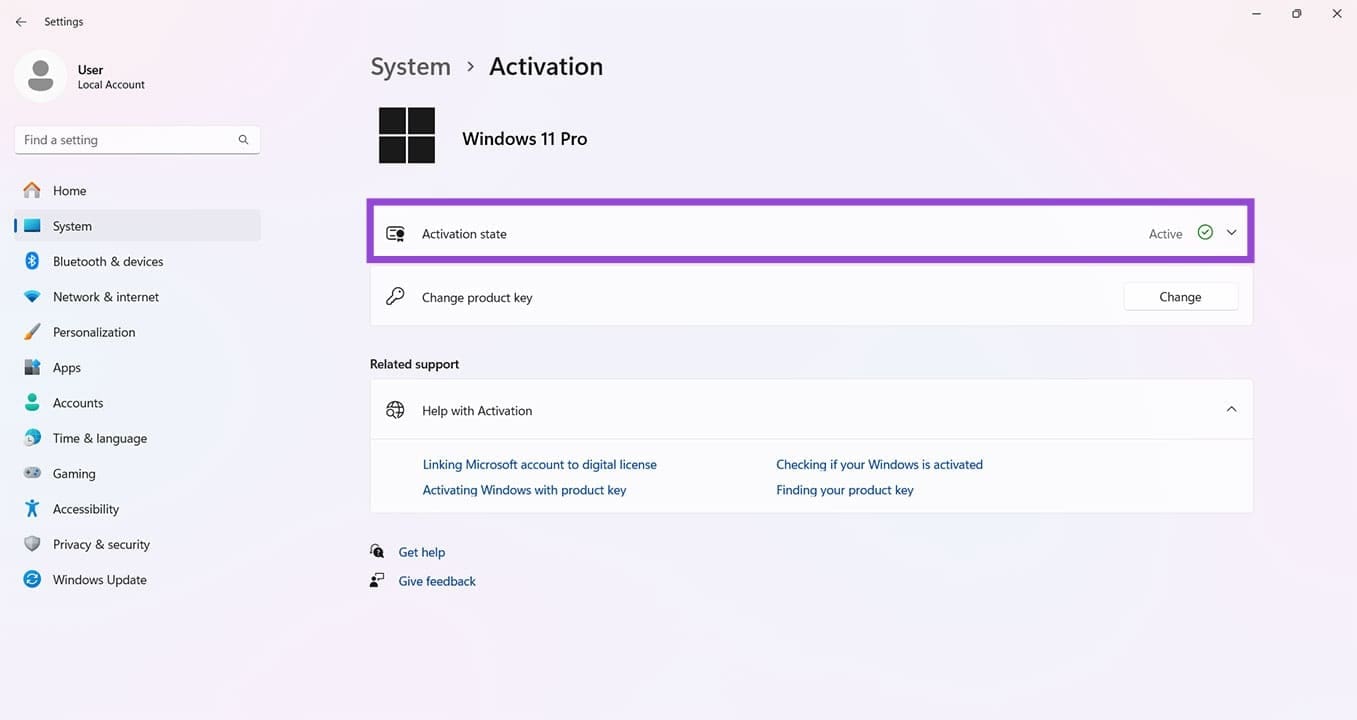
If you’ve made a change to your system recently – especially if you’ve changed hardware– then you may be required to enter your product key. If this is your first time activating Windows, the same process applies. You can find the option to change the product key in the “Activation” subsection of “System” in Settings. Simply click the “Change” button next to “Change product key” and enter or re-enter your 25-character key.
Check Your Edition
Not all copies of Windows 11 are created equal. There are different editions and there might be a chance that the version you have installed isn’t the same as the one your key is for. To check this, you can do the following:
Step 1. Open Settings (Win + I) and click “System” in the sidebar.
Step 2. Scroll all the way down to “About” and click it.
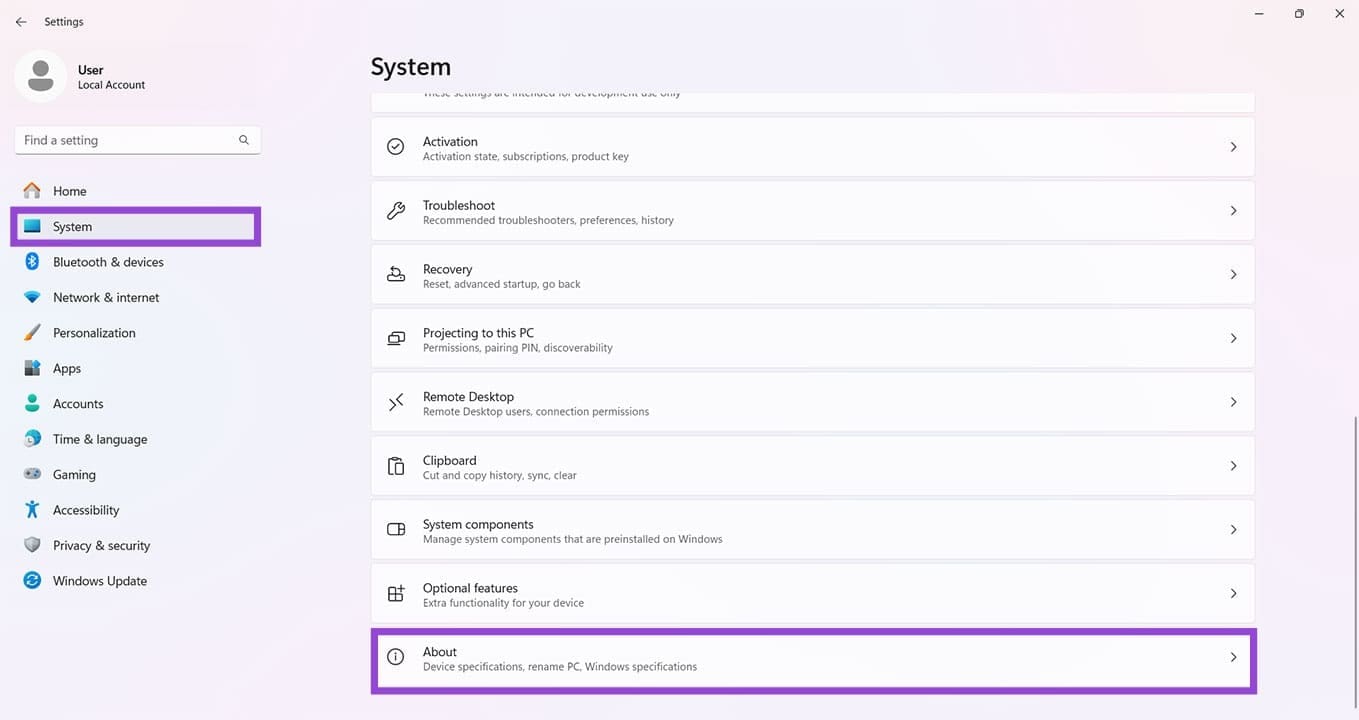
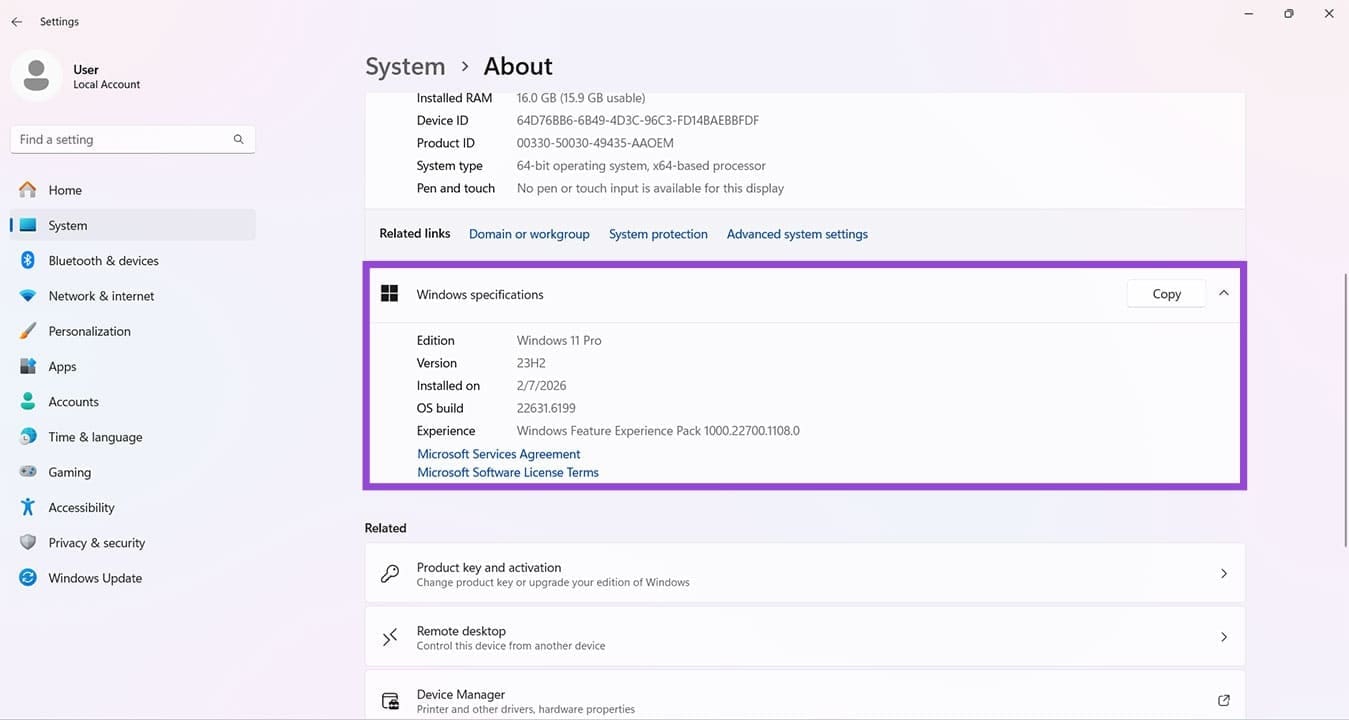
Step 3. Navigate to the “Windows Specifications” and check the type of Windows 11 subscription you have. A “Home” product key won’t work with a “Pro” copy of Windows.
Link Your Microsoft Account
It might be you’re logged out and not linked to your Microsoft Account. If you have a digital license, activation is much smoother when signed into your profile. To do this:
Step 1. Open Settings (Win + I) and head to “Accounts” in the sidebar.
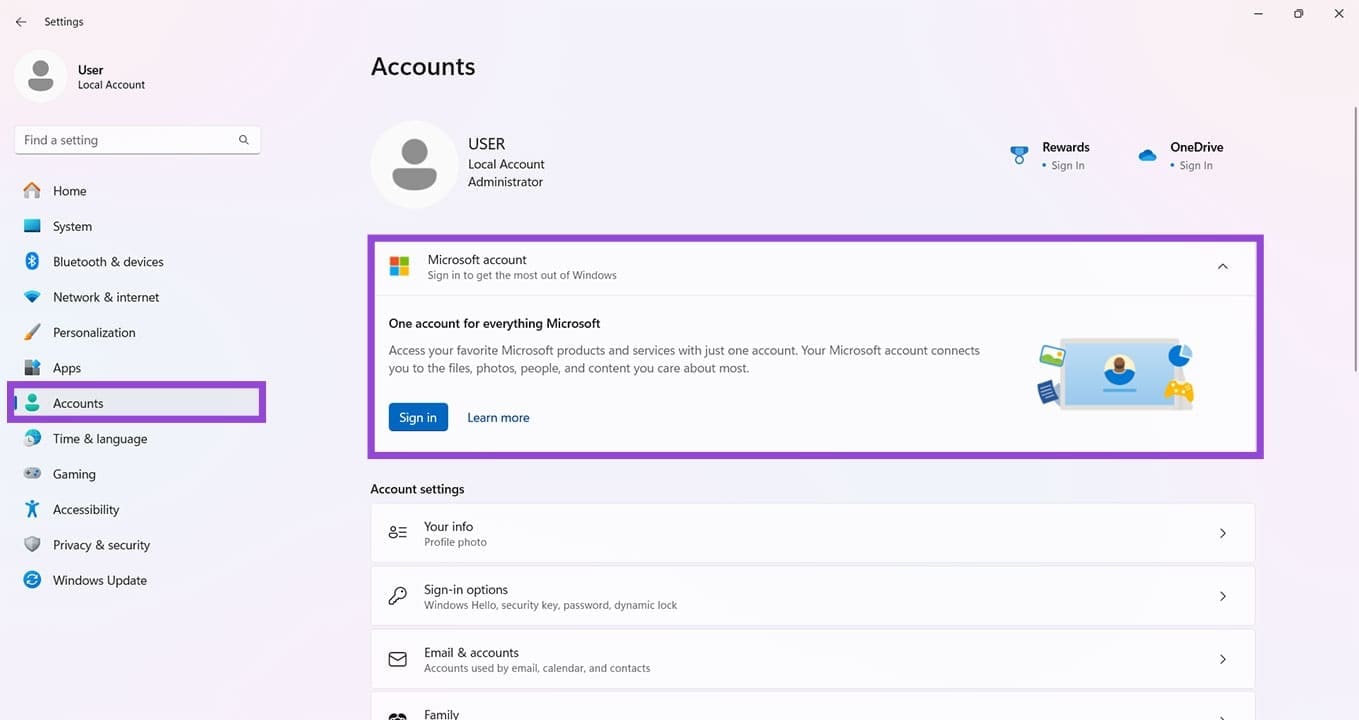
Step 2. Under “Microsoft account,” click the “Sign in” button.
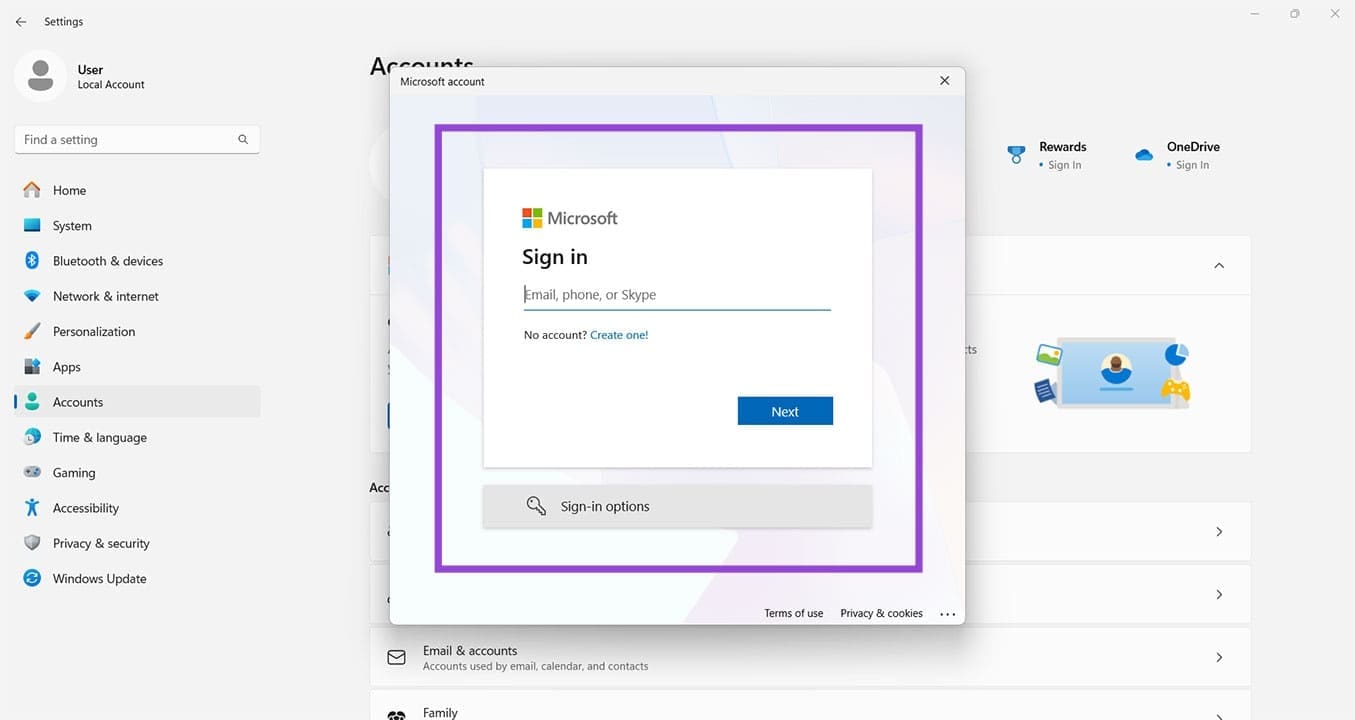
Step 3. Enter your Microsoft Account login details to sign in.
Contact Microsoft Directly
If you’re out of other options, then it’s time to contact Microsoft directly. Be sure to have any proof of purchase or product keys available before doing so. You can contact them online or through the Get Help app.




