Skip to content
LogoTechnipages
LogoTechnipages
  • Topics
        • Android
        • Browsers
        • Gaming
        • Hardware
        • Internet
        • iPhone
        • Linux
        • macOS
        • Office
        • Reviews
        • Software
        • Windows
        • Definitions
        • All Recent Posts
  • Product Reviews
  • About

Taskbar Popping Up During Games? Here’s What to Do

Evan MercerMay 7, 2026 Comments (0)
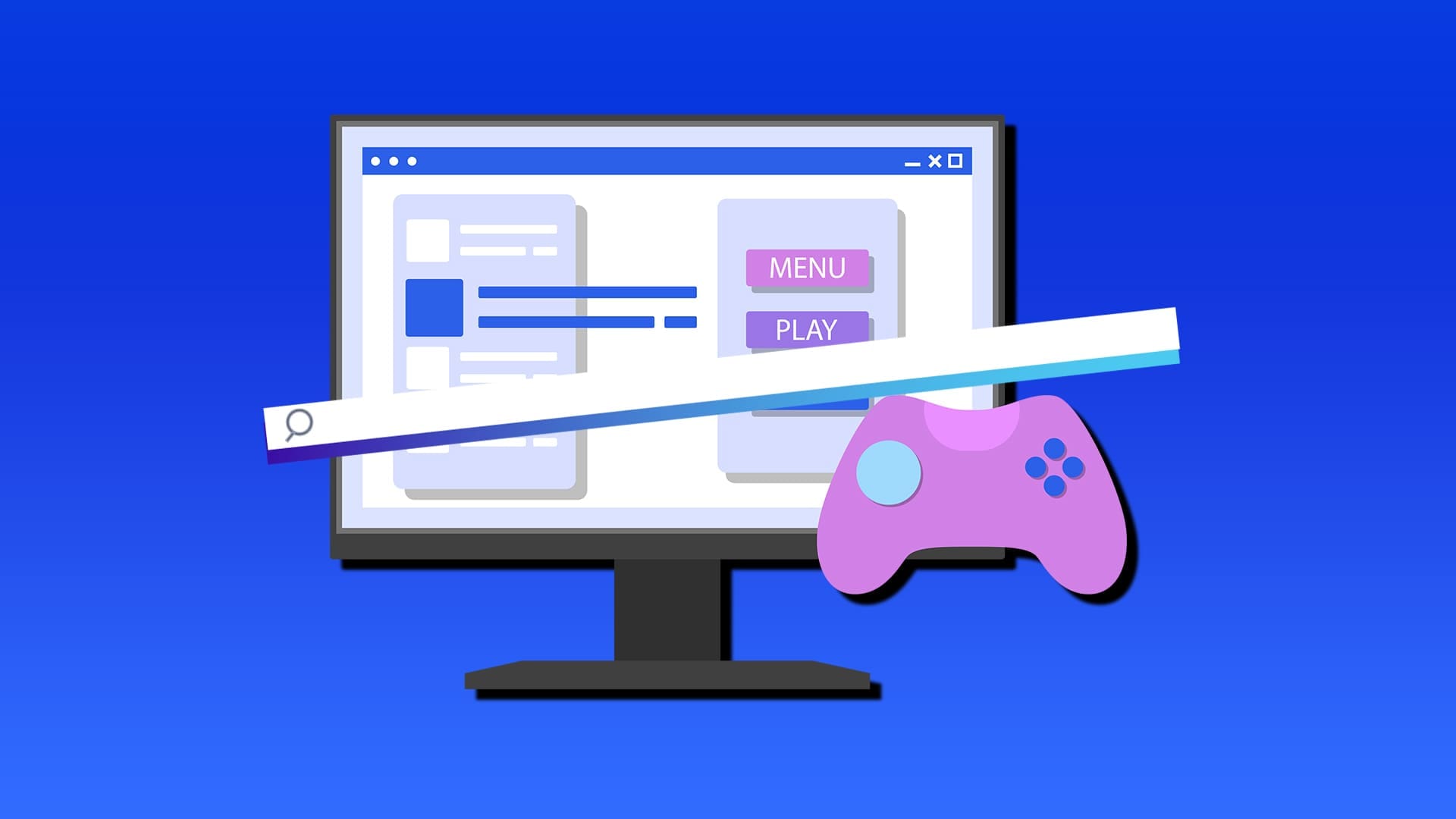
taskbar popping up in games

Nothing quite ruins the immersion of a PC game like the operating system reminding you it’s still there, in the form of a taskbar. If you keep finding your taskbar popping up in games, then we’ve got a few troubleshooting for you to try to get rid of it again.

Contents

  • 1 What Causes This Error?
  • 2 Stopping a Taskbar Popping Up in Games
    • 2.1 Disable Notifications
    • 2.2 Close Apps and Overlays
    • 2.3 Update Your Graphics Driver
    • 2.4 Restart Explorer
    • 2.5 Check Full-Screen

What Causes This Error?

A taskbar that keeps popping up has a few causes. Some major ones include:

  • System notifications
  • Graphical issues
  • Another app running in the background
  • A third-party overlay
  • Problems with Windows Explorer
  • The game not being full-screen

Stopping a Taskbar Popping Up in Games

If your taskbar pops up when playing game, here are a few fixes to try, addressing the issues above:

Disable Notifications

A major offender in the taskbar popping up is notifications, whether app- or system-related. To stop these nudges from disrupting your game experience:

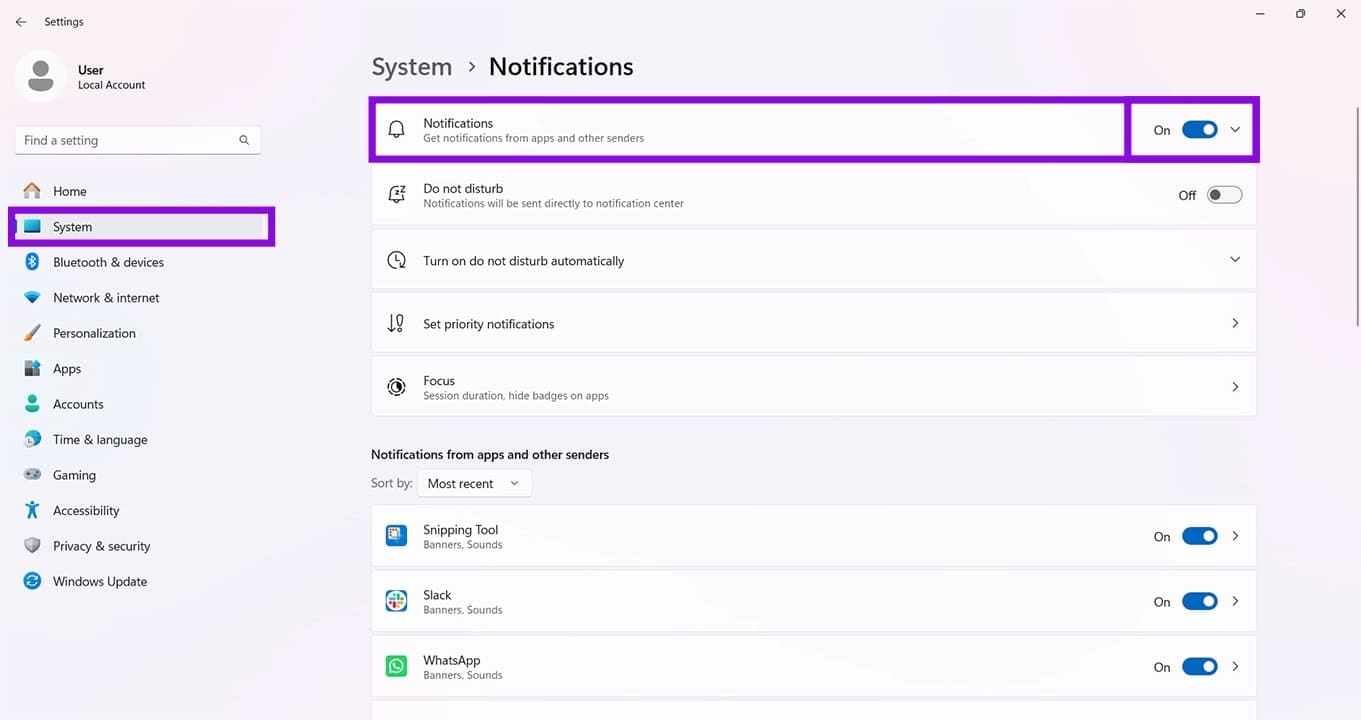
Step 1. Open Settings (Win + I) and click “System.”

Step 2. In the main window, navigate to “Notifications” and click it.

Step 3. In the next menu, toggle “Notifications” to “Off.”
Taskbar Popping Up During Games Heres What to Do 1

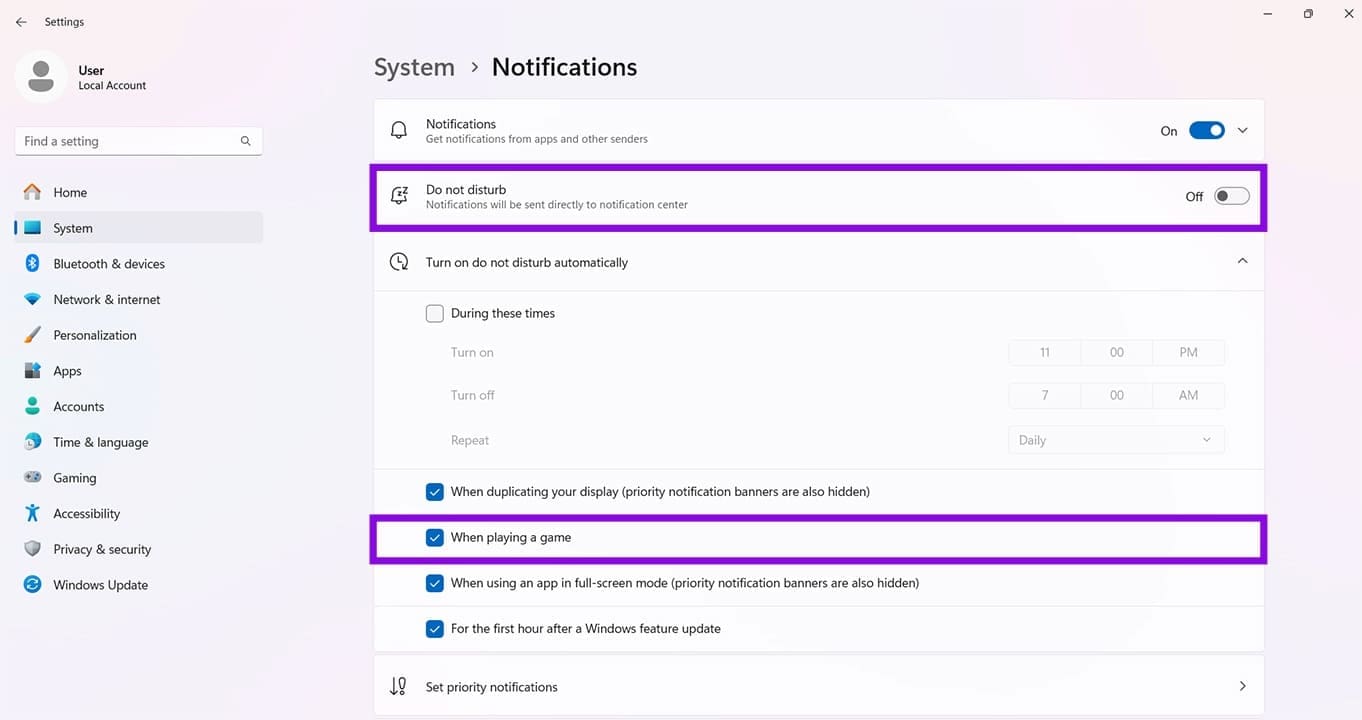
Step 4. If you don’t want to permanently disable notifications, either enable “Do not disturb” or select “When playing a game” under “Turn on do not disturb automatically.”
Taskbar Popping Up During Games Heres What to Do 2

Step 5. Close Settings and see if the game runs normally.

Close Apps and Overlays

Sometimes, other apps running at the same time as the game might demand attention and cause the taskbar to appear. It might also be caused by overlays that you use to record or stream, which makes the taskbar pop up. Whatever the case, try disabling all other apps and third-party software and then running your game again. If it works, restart things one by one until you find the program causing the problem.

Update Your Graphics Driver
Taskbar Popping Up During Games Heres What to Do 3

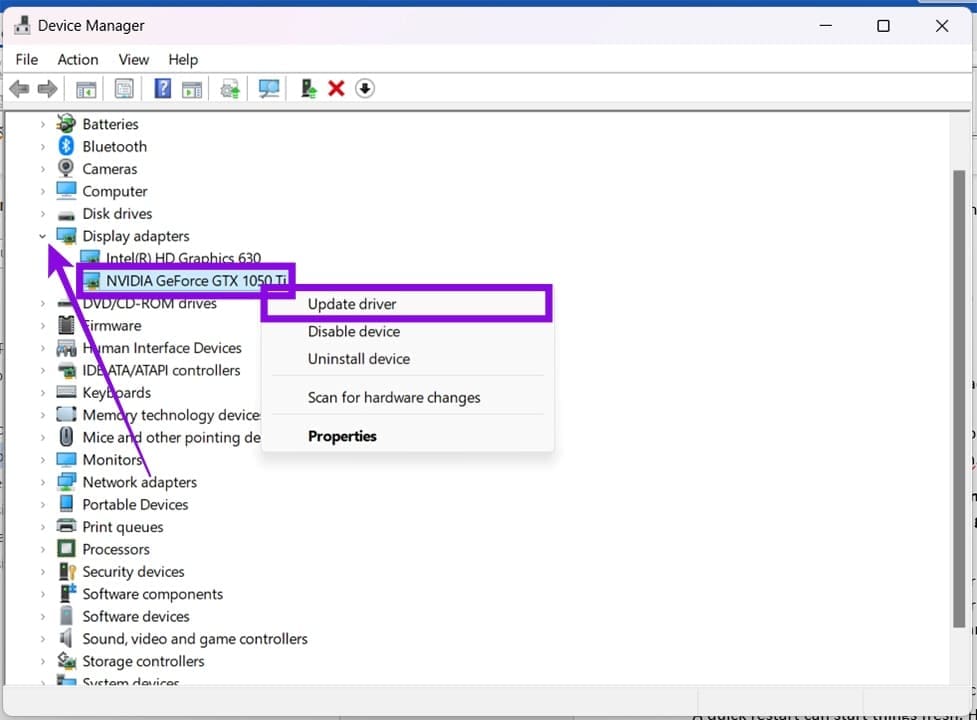
It’s highly unlikely, but your graphics driver could be to blame. To fix this, it’s a good idea to update your graphics driver. You can do this via your client software (like the Nvidia App) or head to Device Manager. Simply right-click your graphics card and choose “Update driver.” Click “Search automatically for drivers” and let your PC find the latest version.

Restart Explorer

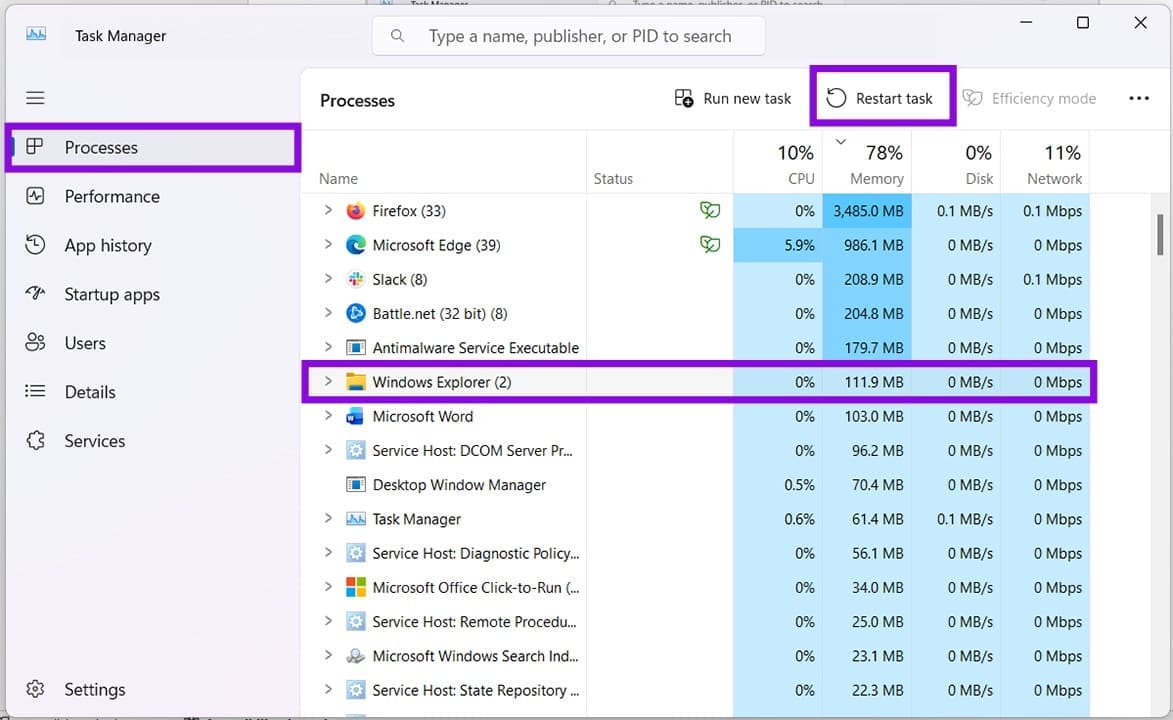
If Windows Explorer is behaving erratically, then Windows may not refresh correctly, and taskbars may not hide. A quick restart can keep things fresh. Here’s how:

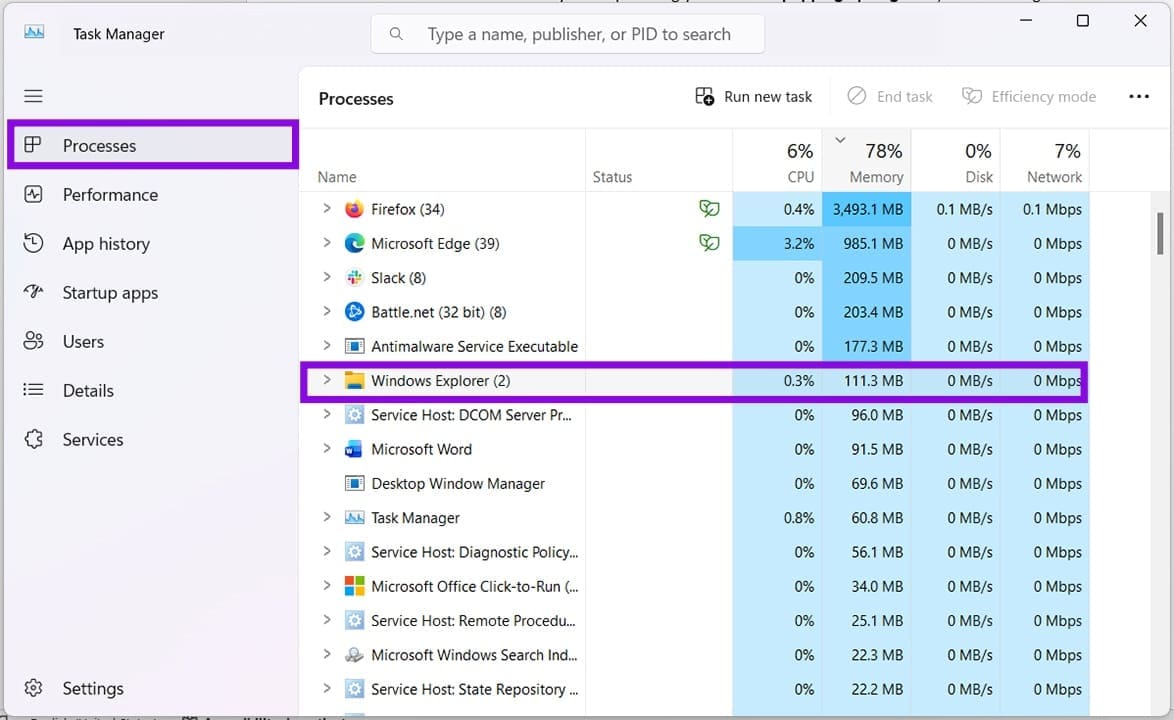
Step 1. Press Ctrl + Shift + Esc to launch Task Manager.

Step 2. Click “Processes” in the sidebar, and navigate down the list until you find “Windows Explorer.”
Taskbar Popping Up During Games Heres What to Do 4

Step 3. Click the process, then click the “Restart task” button at the top of the list.
Taskbar Popping Up During Games Heres What to Do 5

Step 4. Explorer will reset. Try running the game again.

Check Full-Screen

If the taskbar stays visible in the game throughout startup and running, it might be that it isn’t running in full-screen mode at all. It might be that “Windowed Mode” is activated, or the resolution is set slightly below the optimal resolution. Whatever the case, head into your game settings and ensure any full-screen mode is enabled and the resolution matches.

Categories: Windows

Author Evan Mercer

I’m a computer science grad who loves to tinker with smartphones and tablets in my spare time. When I’m not writing about how to fix techy problems, I like hanging out with my dogs and sipping nice wine after a tough day.

You Might Also Like

  • How to Turn on Cortana Voice for Desktop

    MonaWindows
  • Quickly Create a Shutdown Timer in Windows 10

    Judy SanhzWindows
  • What Is Autoruns for Windows and How to Use It

    What Is Autoruns for Windows and How to Use It

    Susan SheffieldWindows
  • How to Make a Copy of an Excel Sheet 5 Best Methods in 2023

    How to Make a Copy of an Excel Sheet: 5 Best Methods

    Susan SheffieldOffice

Leave a Reply

Your email address will not be published. Required fields are marked *

  • error code 0x803f7001

    5 Fixes for Error Code 0x803F7001 in Windows 11

  • disable category start menu in windows 11

    How to Disable the Category Start Menu in Windows 11

  • reset notepad to factory settings

    How to Reset Notepad to Factory Settings

  • reset numbering in word

    Four Different Ways to Reset Numbering in Word

  • convert picture to smartart word

    How to Turn a Microsoft Word Picture Into SmartArt

profile pic

The Experts Behind Technipages

My name is Mitch Bartlett. I've been working in technology for over 20 years in a wide range of tech jobs from Tech Support to Software Testing. I started this site as a technical guide for myself and it has grown into what I hope is a useful reference for all.

Learn More

technipages logo white
linkedin icon

Technipages is part of Guiding Tech Media, a leading digital media publisher focused on helping people figure out technology. Learn more about our mission and team here.

© 2026 Guiding Tech Media All Rights Reserved

  • About Us
  • Contact
  • Terms of Use
  • Privacy Policy

© 2026 Guiding Tech Media All Rights Reserved

Information from your device can be used to personalize your ad experience.
Do not sell my personal information.

Last Updated on May 7, 2026 by Evan Mercer