Skip to content
LogoTechnipages
LogoTechnipages
  • Topics
        • Android
        • Browsers
        • Gaming
        • Hardware
        • Internet
        • iPhone
        • Linux
        • macOS
        • Office
        • Reviews
        • Software
        • Windows
        • Definitions
        • All Recent Posts
  • Product Reviews
  • About

How to Fix Windows Photos App Error -2147219196

Evan MercerSeptember 11, 2026 Comments (0)
windows photo app error 2147219196

Have you encountered error -2147219196 when using the Windows Photos app? You’re not alone. Bad or corrupted Windows updates, deleted registry components, or other glitches can lead to the following error appearing when you try to access your photos:

File system error (-2147219196)

This can be worrying, as you may think you have lost your photos. But the good news is that this error generally points to a problem with the Photos app or Windows rather than telling you that your photos have been lost. Read on to learn more about Windows error -2147219196 and how to fix it.

Contents

  • 1. What Causes Error -2147219196?
  • 2. How to Fix Error -2147219196 – Reinstall the Photos App
  • 3. How to Fix Error -2147219196 – Check for Windows Updates

What Causes Error -2147219196?

Because this error indicates a system problem, you can rest easy that it has nothing to do with your actual photos. As a quick workaround, you could try opening the photos with another photo app or on another machine.

This system error can be caused by various glitches. The last system upgrade may have encountered a bug. You might need to update Windows. Or the Photos app itself may have become corrupted. Thankfully, all these problems are relatively easy to fix.

How to Fix Error -2147219196 – Reinstall the Photos App

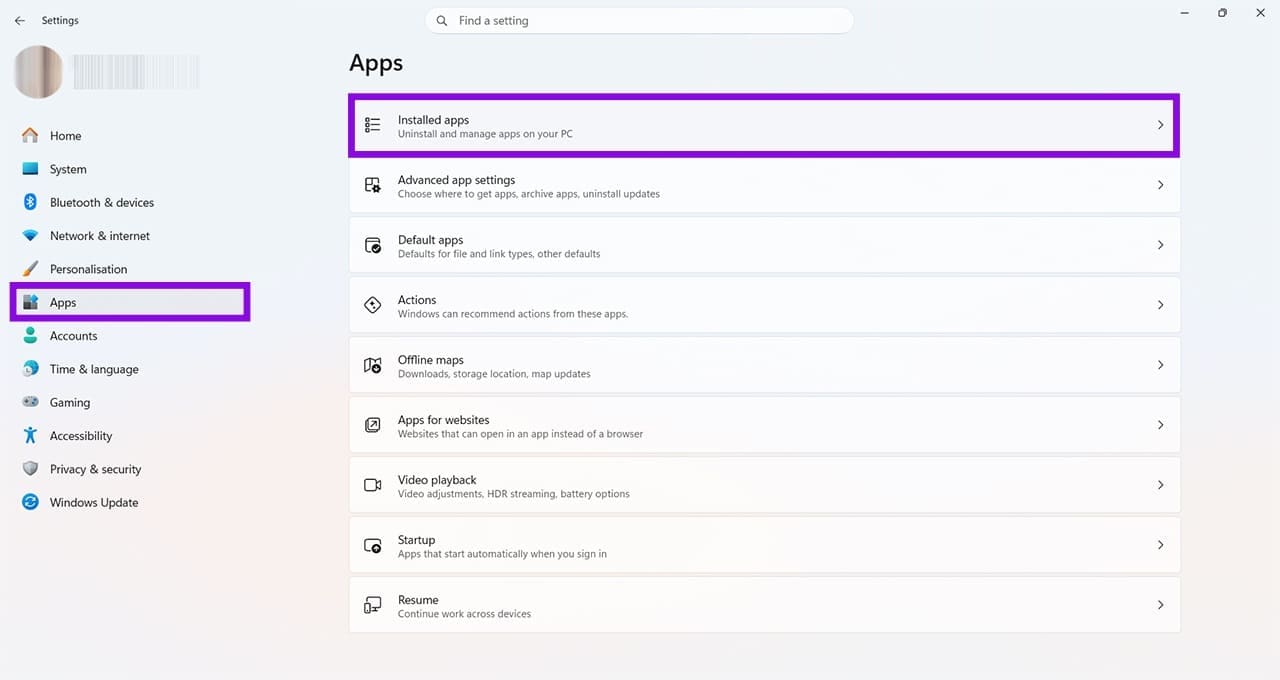
Step 1. Go to Settings > Apps and click on Installed apps.
How to Fix Windows Photos App Error 2147219196 1

Step 2. Search through the installed apps until you find “Photos.” Pro tip: You can use the search function at the top of the window to make this easier.

How to Fix Windows Photos App Error 2147219196 2

Step 3. Click the three dots next to the app and then select “Uninstall.” Follow the on-screen prompts until this process is complete.

How to Fix Windows Photos App Error 2147219196 3

Step 4. Head to the Microsoft Store and search for “Photos.” Click on the app titled “Microsoft Photos.”

How to Fix Windows Photos App Error 2147219196 4

Step 5. Click “Get” and follow the prompts until installation is complete. In most cases, you should find that this eliminates error -2147219196.

How to Fix Windows Photos App Error 2147219196 5

Before reinstalling the Photos app, try repairing or resetting it first. Go to Settings > Apps > Installed apps, find “Photos,” click the three dots next to it, and select “Advanced options.” Select “Repair” first. If that doesn’t fix the problem, try “Reset.”

How to Fix Error -2147219196 – Check for Windows Updates

Step 1. Windows updates can sometimes fix problems with apps. To check for updates, go to Settings > System > Windows Update.

How to Fix Windows Photos App Error 2147219196 6

Step 2. On the Windows Update page, select “Check for updates” to manually check for available updates.

How to Fix Windows Photos App Error 2147219196 7

Step 3. You will see a spinning wheel while the computer checks for updates. If it finds any, follow the prompts to install them. This may take a few minutes. Once complete, restart your computer to ensure the updates are complete. Try opening a photo again, and it should work without any error messages.

How to Fix Windows Photos App Error 2147219196 8

Consider choosing the option to “Get the latest updates as soon as they’re available.” This prioritizes your PC for the latest non-security updates, fixes, features, and improvements as they become available. In some cases, this may avoid glitches like error -2147219196 from occurring and should improve the performance of your machine. If problems persist, contact Microsoft for further assistance, and use a different photo app in the meantime. There are many third-party photo viewers available in the Microsoft Store. Always check reviews and ratings before you download third-party software.

Categories: Windows

Author Evan Mercer

I’m a computer science grad who loves to tinker with smartphones and tablets in my spare time. When I’m not writing about how to fix techy problems, I like hanging out with my dogs and sipping nice wine after a tough day.

You Might Also Like

  • Fix The Disk Is Write Protected Error on Removable Disk in Windows 11

    Fix “The Disk Is Write Protected” Error on Removable Disk in Windows 11

    Mitch BartlettWindows
  • Can’t Delete Folder “You have been denied permission” Fix for Windows

    Mitch BartlettWindows
  • Fix NordPass Login Errors

    Troubleshooting NordPass Login Errors

    Madalina DinitaWindows
  • Fix-Error-0x80070490-We-Couldnt-Find-Your-Settings

    Fix Error 0x80070490: We Couldn’t Find Your Settings

    Madalina DinitaWindows

Leave a Reply

Your email address will not be published. Required fields are marked *

  • add custom folder icons in windows 11

    How to Turn Any Image Into a Custom Windows 11 Folder Icon

  • hidden windows clipboard features

    5 Hidden Windows Clipboard Features You Should Be Using

  • printer error 0x800706b5

    How to Fix Printer Error 0x800706b5 on Windows 11

  • read mode greyed out in word

    Why Is Read Mode Greyed Out in Word?

  • pick an app keeps popping up

    How to Fix Pick an App Screen Popping Up When Opening a Certain File

profile pic

The Experts Behind Technipages

My name is Mitch Bartlett. I've been working in technology for over 20 years in a wide range of tech jobs from Tech Support to Software Testing. I started this site as a technical guide for myself and it has grown into what I hope is a useful reference for all.

Learn More

technipages logo white
linkedin icon

Technipages is part of Guiding Tech Media, a leading digital media publisher focused on helping people figure out technology. Learn more about our mission and team here.

© 2026 Guiding Tech Media All Rights Reserved

  • About Us
  • Contact
  • Terms of Use
  • Privacy Policy

© 2026 Guiding Tech Media All Rights Reserved

Information from your device can be used to personalize your ad experience.
Do not sell my personal information.

Last Updated on September 11, 2026 by Evan Mercer