When the difference between victory and defeat is a few split seconds, any spike in latency while you’re gaming online can be aggravating and completely throw your game off (not to mention your stats). If this is happening to you, this article has a few fixes to help with latency spikes when gaming.
What Causes This Issue?
Latency is also commonly known as ping. The higher the ping, the bigger the lag. Latency spikes mean a delay between your instructions and the response, making online games unpleasant at best and unplayable at worst. Latency above 100 ms can become noticeable, particularly in fast-paced online games, and higher latency generally makes games feel less responsive.
What causes this? Some major offenders include:
- Congestion on your network or your service provider’s network. This also holds for peak hours
- Gaming servers that are farther away
- Signal interference and bad placement of your router
- Inefficient routing by your ISP
- Applications running in the background
Latency Spikes When Gaming – Fixes to Try
If you’ve got your WIFI latency spiking and are at your wits’ end, try the troubleshooters we’ve got down below:
Restart Your Router
Let’s start with the most obvious solution. Give your router a quick restart. This can potentially solve any connection problems and won’t take you too long to do. Regular router restarts are essential for maintaining a healthy ping.
Run a Ping Test
An actual ping test can help you gauge how bad the problem is. Here’s what you need to do:
Step 1. Open the Run dialog (Win + R) and type “cmd,” then press (Ctrl + Shift + Enter) to run it as an administrator.
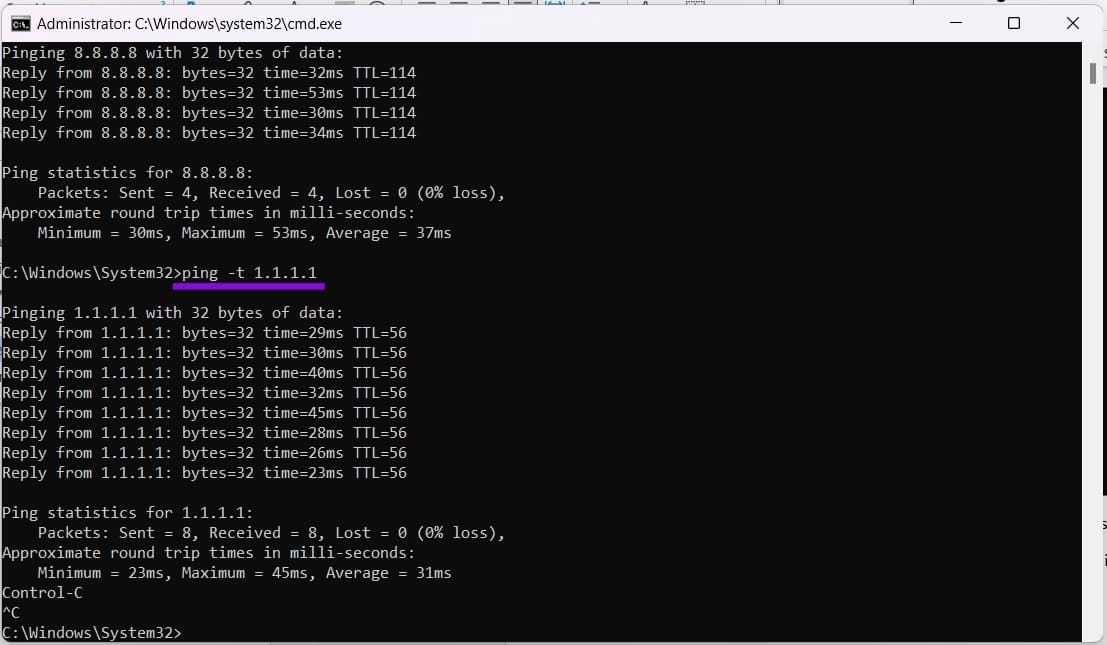
Step 2. In Command Prompt, type “ping 8.8.8.8” and press “Enter.” This tests latency to Google’s DNS server rather than to the game server.
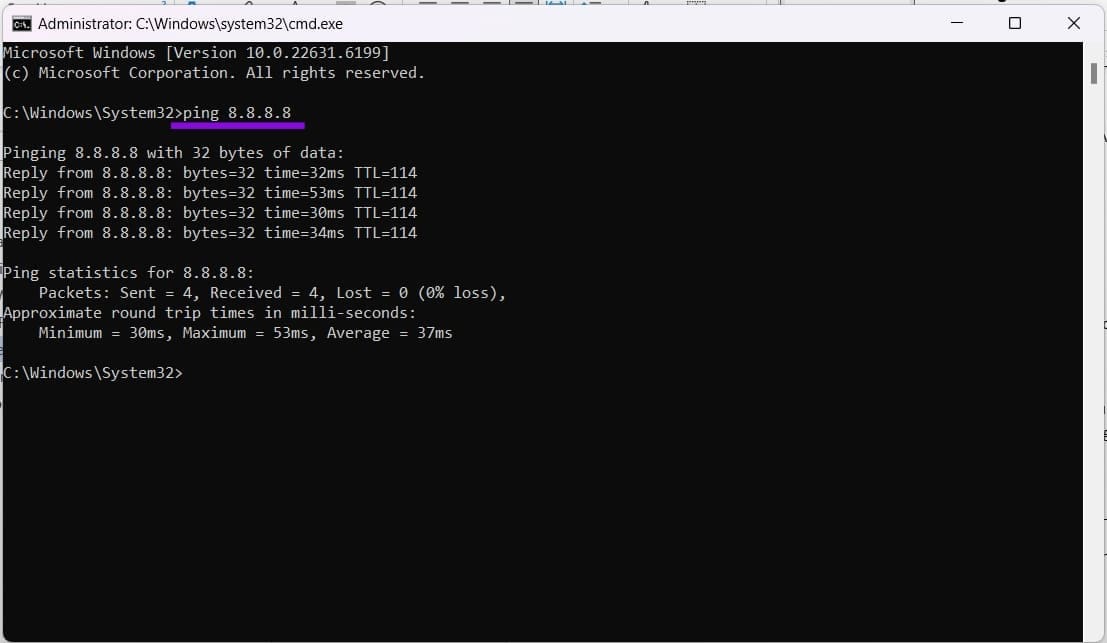
Step 3. The test will run and show your stats. Anything over 100 should have you concerned.
Step 4. If you’d like to set up a continuous ping and monitor it while gaming, type “ping -t 1.1.1.1” and hit “Enter.” To stop this process at any time, hit (Ctrl + C).
Close all Running Background Tasks
If your computer is handling multiple resource-intensive apps and processes, your game performance may suffer, particularly if they consume significant CPU, memory, disk, or network resources. Close all running apps, stop virus scans, and any updates that might be happening. Processes that use your network are also prime offenders.
Clear Interference
The 2.4 GHz Wi-Fi band generally has greater range than the 5 GHz band, but it can also be more susceptible to interference. It helps to put your PC closer to your router, or vice versa. It’s also important to ensure that devices that might interfere with the signal, such as mobile phones and Bluetooth appliances, are kept far away. Other routers can also interfere with your own signal.
Choose a Closer Server
If possible, try choosing a server a little closer to home. Your data will take less time to travel, and your game will be more responsive. Choose the closest available server with the lowest ping.
Change Your DNS Server
If your DNS server is slow, switching to a faster DNS resolver can reduce the time needed for DNS lookups, although it generally won’t reduce the latency of an established game connection. This is often true in the case of the default servers your ISP provides. It will help primarily with faster matchmaking and connection. Here’s how to change it:
Step 1. Open “Settings” (Win + I) and click “Network & internet” in the side panel.
Step 2. Click “Wi-Fi.”

Step 3. Click your router’s Properties button, then click “Edit” next to DNS server assignment.
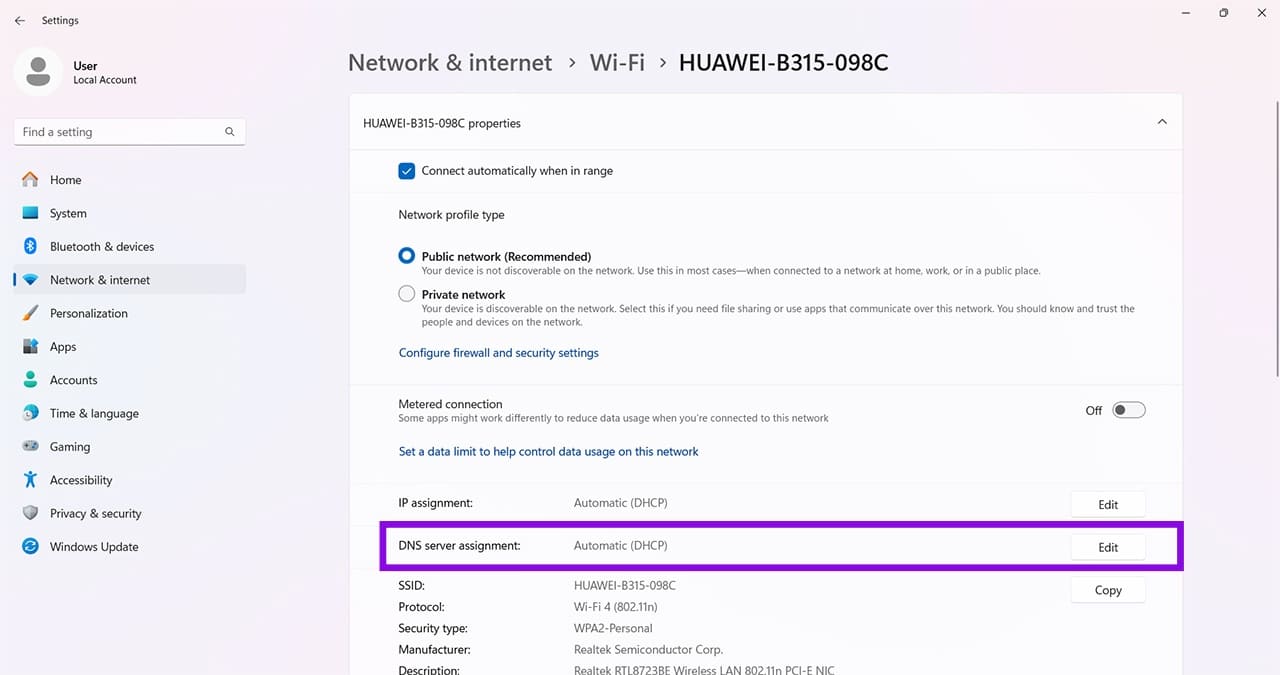
Step 4. Choose “Manual” from the dropdown. Then toggle “IPv4” to “On.”
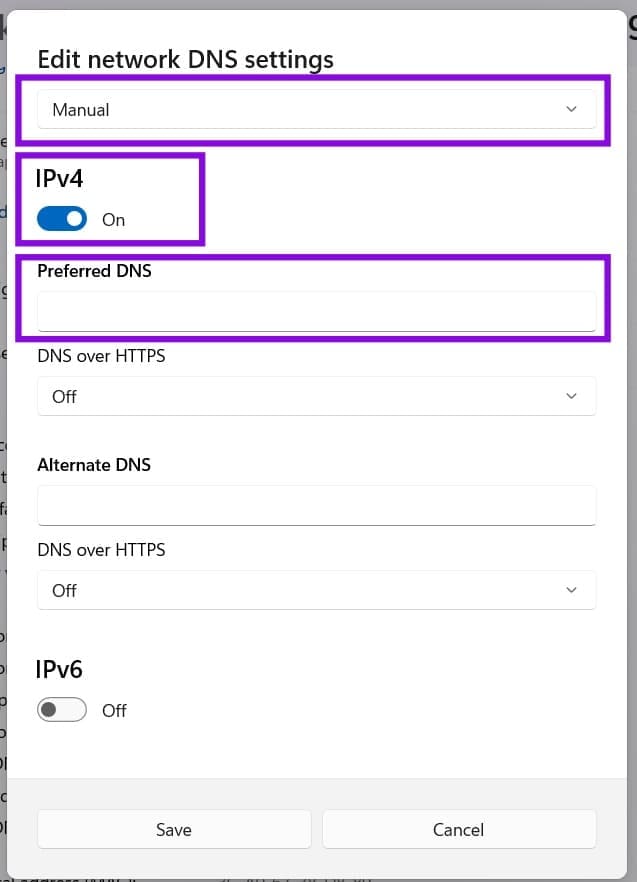
Step 5. Change your “Preferred DNS” to “1.1.1.1” for Cloudflare or “8.8.8.8” for Google.
Step 6. Click “Save” to finalize.