Skip to content
LogoTechnipages
LogoTechnipages
  • Topics
        • Android
        • Browsers
        • Gaming
        • Hardware
        • Internet
        • iPhone
        • Linux
        • macOS
        • Office
        • Reviews
        • Software
        • Windows
        • Definitions
        • All Recent Posts
  • Product Reviews
  • About

Not Getting Android Notifications? Here’s How to Fix It

Judy SanhzNovember 15, 2021 Comments (0)
Fix-Blue-Screen-Errors-Android

Notifications are meant to be helpful since they can remind us of essential things. So when one or a few of those Android notifications go missing, it can cause quite a few problems. If you see that there is no way of recovering the notification, let’s see how you can prevent future notifications from getting lost. The fix may be easier than you think.

Contents

  • 1 How to Make Your Android Notifications Re-Appear
    • 1.1 Enable Notifications
    • 1.2 Wipe App Cache and Data
    • 1.3 Disable Battery Saver Mode
    • 1.4 Check That You Haven’t Enabled Data Saving Mode
    • 1.5 Allows Apps to Run in the Background
    • 1.6 Conclusion

How to Make Your Android Notifications Re-Appear

There are several reasons why your Android notifications have gone missing in action. Maybe you turned on the Do Not Disturb feature and forgot to turn it off. You can check if it’s still on by swiping down from the top of your display and checking if it’s enabled.

Turn off do not disturb Android

Enable Notifications

If you’ve already restarted your phone, you can also try checking if the app has notifications enabled. Maybe an update changed things around without your permission. You can check if an app has the permissions it needs; you can go to:
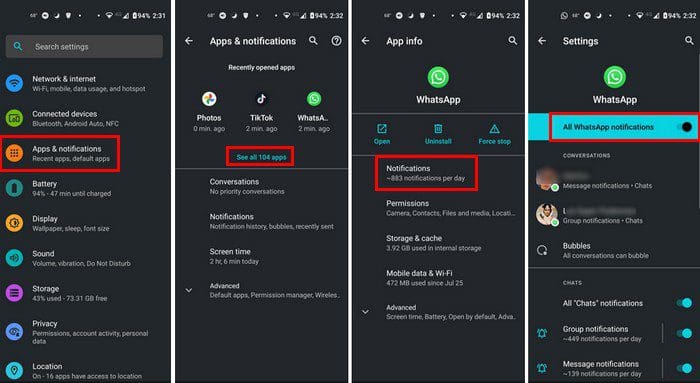
Enable Android app notifications

  • Settings
  • Apps and Notifications
  • Select the app you’re not getting notifications from
  • Notifications
  • Make sure to toggle on the All WhatsApp notifications (the name will change if you’ve accessed another app)

Wipe App Cache and Data

Erasing the app’s cache can also help when it comes to making your Android notifications come back. You can do this by going to:
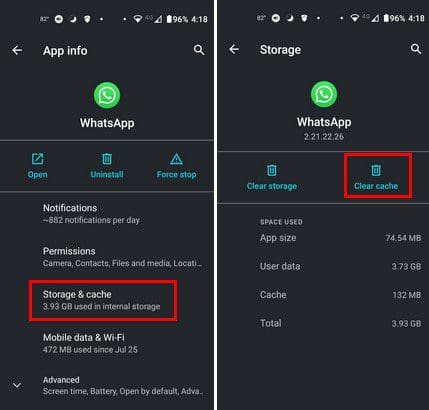
Erase app Android cache

  • Settings
  • Apps and Notifications
  • Find the app whose cache you want to erase
  • Storage and cache
  • Clear cache

Disable Battery Saver Mode

When you’re running low on battery, you want your apps to behave. To prevent apps from using too much battery power, you turn on Battery Saver. But, some users may decide to always have this feature on, which could explain why they’re not getting their notifications. You can turn off Battery saving mode by going to Settings > Battery > Turn off battery saver.
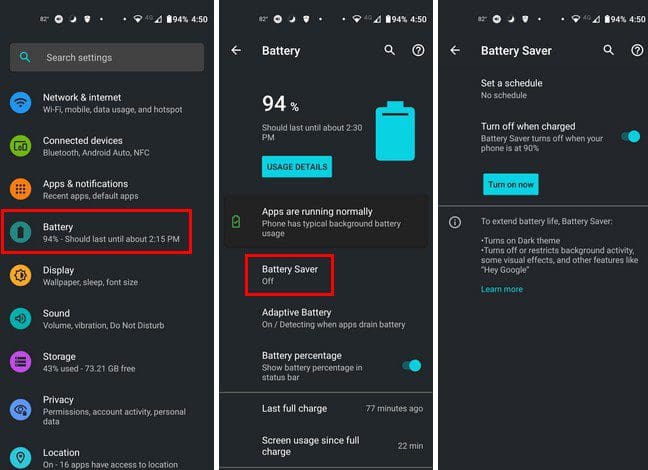
Android 11 Turn off battery saver

Check That You Haven’t Enabled Data Saving Mode

Another reason why you’re not getting your notifications could be because you enabled the data saving mode. If you know it’s on, you can turn it off by going to Settings > Network and Internet > Advanced > Data Saver.
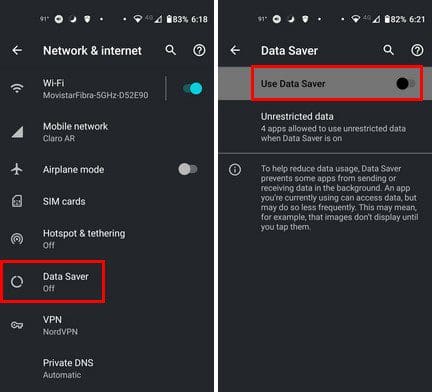
Android 11 turn off data saver

You might want to also turn off the Adaptive Battery option. What this feature does is that it restricts the apps that you don’t regularly use. It gives priority to apps you frequently use, so it might give you some problems. To turn it off, you can go to Settings > Battery > Adaptive Battery.
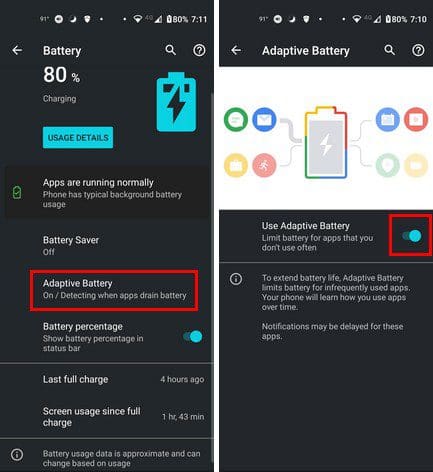
Turn off adaptive battery Android 11

Allows Apps to Run in the Background

If the app is not allowed to run in the background, that could also explain why you’re not getting any notifications. You can allow apps to run in the background by going to Settings > Apps and notifications > Select the app > Mobile data and WiFi > Toggle on Background data.
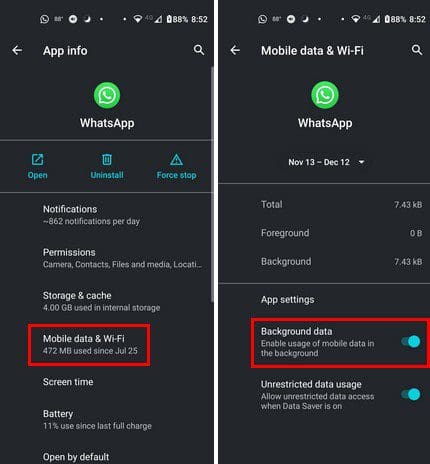
Android 11 enable background usage App

Conclusion

Also, make sure that their arent’ any system updates waiting. Maybe the bug you’re experiencing can be fixed with that pending update. You can also try uninstalling and reinstalling the app to see if you start getting the notifications for that app. Do you have a method that’s not listed? Let me know in the comments below, and don’t forget to share the article with others on social media.

Categories: Android

Author Judy Sanhz

I am a tech geek who loves technology. I have been writing about tech for over a decade, covering various devices and programs. I write about Android, Apple, and Windows devices and programs. I stay updated on the latest gadgets, upgrades, features, and news. I aim to make complicated tech information easy for everyone to read. I've been with TechniPages from the beginning to help others fix their tech issues with the easy-to-follow guides.

You Might Also Like

  • Cant-Forward-Media-From-Whatsapp-Fix

    How to Hide Your Online Status on WhatsApp

    Judy SanhzAndroid
  • Best Budget Android Phone 2022 - Google Pixel 6a

    How to Set up Digital Wellbeing on Android

    Andrew MyrickAndroid
  • How to use navigation buttons on Chromebook in tablet mode hero

    How to Use Navigation Buttons on Chromebook in Tablet Mode

    Andrew MyrickAndroid
  • Google Pixel Watch on wrist

    How to Use Pixel Watch to Find Your Phone

    Andrew MyrickAndroid

Leave a Reply

Your email address will not be published. Required fields are marked *

  • browser screen goes black

    Browser Screen Goes Black Intermittently 

  • computer heating up in hyper v

    Computer Heating Up When Using Hyper-V – How to Fix 

  • clipchamp unexpected application error

    Clipchamp Unexpected Application Error: Here’s the Solution 

  • winload.efi file missing error

    Winload.EFI File Missing Error on Boot – How to Fix

  • fix error 0x9cfc7550

    How to Fix Error 0x9cfc7550 (We Couldn’t Create a New Partition) in Windows 

profile pic

The Experts Behind Technipages

My name is Mitch Bartlett. I've been working in technology for over 20 years in a wide range of tech jobs from Tech Support to Software Testing. I started this site as a technical guide for myself and it has grown into what I hope is a useful reference for all.

Learn More

technipages logo white
linkedin icon

Technipages is part of Guiding Tech Media, a leading digital media publisher focused on helping people figure out technology. Learn more about our mission and team here.

© 2025 Guiding Tech Media All Rights Reserved

  • About Us
  • Contact
  • Terms of Use
  • Privacy Policy

© 2025 Guiding Tech Media All Rights Reserved

Information from your device can be used to personalize your ad experience.
Do not sell my personal information.

Last Updated on November 15, 2021 by Judy Sanhz