Skip to content
LogoTechnipages
LogoTechnipages
  • Topics
        • Android
        • Browsers
        • Gaming
        • Hardware
        • Internet
        • iPhone
        • Linux
        • macOS
        • Office
        • Reviews
        • Software
        • Windows
        • Definitions
        • All Recent Posts
  • Product Reviews
  • About

Fixing the Windows 11 Color Printing Error

Evan MercerJune 19, 2026 Comments (0)
windows 11 color printing issues

What’s the point of a color printer if everything comes out in black and white or grayscale? If you’re experiencing color-printing problems in Windows 11, there could be several different issues responsible, ranging from printer settings to outdated drivers. In this article, we’re going to supply some fixes for Windows 11 color printing issues.

Contents

  • 1 Fixing Windows 11 Color Printing Issues – Different Fixes to Try
    • 1.1 Check for Grayscale
    • 1.2 Run the Printer Troubleshooter
    • 1.3 Update Your Drivers

Fixing Windows 11 Color Printing Issues – Different Fixes to Try

If you’re struggling to bring the rainbow to your prints, we’ve assembled a few potential troubleshooters below to help you out:

Check for Grayscale

Probably the biggest offender of non-color printing is the printer (or app) settings themselves. If you’re not getting color, then check your app settings. You can also check your printer’s profile in the following way:

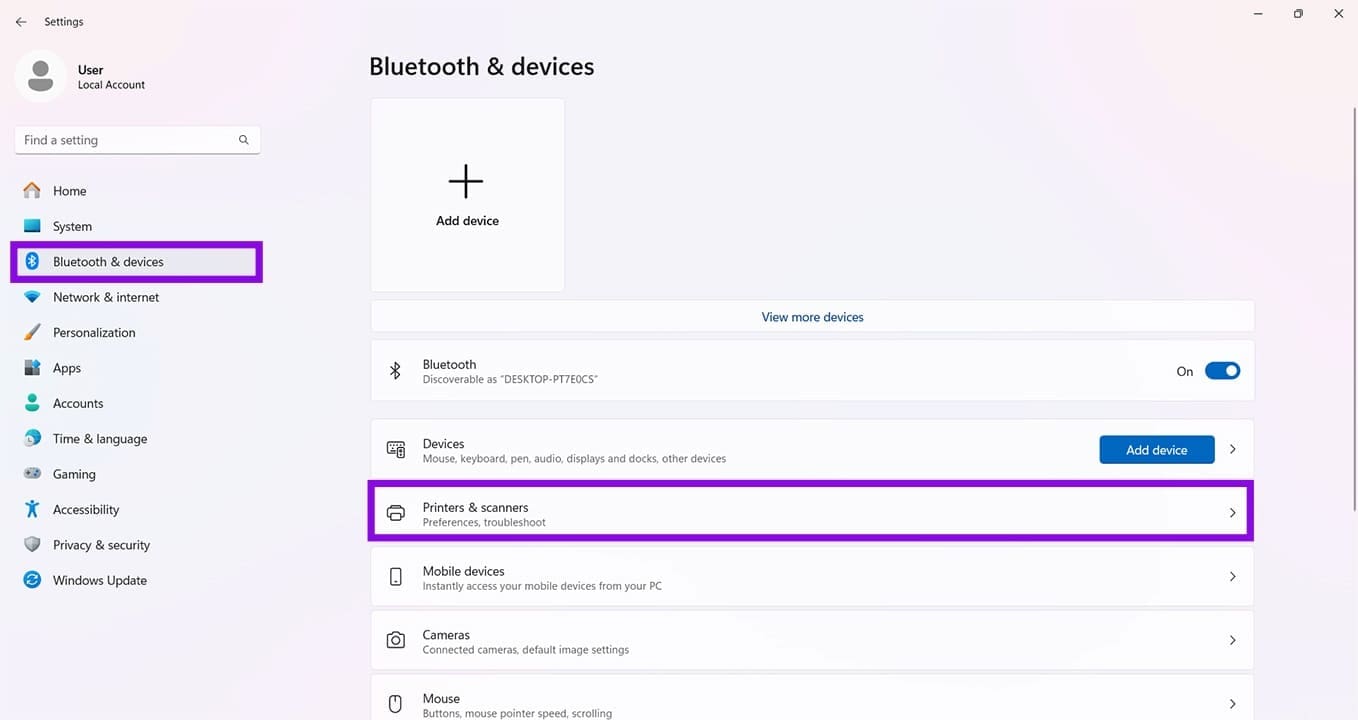
Step 1. Open “Settings” (Win + I) and click “Bluetooth & devices” in the sidebar.
Fixing the Windows 11 Color Printing Error 1

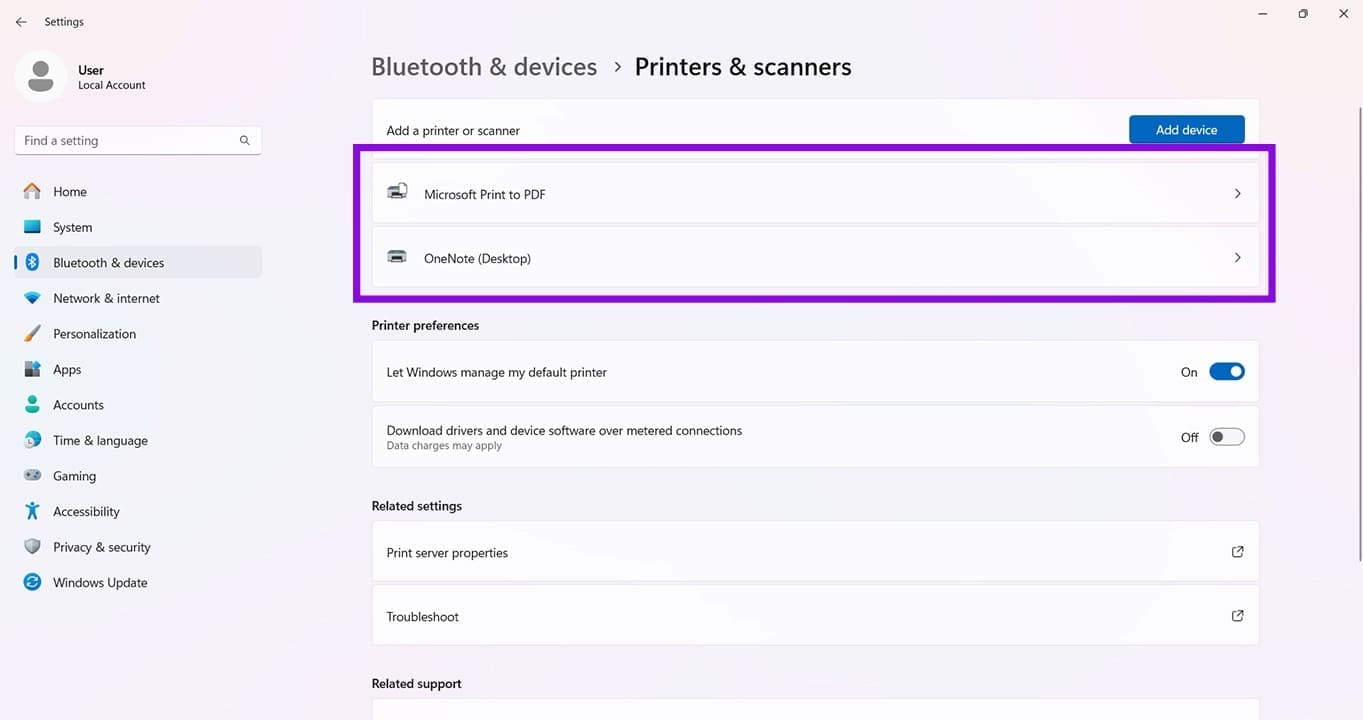
Step 2.  Click “Printers & scanners.”

Step 3. Find your printer and click to select.
Fixing the Windows 11 Color Printing Error 2

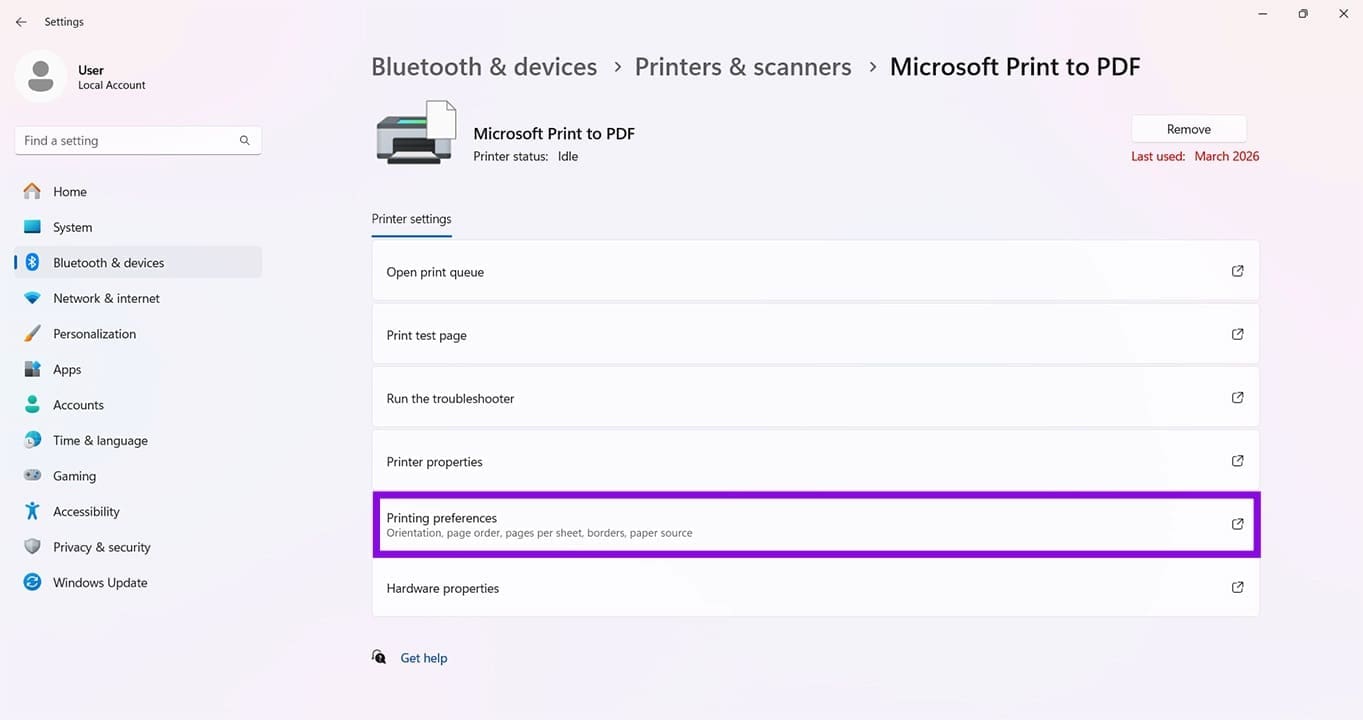
Step 4. Click “Printing preferences” in the next screen.
Fixing the Windows 11 Color Printing Error 3

Step 5. A new window will pop up. Under the “Features” tab, ensure that “Print in Color” is selected, and not “Print in Grayscale.” Your printer’s specific settings window may vary, but just ensure that grayscale is not selected as the printing option.

Step 6. Click “OK” to finalize the process.

Run the Printer Troubleshooter

If you’re not sure what’s causing the issue, the good news is that Windows 11 has a dedicated troubleshooter to help with printer issues. Running it can be a good first step (and hopefully the last step). Here’s what you need to do:

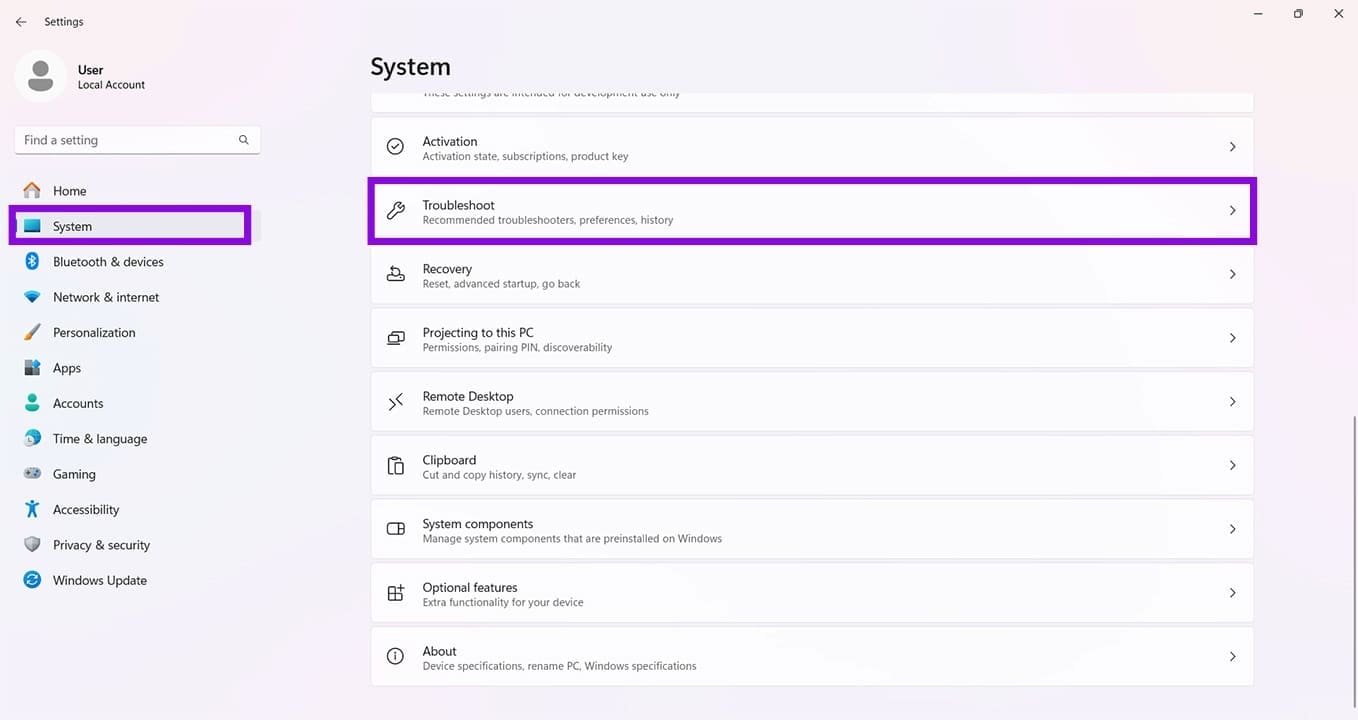
Step 1. Open “Settings” (Win + I) and click “System” in the sidebar.

Step 2. In the next menu, navigate all the way down to “Troubleshoot” and click it.
Fixing the Windows 11 Color Printing Error 4

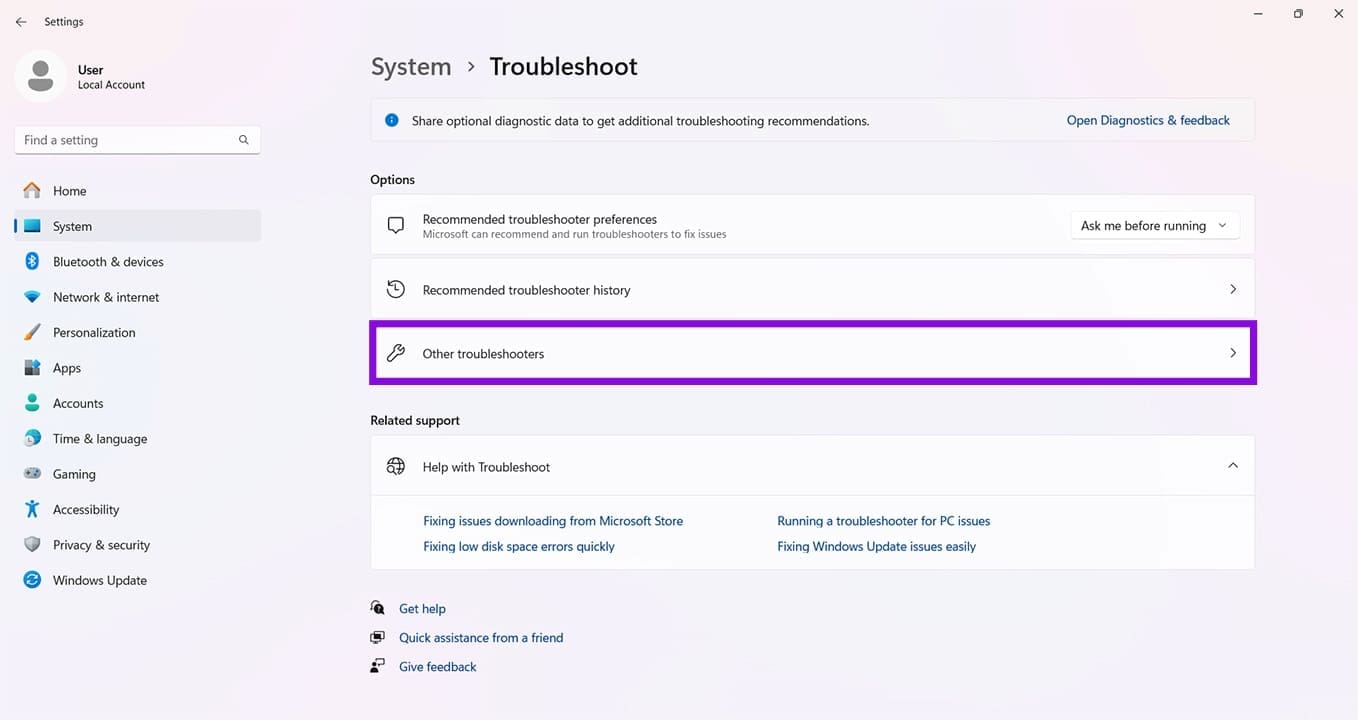
Step 3. Click “Other troubleshooters” in the next screen.
Fixing the Windows 11 Color Printing Error 5

Step 4. Click “Run” next to the “Printer” troubleshooter.
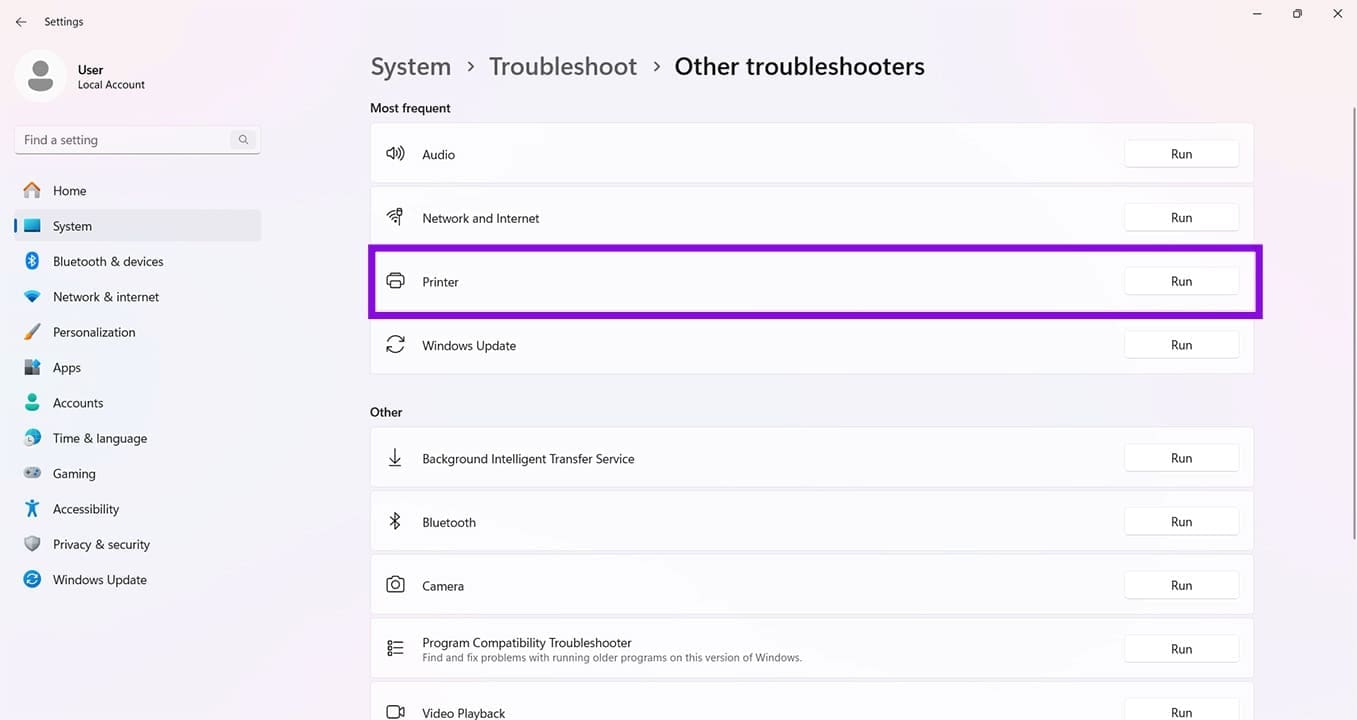
Fixing the Windows 11 Color Printing Error 6

Step 5. A new window will open. Follow the steps and allow the troubleshooter to run. Afterwards, try printing again to see if the issue is resolved.

Update Your Drivers

With any software problems, including Windows 11 printer not printing color, ensuring that both your version of Windows 11 and your device driver are up to date is vital. For Windows updates:

Step 1. Open “Settings” (Win + I) and click “Windows Update” in the sidebar.

Step 2. Click “Check for updates” to ensure you’re up to date. Install all pending updates that show up, including optional ones.

Fixing the Windows 11 Color Printing Error 7

To install your printer’s latest device drivers, you can either visit your printer manufacturer’s website to download the latest drivers manually, check through your printer client, or do it yourself via Device Manager:

Step 1. Open the Run Dialog (Win + R) and type “devmgmt.msc” and click “Enter.”.

Step 2. Click “Print queues” to expand the menu and right-click the printer that’s causing problems.

Fixing the Windows 11 Color Printing Error 8

Step 3. Select “Update driver” from the context menu.

Step 4. In the window that pops up, click “Search automatically for drivers.”
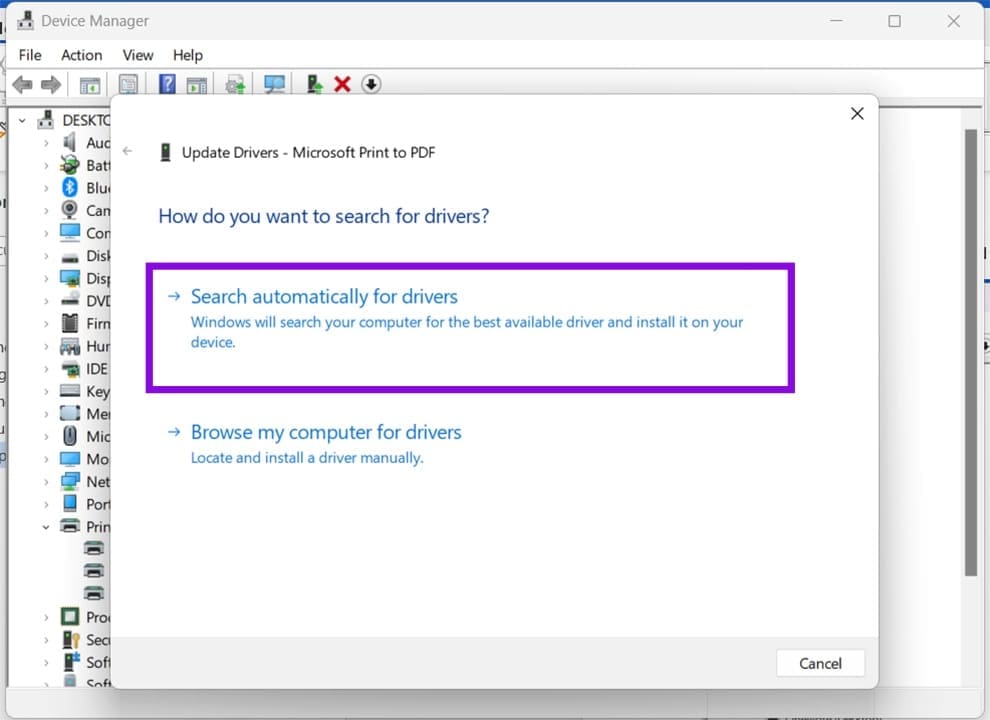
Fixing the Windows 11 Color Printing Error 9

Step 5. If there are any new drivers found, you will be notified on the next screen. Follow the steps to install them.

Categories: Windows

Author Evan Mercer

I’m a computer science grad who loves to tinker with smartphones and tablets in my spare time. When I’m not writing about how to fix techy problems, I like hanging out with my dogs and sipping nice wine after a tough day.

You Might Also Like

  • Fix The Disk Is Write Protected Error on Removable Disk in Windows 11

    Fix “The Disk Is Write Protected” Error on Removable Disk in Windows 11

    Mitch BartlettWindows
  • Can’t Delete Folder “You have been denied permission” Fix for Windows

    Mitch BartlettWindows
  • Fix NordPass Login Errors

    Troubleshooting NordPass Login Errors

    Madalina DinitaWindows
  • Fix-Error-0x80070490-We-Couldnt-Find-Your-Settings

    Fix Error 0x80070490: We Couldn’t Find Your Settings

    Madalina DinitaWindows

Leave a Reply

Your email address will not be published. Required fields are marked *

  • improve privacy windows 11

    6 Tips for Improving Your Privacy in Windows 11 

  • missing boot manager in bios

    Step‑by‑Step Fix for Missing Windows Boot Manager in BIOS or UEFI

  • power query sharepoint folder error

    Power Query Not Detecting New Files in SharePoint – How to Fix

  • android device can't connect to microsoft 365

    What to Do When Your Android Device Can’t Connect to Microsoft 365

  • microsoft access error 53

    What Is Microsoft Access Error 53 and How to Fix It?

profile pic

The Experts Behind Technipages

My name is Mitch Bartlett. I've been working in technology for over 20 years in a wide range of tech jobs from Tech Support to Software Testing. I started this site as a technical guide for myself and it has grown into what I hope is a useful reference for all.

Learn More

technipages logo white
linkedin icon

Technipages is part of Guiding Tech Media, a leading digital media publisher focused on helping people figure out technology. Learn more about our mission and team here.

© 2026 Guiding Tech Media All Rights Reserved

  • About Us
  • Contact
  • Terms of Use
  • Privacy Policy

© 2026 Guiding Tech Media All Rights Reserved

Information from your device can be used to personalize your ad experience.
Do not sell my personal information.

Last Updated on June 19, 2026 by Evan Mercer