Windows 11 doesn’t have the best track record for privacy. From telemetry collection to aggressive integration of AI, many users are concerned about the safety of their data and personal details. Even with Microsoft’s recent efforts to improve Windows 11’s performance and reduce unnecessary bloat, there are still steps you can take to keep your data safe from Microsoft and prying eyes.
This article will show you six ways to improve privacy, Windows 11.
Ways to Improve Privacy (Windows 11)
Let’s get straight into it. Below are a few ways to keep your information private and also reduce Microsoft interference:
Tighten Up App Privacy
For starters, there might be a lot of apps that have permission to track you, offer personalized ads based on your data (like language lists), and track app usage. A good first step is to disable these in “Settings”:
Step 1. Open “Settings” (Win + I) and head to “Privacy & security.”
Step 2. Click “Recommendations and offers in Settings” (or the equivalent recommendations in your version of Windows).
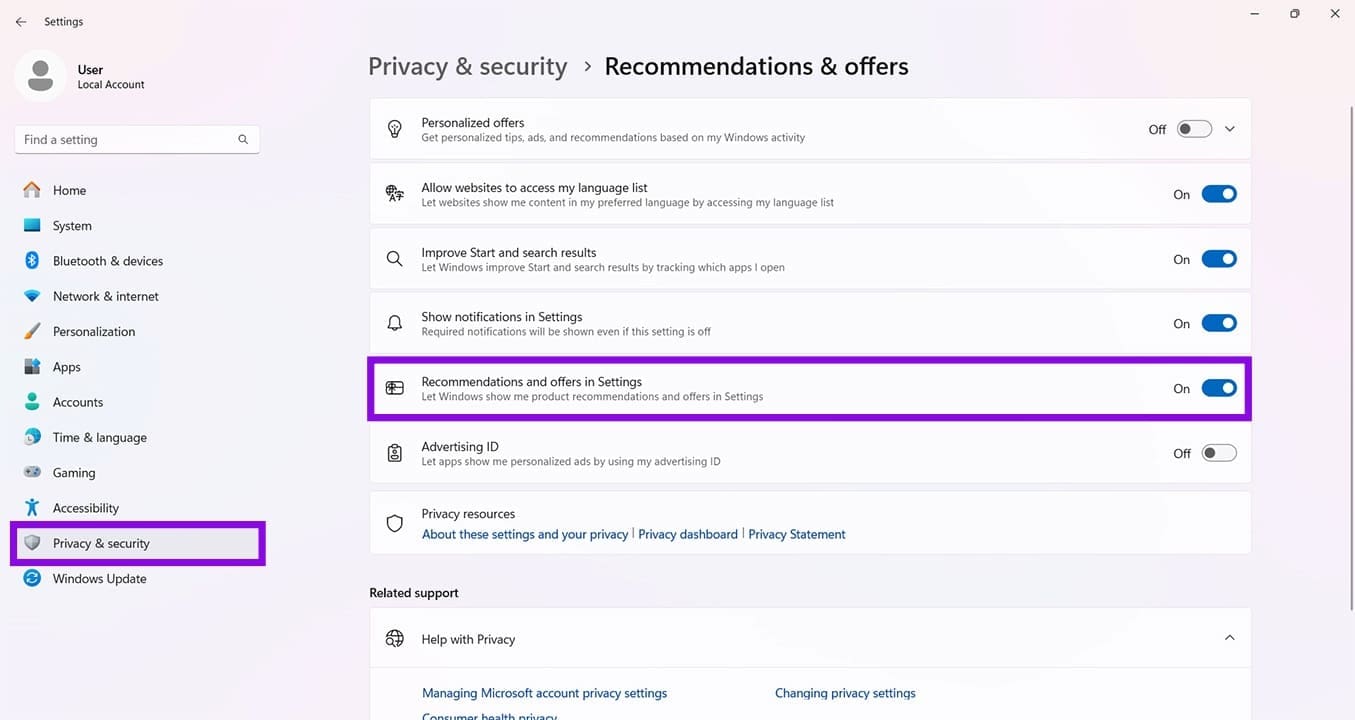
Step 3. Toggle off options that track personal information, like “Allow websites to access my language list” and “Improve Start and search results.”
Limit Diagnostics
Windows collects diagnostic data from PCs to improve its services. If you don’t want any part in this, you can easily disable things. Here’s how:
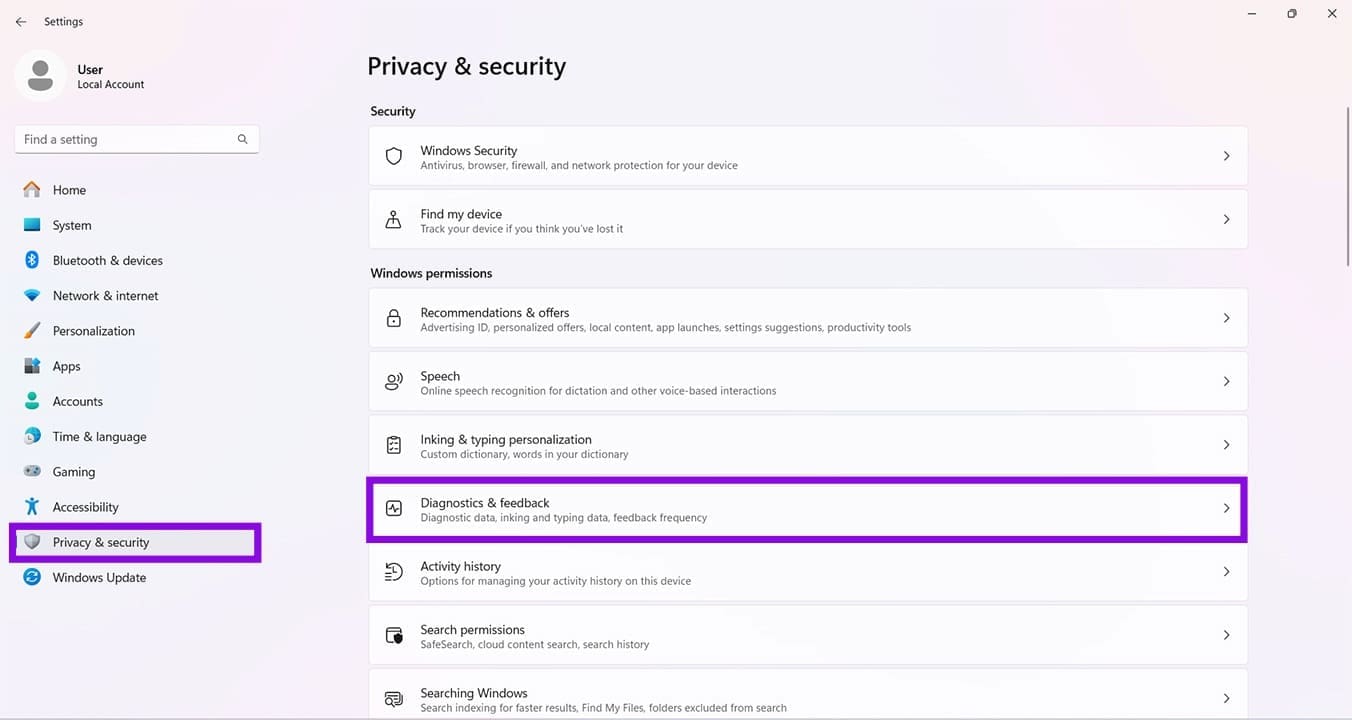
Step 1. In “Privacy & security” in “Settings,” click on “Diagnostics & feedback.”
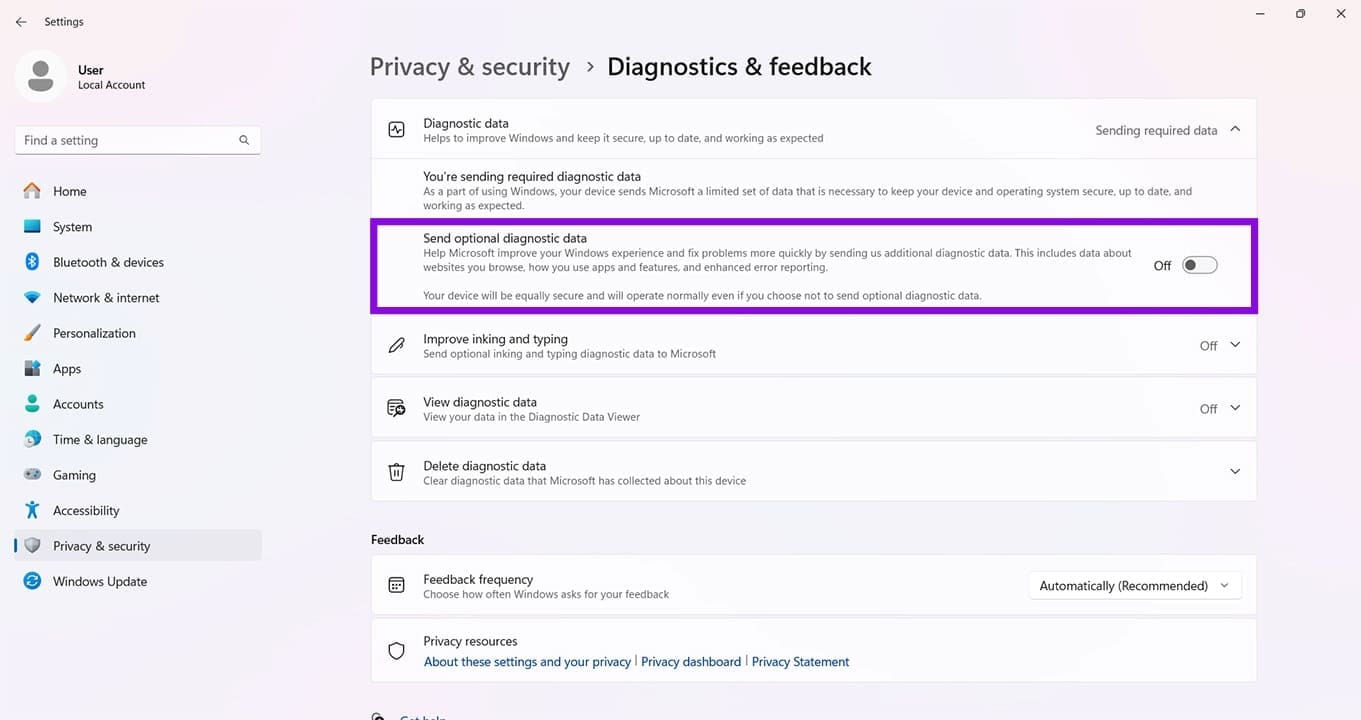
Step 2. Toggle “Send optional diagnostic data” to “Off.”
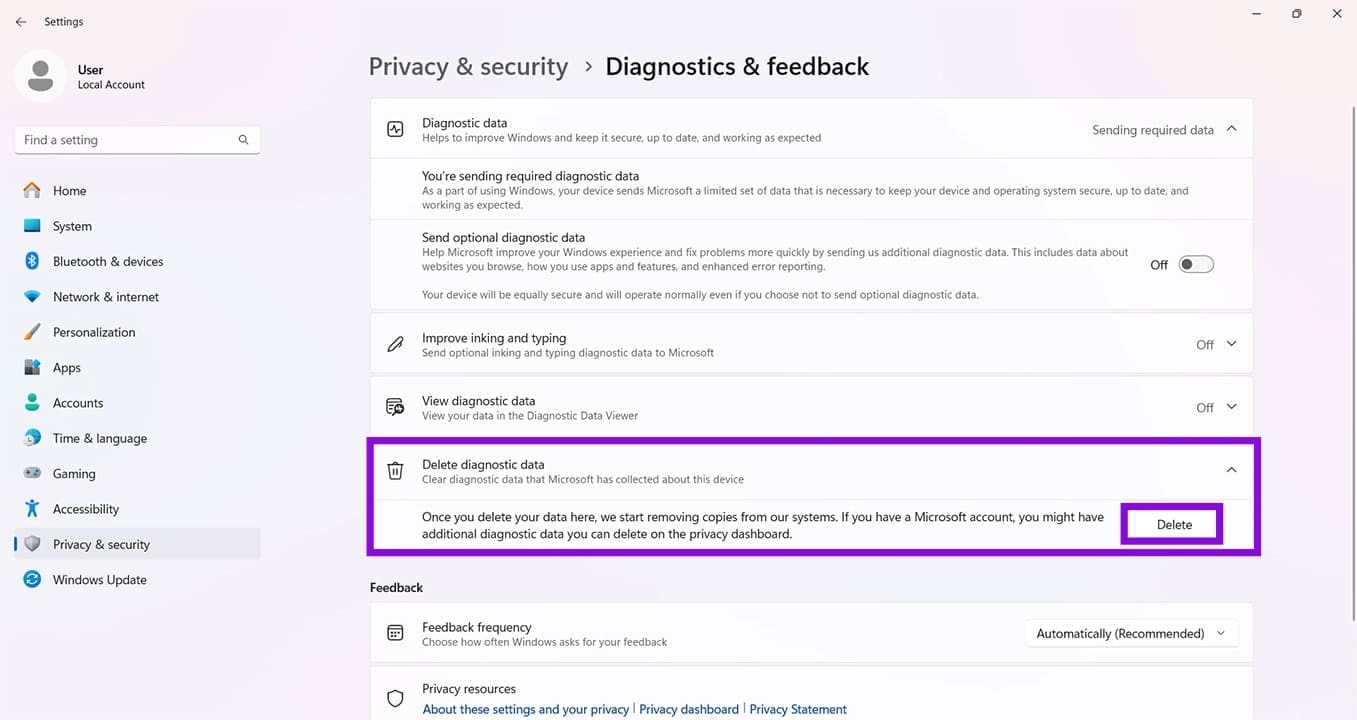
Step 3. If you have sent diagnostic data to Microsoft and want it removed, click the “Delete diagnostic data” option and then the “Delete” button that appears below.
Delete Your Activity History
Windows keeps a history of your activity on your device. If you don’t want prying eyes looking into it, you can delete it via the “Privacy & Security” settings too:
Step 1. In “Privacy & security,” click “Activity History” in the main window.
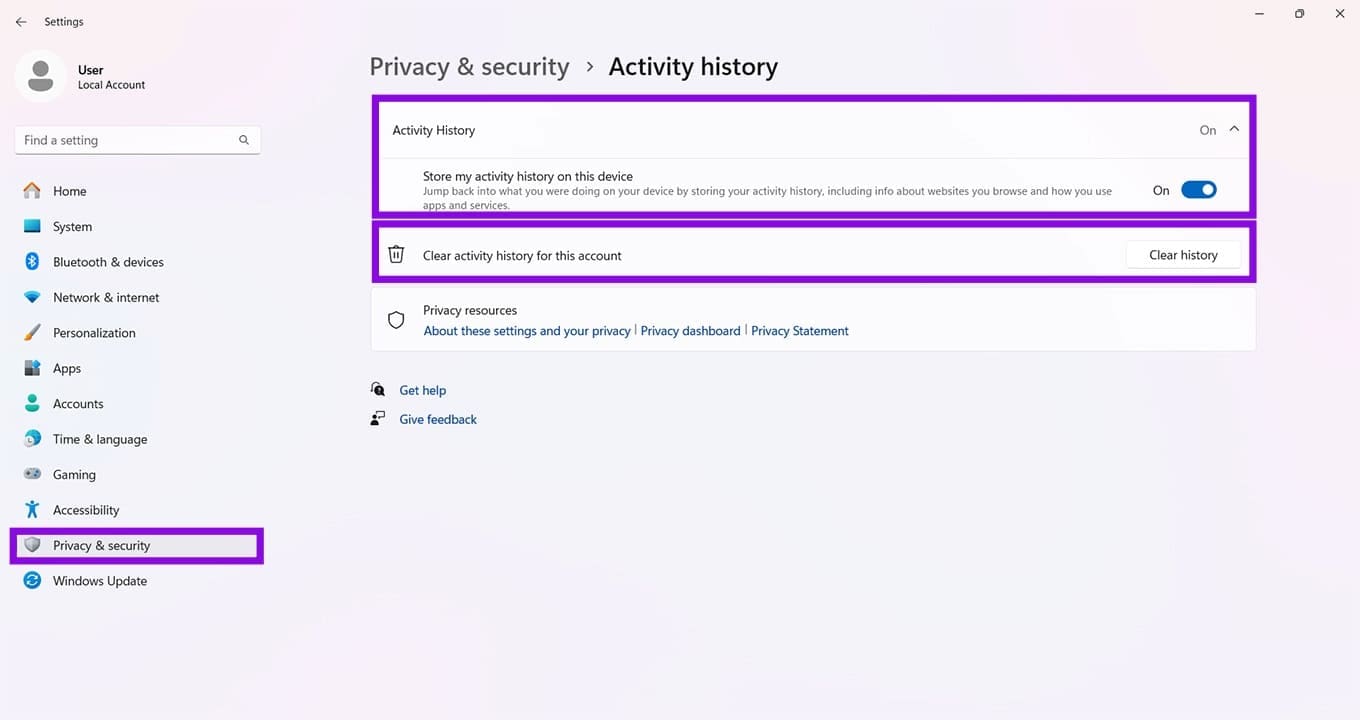
Step 2. Toggle “Store my activity history on this device” to “Off.”
Step 3. If you want the device history tied to an account deleted, click “Clear history” next to “Clear activity history for this account.”
Lock Down Your Lock Screen
Though information on the lock screen is handy to you, it can also be to someone less well-meaning. To prevent data leaks from your lock screen, do the following:
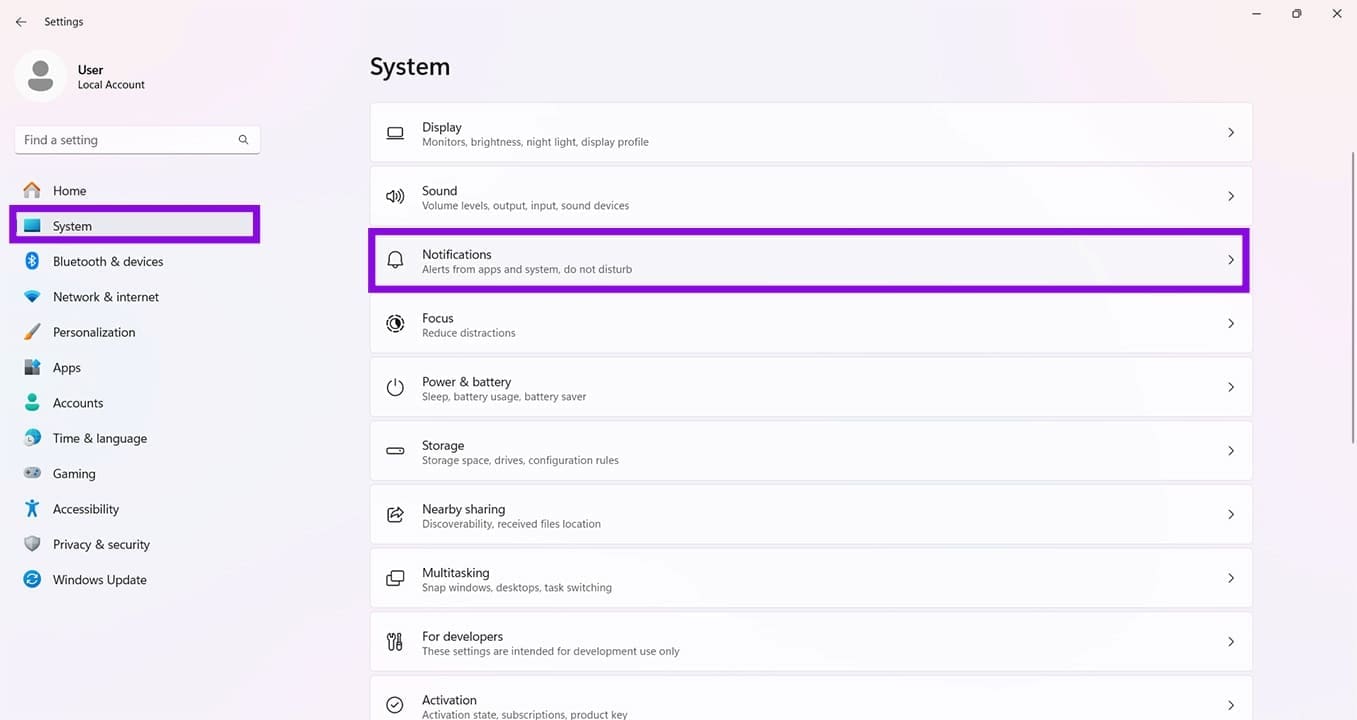
Step 1. Open “Settings” (Win + I) and click “System.”
Step 2. Hit “Notifications.”
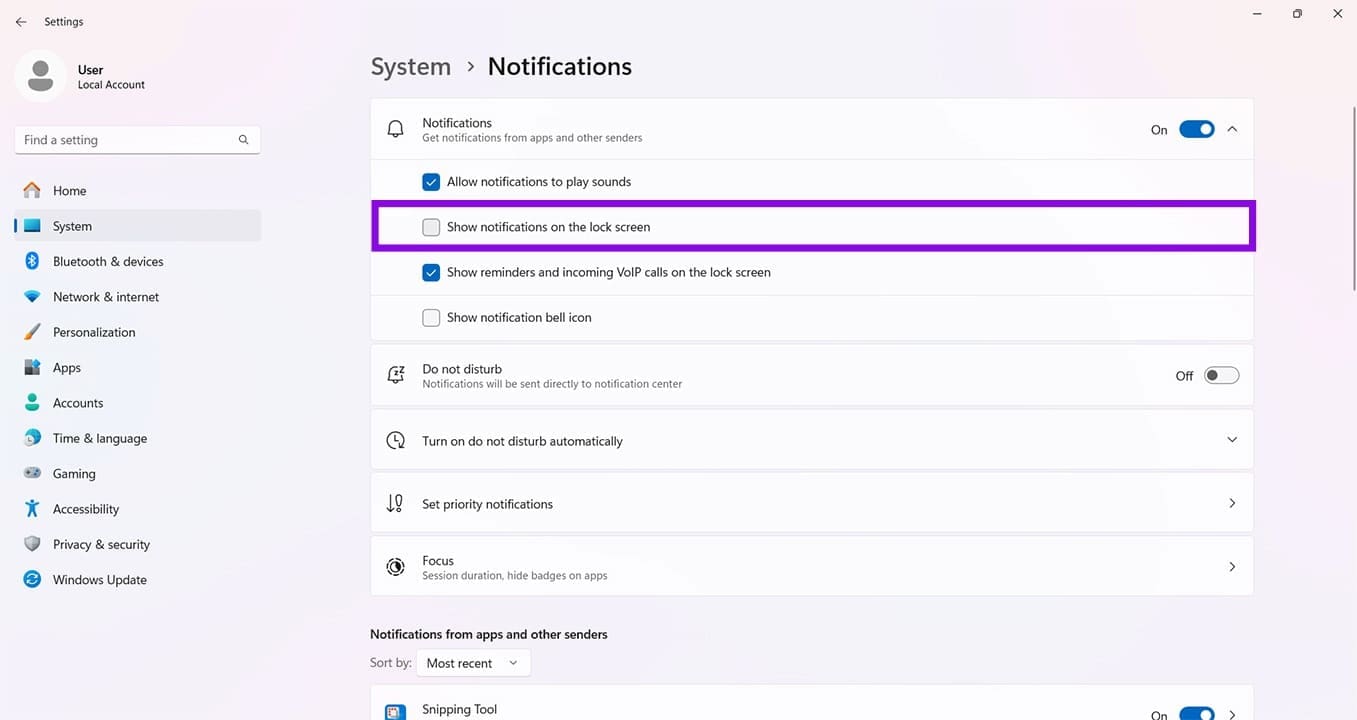
Step 3. Uncheck “Show notifications on the lock screen.”
Clamp Down on Location Services
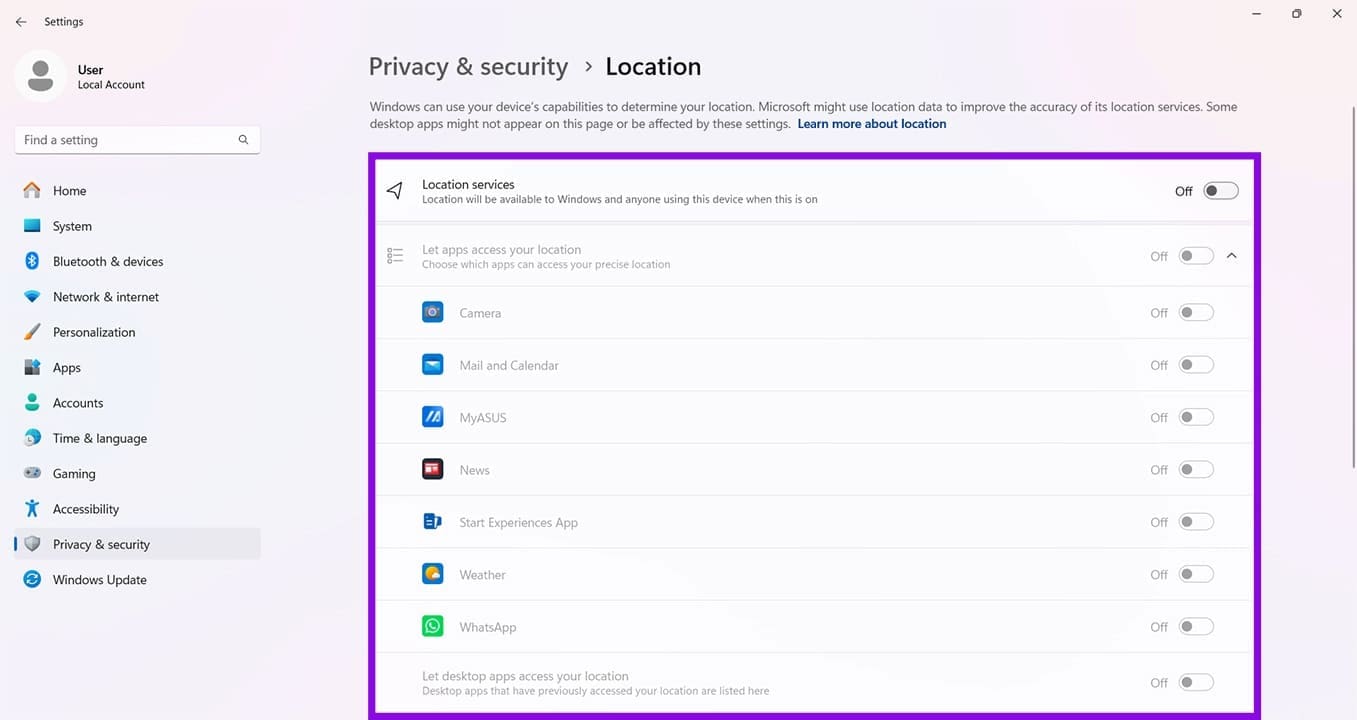
Some apps might have permission to access your location. Some are useful, like the Weather app, but others you may not want knowing where you are. You can limit these in-app permissions:
Step 1. Open Settings and “Privacy & security.”
Step 2. Scroll down to the “App permissions” subsection and click “Location.”
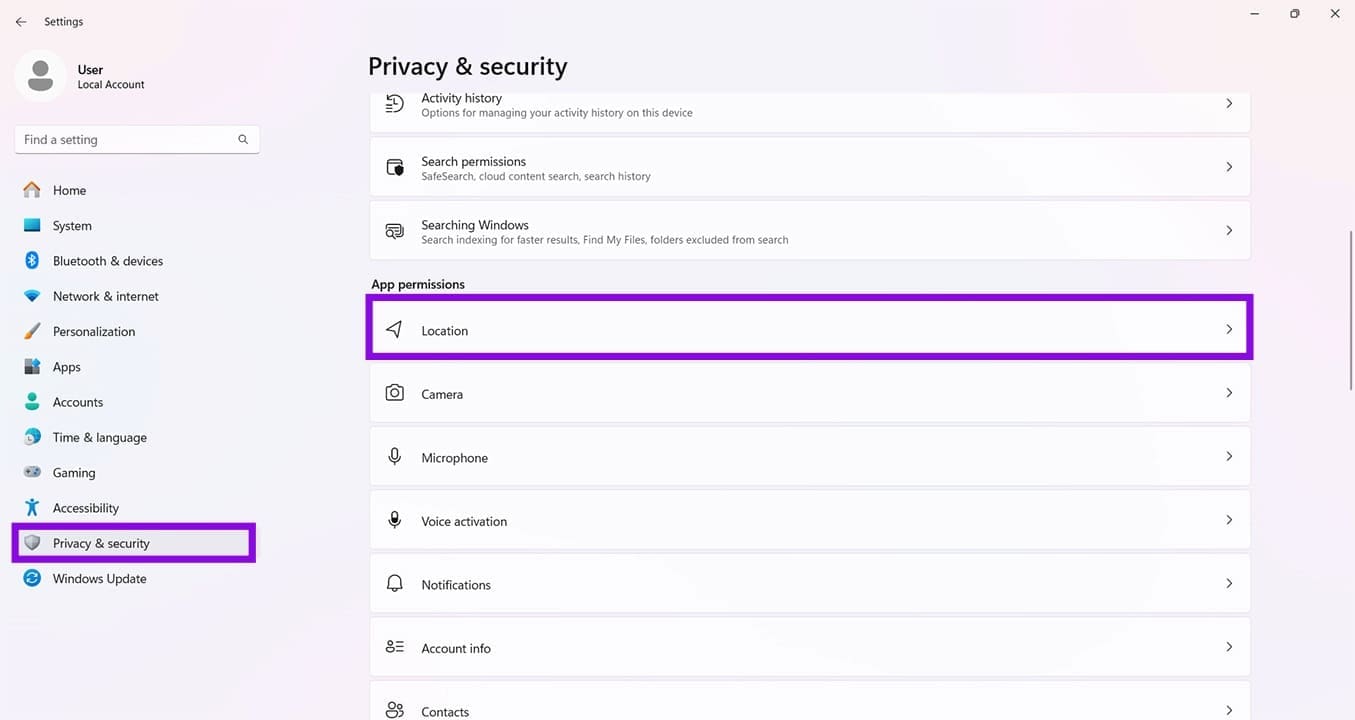
Step 3. You’ll see a list of apps that ask for your location. Toggle as many to “Off” as you want.
Use Third-Party Tools
Lots of people aren’t happy with privacy in Windows 11, and that means there’s software to help. There are plenty of third-party options out there to help with different aspects of Windows 11’s privacy. Some block unwanted apps and features, while others provide more control over telemetry sent to Microsoft. There are plenty of options.