
Microsoft 365 is very handy for users on the go. You can seamlessly switch between your desktop or take work with you on your Android phone. But when the Android part isn’t connecting, convenience quickly becomes frustration. Not to worry; in this article, we’ll be looking at fixes to try when your Android device can’t connect to Microsoft 365.
What Causes Connectivity Errors?
Using Microsoft 365 on Android phone means that you get the convenience of mobility, but are then tied to an online service, with all the potential downsides that it brings. Let’s take a look at some major causes of connectivity troubles:
- An outdated app version
- A corrupted cache in one or all of the apps
- Compatibility issues with your OS
- Account issues
- Battery optimization, restricting background tasks
- VPNs or third-party app conflicts
- Phone connection trouble
What to Do When an Android Device Can’t Connect to Microsoft 365
Let’s get straight into some fixes to try if your 365 apps are giving you grief:
Check Your Internet Connection
The first step might be obvious, but it’s still important. Ensure that you’re connected to a stable Wi-Fi network or your mobile data’s on. The connection should also be stable. Try turning your data off and on again, just to be sure. You should also check that you’re not in airplane mode.
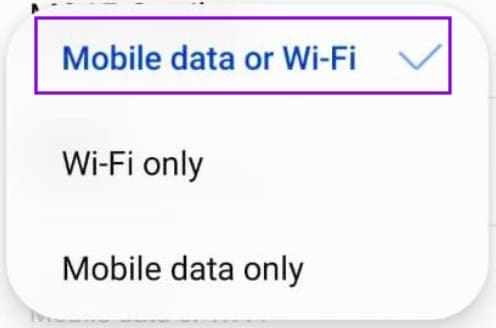
To check that your app is cleared for both Wi-Fi and mobile use, do the following:
Step 1. Open your phone’s Settings and tap Apps.
Step 2. Scroll through the list, tap on your misbehaving Microsoft 365 app (such as Outlook or Teams), and select Mobile data.
Step 3. Ensure the toggle switch next to Allow background data usage is flipped to On. This keeps the app connected even when minimized.
Clear the App Cache
An app that’s been running for too long processes a lot of data, and its cache can be corrupted or cause it to behave erratically, and that includes connectivity. A quick and easy step is to clear your app cache. Here’s how:
Step 1. Open your phone’s Settings.
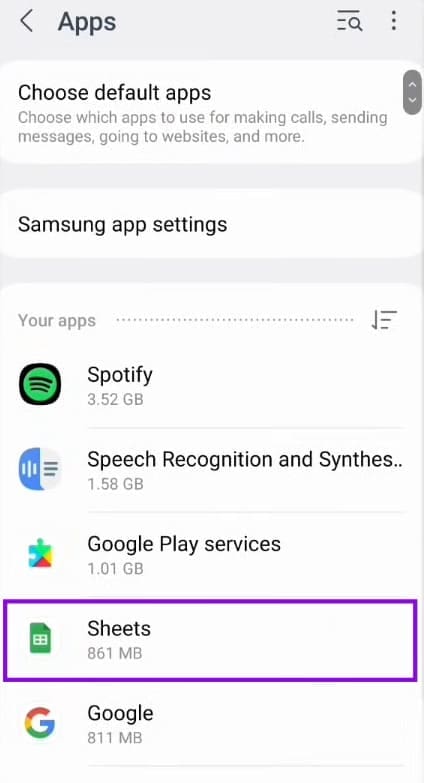
Step 2. Select Apps.
Step 3. Select the specific Microsoft 365 application giving you trouble.
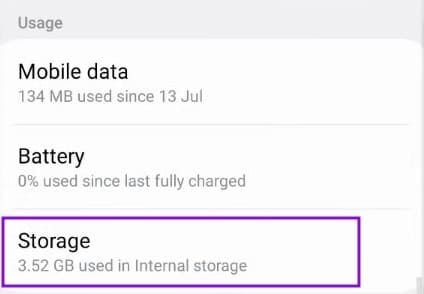
Step 4. Tap on Storage from the listed options.
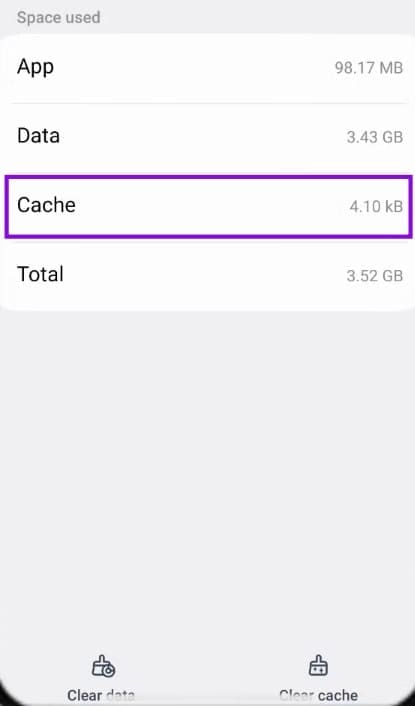
Step 5. Tap the Clear cache button located in the bottom tray of your screen.
Step 6. Sign in to your app again and try connecting.
Sign Out and In
If you think your account might be to blame, or even if you don’t, try signing out of your profile and back in. It shouldn’t take long, and might fix your connection problems. Remember to restart the app before signing back in, though.
Disable Your VPN
If you have any VPNs active, they could be blocking the app’s ability to connect to Microsoft’s servers. Try disabling it temporarily to check. You can do this in the app or through the Android settings:
Step 1. Open “Settings,” and navigate to “Connections.”
Step 2. Scroll down and press “More connection settings.”
Step 3. Tap “VPN” in the next menu.
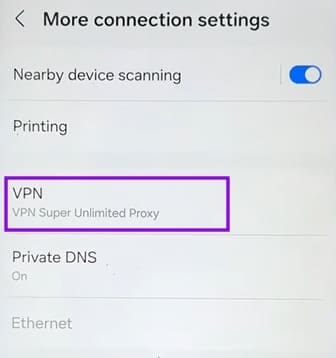
Step 4. Tap your VPN in the options, then click “Disconnect” on the pop-up.

Disable Battery Optimization
While it’s a fantastic tool for saving power, the Battery Optimization feature can hamper your Microsoft 365 connectivity. Try disabling it to see if this helps:
Step 1. Head to “Settings,” then “Battery.”
Step 2. Select “App battery use.”
Step 3. Scroll down the list of apps to find your 365 app and tap it.
Step 4. Choose either “Unrestricted” or “Allow app background activity.”
Step 5. Try running the app again.