

If you’re in the middle of a Zoom video meeting, but you can’t share your screen with the other attendees, don’t panic. That’s the most important thing. Don’t let a simple technical glitch ruin your entire day.
Zoom has its own share of bugs, and sometimes sharing your screen does not work. The good news is that you can fix this problem. And in this guide, we’ll show you exactly how you can do that.
How to Fix Zoom Screen Sharing Issues
Update Zoom
Did you know that you can fix many technical glitches and bugs simply by installing the latest Zoom version on your machine? If you’re running an old Zoom app version, certain features may not work properly, and this includes screen sharing.
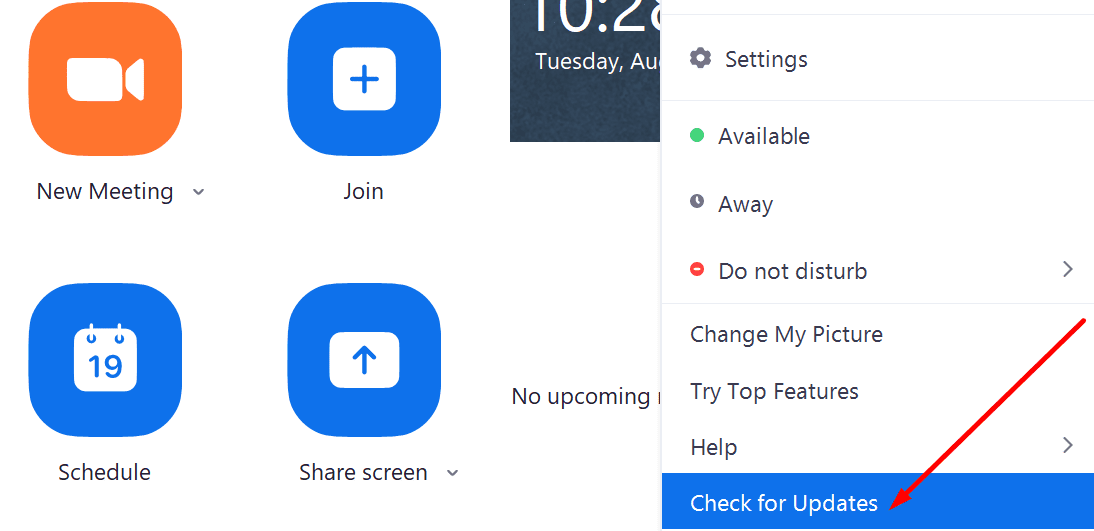
Click on your profile picture and select Check for updates to check if there’s a newer Zoom version available for download.
Edit Your Zoom Screen Sharing Settings
Setting a lower frames-per-second value when sharing your screen may solve this issue.
- Launch Zoom and click on your profile picture.
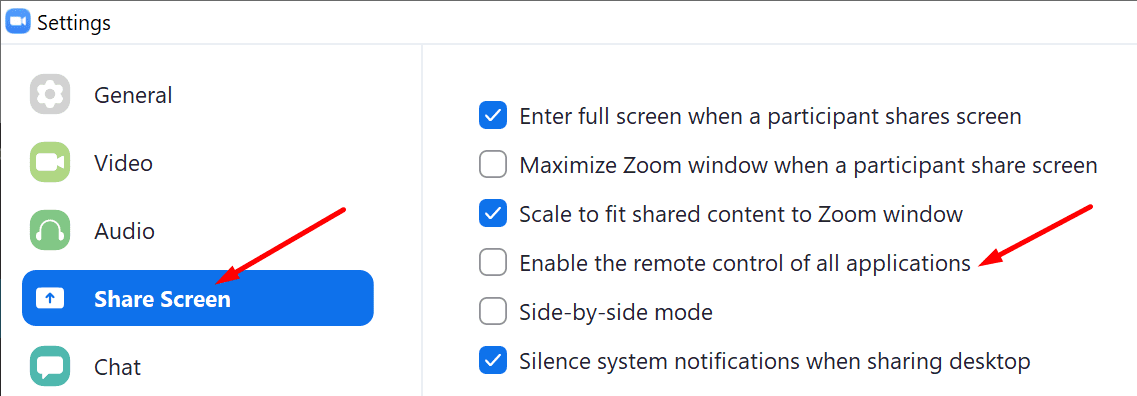
- Then go to Settings and select Share Screen.
- Tick the checkbox that says Enable the remote control of all applications.

- Then click on the Advanced button and keep the frames-per-second value below 10.

- Save the settings and check the results.
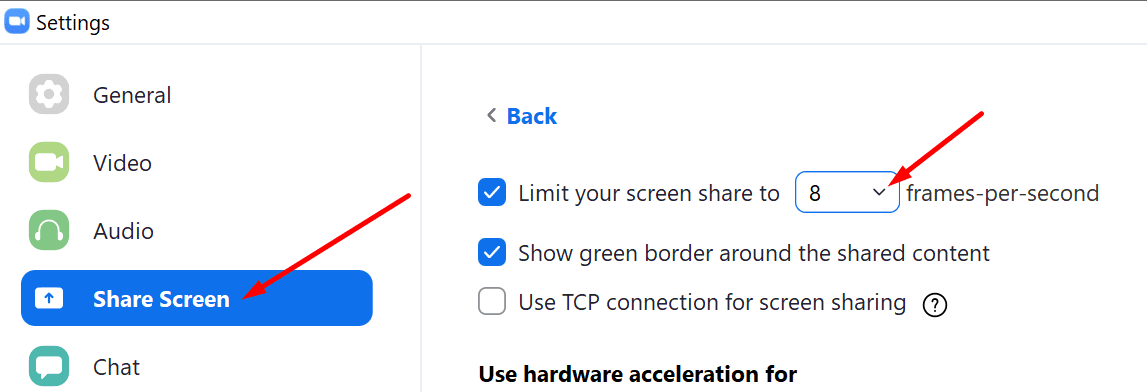
If you’re on a low-bandwidth network, setting your screen share FPS to a lower value will improve the connection. If Zoom uses too much CPU to support a smooth video stream, the OS might limit or block certain app features, such as the screen sharing option. Reduce the FPS, and this should keep the CPU use in check.
Allow Zoom to Use Your Mic and Camera
If you prevent Zoom from accessing your microphone and camera, this might also break additional app features such as the ability to share your screen.
- Go to Settings and select Privacy.
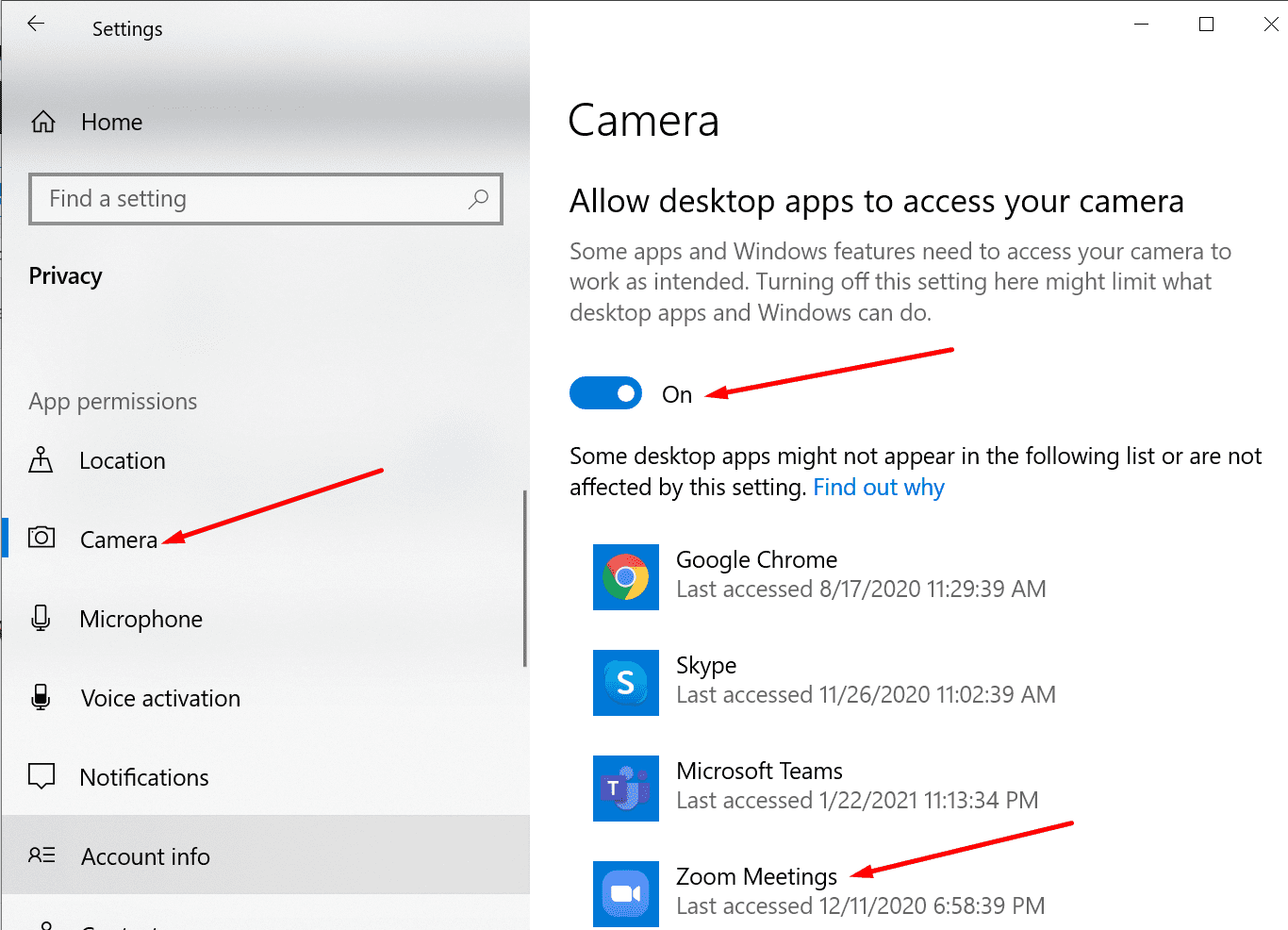
- On the left-hand pane, right under App permissions, click Camera.
- Turn on the following two options: Allow access to the camera on this device, and Allow apps to access your camera.
- Go to Allow desktop apps to access your camera and make sure Zoom is on the list.

- Now, do the same for your mic. Ensure Zoom can access and use both your camera and mic. Check if you can share your screen now.
Disable Other Apps Using the Camera
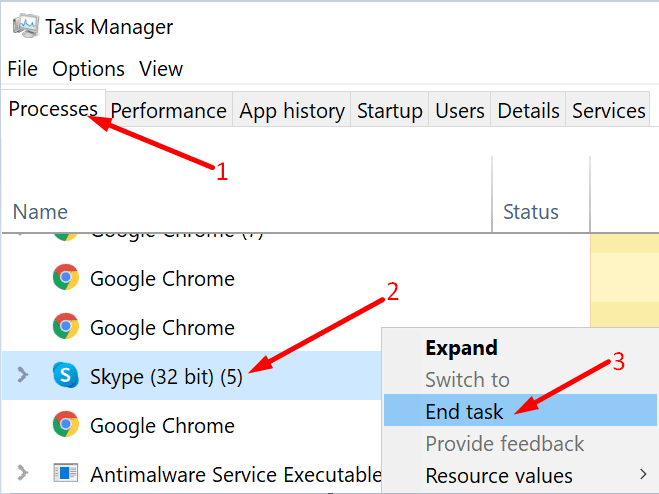
If other apps are running in the background that could potentially use your camera and mic or interfere with Zoom, do disable them. For example, maybe you previously used Teams or Skype, but you forgot to end the related processes.
Launch the Task Manager and go to the Processes tab. Then right-click on all the unnecessary apps one by one and select End Task.
Reinstall Zoom
If you still can’t share your computer screen on Zoom, uninstall and reinstall the app.
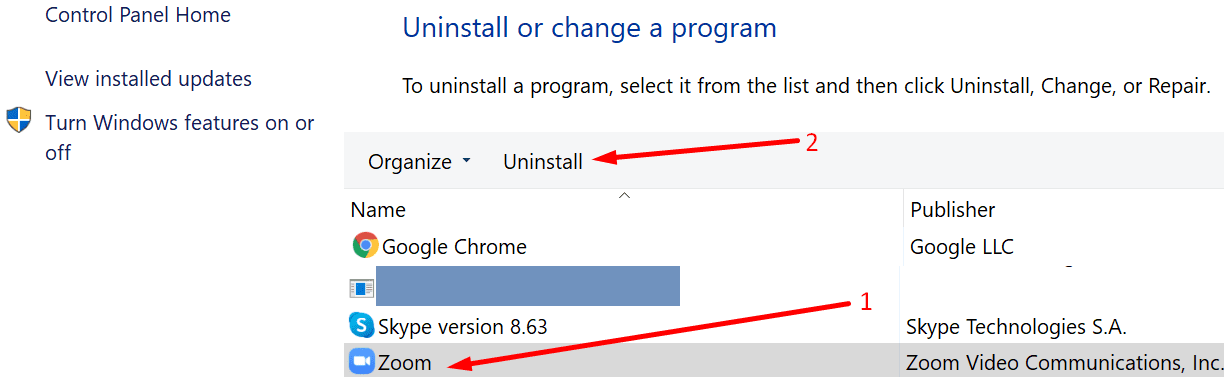
- Launch the Control Panel and go to Programs.
- Then click on Uninstall a program and select Zoom.
- Hit the Uninstall button to remove the app.

- Restart your computer and download Zoom again. Check if this method solved the screen sharing problem.
Conclusion
Using a high share screen FPS value can actually break the screen sharing feature on Zoom. Additionally, outdated app versions or incorrect app and OS configuration settings can produce the same results.
Did you manage to fix the problem? Let us know in the comments below.



When I hit presenter view to see my notes the audience can still see them how do I fix that on a laptop
I presume these are instructions for windows since this doesn’t match what’s on my machine…useless
I cannot share web pages on Zoom. (I can share the white board, and I can share my documents. (I very frequently shared webpages during last school year.
I signed on as meeting host (using my paid subscription) and enable all meeting participants to share screen. The screen sharing worked for all other meeting participants, yet, I was the only one in the meeting not able to see what’s being shared. HELP!!
It used to work fine, until I accidently uninstall Zoom couple days ago and I have since reinstall Zoom to my laptop.
Why would “Enable the remote control of all applications” matter to screen sharing? Isn’t that for others to take over your screen??