
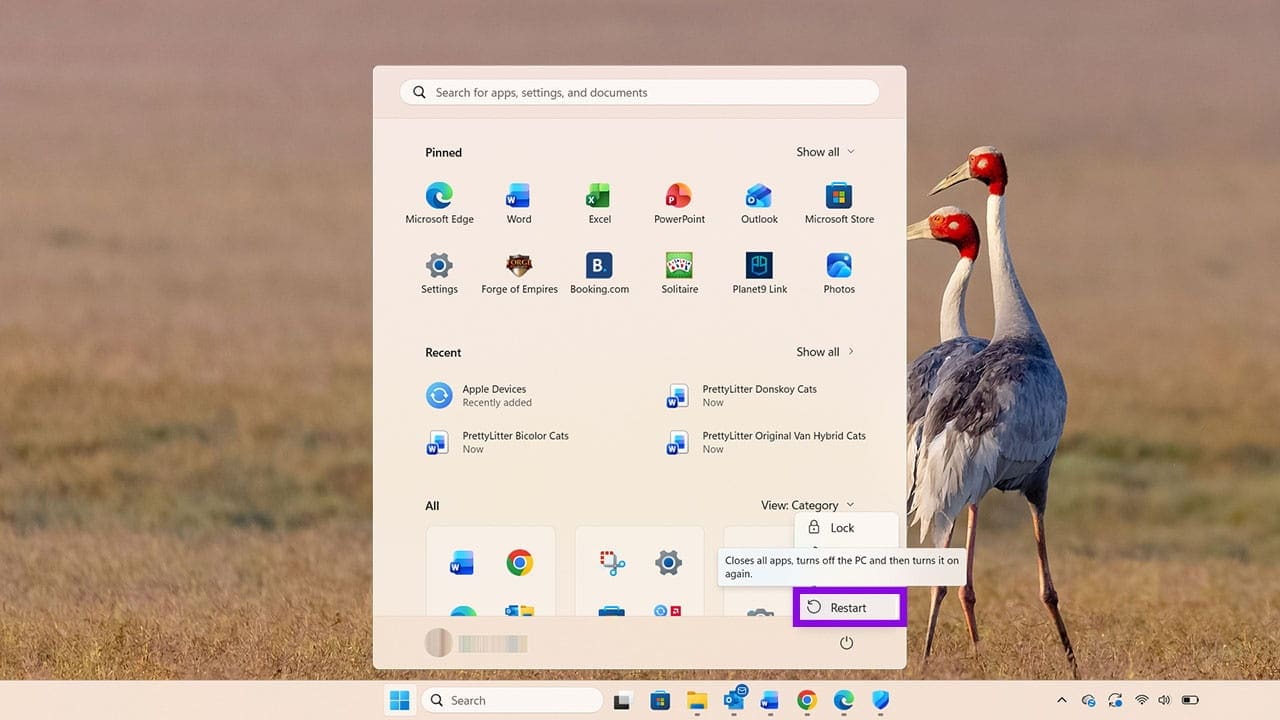
There are any number of reasons why you might want to restart your Windows desktop PC or laptop. You might have just installed new software, or you may be experiencing a glitch. Usually, restarting is as simple as selecting Start > Power > Restart.
However, some Windows users have reported that once the computer turns off and back on again, it gets stuck on the restart screen. In other words, the computer never finishes booting up, so you can’t use Windows until it resolves itself.
There are a couple of fixes for Windows 11 won’t restart, and steps you can take to prevent it from happening in the future.
Windows Stuck on Restart Screen: Try a Force Reboot
The first step to try is forcing your computer to reboot again. In most instances, this will work and allow you back to your Windows desktop. To force-reboot your machine, simply hold down the power button until the screen goes black and then starts turning on again. As soon as you see the reboot screen (usually your computer manufacturer’s logo), release the power button.
Windows 11 Won’t Restart: Boot in Safe Mode
Step 1. Force reboot the computer again, but this time, as soon as it starts to reboot, hold the power button again. This interrupts the reboot process. You may need to try this two or three times until your computer shows you an error screen.
Step 2. Click or press Enter as prompted. You should now be shown a series of options. Start by selecting “Troubleshoot.”
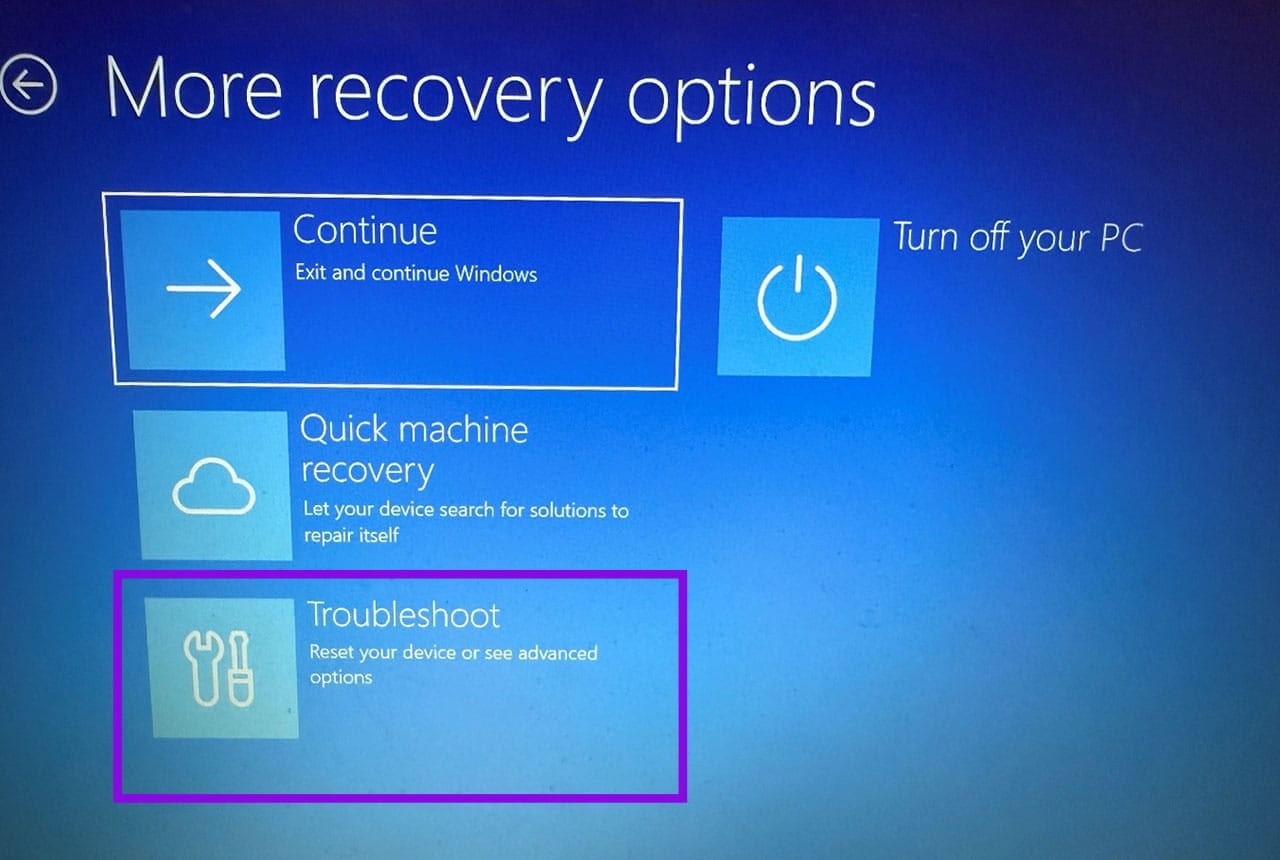
Step 3. Now click on “Advanced options.”

Step 4. Click on “Startup Settings.”
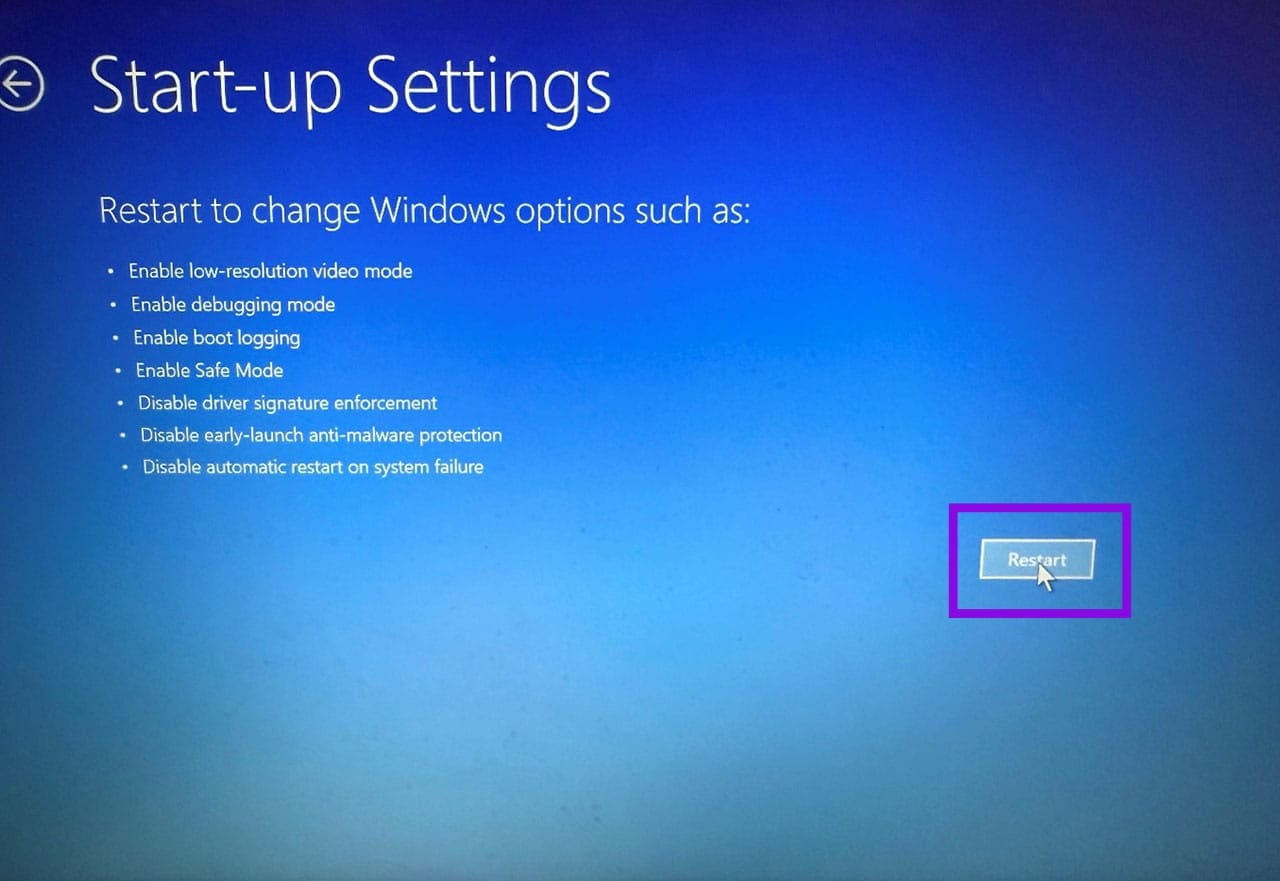
Step 5. There’s a list of options, but to select these options, you first have to click “Restart.”
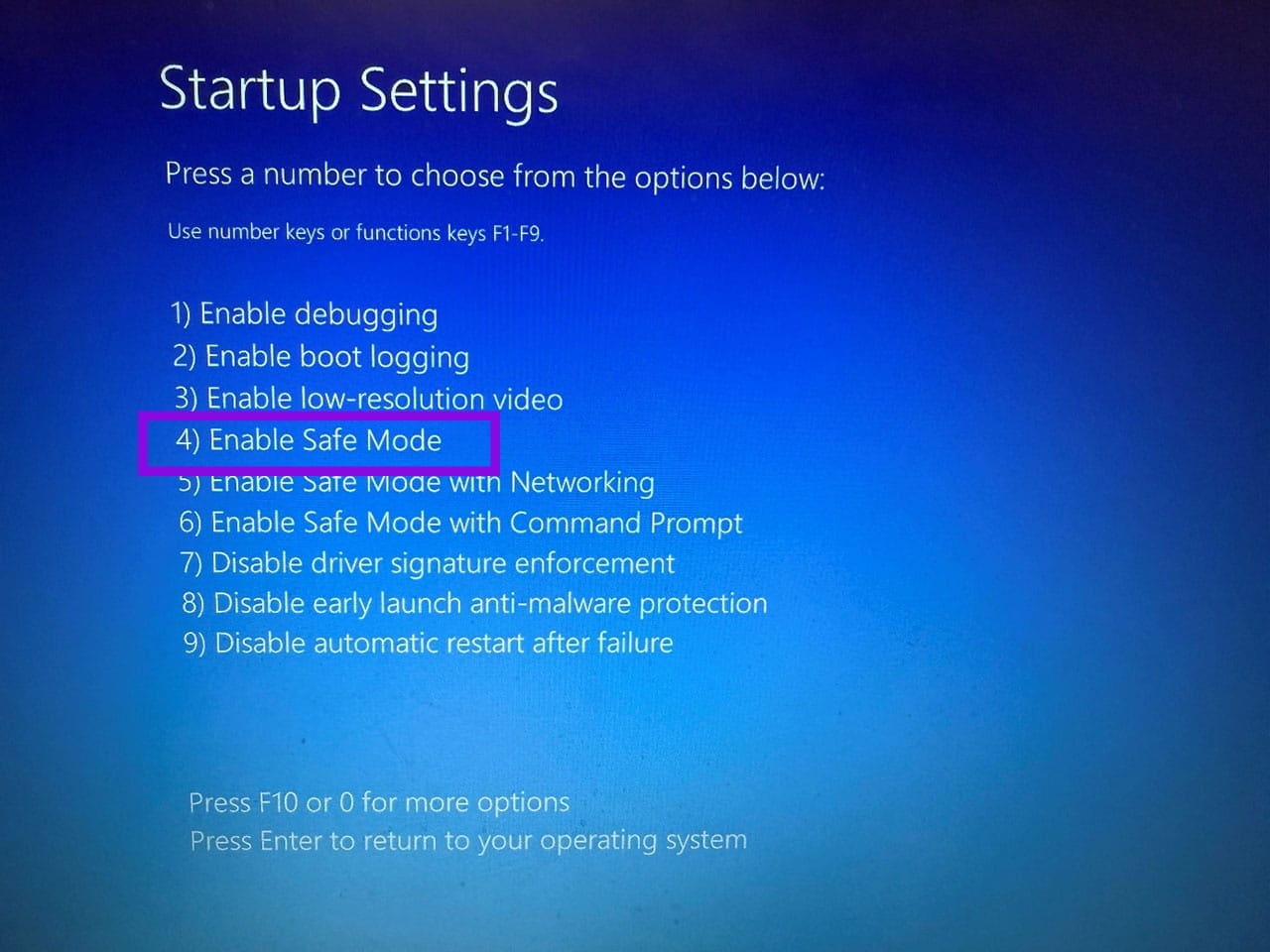
Step 6. Choose “Enable Safe Mode” (usually number 4 on Windows 11). This boots your computer up in a safer, slightly limited mode, which is much less likely to get stuck on the restart screen.
Windows 11 Won’t Restart: Preventing This Problem
Once you manage to boot your PC or laptop in Safe Mode, you can run System File Checker to scan for and repair potentially corrupted system files. These may interfere with the startup, shutdown, and reboot processes.
Step 1. Start by searching for “Command Prompt” and clicking “Run as administrator.”

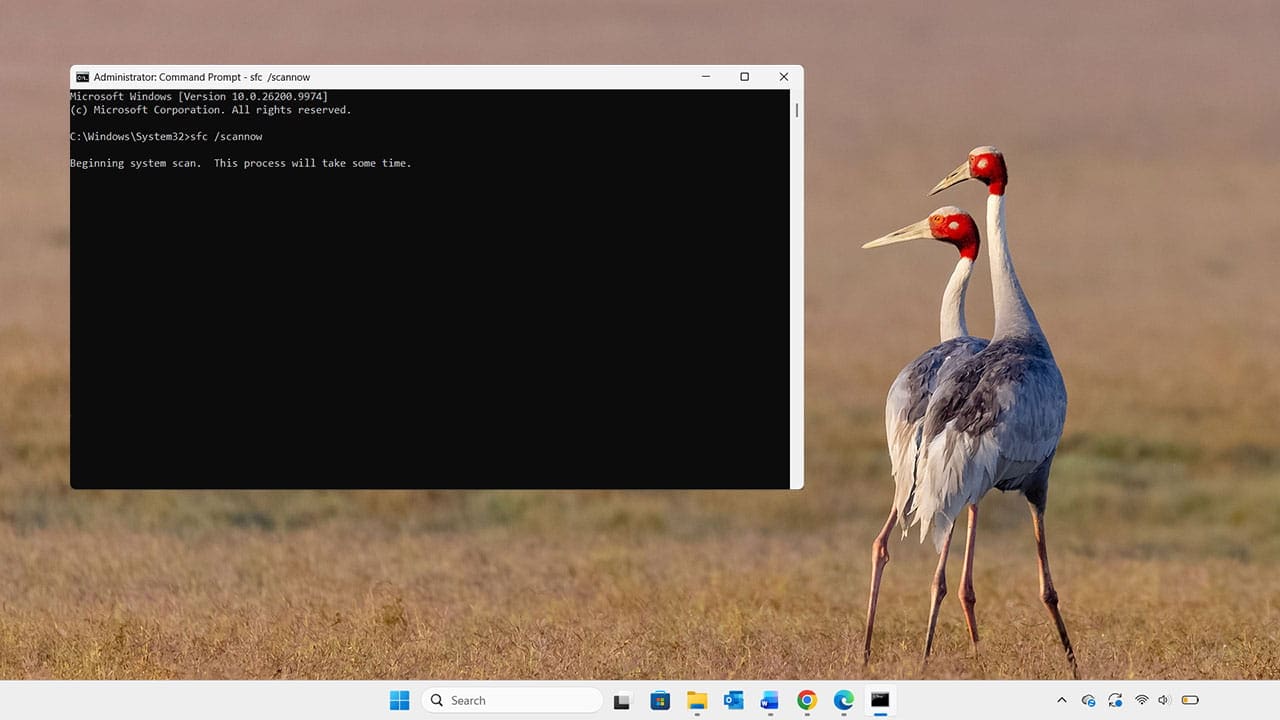
Step 2. Type this command into the Command Prompt window:
sfc /scannow

Step 3. Press “Enter” and wait. The scan runs automatically and should repair anything causing problems. Be prepared to wait a few minutes.
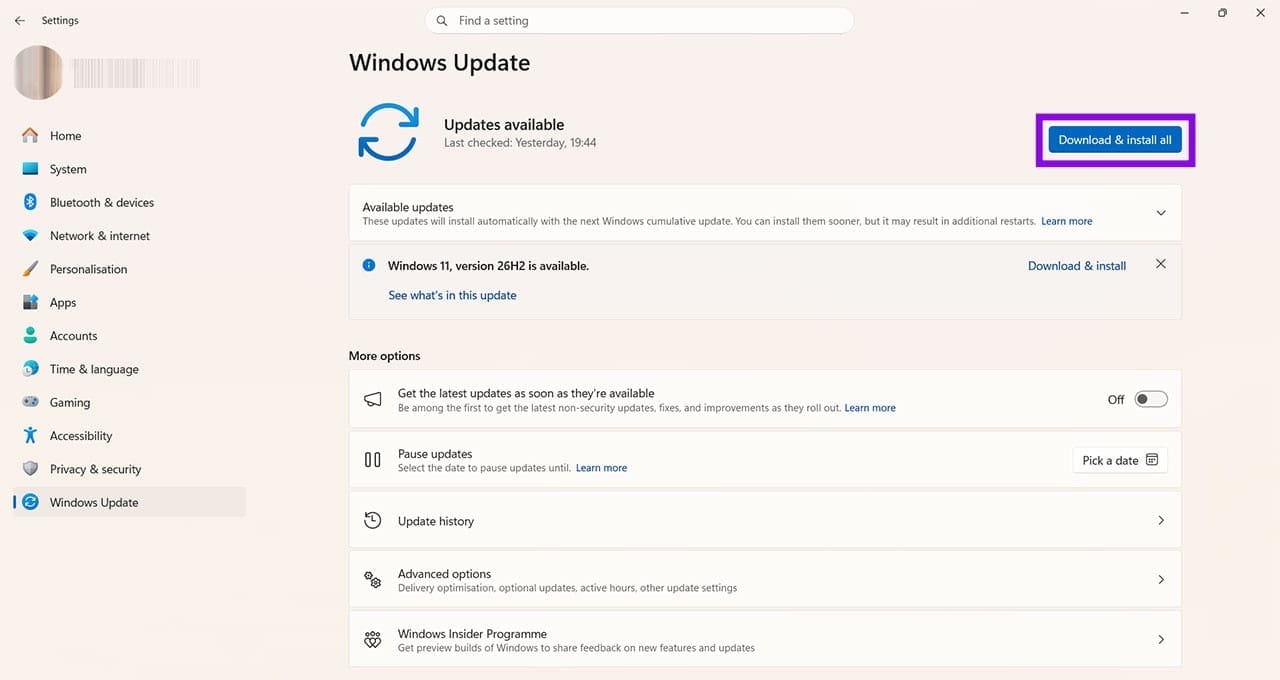
Once the scan is complete, restart your computer to ensure any changes have been properly implemented. You should find that your restart function works correctly now. If you’re still having problems, check that Windows has been updated by heading to Settings > Windows Update > Download and install all (if available).