Skip to content
LogoTechnipages
LogoTechnipages
  • Topics
        • Android
        • Browsers
        • Gaming
        • Hardware
        • Internet
        • iPhone
        • Linux
        • macOS
        • Office
        • Reviews
        • Software
        • Windows
        • Definitions
        • All Recent Posts
  • Product Reviews
  • About

DirectX 12 Not Supported on Your System? Here’s How to Fix It

Evan MercerNovember 17, 2026 Comments (0)
directx 12 not supported

You may have come across the following error message when trying to play a game on your PC:

“DirectX 12 not supported on your system. Try running without the -dx12 or -d3d12 command line argument.”

This and similar messages indicate that Windows and your game are not communicating correctly. This may be due to a compatibility error or outdated GPU drivers. Learn how to check for both below.

Contents

  • 1. What Is DirectX 12?
  • 2. Fix DirectX 12 Not Supported Issues: Check GPU Compatibility
  • 3. Fix DirectX 12 Not Supported Issues: Update GPU Drivers

What Is DirectX 12?

DirectX is a collection of application programming interfaces, or APIs, that allow software, particularly games, to communicate with a PC’s graphics and audio hardware. These interfaces help games use hardware features to render graphics and produce sound as intended by their developers.

DirectX 12 is a version of this essential set of components, and many modern games search for DirectX 12 as part of their run processes. If Windows doesn’t appear to cooperate with the game’s request, you’ll get an error message. Try one of the following fixes to stop this from happening.

Fix DirectX 12 Not Supported Issues: Check GPU Compatibility

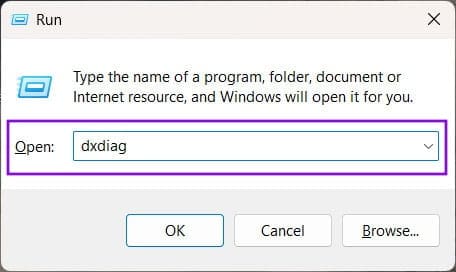
Step 1. Your graphics processing unit (GPU) is what powers the graphics and video rendering of the games you play. A DirectX 12 not supported message may indicate that the GPU simply doesn’t have this capability. To check, open the Run command box by pressing WIN + R. Type in dxdiag and press “Enter.”
DirectX 12 Not Supported on Your System Heres How to Fix It 1

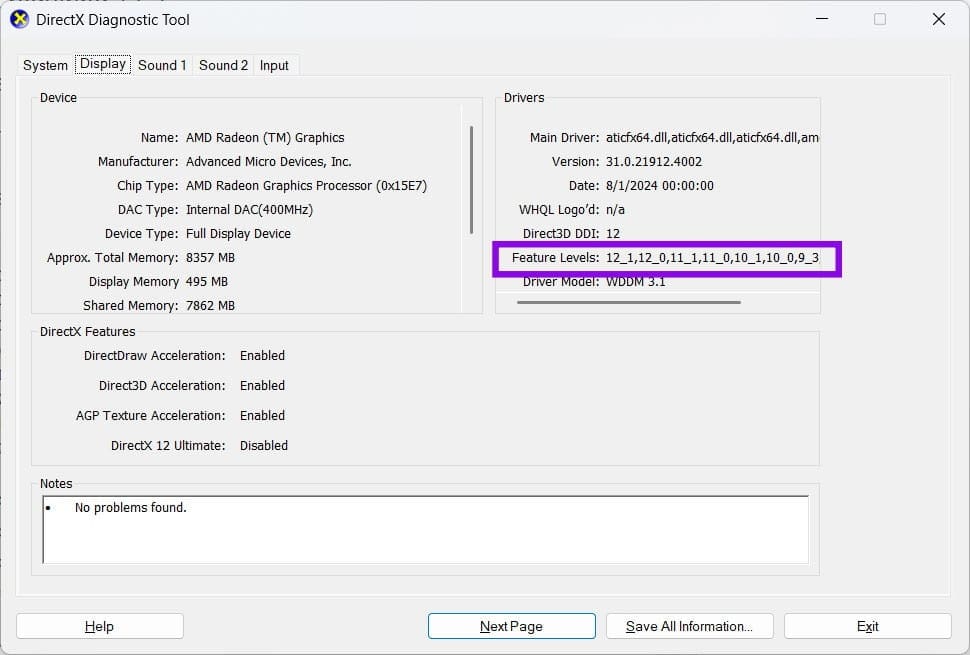
Step 2. Look for the Feature Levels supported by your GPU. These may include 12_1 and 12_0, depending on your graphics hardware and driver.
DirectX 12 Not Supported on Your System Heres How to Fix It 2

If you don’t see either of these, it means that your GPU may not meet the DirectX 12 feature-level requirements of the game you’re trying to play. Check the game’s minimum system requirements and compare them with your GPU’s levels. If your GPU doesn’t meet those requirements, you may need a newer graphics card.

Fix DirectX 12 Not Supported Issues: Update GPU Drivers

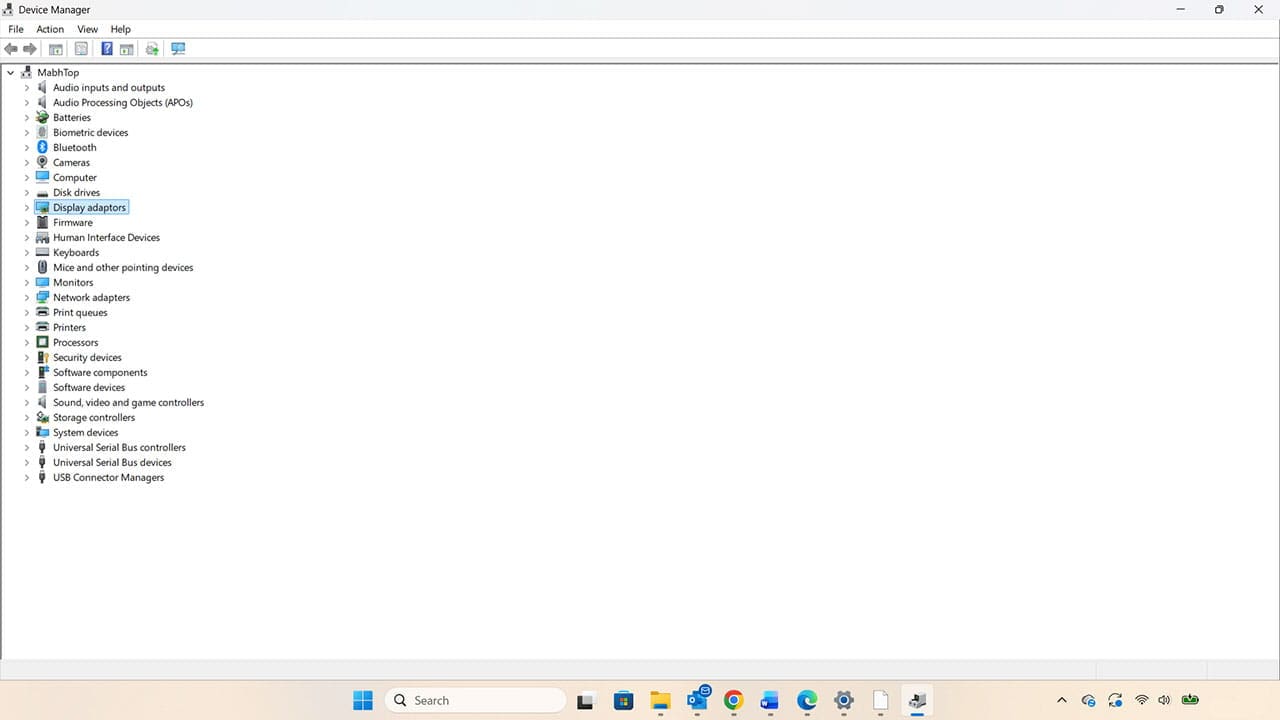
Step 1. Where a GPU should be able to support DirectX 12 but you’re still receiving error messages, it could simply be that the drivers need updating. Microsoft frequently updates components like DirectX via Windows updates. If your GPU hasn’t had the relevant driver updates, this could be causing a conflict. The simplest way to update drivers is to open Device Manager. You can simply search for Device Manager and click “Open” when it appears.
DirectX 12 Not Supported on Your System Heres How to Fix It 3

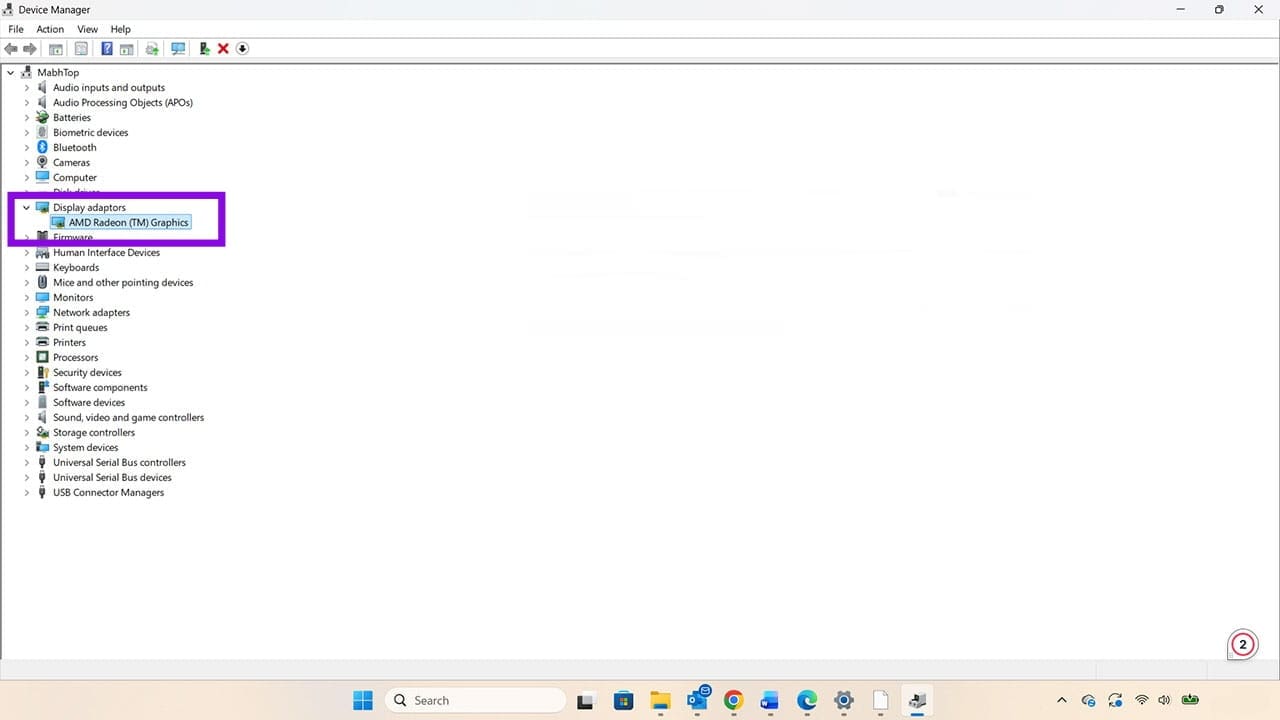
Step 2. Look for Display Adapters and click on it to reveal your PC’s GPU. In this instance, it’s an AMD Radeon™ graphics unit.
DirectX 12 Not Supported on Your System Heres How to Fix It 4

Step 3. Right-click on the graphics unit and select “Update driver.”

DirectX 12 Not Supported on Your System Heres How to Fix It 5

Step 4. Choose the option to “Search automatically for drivers.” Note: Windows will only search for drivers on your computer. If you believe that there are newer drivers that haven’t yet been downloaded, head to the GPU manufacturer’s website and use their support pages to find the relevant drivers. Once you’ve downloaded them, you can follow the process above to ensure they’re installed correctly.

DirectX 12 Not Supported on Your System Heres How to Fix It 6

Once complete, you should find that you stop seeing the DirectX 12 Not Supported error and your games work as expected.

Categories: Windows

Author Evan Mercer

I’m a computer science grad who loves to tinker with smartphones and tablets in my spare time. When I’m not writing about how to fix techy problems, I like hanging out with my dogs and sipping nice wine after a tough day.

You Might Also Like

  • Win7 User Account Control settings

    Enable or Disable User Account Control (UAC) in Windows

    Mitch BartlettWindows
  • Windows 11 Disable Are you sure you want to move this file to the Recycle Bin Dialog

    Windows 11: Disable “Are you sure you want to move this file to the Recycle Bin?” Dialog

    Mitch BartlettWindows
  • bluetooth-toggle-missing-windows-10

    Fix Bluetooth Toggle Missing on Windows 10 or 11

    Madalina DinitaWindows
  • surface-pen-not-working-after-update

    Fix Surface Pen Not Working After Update

    Madalina DinitaWindows

Leave a Reply

Your email address will not be published. Required fields are marked *

  • print to pdf not working

    Print to PDF Not Working? 3 Fixes to Try

  • how to update bios windows 11

    How to Update BIOS on Windows 11

  • antimalware service executable

    Antimalware Service Executable Draining CPU? How to Fix It

  • video_tdr_failure error

    How to Fix the VIDEO_TDR_FAILURE Blue Screen in Windows

  • cool command prompts

    3 Cool Command Prompt Hacks to Customize Your Windows Desktop UI

profile pic

The Experts Behind Technipages

My name is Mitch Bartlett. I've been working in technology for over 20 years in a wide range of tech jobs from Tech Support to Software Testing. I started this site as a technical guide for myself and it has grown into what I hope is a useful reference for all.

Learn More

technipages logo white
linkedin icon

Technipages is part of Guiding Tech Media, a leading digital media publisher focused on helping people figure out technology. Learn more about our mission and team here.

© 2026 Guiding Tech Media All Rights Reserved

  • About Us
  • Contact
  • Terms of Use
  • Privacy Policy

© 2026 Guiding Tech Media All Rights Reserved

Information from your device can be used to personalize your ad experience.
Do not sell my personal information.

Last Updated on November 17, 2026 by Evan Mercer