You open Windows Security to check or change a setting and … it’s blank. Or worse, there’s an intimidating error message.
Having a blank Windows Security window can be alarming, but don’t worry. The problem may be the Windows Security blank screen in the app’s interface and can usually be restored in a few minutes.
Windows Security Blank Screen: Where to Start
Work through these fixes in order, from simplest to most complex. Unless otherwise noted, the fixes apply to both Windows 10 and 11.
Fix 1: Install Updates and Restart
Start with a simple PC reboot. Sometimes that’s all that’s needed to restore damaged settings. Before you restart, make sure all your Windows updates are up to date.
Fix 2: Reset the App (Windows 11)
If the issue persists after a reboot, try resetting the Windows Security app itself. On Windows 10, the same reset lives under Settings > Apps > Windows Security > Advanced options > Reset.
Step 1. Right-click the “Start” button.
Step 2. Select “Terminal (Admin).”
Step 3. Confirm the “User Account Control” prompt.
Step 4. Enter the following at the prompt: “Get-AppxPackage Microsoft.SecHealthUI -AllUsers | Reset-AppxPackage.”
Step 5. Wait for the PowerShell prompt to reappear (without the red text).
Step 6. Restart the PC using Start > Power > Restart.
Fix 3: Re-Register the Windows Security App
If the app reset fails, Windows may have lost the registration of the app package, which may result in the Windows Defender window not loading. Re-register it as follows.
Step 1. Open “Terminal (Admin)” or “Windows PowerShell (Admin),” depending on which is available on your PC.
Step 2. Check that the package is there by entering the following command:
Get-AppxPackage *SecHealthUI* -AllUsers | Select Name, Version, InstallLocation
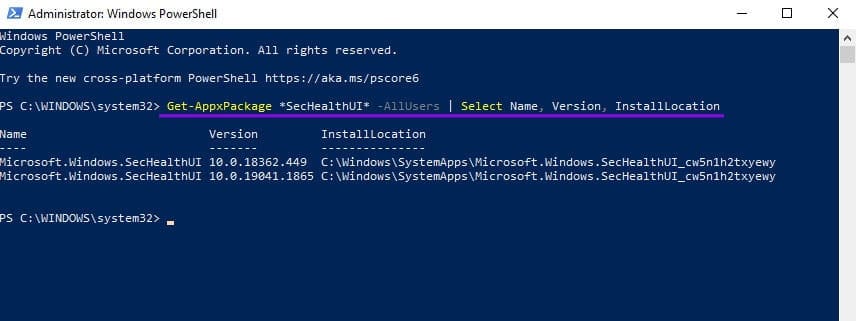
You should see an install location.
Step 3. Re-register the app from its own folder with this command:
Get-AppxPackage *SecHealthUI* -AllUsers | Foreach {Add-AppxPackage -DisableDevelopmentMode -Register “$($_.InstallLocation)\AppXManifest.xml”}
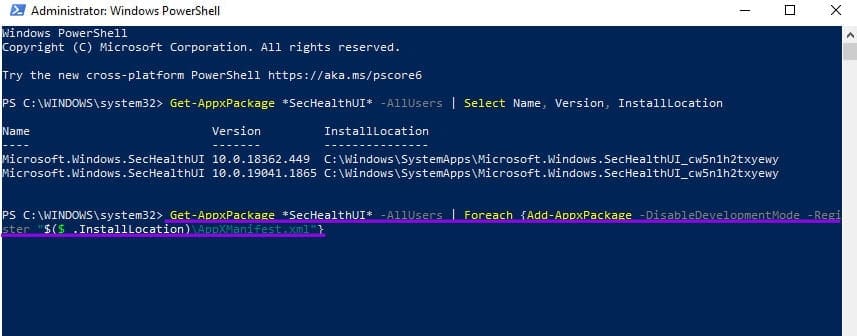
Step 4. Close the terminal, reboot the PC, and try opening Windows Security again.
Fix 4: Install the Latest Windows Security Platform (Windows 11)
If you’re on Windows 11 and still face the Windows Security blank screen, it’s time to try reinstalling the Windows Security app. Windows has a specific update for the app, KB5007651, which may be corrupted.
Step 1. Open Settings > Windows Update and click Check for updates.
Step 2. If you see an update for Windows Security platform – KB5007651 offered, install it.
Step 3. After it installs, restart using Start > Power > Restart and open Windows Security.
Step 4. If Windows Update offers nothing and the window is still blank, open catalog.update.microsoft.com in your browser.

Step 5. Search for KB5007651 and download the latest version listed for your device’s processor architecture.
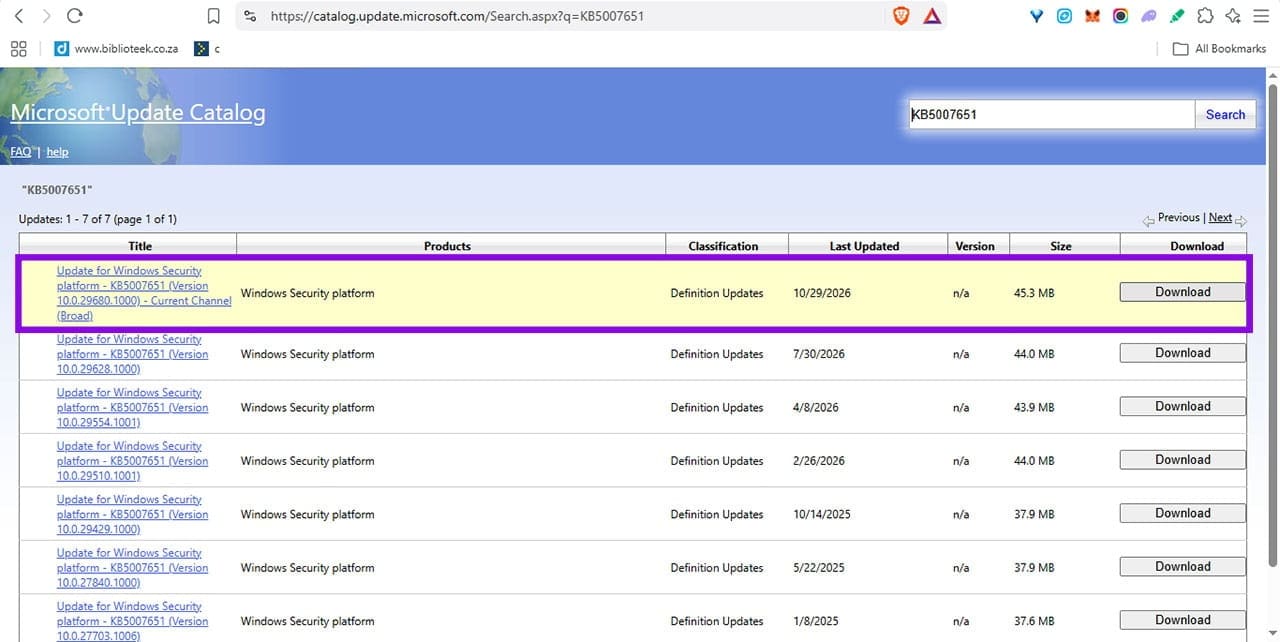
Step 6. In File Explorer, right-click the downloaded securityhealthsetup file and select “Run as administrator.”

Step 7. After it installs, restart your PC and check whether Windows Security opens normally.
Fix 5: Check That the Security Services Are Running
Next, check that the relevant services are actually running. Some services may be running only when needed, so don’t change their startup settings just because they aren’t currently running. If they aren’t, start them.
Step 1. As in Fix 2, open Terminal (Admin) or Windows PowerShell (Admin) in Windows 11 or 10, respectively.
Step 2. Enter the following command:
Get-Service WinDefend, SecurityHealthService, wscsvc | Select Name, Status, StartType
It will display the status of the three named services.
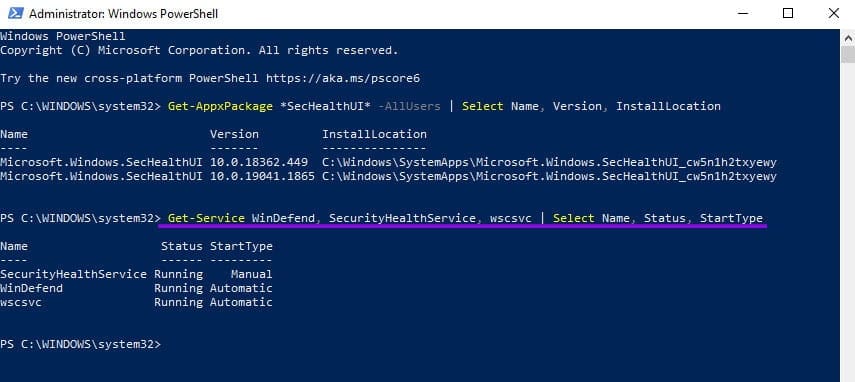
Step 3. If any are stopped, press Win + R, type services.msc, and press “Enter.”

Step 4. Find the service and open it. If its startup type is “Disabled,” investigate why before changing it. Set the Startup type to “Automatic” if it says “Disabled.” Afterwards, select “Start.”
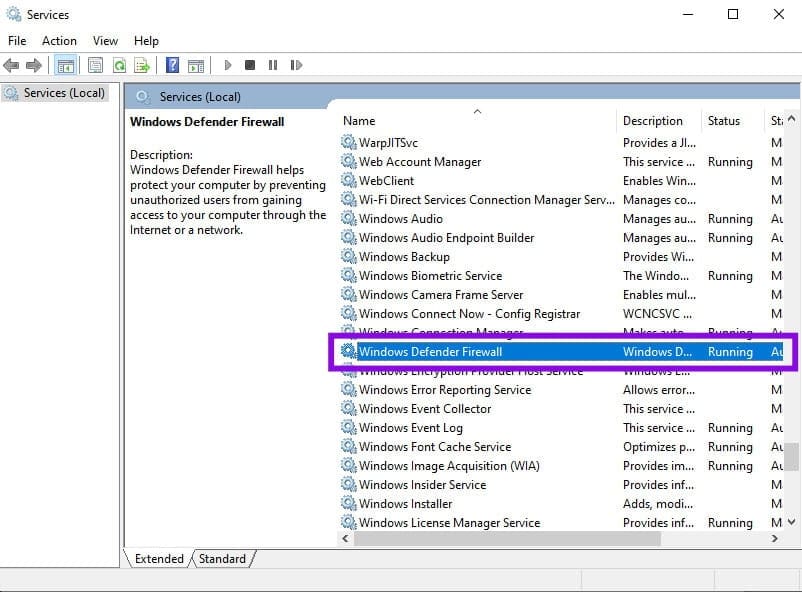
Step 5. Restart the machine and check if the services are all running again. If a service has gone to Disabled, something else is resetting it.
Fix 6: Remove Leftover Tools and Policies
Step 1. Open Settings > Apps > Installed apps (Windows 11) or Apps & features (Windows 10) and uninstall any antivirus or security suite you no longer use. Use the app’s own uninstaller.
Step 2. As above, open Terminal (Admin) or Windows PowerShell (Admin) in Windows 11 or 10, respectively.
Step 3. Enter the following command:
Get-ItemProperty -Path ‘HKLM:\SOFTWARE\Policies\Microsoft\Windows Defender’ -Name DisableAntiSpyware, DisableAntiVirus
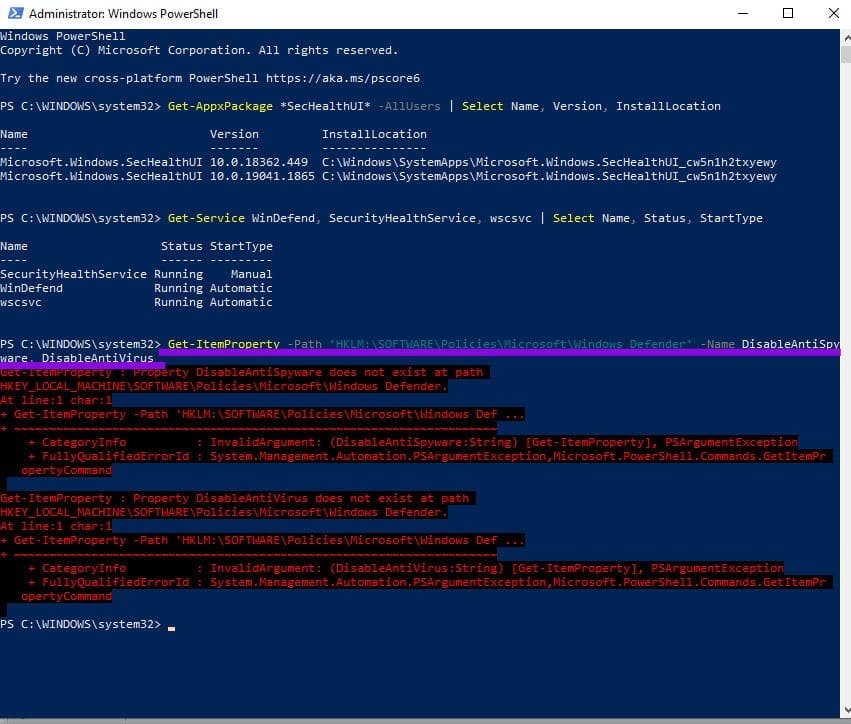
Step 4. If the command says the values do not exist, the issue is not here. If one of them is 1, delete both values with this command: “Remove-ItemProperty -Path ‘HKLM:\SOFTWARE\Policies\Microsoft\Windows Defender’ -Name DisableAntiSpyware, DisableAntiVirus.”
Step 5. Restart your PC.
Fix 7: Repair Windows System Files With DISM and SFC
If the Windows Security screen is still blank, try repairing system files using two methods, DISM and SFC.
Step 1. In Windows 11, open “Terminal (Admin).” In Windows 10, type “cmd” in the Search box, right-click “Command Prompt,” then select “Run as Administrator.” Click “Yes” at the authentication prompt.
Step 2. Type the following command to run DISM, then press “Enter”:
DISM.exe /Online /Cleanup-Image /RestoreHealth

It might take a while to run.
Step 3. When it’s done, in the same window, enter “sfc /scannow” to run System File Checker, then press “Enter” Leave the window open until the scan completes.
Step 4. Restart your PC and try Windows Security again.
Fix 8: Repair Windows With Reinstall Now
Finally, if all else has failed, try repairing Windows. All your files, apps, and settings will be preserved.
Step 1. In Windows 11, open Settings > System > Recovery.
Step 2. Next to “Fix problems using Windows Update,” select “Reinstall now” and confirm. Don’t use the Reset PC option. This can often be a cause of the Windows Security blank screen error in the first place.
Step 3. The PC will restart several times during the process.
Step 4. When it’s done, sign in to Windows and install all available updates. Then try opening Windows Security again.