You try to access a hard drive, USB flash drive, or external hard drive and receive the ominous message “The request failed due to a fatal device hardware error.” You can’t access your files on the drive, potentially causing a disaster.
Are the contents of the drive gone? Not necessarily. The issue might be something you can easily resolve.
In this guide, we’ll explain how to fix fatal device hardware error (Windows) and restore access to your drive.
What Does Fatal Device Hardware Error (Windows) Mean?
The error typically occurs when a hardware issue is preventing Windows from communicating with the device. You might see it when you plug in an external or flash drive (in those cases, an external drive fatal hardware error), or when you try to view or copy files to or from the device.
Causes of the Error
The error often means the device is physically damaged, but not always. It could also be due to:
- A faulty USB connection
- Bad sectors on the drive
- File system corruption
- A failing device (common with old drives)
Fix 1: Check Your Connections
Start by checking the cable and ports for a faulty connection.
Step 1. Disconnect the device from your computer.
Step 2. Check the cable for signs of damage.
Step 3. Assuming it’s OK, try connecting via a different port.
Step 4. If it still gives the error, try it with a different cable.
Step 5. If that fails, try connecting the device to a different PC. If it works, the issue is with the port, drivers, or settings on your original PC, not the device.
Fix 2: Restart the Machine
Sometimes, a simple restart can resolve connection errors by refreshing system processes and connections to attached hardware.
Disconnect the device before restarting, then reattach it only after Windows has booted up completely.
Fix 3: Run Windows Error Checking Processes
If the issue persists, the next place to check is Windows itself. Start with Windows’ built-in Error Checking tool.
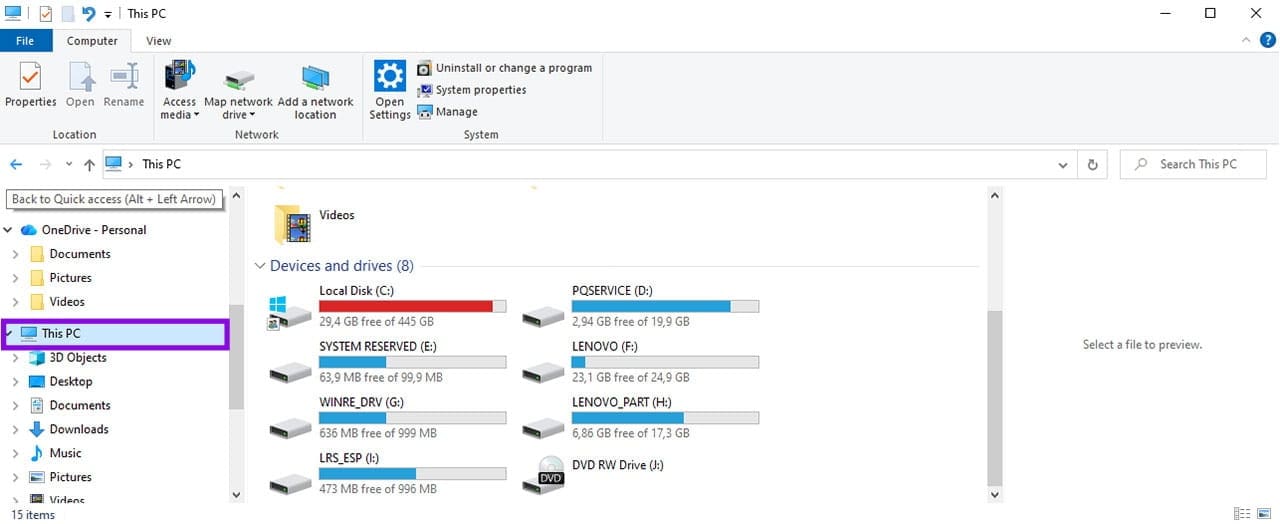
Step 1. Press Win+E to open File Explorer, then select “This PC.”
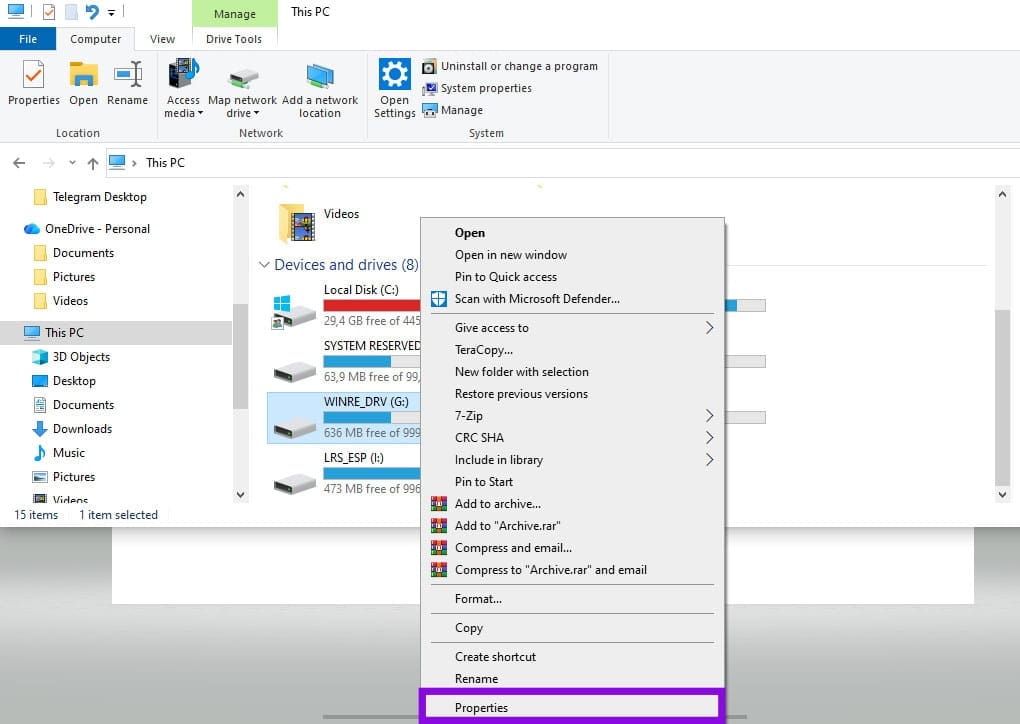
Step 2. Right-click on the problem device and select “Properties.”
Step 3. In the “Tools” tab, click the “Check” button under “Error checking.”
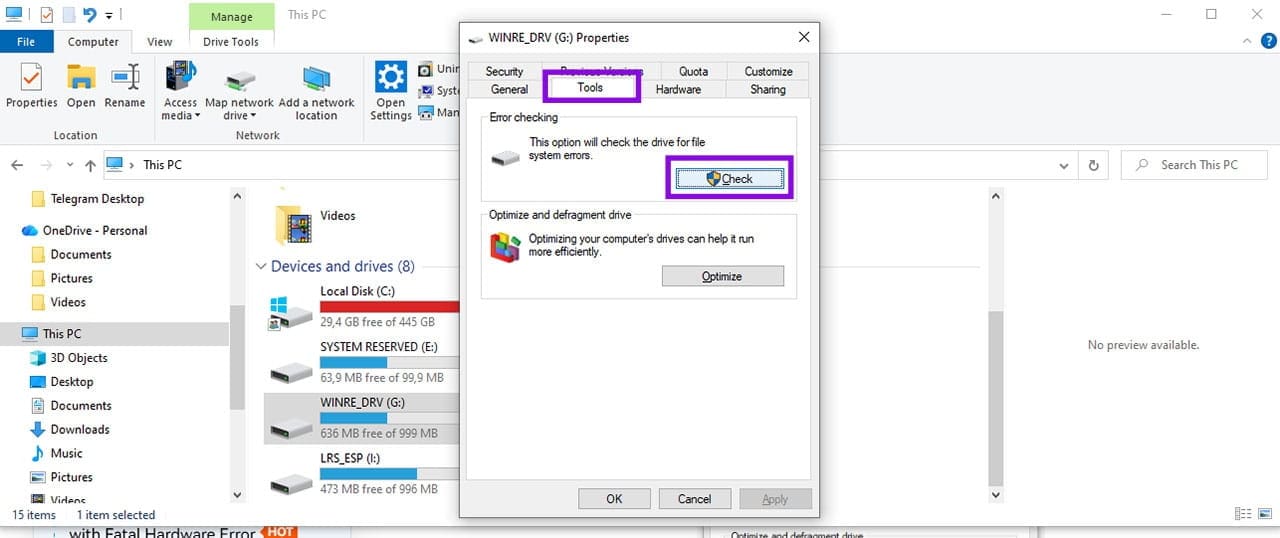
Step 4. Choose “Scan Drive” (if prompted).
Step 5. Allow some time for the process to complete.
Step 6. Restart the PC.
Fix 4: Update or Reinstall the Disk Driver
If Error Checking didn’t resolve the issue, the next most likely culprit for the error is an outdated or corrupt disk driver. Installing or updating the driver can restore access to your device.
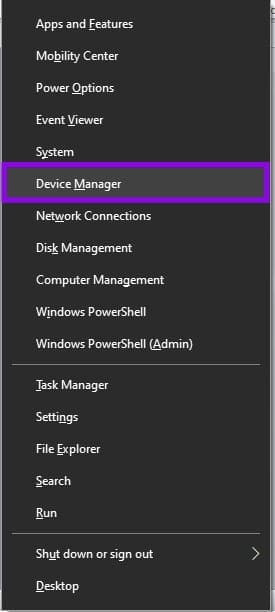
Step 1. Press Win+X and select “Device Manager.”
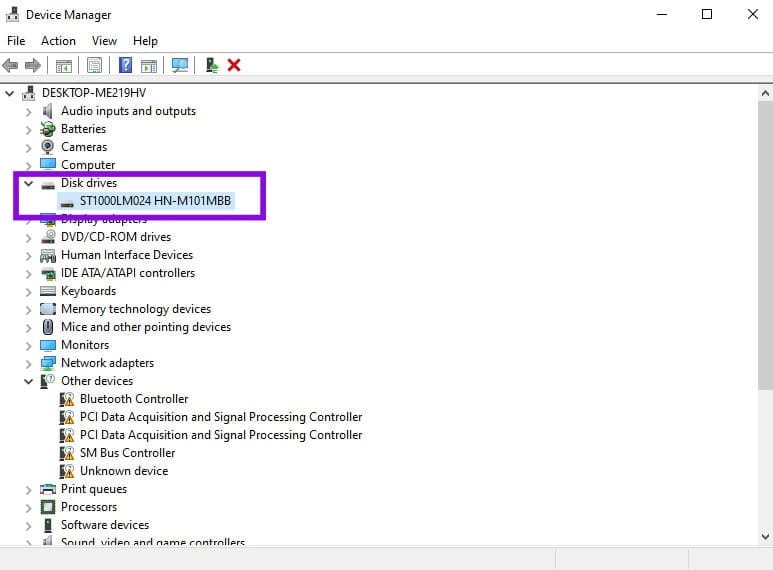
Step 2. Expand Disk drives if the problematic device is a hard drive, or USB controllers if it’s a USB drive.
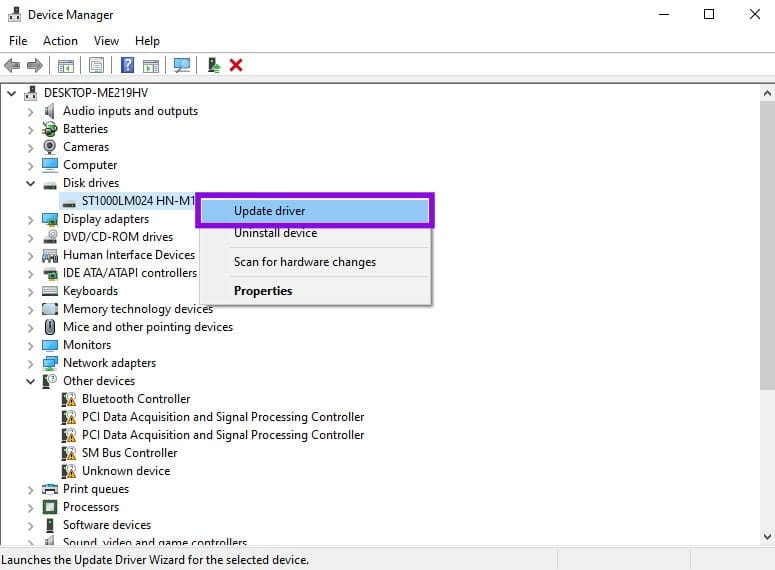
Step 3. Right-click the device and select “Update driver.”
Step 4. Choose “Search automatically for drivers” and follow the prompts.
Step 5. If the device still isn’t accessible after a driver update, try uninstalling it. Right-click the device again and choose “Uninstall device.”

Step 6. Disconnect the device and restart the machine. Windows will automatically reinstall the device driver.
Step 7. Restart the PC and try reconnecting the device.
Fix 5: Fix Disk Errors With CHKDSK
Next, check for errors on the disk that may be preventing Windows from accessing it.
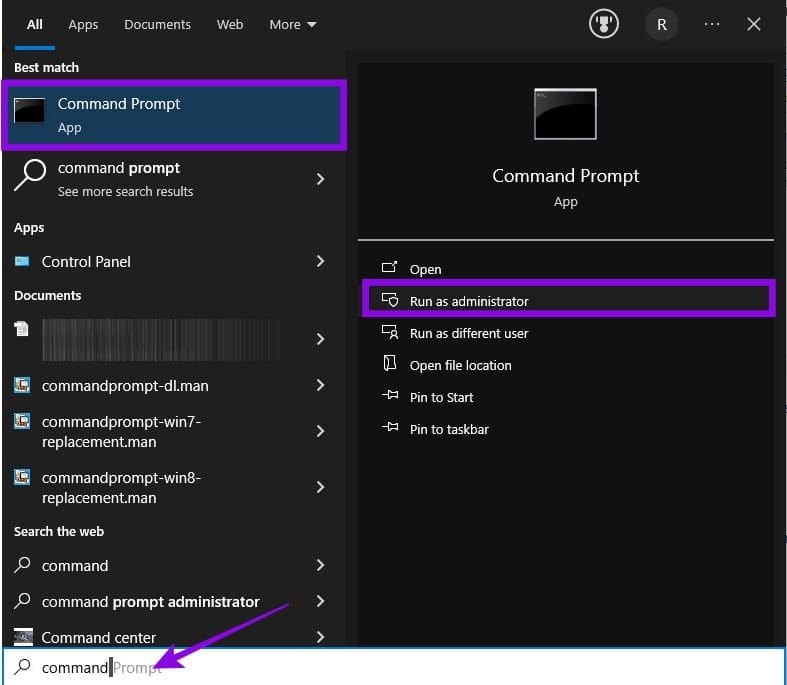
Step 1. Open Command Prompt as an Administrator.
Step 2. Type chkdsk X: /f /r (replace X with the drive letter of the problem device), then press “Enter.” You can copy the text, then right-click at the prompt in Command Prompt to paste.

Step 3. It may take quite some time for the scan to complete.
Fix 6: Destructive Methods
If all the above methods fail, you can try initializing or formatting the drive. However, these methods will likely (or certainly, in the case of formatting a non-empty drive) result in data loss. Formatting an existing volume destroys the data, while initializing a disk that’s already in use erases existing data.
If the device is new or empty, that’s probably worth the risk. But if you have important files on the device, you probably want to perform a backup using third-party software before attempting this, or send the device to data recovery experts.