Audio that lags a split second behind video or a voice call that sounds like it’s coming through a tunnel indicates that you might be experiencing a sound delay in Windows 11. The cause here is almost always one of three things: a driver issue, an audio processing setting that’s adding latency, or another app modifying sounds gone wrong. Here are the most common troubleshooting steps for audio delay in Windows 11.
Quick Checks
Before going through the full fixes, try these first:
- Unplug and re-plug any wired headset or speakers.
- Toggle Bluetooth off and on if you’re using wireless audio devices.
- Restart your PC.
- Check if the delay only happens in one app, in which case it’s best to troubleshoot that app specifically.
Fix 1 – Run the Windows Audio Troubleshooter for Sound Delay in Windows 11
The built-in troubleshooter catches a surprisingly wide range of audio problems automatically.
Step 1. Open “Settings” using Win + I, select “System” from the left sidebar, and click on “Troubleshoot.”
Step 2. Click “Other troubleshooters.”
Step 3. Find “Audio” and click on “Run.” This will automatically open the “Get Help” diagnostic app to scan your audio services.
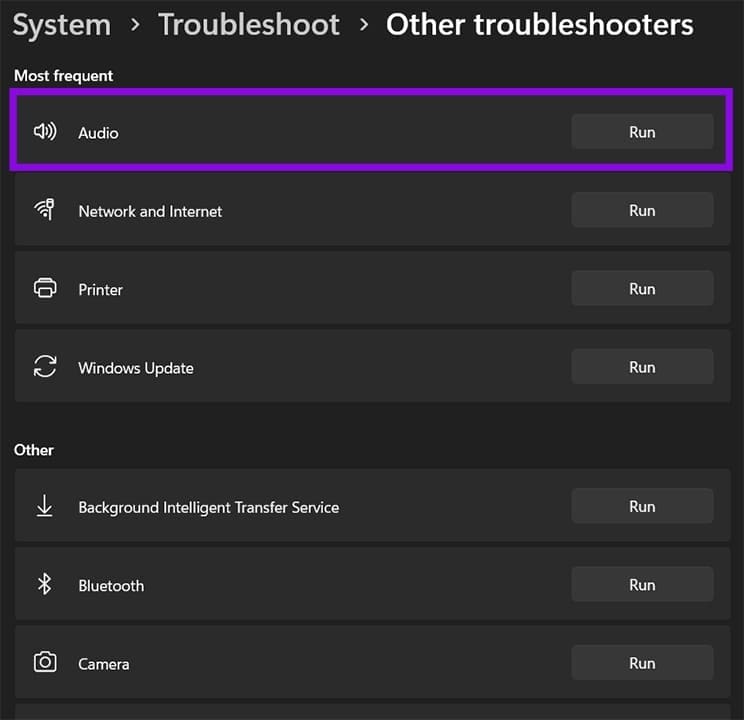
Step 4. Follow any prompts and apply the recommended fixes.
The troubleshooter will restart the audio service and reset the device configuration, so you’ll basically go to the recommended and factory settings.
Fix 2 – Disable Audio Enhancements
Windows 11 applies a processing layer to audio output by default (unlike previous Windows versions). These can add processing time and can result in latency or audio delay in Windows 11.
Step 1. Right-click on the speaker icon in the taskbar and choose “Sound settings.”
Step 2. Under “Output,” click on your active audio device to open its properties.
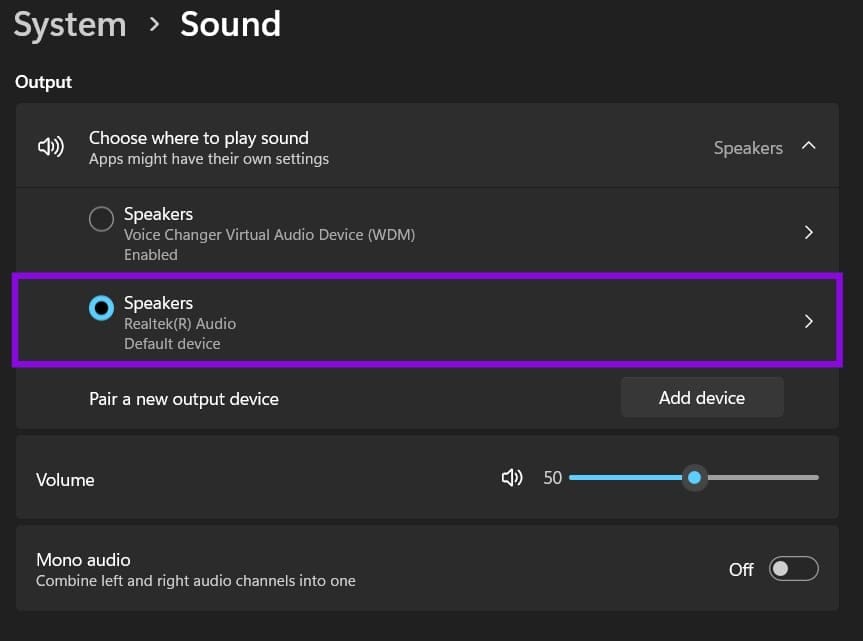
Step 3. Go to “Audio enhancements,” and turn off enhancements.
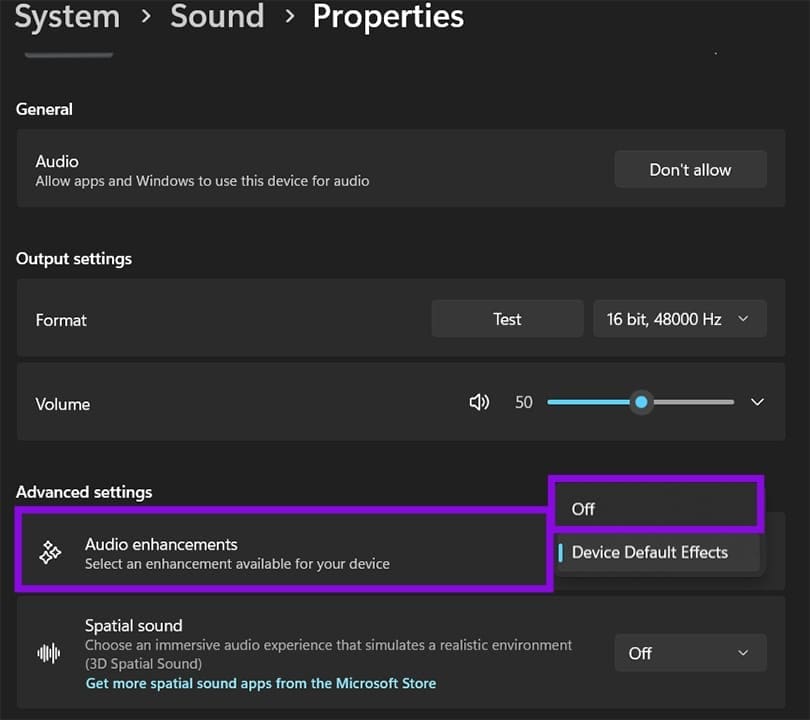
Alternatively, you can access the same setting through the legacy Sound panel:
Step 1. Press “Win + R,” type “mmsys.cpl,” and click “Enter.”
Step 2. Double-click your active playback device to open its properties.
Step 3. Go to the “Advanced” tab and uncheck “Enable audio enhancements,” then click “OK.”
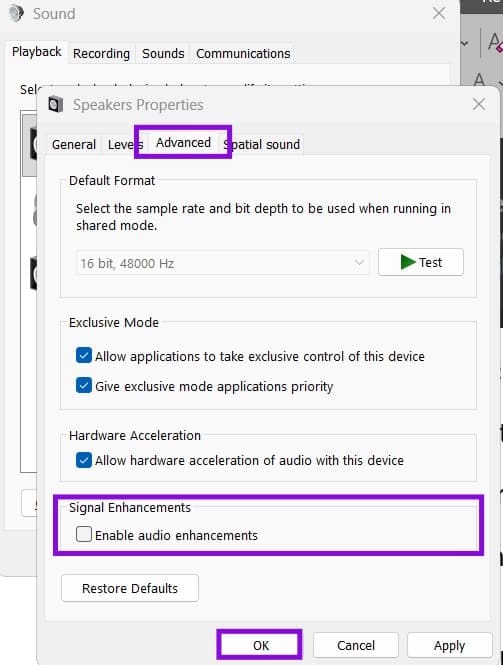
If the Enhancements tab isn’t visible, your driver will use enhancements through its own software (like Realtek Audio Console or Dolby Access), so check there instead.
Fix 3 – Change the Audio Format and Sample Rate
Windows sets a default audio format for each output device that determines the bit depth and sample rate it uses, but this can be changed to improve sound latency at the cost of quality.
Step 1. Open the Sound panel with “Win + R” and “mmsys.cpl.”
Step 2. Double-click your active playback device and go to the “Advanced” tab.
Step 3. Open the “Default Format” dropdown. The options list sample rates (44100 Hz, 48000 Hz) and bit depths (16-bit, 24-bit).
Step 4. Try “16 bit, 44100 Hz (CD Quality)” as a baseline, then click “Test” to hear whether the delay improves.
Step 5. If 44100 Hz doesn’t help, try “16 bit, 48000 Hz” — this is what most USB audio devices and monitors prefer natively.
The right format varies by device, so it’s worth cycling through a few options. Higher sample rates and bit depths aren’t always better in practice if the hardware has to convert them. In some cases, you might not be able to change this.
Fix 4 – Update or Roll Back the Audio Driver
A driver update (or lack thereof) can sometimes cause a sound delay in Windows 11.
Step 1. Right-click the Start button and select “Device Manager.”
Step 2. Expand “Sound, video, and game controllers.”
Step 3. Right-click your audio device and select “Update driver,” then choose “Search automatically for drivers.”
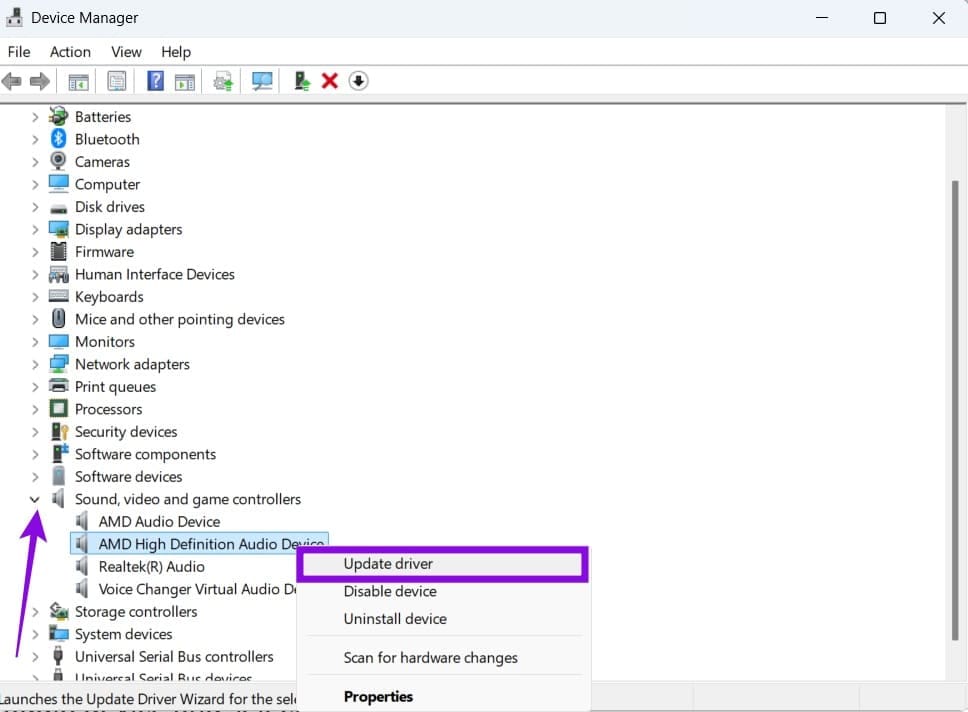
If Windows doesn’t find anything newer, go to your motherboard or laptop manufacturer’s support page and download the latest audio driver directly.
Step 4. To roll back a driver update, use the “Properties” option in the right-click context menu instead, then go to “Roll Back Driver” in the “Driver” tab.
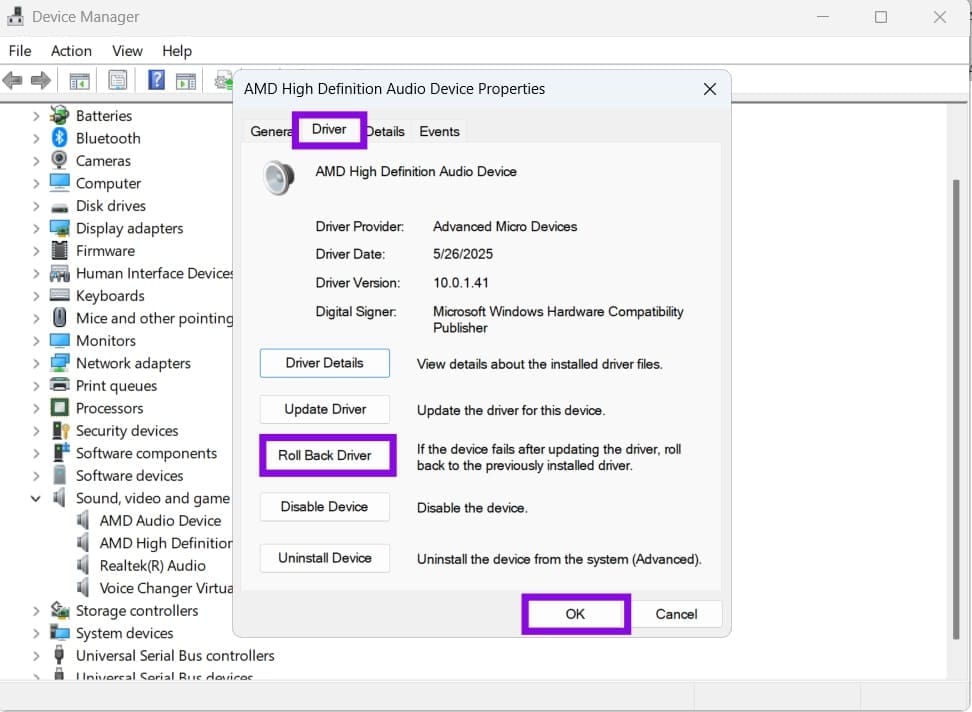
If “Roll Back Driver” is greyed out, Windows doesn’t have a previous version on record. In that case, uninstall the current driver entirely (check “Delete the driver software for this device”), restart, and let Windows reinstall a generic one.
Fix 5 – Check for Conflicting Applications
Some applications install their own audio processing layers. This includes voice chat software, recording tools, equalizer apps, and virtual surround programs, which are all common culprits.
Step 1. Open Task Manager and look through your running processes for audio-adjacent software — things like Voicemod, Equalizer APO, Nahimic, Sonic Studio, DTS Sound Unbound, or the audio companion apps for gaming headsets.
Step 2. End those processes one at a time and test audio after each one.
Step 3. If disabling one resolves the delay, check that app’s settings for a low-latency mode, or consider removing it if you don’t actively use it.