
Netflix is perhaps the world’s most popular service for streaming movies, TV shows, and documentaries. The service supports all the platforms out there, including PC, Android, macOS, Android, smart TVs, gaming consoles, and more. But if you watch Netflix on Edge, you may experience various glitches and errors a bit more frequently compared to other platforms. Let’s explore what you can do to fix the problem.
How to Fix Netflix Errors on Edge
Update Edge and Windows 10
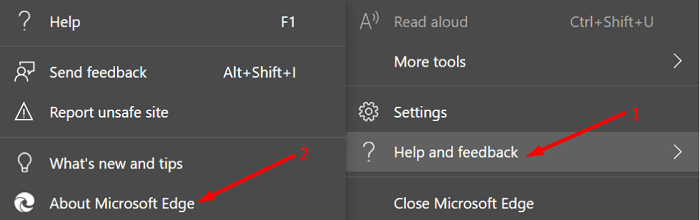
First of all, make sure you’re running the latest Edge browser version on your device. Click on More options, go to Help and Feedback and select About Microsoft Edge to check for updates.
Microsoft has packed plenty of Netflix fixes and improvements in recent OS updates, including KB5000842, KB5000842, KB5003173, and KB5003214. So, make sure to update your browser and OS to benefit from the latest fixes.
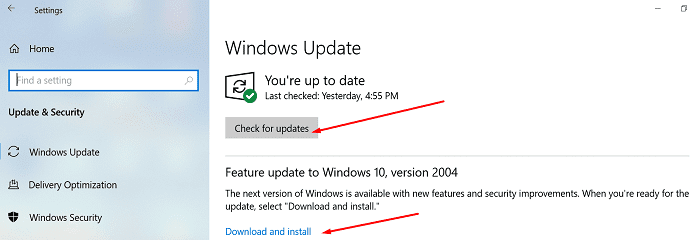
Go to Settings, select Update & Security, go to Windows Update, and hit the Check for updates button.
Restart your computer, launch Edge again, go to netflix.com and check if the issue is gone.
Clear the Cache and Cookies
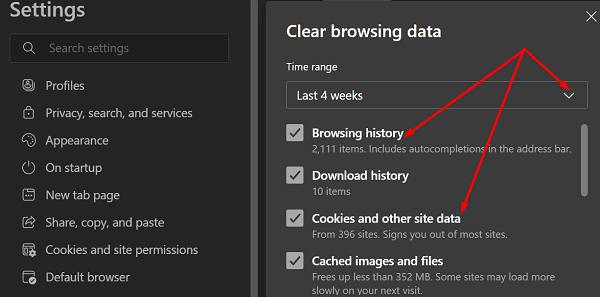
Go to More options, select History, and then click on More options again. Select Clear browsing data and delete your cache and cookies from the last four weeks. Refresh the Netflix tab, and if the issue persists, clear your cache and cookies from All time.
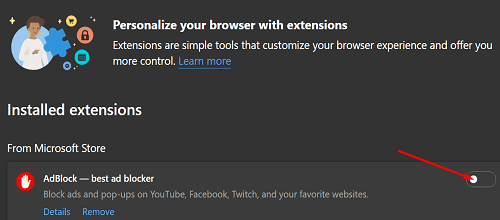
Additionally, don’t forget to disable your extensions as well. They might also be interfering with Netflix’s scripts, just as your cache and cookies might.
Enable PlayReady DRM and Disable Widevine DRM
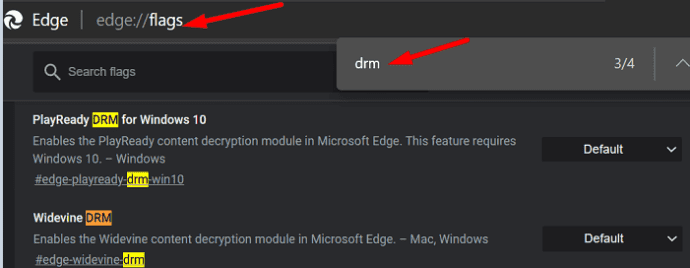
A number of users suggested that enabling PlayReady DRM and disabling Widevine DRM could fix many Netflix-related errors on Edge.
- Open a new tab, paste edge://flags/, and hit Enter.
- Press CTRL and F and enter DRM in the search field.
- Then enable PlayReady DRM for Windows 10.
- After you do that, locate and disable Widevine DRM.

- Restart the Edge browser and check the results.
Add Netflix as a Trusted Site in Internet Settings
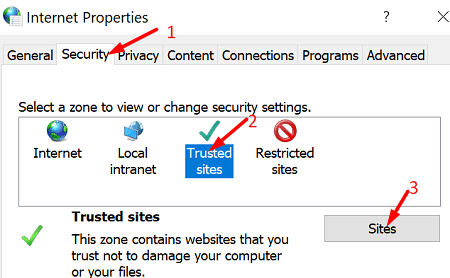
- Type Internet Options into the Windows search bar.
- Select Internet Options and click on the Security tab.
- Go to Trusted Sites, and select Sites.

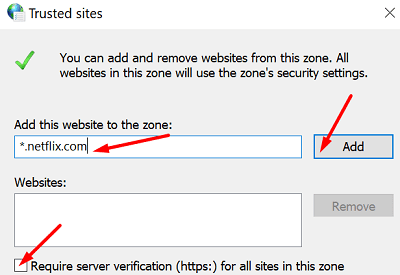
- After that, disable Require server verification.
- Should there be anything related to Netflix in the Websites field, delete all the entries.
- Then go to Add this website to the zone and type *.netflix.com.

- Hit the Add button to add Netflix to the list of trusted websites.
- Save the changes and check the results.
Turn Off Hardware Acceleration
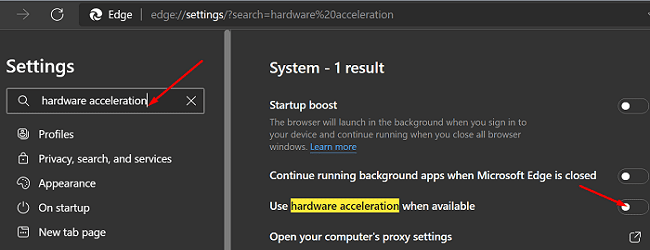
Go to Edge Settings, and click on System. Then locate “Use hardware acceleration when available” and disable the option. Refresh your browser and check if your Netflix errors are gone.
Reinstall Edge or Switch to a Different Browser
If the issue persists, uninstall Edge and reinstall a fresh copy of the browser from Microsoft’s official website. If this method fails to solve the problem, switch to a different browser. Keep in mind that Netflix supports Google Chrome, Edge, Firefox, and Opera.
Conclusion
Unfortunately, Netflix errors are quite common on Microsoft Edge. There are various methods that you can use to fix the problem. For example, you can clear your Edge cache and cookies, update the browser, enable PlayReady DRM, disable Widevine DRM, and add Netflix as a trusted site in Internet Options. If the problem persists, reinstall Edge or switch to a different web browser.
Did these solutions help you fix the problem? Share your feedback in the comments below.




Nope., did them all and it does nothing. I click and it shows the play arrow, I click, it spins then back to the play arrow and it plays NOTHING
This did help me, my Edge was not up to date and I didn’t even consider that factor for some reason.
I ended up just using chrome for the past two days solely for Netflix watching and everything else I still did on Edge. Now I can go back to being a full-fledged Edge user.