

Microsoft Teams users can insert both internal and external hyperlinks to quickly navigate to different pages. But there are times when this functionality stops working, and Teams fails to open links. Of course, opening links with one left click is always more convenient than using various other workarounds. After all, that’s what hyperlinks are for. So, let’s see how you can troubleshoot this issue.
How to Fix Microsoft Teams Not Opening Hyperlinks
Open Links in a New Tab
If we’re talking about a webpage link, you can always right-click on the problematic link, copy it, and paste it into a new tab. Or you can trackback internal links in an attempt to reach the page you’re interested in.
Log Out, Clear the Cache and Log Back In
- Log out, restart the desktop app, log back in and check if the issue persists.
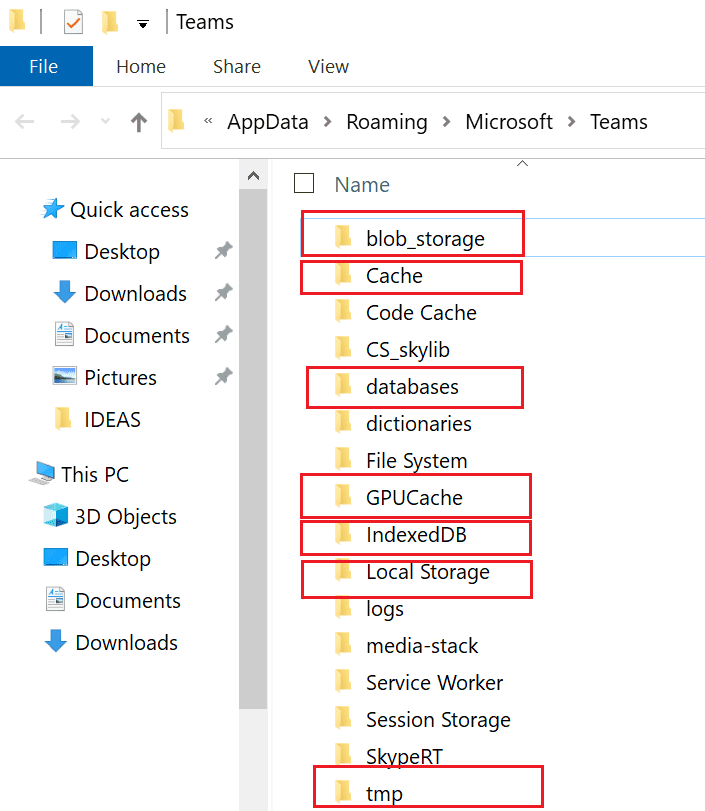
- If this is the case, type %AppData%\Microsoft\teams in the Windows Search bar and hit Enter.
- Delete all the files from the following folders:
- %AppData%\Microsoft\teams\application cache\cache
- %AppData%\Microsoft\teams\blob_storage
- %AppData%\Microsoft\teams\databases
- %AppData%\Microsoft\teams\cache
- %AppData%\Microsoft\teams\gpucache
- %AppData%\Microsoft\teams\Indexeddb
- %AppData%\Microsoft\teams\Local Storage
- %AppData%\Microsoft\teams\tmp
If you also use Teams for Web on Chrome or Edge, you need to clear the online cache.
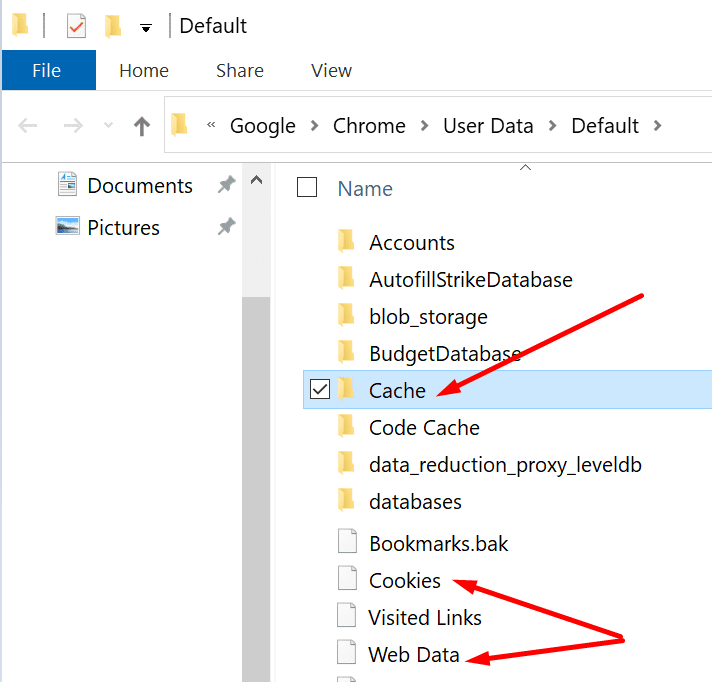
- Type %LocalAppData%\Google\Chrome\User Data\Default\ in the Windows Search bar. If you use Edge, type %LocalAppData%\Microsoft\Edge\User Data\Default\.
- Locate the Cache folder and the Cookies and Web Data files.

- Delete the Cache folder and all the two individual files.
- Launch Teams, sign in and check if hyperlinks are working now.
If you receive a link to a file in a Teams channel, but you can’t open the desktop app link, ask the sender to send you the SharePoint link instead of the Teams share link.
As a quick reminder, Teams is actually a front end for SharePoint when it comes to files. Teams stores your file in a SharePoint repository.
Update the App
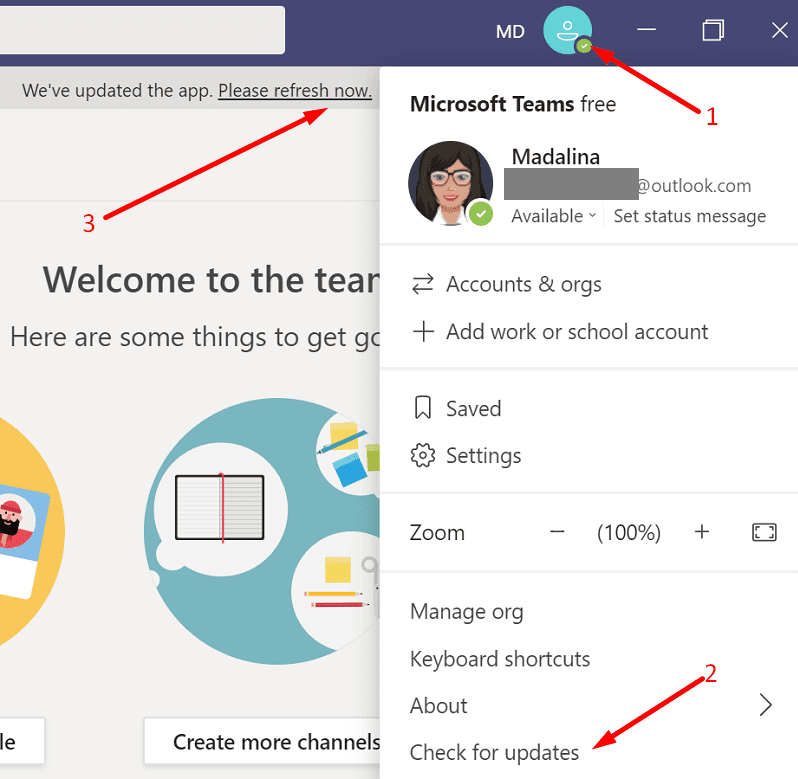
If Teams links are not clickable due to a known issue affecting your Teams version, update the app. Maybe Microsoft already patched the issue in the latest app version. Click on your profile picture and check for updates. Don’t forget to update your OS as well.
Conclusion
If Teams hyperlinks won’t work, most likely, this problem is caused by the app cache. Clear the cache, update the app and check the results. If nothing works, simply copy the link and paste it into a new tab. Do you often experience hyperlink issues on Teams? Tell us more about your experience in the comments below.





if nothing works just delete the windows profile. (backup user data ofc)
goto regedit
delete profile:
HKLM\SOFTWARE\Microsoft\Windows NT\CurrentVersion\ProfileList
search for the profile and del.
setup new profile and then it should work again
Open Task Manager and kill all instances of your browser executable (i.e. chrome.exe).
Also, kill all instances of Teams executable (i.e. teams.exe).
Restart Teams.
Followed all the advice, still doesn’t work…. also, even with TEAMS closed all files in the cache won’t delete as still being used by the program. In a lot of instances I can’t copy links as people are posting formated links (i.e. click HERE).
I am having an issue in MS Teams when I go to a team and then click “Open in SharePoint” that it takes me to my main HUB Association page and not the actual team site.
Suddenly, the Teams Copy Link option began working last week for our enterprise, for both folders and files. However, a link to a folder still opens in SP when users click it.
MS Teams is stupid as the only way to be invited if you don’t have Micro Soft email browser is with a URL link that does not launch Teams from within FireFox browser.
Why is there no direct link method that allows me to ace a meeting code into Teams app when it is open?!!!
Before I upgraded to O365, if I copied a link from Teams it would bring the user to Teams (not SP). Something is now messed up when I copy links.
Updating complete and still can not copy the link without opening share point. Very time consuming and not ideal. When will this be fixed?
Cache and update done. Still not working. For now it seems that I have to open in SharePoint and use the copy link there.
I cannot copy a link. I right click, copy link, and the window appears and just spins. I manage the team site for my department. I really need this to work. There was no issue before the update. Please fix this!
I have tried all these steps, but users are still not able to copy links on folders within teams. THe box pops up and just spins. This issue is very random, some users never have an issue copying links, others it’s hit and miss day over day,
To be specific, this is about “MS Teams -links” not opening within the “MS Teams Desktop App”. That is the case I’m also having and oddly the problems began with the new laptops (yes, plural). Is there a problem perhaps with how the newest M365 Premium Desktop Applications and MS Teams works when installing the first time around?
Oh, and while thanks for the help, these didn’t get me new results.
There are always challenges with the link not working.
Copying and pasting in the browser works sometimes – not always. Taking off the symbols at the beginning and end of the link was a suggestion made by one of your customers. That was of some help.
This App is not as easy to use as some others on the market.
No this was not helpful at all as I was not able to find where to clear the cache on Teams and the check for updates link ddid not work.
I find teams frustrating as a tool for sharing programs as a Primary teacher. Lots of gliches and very delayed at times.