Skip to content
LogoTechnipages
LogoTechnipages
  • Topics
        • Android
        • Browsers
        • Gaming
        • Hardware
        • Internet
        • iPhone
        • Linux
        • macOS
        • Office
        • Reviews
        • Software
        • Windows
        • Definitions
        • All Recent Posts
  • Product Reviews
  • About

Facebook: How to Set Daily Facebook Usage Reminder

Mel HawthorneApril 13, 2020 Comments (0)
Facebook Header

Everyone knows that Facebook is a time sink. It’s easy to get lost scrolling through endless posts from people you met once, years ago. If you’re trying to monitor the time you spend on Facebook, to leave you more time to do other things, then you’re in luck. Facebook provides tools to help track your usage and to set a daily time reminder. So, if you want to configure a daily time reminder, to help you monitor your Facebook usage, how do you go about it?

You can only configure a daily time reminder from within the iOS or Android Facebook app. The feature is not available for the website client. To configure the daily time reminder, first, open the app, then tap the burger menu icon in the bottom right of the Facebook app.

Scroll down and tap “Settings and Privacy”, then tap “Your time on Facebook” from the dropdown menu.
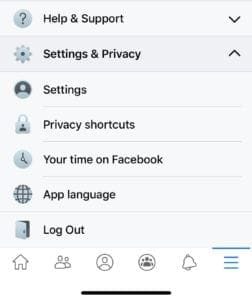
Tap “Your time on Facebook” under “Settings and Privacy”.

Once in the “Your time on Facebook” menu, tap “See Tools” listed under “Manage your time”. It’s the bottom left box.

“See Tools” under “Manage your time” in the bottom left box.

The bottom setting in the “Manage your time” page is “Daily time reminder”. Tap anywhere on the “Daily time reminder” option, to see the time configuration options.

Tap anywhere on the “Daily time reminder” option to pull up the time configuration options.

Configure the time reminder value you’d like to set, then tap “Set Reminder”. You can configure the time reminder in multiples of five minutes – so, for example, 30 minutes, or 2 hours.

Configure the length of time you want to the daily time reminder to be set for.

Tip: When you configure a reminder it will apply immediately and take into account the time you’ve already spent on Facebook that day. However, if you’ve set it to a value lower than the time you’ve already spent, a small warning will appear and the reminder will start the next day.

The reminder isn’t a hard limit, but it will trigger a notification when the time reminder is reached. It’s designed to remind you to manage your own usage rather than actively limiting it.


Categories: Internet

Author Mel Hawthorne

You Might Also Like

  • fix browser refresh buttoon

    Fix: My Browser’s Refresh Button is Not Working

    Madalina DinitaInternet
  • What Is Mac Address Filtering?

    Mel HawthorneInternet
  • How to View Pending Friend Requests On Facebook in 2023

    How to View Pending Friend Requests on Facebook

    Susan SheffieldInternet
  • How to View Facebook Memories in 2023

    Susan SheffieldInternet

Leave a Reply

Your email address will not be published. Required fields are marked *

  • unable to create notebook error in onenote

    We Were Unable to Create Your Notebook Error in OneNote – Common Fixes 

  • error code 0x800704f8 fix

    Error Code 0x800704f8 – How to Fix 

  • back button in browsers doesnt work

    What to Do if the Back Button in Browser Doesn’t Work 

  • could not find this item

    “Could Not Find This Item” When Trying to Remove Files

  • no graphics signal on first boot

    No Graphics Signal on First Boot – How to Fix

profile pic

The Experts Behind Technipages

My name is Mitch Bartlett. I've been working in technology for over 20 years in a wide range of tech jobs from Tech Support to Software Testing. I started this site as a technical guide for myself and it has grown into what I hope is a useful reference for all.

Learn More

technipages logo white
linkedin icon

Technipages is part of Guiding Tech Media, a leading digital media publisher focused on helping people figure out technology. Learn more about our mission and team here.

© 2026 Guiding Tech Media All Rights Reserved

  • About Us
  • Contact
  • Terms of Use
  • Privacy Policy

© 2026 Guiding Tech Media All Rights Reserved

Information from your device can be used to personalize your ad experience.
Do not sell my personal information.

Last Updated on April 13, 2020 by Mitch Bartlett