When you can’t click the filter button in Excel (whether it’s greyed out on the ribbon, disabled, or the drop-down arrows simply won’t respond), it’s almost always because something about the sheet or the data is blocking it, rather than the feature itself being broken. Here’s how to track down the cause and get the button working again.
Fix 1 – Unprotect the Worksheet if You Can’t Click the Filter Button in Excel
A protected sheet is the single most common reason Excel can’t filter sheets. Protecting a sheet usually prevents any kind of data manipulation, even filtering, even though filtering itself doesn’t actually change your underlying data. Here’s how to fix it.
Step 1. Click the Review tab on the ribbon.
Step 2. Look in the “Protect” group: if you see “Unprotect Sheet” or “Unprotect Workbook,” the sheet is protected. Click on the “Unprotect” option.
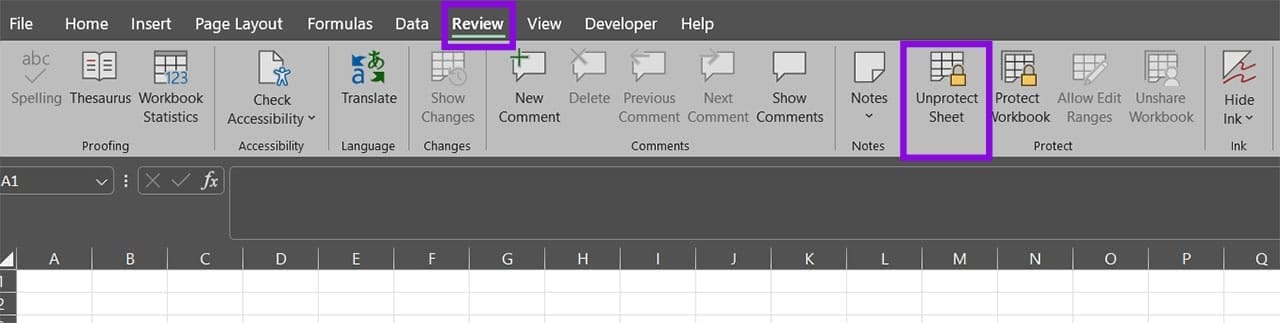
Step 3. If prompted, enter the password and click “OK.” The filter button should become active again.
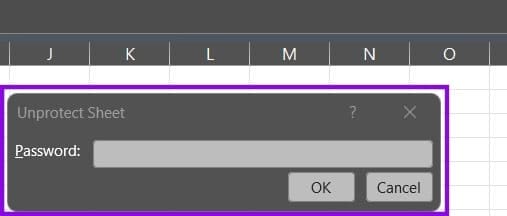
If you don’t have the password, you can get it from whoever sent you the file or made the sheet. If that’s not possible, copy the entire dataset into a new, unprotected sheet in the same workbook and filter that copy instead.
Fix 2 – Ungroup Worksheets
When two or more sheet tabs are grouped, Excel disables filtering until you ungroup them.
Step 1. Check the title bar at the top of the window. If it shows “[Group]” next to the file name, your sheets are grouped.
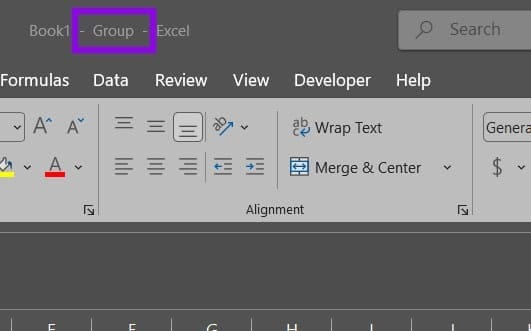
Step 2. Right-click any grouped sheet tab and choose “Ungroup Sheets.” Alternatively, click a single sheet tab that isn’t part of the group.
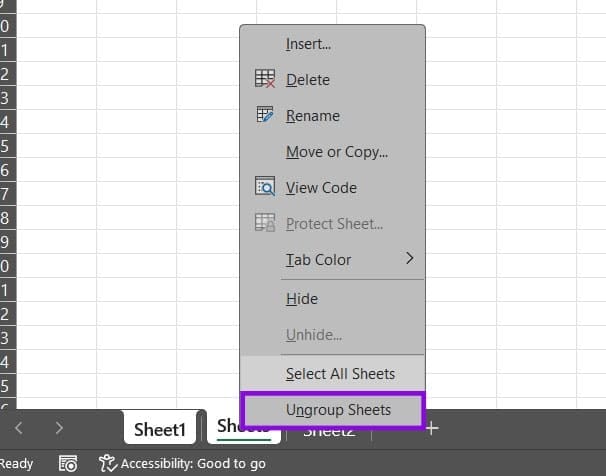
Step 3. With the sheets ungrouped, try the filter button again.
Fix 3 – Exit Cell Edit Mode
Excel disables most ribbon commands while you’re actively editing a cell.
Step 1. Press “Enter” or “Esc” to finish or cancel the cell edit.
Step 2. Click a single cell inside your data, then try the filter button again.
Fix 4 – Convert an Inconsistent Table to a Range
If only part of your data is formatted as an Excel Table while the rest sits in a normal range, selecting the whole dataset can grey out the Filter command. Converting the table back to a range can fix it when the Excel filter function doesn’t work.
Step 1. Click anywhere inside the data. If a “Table Design” tab appears on the ribbon, that area is an Excel Table.
Step 2. On the “Table Design” tab, click “Convert to Range,” then click “Yes” to confirm.

Step 3. Select any cell in the dataset and apply the filter again.
If you’d rather keep the table, you can click inside it and use the filter arrows in the header row instead of applying a separate filter to the whole sheet.
Fix 5 – Turn On the Table’s Filter Button
If your data is an Excel Table, but the drop-down arrows disappeared so Excel can’t add filter elements, the table’s own Filter Button option may simply be switched off.
Step 1. Click any cell inside the table to reveal the “Table Design” tab.
Step 2. In the “Table Style Options” group, tick the “Filter Button” checkbox.
Step 3. The filter arrows reappear in the header row.
Fix 6 – Fix the Header Row and Merged Cells
Filtering needs a header that’s only one row “tall” at the top of the data. Merged header cells don’t grey out the filter button entirely, but they do break it. Excel only recognizes the cell furthest left in a merged range as the one with a value, so the filter arrow will only work on that one column.
Step 1. Select the header area, click the “Home” tab, open the “Merge & Center” drop-down, and choose “Unmerge Cells.” Give each column its own heading.
Step 2. Make sure every column heading sits in a single row with no blank rows or columns splitting the dataset.
Step 3. Reapply the filter and test the button.
Fix 7 – Update or Repair Excel
If filtering is still disabled after the checks above, you can repair Excel to get it to the basic settings.
Step 1. Close Excel, then go to “Window Settings.”
Step 2. Go to “Apps” then to “Installed Apps.”
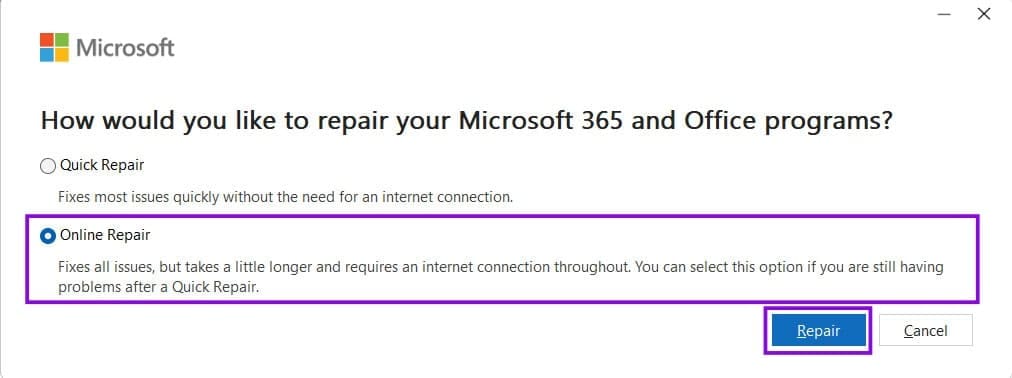
Step 3. Find or search for “Microsoft Office” (or “Microsoft 365”). Select it, then click on “Modify.”
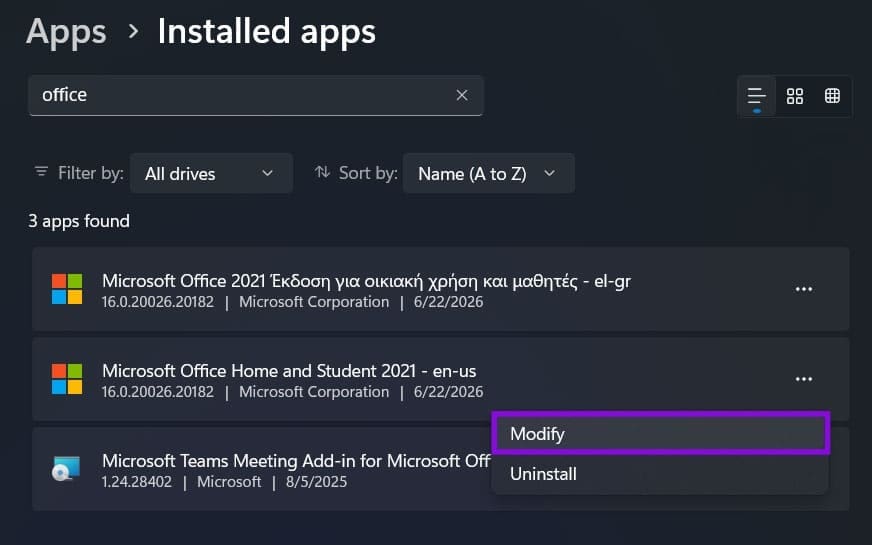
Step 4. Choose “Online Repair” as it’s the more comprehensive option and downloads any missing files.