Skip to content
LogoTechnipages
LogoTechnipages
  • Topics
        • Android
        • Browsers
        • Gaming
        • Hardware
        • Internet
        • iPhone
        • Linux
        • macOS
        • Office
        • Reviews
        • Software
        • Windows
        • Definitions
        • All Recent Posts
  • Product Reviews
  • About

Windows 10: How to Install an ICC Profile

Madalina DinitaDecember 4, 2020 Comments (1)
windows-10-how-to-install-icc-profile

An ICC profile is a set of data that your Windows 10 computer relies on to match your display color values to your external devices. In other words, it calibrates the color accuracy of your devices.

Your PC activates the ICC profile every time you connect a camera or a printer. Using the correct ICC profile is crucial when working with image editing tools such as Photoshop. You want to calibrate your devices so as to get the same colors on both.

For example, not using the right ICC profile may result in getting different shades of green on your PC and printer.

Contents

  • 1 Steps to Install an ICC Profile on Windows 10
    • 1.1 Method 1
    • 1.2 Method 2

Steps to Install an ICC Profile on Windows 10

Method 1

  1. Download the .icc profile you want to install.
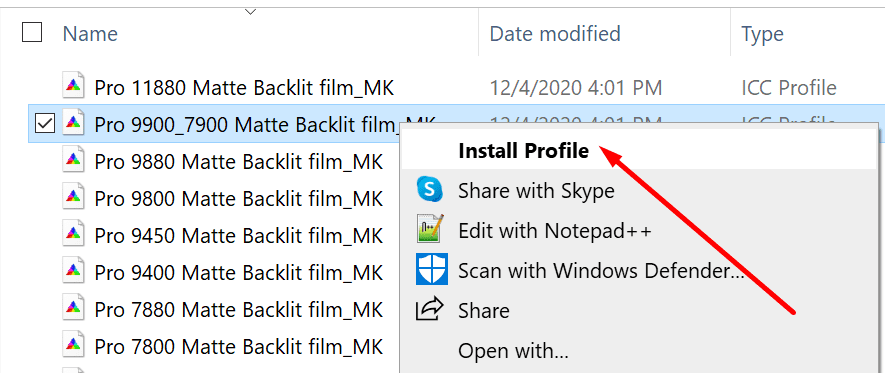
  2. Go to the Download folder, and right-click on the ICC profile.
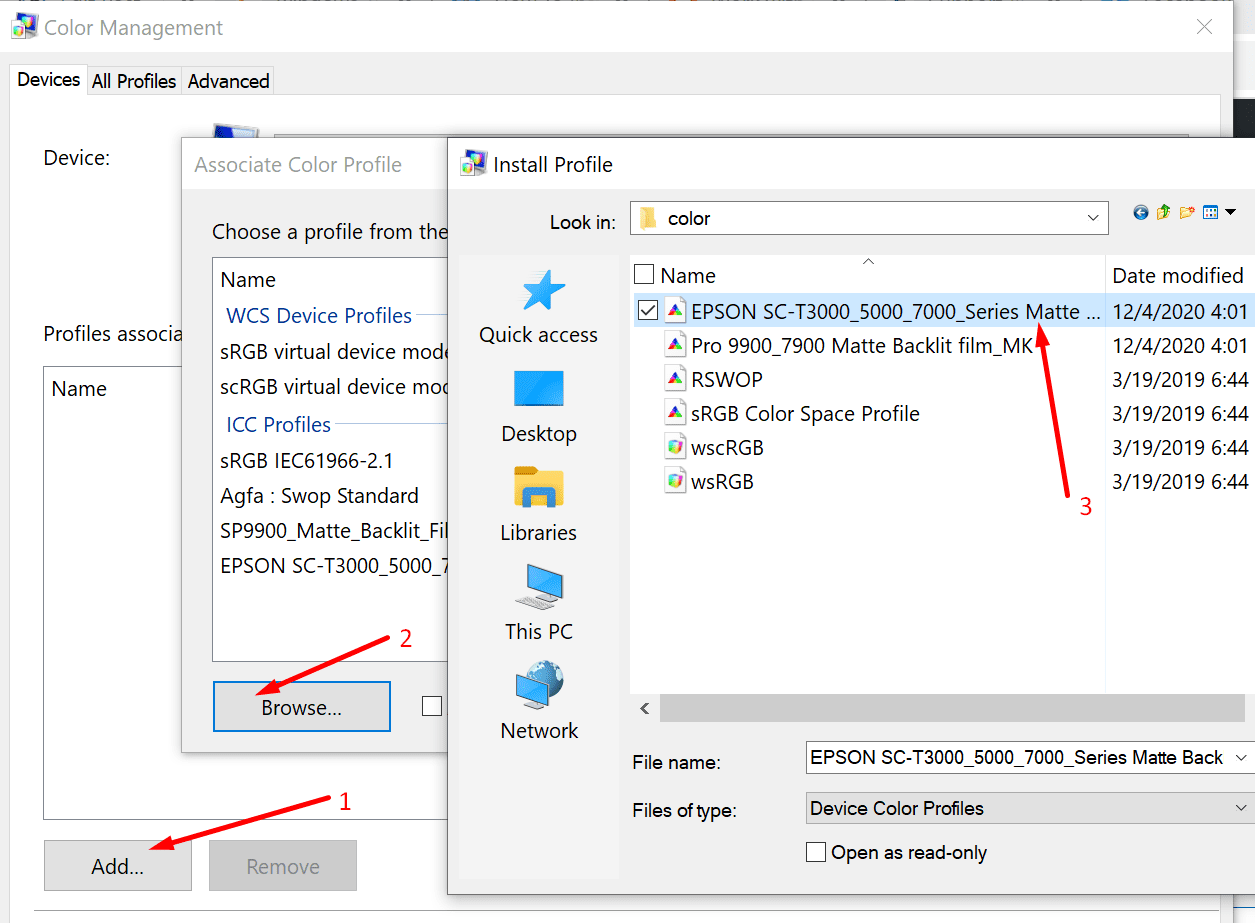
  3. Select Install profile.install-icc-profile-epson
  4. Wait until Windows completes the install process.
Method 2

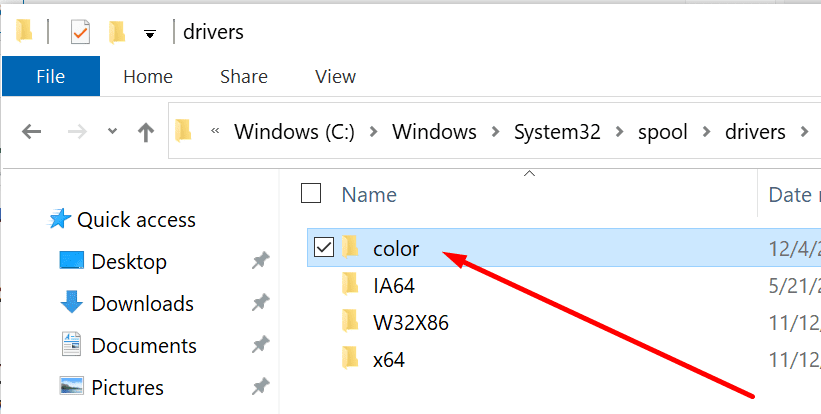
  1. Copy your ICC profile to C:/Windows/system32/spool/drivers/color.windows 10 color drivers
  2. Go to Control Panel.
  3. Navigate to Color Management.
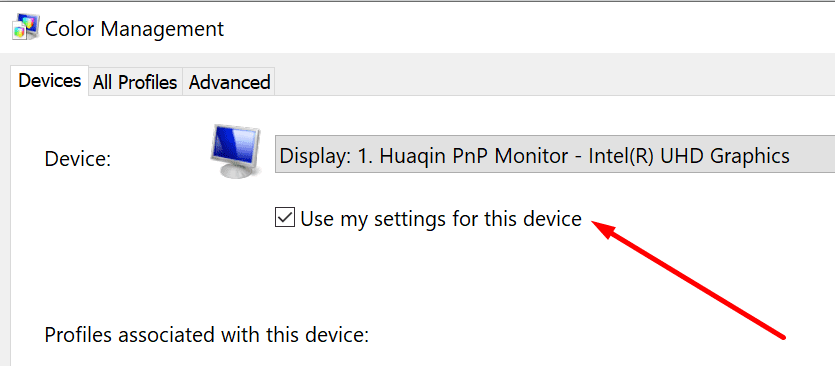
  4. Enable the following option: Use my settings for this device.color management use my settings for this device
  5. Then add your ICC profile.add icc profile color management windows 10
  6. Navigate to the Advanced tab.
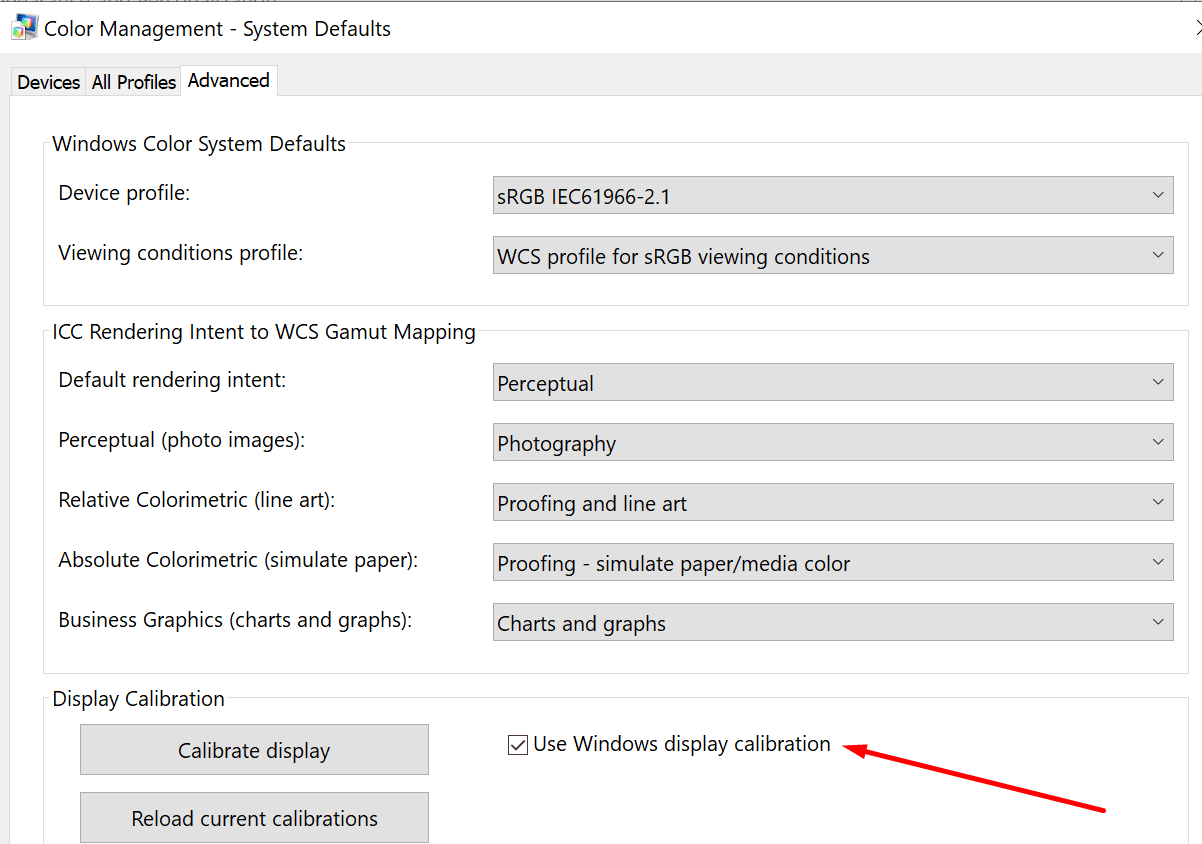
  7. Select Change system defaults (bottom of the window).color management advanced change system defaults
  8. Then enable the option called Use Windows display calibration.
use windows display calibration


Where Can I Find The Right ICC Profile For my Device?

The main source for ICC profiles should be the official website of your device’s manufacturer. For example, if you need an ICC profile for your Epson printer, go to Epson’s website.

Select your printer model and go to the page where you can download the ICC profile for your device model. ICC profiles usually come in a .zip file format. In other words, you need to first unzip the folder and then extract the files.

The bad news is that not all hardware manufacturers provide users with ICC profiles. Another option is to simply search for the ICC profiles you need on third-party websites. But don’t download your ICC profiles from shady-looking websites. The risk of malware tagging along is just not worth it.

Categories: Windows

Author Madalina Dinita

Madalina has been a Windows fan ever since she got her hands on her first Windows XP computer. She is interested in all things technology, especially emerging technologies -- AI and DNA computing in particular.

You Might Also Like

  • 4 Ways to Close Session in Windows 10

    Judy SanhzWindows
  • Windows 11 22H2 Download The Ultimate Guide (Photo: Courtesy of Microsoft)

    How to Open Services in Windows 11

    Judy SanhzWindows
  • iMovie Windows Header

    9 Best iMovie Equivalents for Windows 11

    Tamal DasSoftware
  • Remote Restart Shutdown Header

    How to Remote Reboot/Shutdown a Windows 11 PC

    Susan SheffieldWindows

Comments

  1. Carol M Curtis says:
    March 25, 2021 at 4:51 am

    Yes thank you! I love screenshots – so much easier to follow. Thank you for this!

Leave a Reply

Your email address will not be published. Required fields are marked *

  • error 400 when signing in

    Encountered Error 400 When Signing In to Microsoft? Here’s What You Can Do 

  • unable to create notebook error in onenote

    We Were Unable to Create Your Notebook Error in OneNote – Common Fixes 

  • error code 0x800704f8 fix

    Error Code 0x800704f8 – How to Fix 

  • back button in browsers doesnt work

    What to Do if the Back Button in Browser Doesn’t Work 

  • could not find this item

    “Could Not Find This Item” When Trying to Remove Files

profile pic

The Experts Behind Technipages

My name is Mitch Bartlett. I've been working in technology for over 20 years in a wide range of tech jobs from Tech Support to Software Testing. I started this site as a technical guide for myself and it has grown into what I hope is a useful reference for all.

Learn More

technipages logo white
linkedin icon

Technipages is part of Guiding Tech Media, a leading digital media publisher focused on helping people figure out technology. Learn more about our mission and team here.

© 2026 Guiding Tech Media All Rights Reserved

  • About Us
  • Contact
  • Terms of Use
  • Privacy Policy

© 2026 Guiding Tech Media All Rights Reserved

Information from your device can be used to personalize your ad experience.
Do not sell my personal information.

Last Updated on December 4, 2020 by Mitch Bartlett