
Encryption of your files and data can be very useful, especially with sensitive information. Windows offers two ways of doing so natively: Device Encryption and BitLocker. That said, they’re often thought of as the same thing, though nothing could be further from the truth.
So, what are they, and what’s the difference between BitLocker and Device Encryption?
Device Encryption – Accessible Protection
Device Encryption’s a good place to begin. This is the more straightforward form of protection of the two and, once enabled, can protect the data on your PC from other users, unless they have the access key to bypass it. It helps preventing your sensitive information falling into the wrong hands. Anyone without the password gets only encrypted data.
In Windows 10, device encryption could be activated via Settings, but if your PC has Windows 11, Modern Standby, and a TPM 2.0 chip, it’s all automatic.
BitLocker – A Stronger Defense
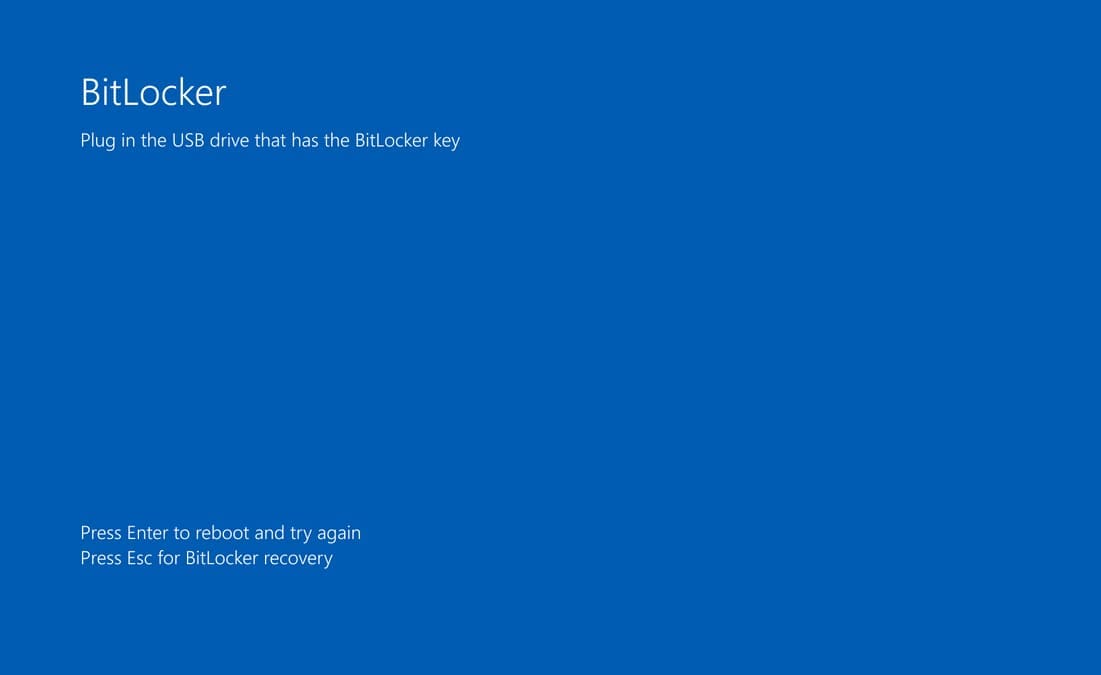
BitLocker is by farther stronger encryption option. Why? It offers more choice and flexibility, but does come at the cost of being more daunting to users unfamiliar with it. It encrypts and protects whole drives (internal and external), so that, should they be stolen, they cannot be accessed or copied.
BitLocker also works extra well when used together with a TPM, to guard against offline tampering and to provide an extra layer of confirmation via a PIN or removable security key (device).
What’s the Difference Between BitLocker and Device Encryption?
So, is BitLocker and Device Encryption the same? Quite simply, no. Though both features have the security of your data in mind, they provide that security in different ways and with different capabilities. Let’s look at some major ones:
Availability and Access
Device Encryption comes standard with Windows 11 and, provided you have the TPM module and Modern Standby, will go about encrypting your data in the background.
BitLocker, on the other hand, isn’t as widely available and is not enabled by default. Windows 11 Pro, Enterprise, and Education will have it, but not Windows 11 Home. In addition, you’ll also need to be a PC admin to access BitLocker.
BitLocker comes with the following system requirements:
- UEFI Secure Boot and Platform Secure Boot
- A TPM (1.2 or later, just like Device Encryption)
- Direct Memory Access (DMA)
The Encryption Process
As mentioned earlier, the Device Encryption process runs in the background, encrypting everything. It’s thorough, so much so that you don’t have a choice in the matter. Everything gets encrypted.
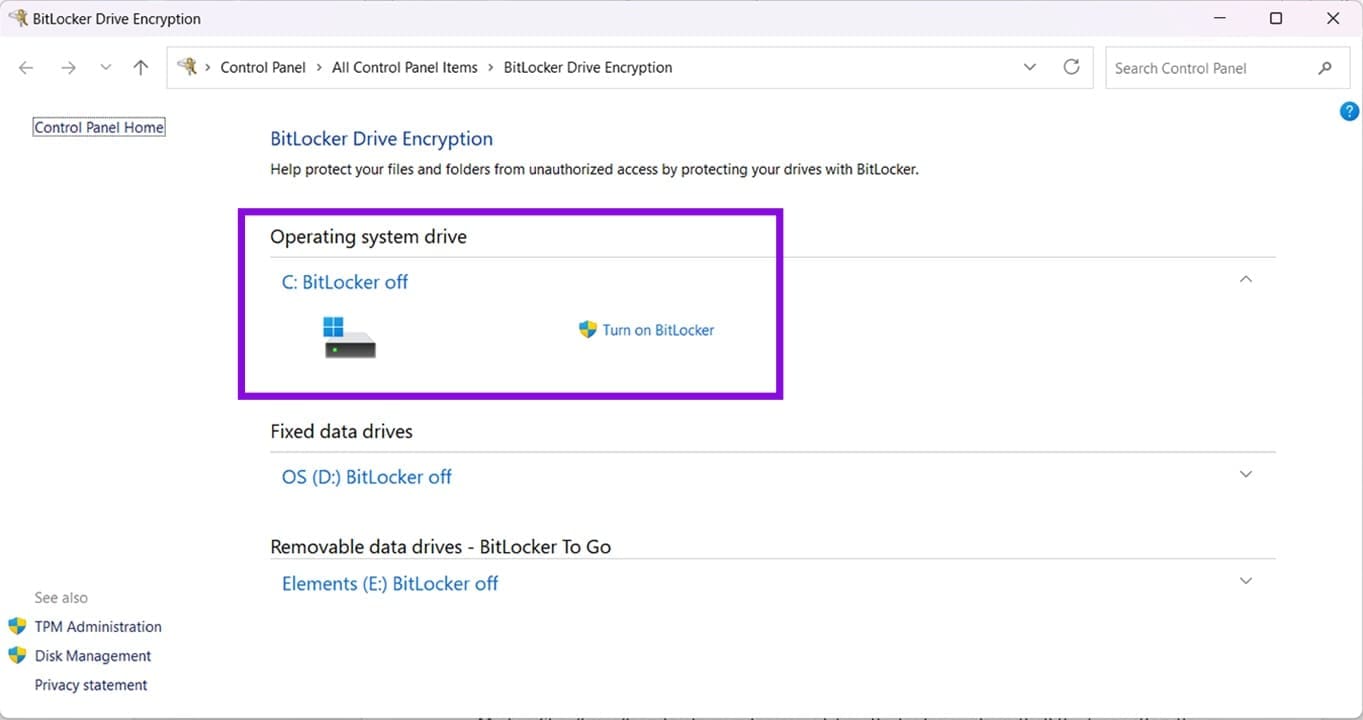
BitLocker gives you freedom in how you encrypt and in the extra steps you can take to secure your data. You have a choice in which drives (fixed or removable) are encrypted through the utility in the Control Panel. BitLocker and BitLocker To Go are two sides of the same coin. With the PIN and security key adding an extra layer of security (optional, of course), you can see why BitLocker is the more robust choice.
Intended Users
Device Encryption is clearly designed for everyday users. The fact that it runs automatically is proof. For those in business, IT, or in charge of systems where data protection is a must, the more thorough and selective BitLocker is the obvious choice.




